
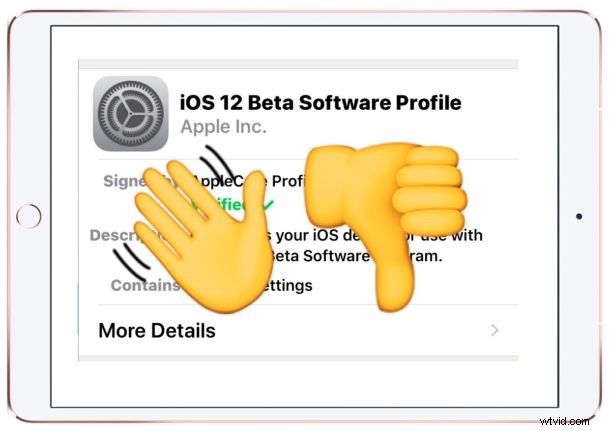
If you previously enrolled an iPhone or iPad in the iOS 12 beta testing program, either as a public beta tester or as a developer beta tester, you may now wish to leave the iOS 12 beta program so that you no longer receive future beta system software updates. This also insures that you’ll stay on iOS 12.0 final and future final stable releases rather than getting the new beta updates as they come along.
By getting off of the iOS 12 beta track, you will only receive final builds of upcoming versions of iOS along with the rest of the general public, rather than receiving any of the incremental beta software updates (like iOS 12.1 beta 1 which is being tested right now).
How to Leave iOS 12 Public Beta or iOS 12 Developer Beta on iPhone or iPad
Leaving the iOS 12 beta testing program is the same for both the public beta and developer beta, accomplished by removing the beta software profile from your iPhone or iPad.
- Open the “Settings” app in iOS
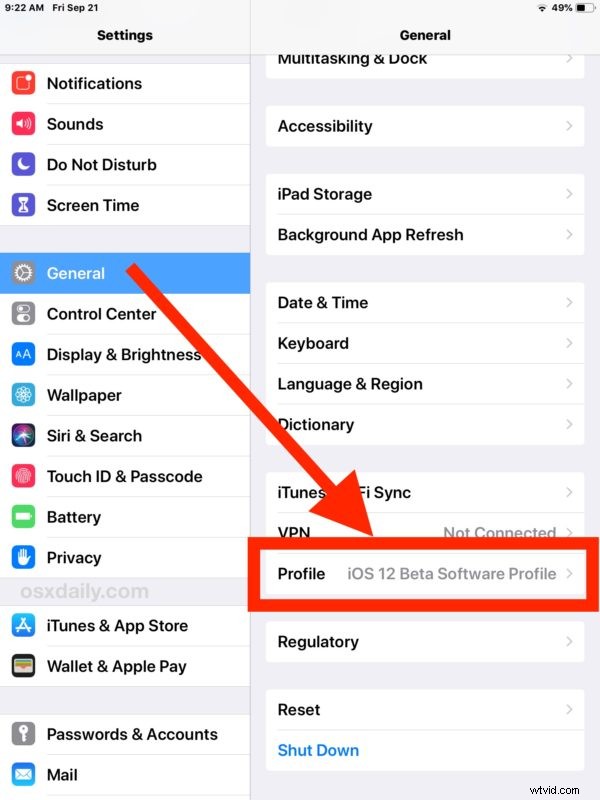
- Go to “General” and then scroll all the way down and tap on “Profile” (it should say ‘iOS 12 Beta Software Profile’ next to it)
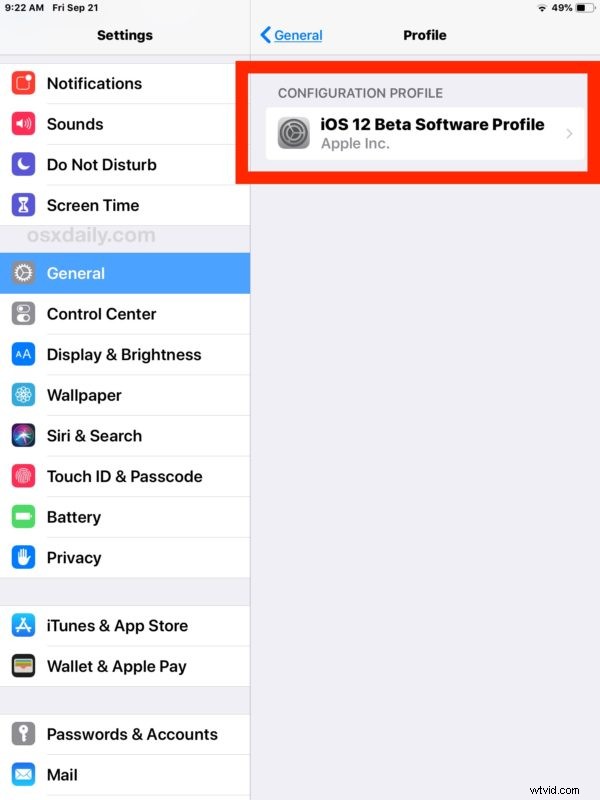
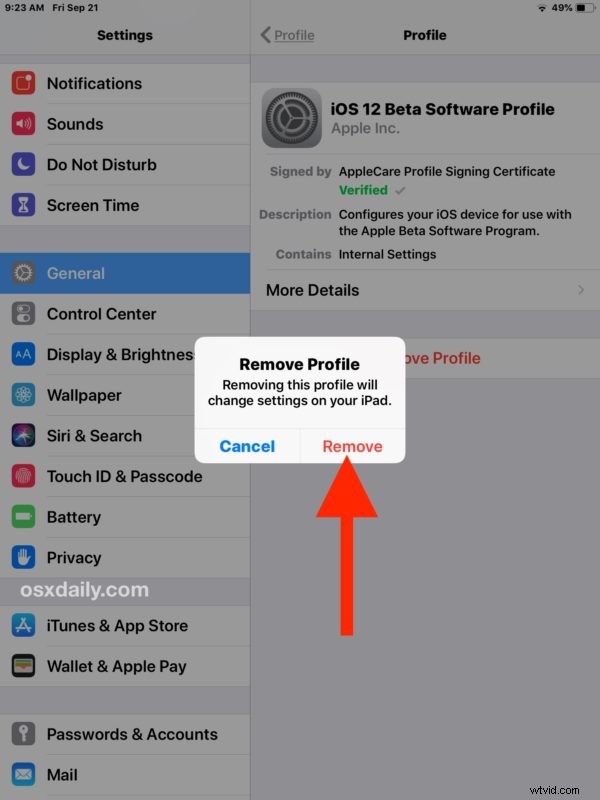
- Tap on “iOS 12 Beta Software Profile”
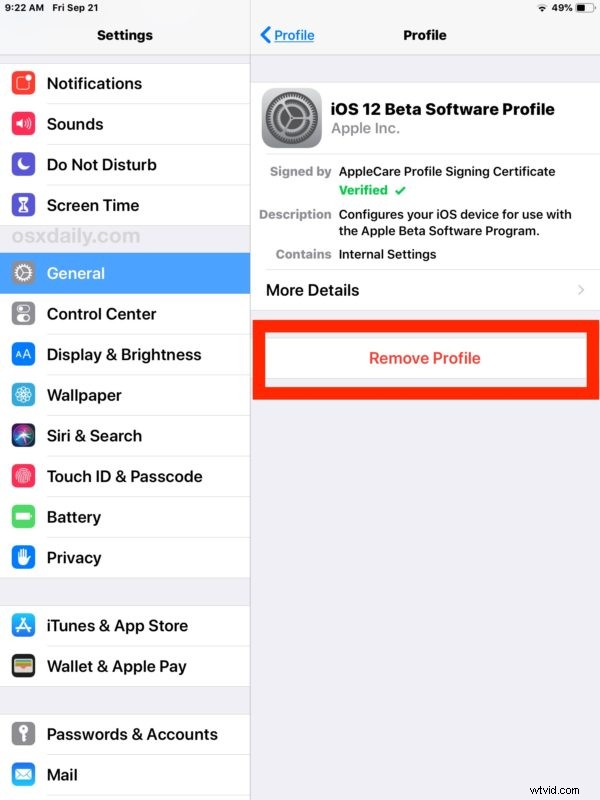
- Choose “Remove Profile” and enter the device passcode when requested
- Confirm that you want to remove the iOS 12 beta profile by tapping “Remove”
- When complete, the Profiles section of Settings will no longer include the iOS 12 Beta Profile

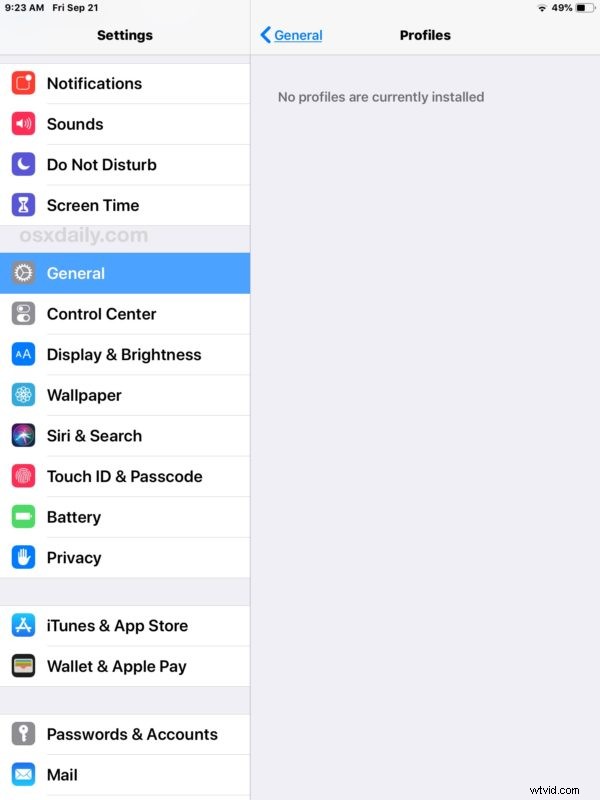
That’s it, now your Software Update section of the Settings app of iOS will no longer include any beta software updates.
Note this removes the iOS 12 beta profile from an iPhone or iPad, but it does not remove any beta software that is already installed.
If you’re currently on the final iOS 12 build (GM or otherwise) then you don’t need to do anything else. Simply removing the iOS 12 beta profile will prevent future iOS beta updates from showing up on the device and only the final builds will become available to install.
However, if you’re already on a newer beta release (for example, you installed iOS 12.1 beta), then you can always downgrade from that iOS 12 beta release back to a stable build of either iOS 12 or iOS 11.4.1 (while it’s being signed), the downgrade process is the same as long it’s just the IPSW firmware files that would be different. The other option would be to simply stay on iOS 12.1 beta until the final version of that release comes out, likely in a month or so, update to that, and then remove the beta.
We’ve discussed the process of removing the beta profile certificate from iPhone and iPad before, but with so many users having been participating in the iOS 12 beta programs it is worth covering again.
Of course this can be reversed down the road if you wish to enroll back into an iOS beta program, doing so is just a matter of installing the beta profile again onto an iPhone or iPad compatible with whatever that beta build is.