
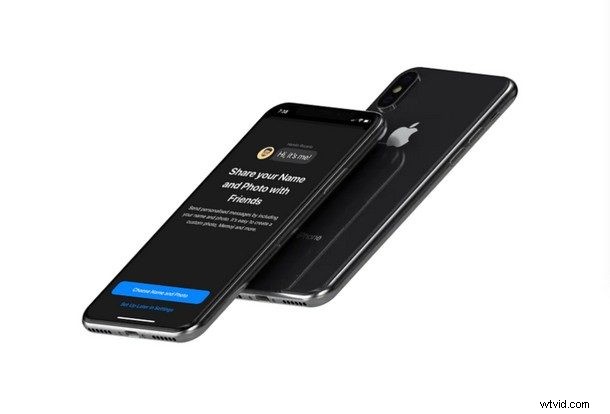
How would you like to be able to set your own profile picture and display name to be shared with other iMessage users? This profile name and picture then shows up as your contact information on their device when you’re communicating. If you have an iPhone or iPad, you can easily set this up.
Popular messaging platforms like WhatsApp, Facebook Messenger and Telegram have always allowed you to set the display name and profile picture that you use. Apple on the other hand, whose iMessage service is baked into every device running iOS, did not have this capability until recently within the Messages app. Since the service is a part of the stock Messages app that’s also used to send SMS, users are just shown phone numbers and Apple ID email addresses when they receive texts from someone who’re not in contacts. This can be confusing or even frustrating because you’d then have to go through an awkward conversation asking the person who sent you a message who they are – but this awkward scenario can be easily avoided by setting a profile photo and name. Now that Apple has introduced tis feature, you can now set a display name and profile picture that’ll be visible to anyone else you message or text, even if you’re not on the receiver’s contacts list.
If you were wondering how to create your own iMessage profile, you’ve come to the right place. In this article we’ll be discussing how you could set a profile photo and display name for iMessages on iPhone, iPad and even an iPod Touch seventh generation.
How to Set a Profile Photo & Display Name for iMessages on iPhone & iPad
Since this functionality is limited to devices running iOS 13 as we mentioned earlier, you need to make sure your iPhone or iPad has been updated to the latest version. Once you open the stock Messages app for the first time after updating, you’ll be requested to set up a name and picture for iMessages, so you can skip to step 3 of the instructions below.
However, if you’ve updated earlier and somehow backed out of this menu, simply follow the steps below to create your own iMessage profile within minutes.
- Open the stock Messages app and tap on the “three dots” icon located right next to the compose message option, as shown in the screenshot below.
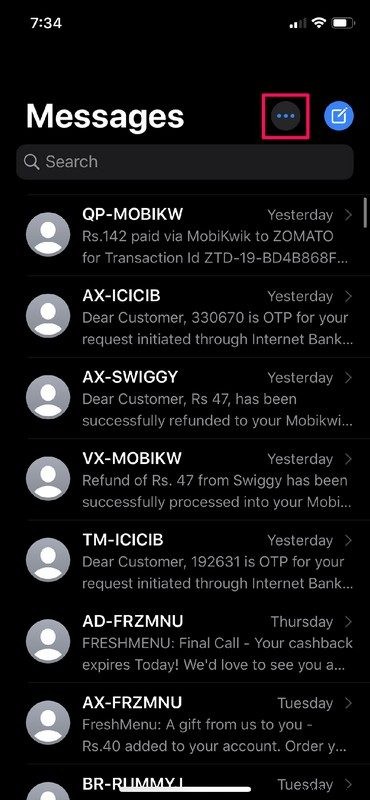
- Now, tap on “Edit Name and Photo” to go the dedicated section where you can set up your iMessage profile.
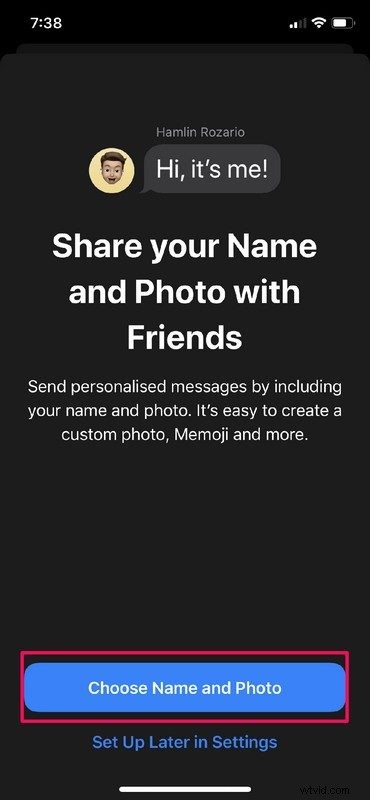
- This is the menu you’d see when you open the Messages app for the first time after updating to iOS 13. Simply tap on “Choose Name and Photo”.
- In this section, you’ll be able to set your profile picture. Tap on the “three dots” icon to continue.
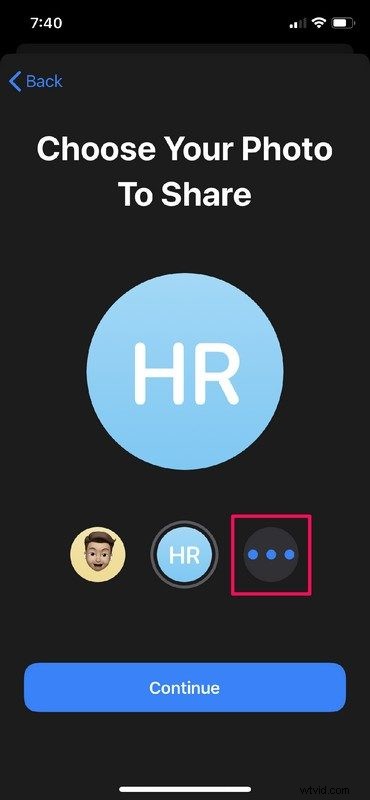
- Here, you’ll be able to choose a picture for your profile from all the photos that are stored in your device. Additionally, to take a step further, you can even set Memojis and Animojis as your profile photo, including a 3D avatar of your own face if you created a Memoji before.
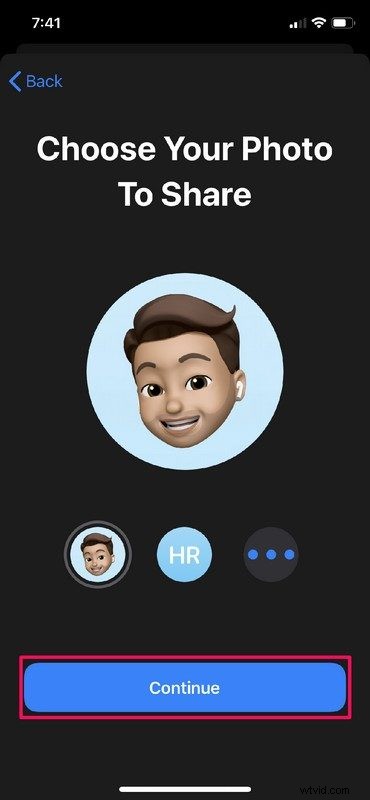
- Once you’ve selected your picture, you’ll be asked to confirm. Simply tap on “Continue”.
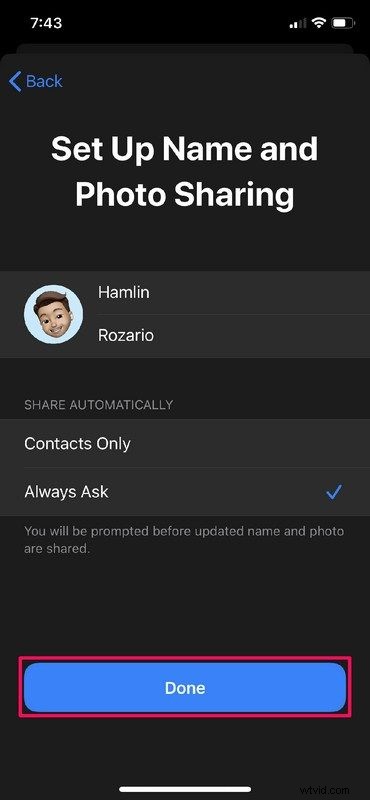
- This is the last step. Here, you’ll be able to set your first and last names. Apart from that, as an added privacy measure, you could decide how you want to share your iMessage profile to other users. You could choose between sharing your details automatically with contacts or always be prompted beforehand.
That’s pretty much all you need to do to set a profile photo and display name for iMessages on your iPhone and iPad.
From now on, when you send an iMessage text to someone who hasn’t added you to their contacts, the display name and profile picture you’ve set will be visible to them automatically on their iPhone or iPad. So, you don’t have to worry about those awkward “Who are you?” texts anymore, your details are shared automatically. Similarly, if they setup this feature, their profile details are shared automatically with you too.
This feature requires that the iPhone, iPad, or iPod touch is running running iOS 13, iPadOS 13, or later. If the device is an earlier release it will not have the Messages Profile feature available.
Some iMessage users have likely waited years to get this functionality, particularly if they’re coming to the Messages app from another messaging competitor platform that long had these capabilities. Now iMessage does too, so message away without fear of the recipient knowing who you are, and likewise if the person sending you a message has this information set on their iMessage profile, you’ll get their display photo and name too – again, even if they’re not in your Contacts list.
Once configured on your own device, this feature works with all outbound messages, including text and pictures, or even if you schedule sending iMessages on iPhone with Shortcuts.
In a way this turns iMessage towards the realm of a minimalist social network, perhaps one day the Messages profile features will expand and even have status updates and bio blurb sections too… who knows what Apple has planned for the future?
Have you successfully set up an iMessage profile on your iPhone and iPad? If so, did you privatize it, or choose to share it automatically? Let us know your thoughts on this feature in the comments section down below.