
Update: Modern iOS and iPadOS versions can scan QR codes with camera app on iPhone and iPad, detailed here. If you simply need to scan and read a QR code that may be a better approach, though Google Chrome on iOS also continues to offer the feature and thus the article below will discuss that.
QR Codes are the weird looking pixelated squares you sometimes see printed on signs or elsewhere, and while it’s a stretch to say they are widely used (or understood) they are ubiquitous in some areas. While the iPhone does not bundle a method of scanning QR codes by default, if you’re a Google Chrome user then you will find the latest versions of the iPhone Chrome app can scan QR codes for you.
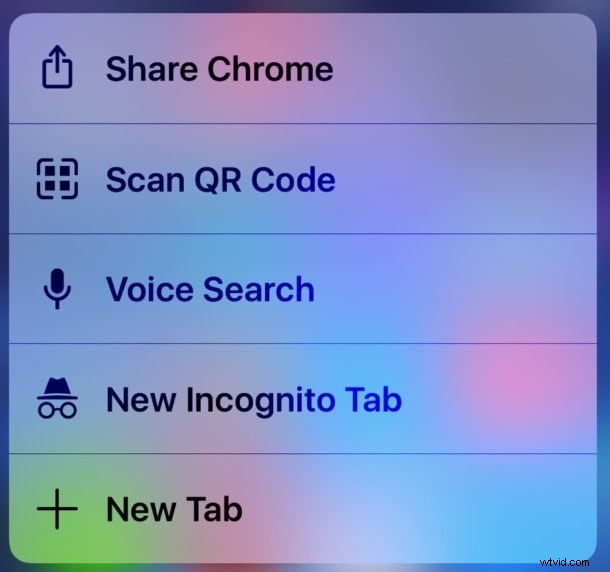
There are a few ways to access the QR code scanning ability of Chrome in iOS. Perhaps the easiest is using Spotlight, but there’s a 3D Touch trick available too.
How to Read QR Codes with Google Chrome on iPhone
- Install Google Chrome app on your iPhone if you have not done so already (update to the latest version too)
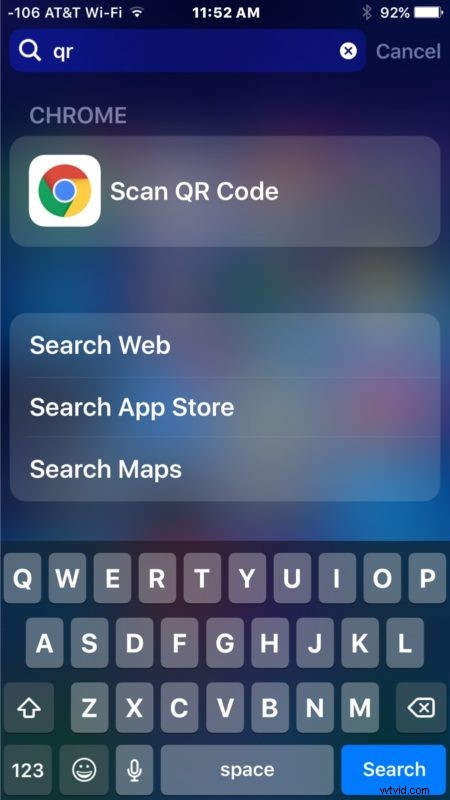
- From the Home Screen of iPhone, pull down on the screen to access the Spotlight search feature
- Type “qr” and tap on “Scan QR Code” under the Chrome section of results
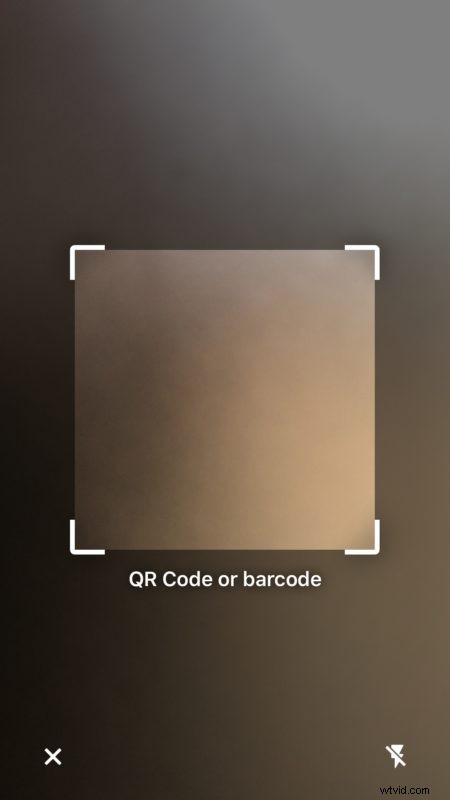
- Scan the QR code using Chrome by placing the QR code in the app scanner
Since most QR codes direct to websites nowadays, having this feature in Chrome makes a lot of sense, and since it’s bundled in the app there is no need to download a separate app just for scanning QR codes, just get Chrome which is a great browser anyway.
You can also get a dedicated QR code scanning app like Scan app and you can make your own QR codes if you really want to.
Scan QR Codes via 3D Touch in Chrome
Another option is to 3D Touch the Chrome icon, which also reveals a “Scan QR Code” option on iPhone.
How useful this feature is to you likely depends on how often (if ever) you need a QR code scanner.
But even if you rarely need one, having it built into Chrome is fairly nice, so it’s worth noting it exists.