
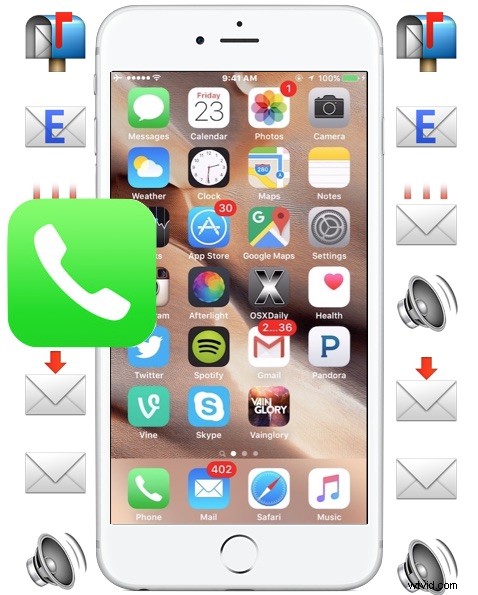
The latest versions of iOS allow iPhone users to save, share, and forward voicemails. This means you can easily share an important voicemail message with a colleague or friend, or save a specific voicemail to the iPhone to store it locally for later access and listening.
Saving and sharing voicemails on iPhone is remarkably simple, but since it’s a fairly new feature many users are not aware it exists. You’ll need iOS 9 or newer to have this feature available in the Voicemail section of your iPhone Phone app. To try this out yourself, you’ll want to have a voicemail or two on the iPhone, if you don’t have one consider having someone call you and then sending it directly to voicemail so that you can use it as a test.
How to Share or Forward a VoiceMail from iPhone
If you want to share a voicemail from an iPhone to another user, you can send it along with messages or email by doing the following:
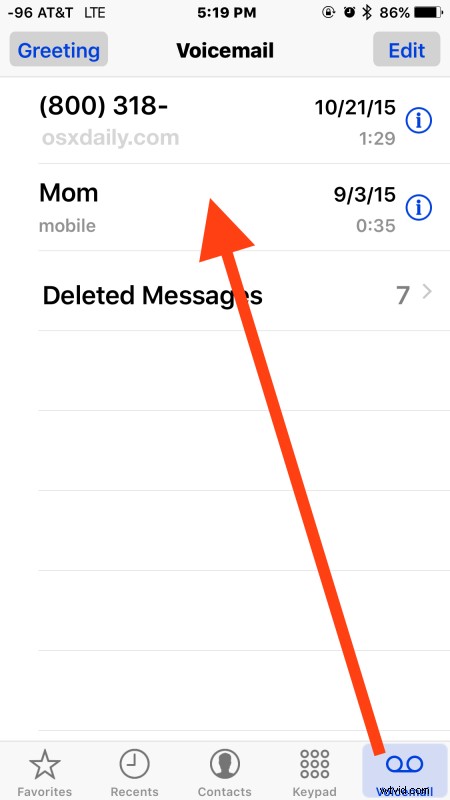
- Open the Phone app on the iPhone and tap on the “Voicemail” button
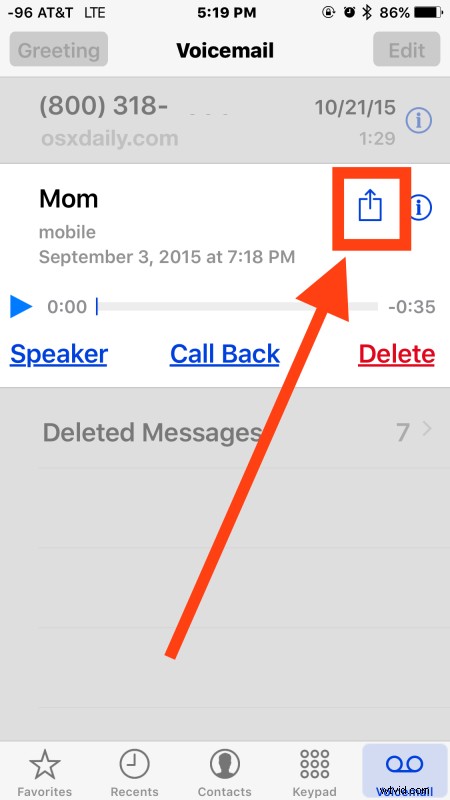
- Tap on the voicemail message you wish to share with another person or forward to someone else, then tap on the share button, which looks like a little square icon with an arrow pointing out of it
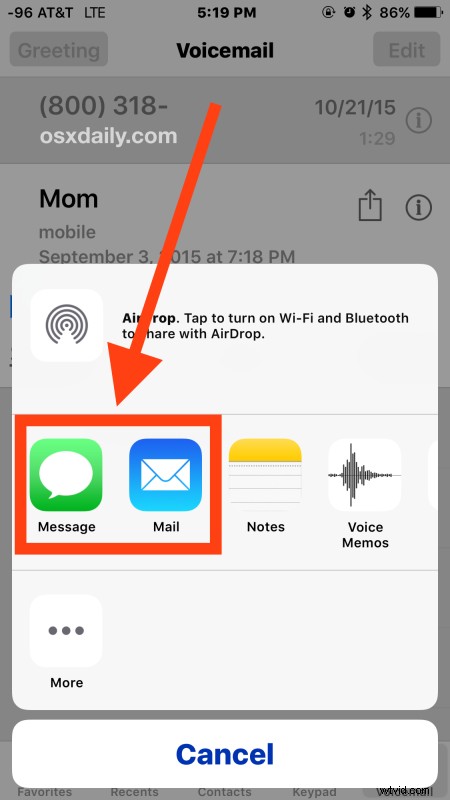
- Choose “Message” to send the voicemail as text message or iMessage to a recipient
- Choose “Mail” to email the voicemail to a recipient (or yourself)
- Fill in the recipients contact name, phone number, or email address and send the message or email as usual
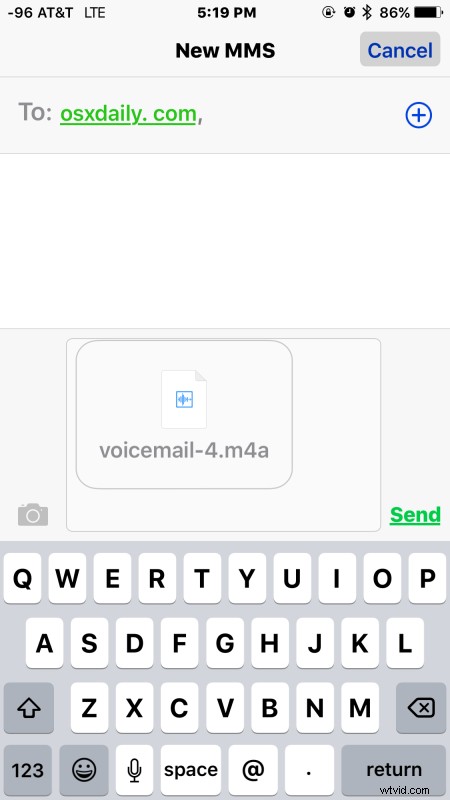
A shared voicemail delivered through messages or email will arrive as a .m4a file labeled as “voicemail-#.m4a”, this is the same type of m4a audio file that many audio players can recognize, including iTunes, which makes the shared voicemails universally available to just about any recipient, whether they’re on iPhone, iPad, Android, Mac OS X, Windows, or Blackberry.
How to Save a Voicemail from iPhone
Another option is to save a voicemail locally to the iPhone and store in the Voice Memos app, or keep a voicemail within the Notes app, in both locations the saved voicemail can be played again at anytime:
- From the Phone app, choose the “Voicemail” button
- Select the voicemail message to save locally by tapping on the share button (the square with the arrow flying out of it), then choose one of the following options:
- Select “Notes” to keep the voicemail into a note stored on the iPhone, if you choose an iCloud note it will share with other shared iCloud devices automatically through their Notes apps
- Select “Voice Memos” to save the voicemail to the Voice Memos app, this will stay only on the iPhone unless you share it later
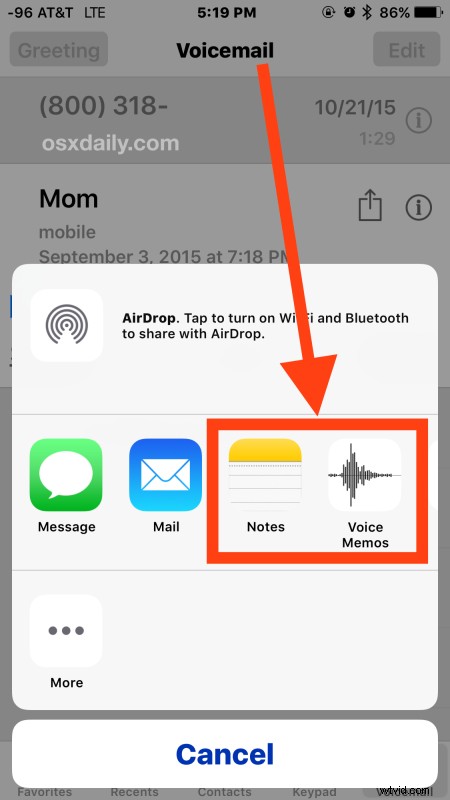
Just as a shared voicemail, the saved voicemails are stored as .m4a files within Notes app, or the Voice Memos app on the iPhone.
Playing a Shared / Saved Voicemail from iPhone
If someone sends you a voicemail, listening to that voicemail message is just a matter of tapping on the “voicemail.m4a” file that arrives in your inbox or messages app, or within the Notes or Voice Memos apps.
For example, playing a shared voicemail from the Messages app looks like the following, where you tap on the forwarded voicemail:
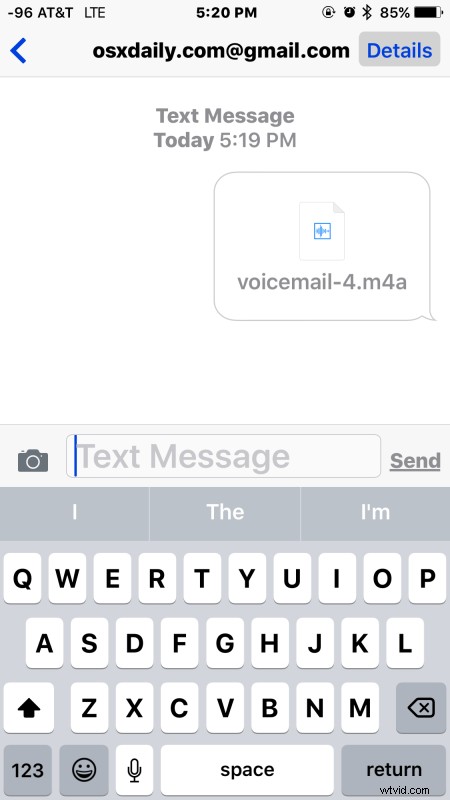
Then play the voicemail as usual through the built-in audio player app (QuickTime) in iOS:

Playing a voicemail stored in Notes app or Voice Memos app is equally simple, just tap on the respective voicemail and play it as usual like any other sound file in those respective applications.

Being able to save, store, forward, and share voicemails from iPhone is a great feature that has been long desired. Up until now there wasn’t much of a simple way to share or save voicemails from iPhone without recording them separately with another microphone, which is obviously inconvenient, or by using a third party application, which were often paid and cumbersome to use.
Now you can share voicemails or save the ones you need, and delete the voicemails from the iPhone when you’re done without thinking twice about if you’ll need them again in the future.