
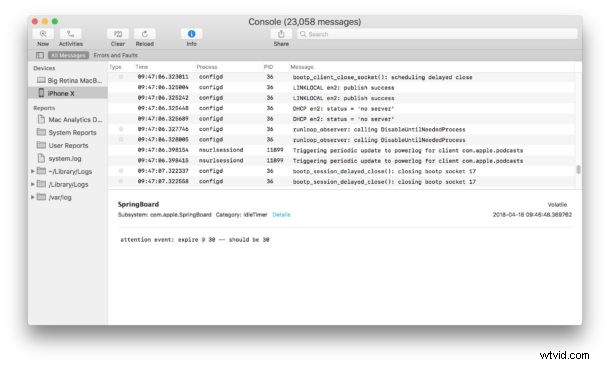
The iPhone and iPad generate logs of some system activity, including app crashes and other potentially interesting or helpful data. By connecting an iOS device to a Mac, you can review those logs.
Browsing through log data is generally only useful for developers and advanced users, either for troubleshooting or diagnostic purposes, but it may have broader applications for some other environments too. And it’s possible that even more casual yet curious tinkerer-types may find it interesting to browse through, even if the data is largely irrelevant to them and their device usage.
You will need an iPhone or iPad, a Mac, and a USB cable to get started. Be sure the iOS device is powered on as well.
How to View iOS Device Logs from a Mac
- Connect the iPhone or iPad you want to view logs for to a Mac by using a USB connection, be sure to unlock the iOS device as well
- Open the “Console” app on Mac OS, found in the /Applications/Utilities/ directory
- From the Console app sidebar, look under the ‘Devices’ section and select the iPhone or iPad that is connected to the Mac
- Console Log data will begin showing up immediately for the connected iOS device
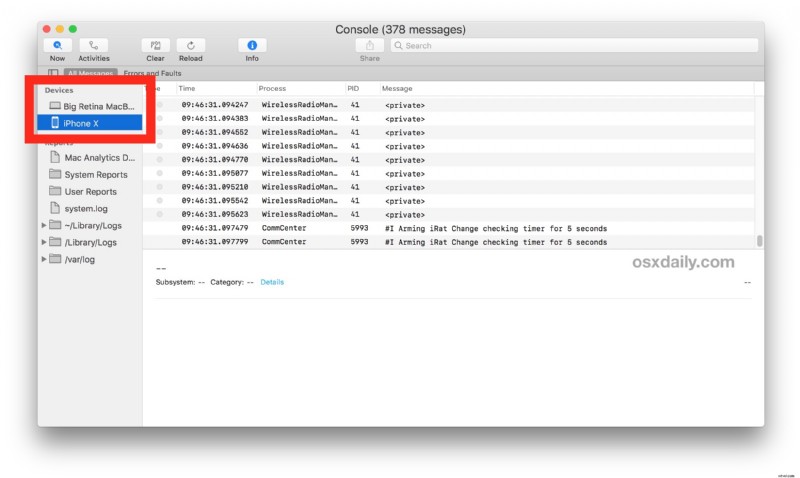
The Console Log data updates rapidly as events are occurring on the iOS device, for example if you’re connecting to or disconnecting from a wi-fi router, or disabling cellular connectivity, or opening or closing apps, or initiating a process that you know will trigger an app crash, data relevant to those events will all immediately appear on screen. To the casual user this will all likely appear as utter gibberish, but it’s useful for developers in particular.
If you connect multiple iOS devices to the Mac, say an iPhone and iPad, you would be able to browse through logs for each device independently. You can also view Apple Watch logs through the Console app on a Mac the same way, if you have an Apple Watch synced to the connected iPhone.
Note that if you select the iPhone or iPad from Console app and there is no data, and you see a little triangle “!” symbol next to its name in the Devices list, that indicates the iOS device either must be unlocked first, and/or the computer connected to must be trusted.
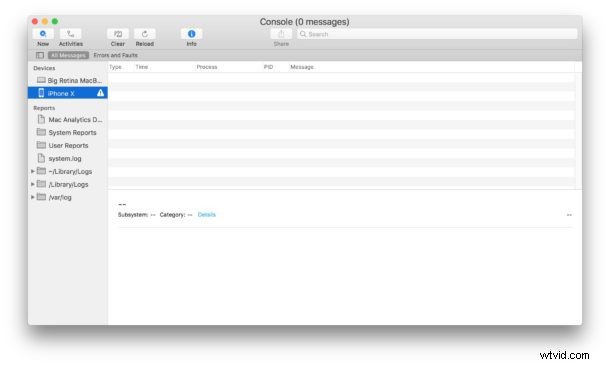
If you have previously untrusted a computer, or reset the trusted computers list in iOS, you would need to trust the computer again before the data becomes visible. Likewise if you ignored the “Trust This Computer?” dialog on the iOS device, you can usually trigger it again by simply connecting and disconnecting it again, if it has never been trusted before.
The Console app for Mac is frequently used for troubleshooting and diagnostic purposes by more advanced users, as well as developers and tinkerers, but why limit the fun to the Mac? Just connect an iOS device to the computer and you can browse through those device logs too.
Note this requires a somewhat modern version of iOS, a semi-modern iPhone or iPad, and a modern version of Mac OS. Much earlier versions could once use the iPhone Configuration Utility to look at the same log data, or access crash data from backups however.