
If you have an iPhone or iPad with the third party YouTube app installed, you may notice that when you click to open a YouTube link from Safari or elsewhere, you’ll discover he YouTube app opens to watch the video. This happens even if you want to watch the YouTube video on the YouTube website in Safari for iOS.
There are a few workarounds to this situation, each of which will allow you to stay on the YouTube website in Safari, so if you’re annoyed with the YouTube app launching (or trying to open the page in the app) when watching YouTube videos from an iOS device, read on to learn your options.
Option 1: Cancel the “Open this page YouTube” Request
If you recently installed the YouTube app, you might see a request when you visit a YouTUbe URL asking “Open this page in YouTube?”
Just tap “Cancel”, then tap into the URL bar of Safari and hit the Go / Return button again. This should cause YouTube to stay within Safari and view the video.
Option 2: Keep YouTube in Safari by Using the Mobile URL Trick
The next option is to modify the URL of the YouTube video you want to watch in Safari on iOS.
- Tap into the URL bar of Safari when you load a YouTube URL (or paste one into the Safari URL bar)
- Look for the “www.youtube.com” and replace “www” with “m” so the URL looks like: “m.youtube.com” then tap Go
Option 3: Delete the YouTube App in iOS to Prevent Launching
This is a bit radical, but if you’re frustrated by Safari constantly redirecting YouTube links to the YouTube app in iOS and can’t deal with the prior workarounds, then simply deleting the YouTube app from iOS is a solution as well.
- Go to the Home Screen of the iPhone or iPad and locate the “YouTube” app
- Tap and hold until the app starts jiggling then tap on the “X” and then “Delete”
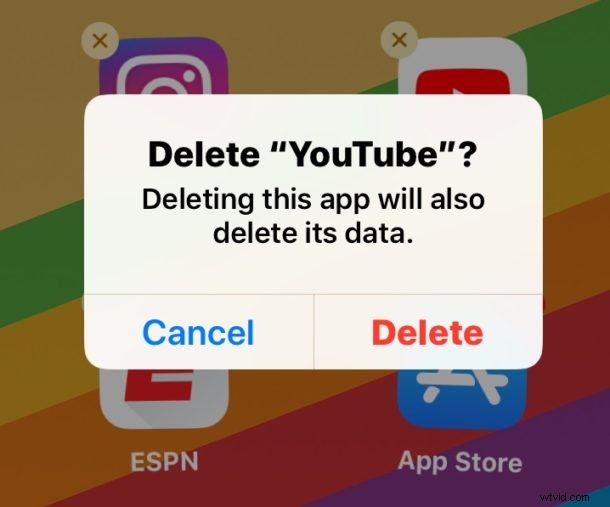
By uninstalling the app from iOS, YouTube videos will always load in Safari, since there will no longer be a YouTube app installed to launch on the iPhone or iPad.
By the way, if you’re using a much older version of iOS you can rely on the Restrictions trick outlined here for similar effect, but it’s basically the same effect as deleting the app in modern iOS releases.
Do you know of any other workarounds, solutions, or tricks to handle YouTube links in iOS? Let us know in the comments!