
Modern versions of iOS offer a convenient dragging gesture that allows iPhone and iPad users to quickly select multiple pictures from the Photos app, without having to continuously tap on images or use the select by date method.
With the iOS drag and select gesture, you can choose as many photos as can be seen on screen, which you can then share, add to folder, move, or perform other actions with. It works very similar to clicking and dragging to select groups of files or images with a cursor on Mac and Windows computers, but given the touchscreen nature of iPhone, iPad, and iPod touch, you utilize a tap and drag instead.
How to Choose Multiple Photos on iPhone & iPad with a Tap & Drag Gesture
Here’s how to use the Drag & Select Gesture to choose many photos quickly in iOS:
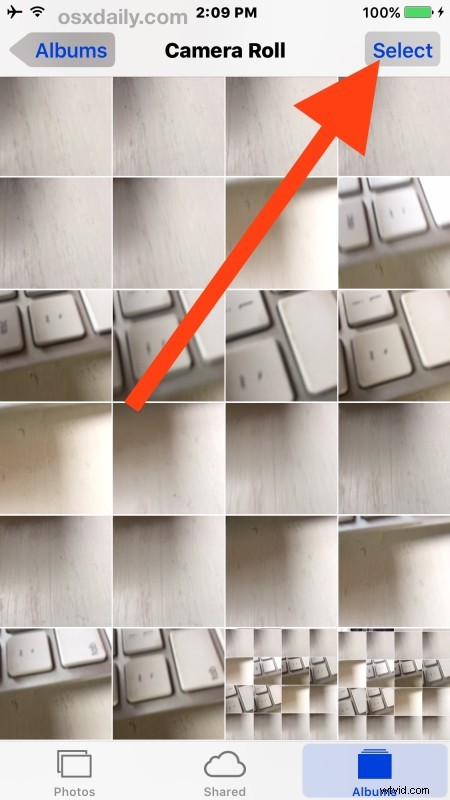
- Open the Photos app in iOS and go to any album, or the Camera Roll
- Tap on the “Select” button
- Now tap on the image to start, and continue to hold down while dragging elsewhere on screen to another image, lift to stop selecting images

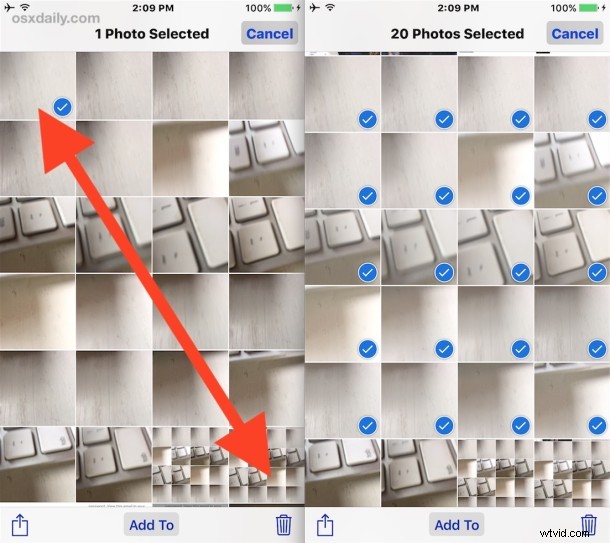
You can both select and unselect images with drag and select (the opposite being drag and unselect I suppose), so try it out even if you don’t plan on performing any action, sharing, or moving the images in question. The animated gif below demonstrates visually how this drag-to-select gesture works:
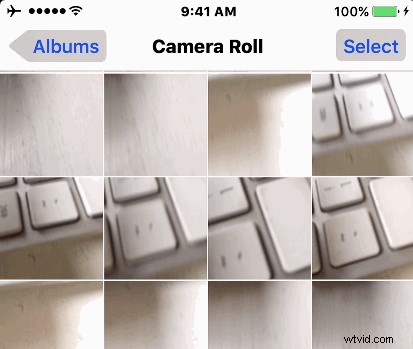
Once the multiple images are selected in Photos app, you can share them, transfer via AirDrop to a Mac or other iOS device, move them into different folders, save to the Files app and iCloud, and much more.
Like many other gesture related tips, this is one of those tricks that you should try out yourself and learn how it works. Once you familiarize yourself with it, you’ll see just how fast and efficient it is.
This drag-and-select trick is obviously limited to what images are visible on screen, so it may be a bit more useful for the larger screen iPhone and iPad models compared to the smaller screens. Accordingly, if you’re trying to delete many images from the devices, a better approach is still to use the select all by date trick to bulk remove photos in iOS regardless of the device, since by selecting from date you will also select images that are not visible on screen that are within the date range. Either approach is going to be much faster than tapping multiple photos one-by-one to remove them or perform another action.
Do you know of any other convenient gestures or tricks to select multiple photos at once on an iPhone or iPad? Let us know in the comments!