
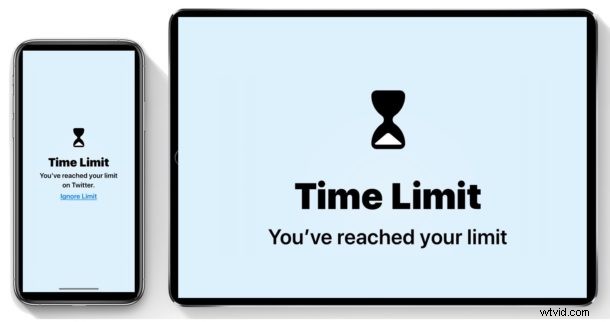
Want to cut back on social networking use? Or perhaps you want to reduce time spent with social media on a family iOS device? The iPhone and iPad new Screen Time feature can make that easier than ever before, by allowing you to put a time limit on social networking usage to a chosen time limit per day.
For example, perhaps you want to set a 15 minute daily time limit for social networking usage so that you or someone else don’t waste an hour a day mindlessly browsing through Facebook, Instagram, Twitter, or anything similar. That’s exactly the kind of limitation you can put into place on social media use with the Screen Time feature in iOS.
Screen Time requires an iPhone or iPad with iOS 12 or later, as earlier versions of iOS software do not contain the feature.
How to Limit Social Media Use with Screen Time for iPhone or iPad
This will show you how to set a simple time limit on all social media apps and social networking usage on an iPhone or iPad by using the Screen Time feature:
- Open the “Settings” app on the iPhone or iPad
- Go to “Screen Time”
- Choose “App Limits”
- Select “Add Limit” under the App Limits section
- Locate and tap on “Social Networking” so that it is selected, then tap on “Add”
- Use the slider to select the time limit you want to enforce on all “Social Networking” apps, then tap “Back” or exit out of Settings when finished

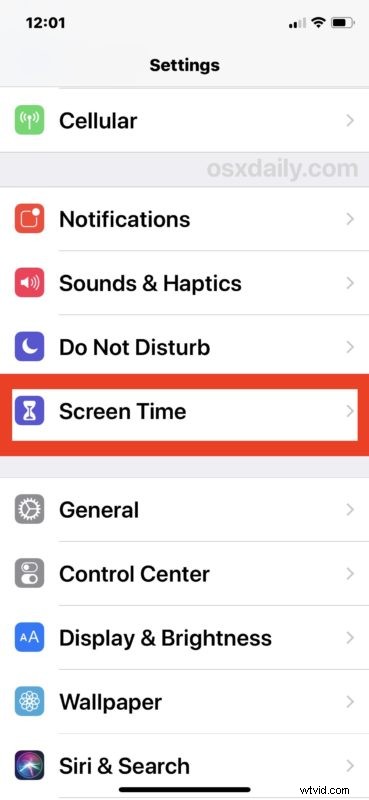
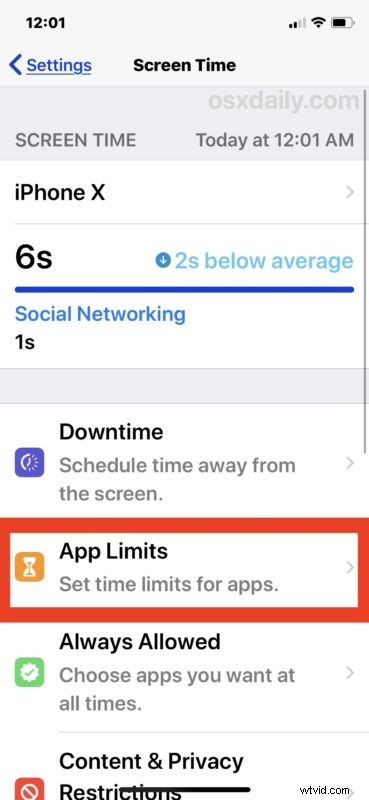
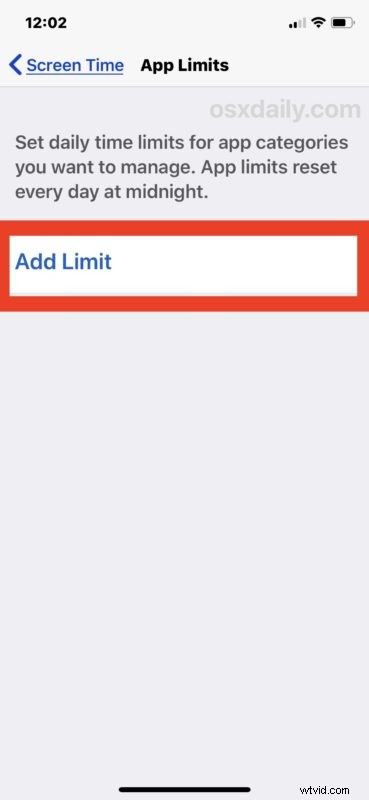
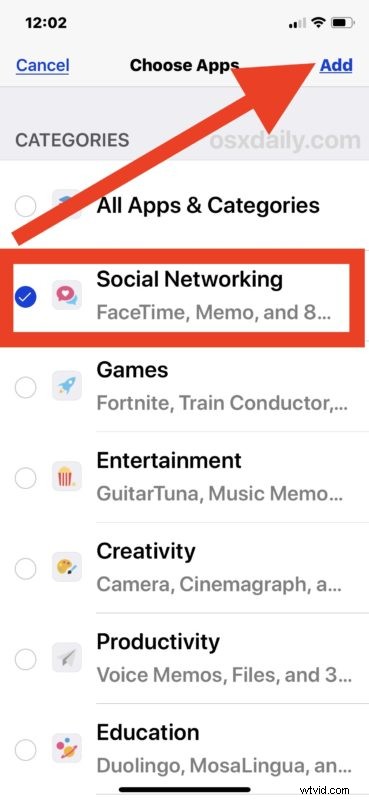
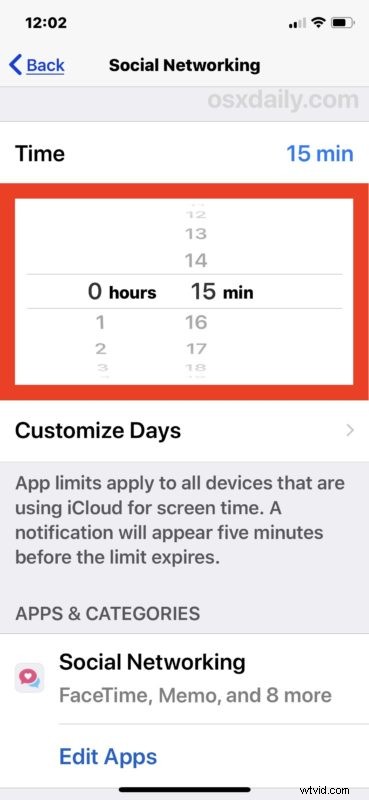
That’s it, now you have a defined time limit set on all social networking and social media for that device. This will accompany all social networking apps and social media websites too that are accessed on the iPhone or iPad with Screen Time setup this way.
Once you hit that time limit and you’re in a social networking app, the screen will turn blank showing an hour glass icon and inform you that you have reached your allotted time limit for that particular app or app category.
You can always ignore the imposed time limit by tapping on “Ignore Limit” if desire (which can require a passcode to ignore the limit if you have set this up that way, perfect for parents and family), but ignoring a time limit for app usage or social networking sort of defeats the purpose of setting these limits within Screen Time.

Screen Time can be very useful at helping you or someone else from cutting back on wasted time in social media and social networking, just be aware that if you’re reading something within a limited app, or watching something interesting like a video, and either of those are occurring within a screen time limited app, then you may hit the limit because you’re participating in the media consumption within a social app. Of course you can ignore the time limit, or just open the video or article in a web browser or something similar to continue to enjoy what you’re doing outside of the time limit.
Using social networking may have benefits for some people, by increasing dialog, keeping you up to date with events, following friends and family and colleagues from decades ago, or maybe you just genuinely enjoy falling for fake news and propaganda that is pervasive on social media, but for many others it can be a huge time sink with little redeeming value, or even outright harmful to wellbeing and mental health. The entire topic is fascinating and there are no shortage of studies on social networking, with mixed evidence showing varying outcomes related to social media use.
And naturally you can always disable Screen Time in iOS or remove the time limits if you’d like to at any time just by returning to the Screen Time settings and adjusting as appropriate.
Do you use Screen Time on an iPhone or iPad? Do you limit social networking and social media usage? Share your experiences and thoughts below, and if have any other tips or tricks that relate to this general topic, share those below in the comments as well!