

If you’re an iPhone or iPad user, you’re probably aware of the sharing menu in iOS. It gives you access to a lot more options than just being able to send information to different apps or share files with other users. Did you know that you could customize this sharing menu according to your preference?
Apple calls this menu “Share Sheet”, and it has been around for a few years. However, with the introduction of ipadOS and iOS 13, Share Sheet has received some major visual changes and other improvements. There’s a lot more flexibility when it comes to customization, so that users can have more control over what’s displayed in this menu.
Interested in learning how this works, so you can customize the share sheet on your iOS device? Look no further, because in this article, we’ll be discussing exactly how you can add to & edit sharing menu options on both the iPhone & iPad, as long as they’re running iOS 13 or later.
How to Add & Edit Sharing Menu Options on iPhone and iPad
The Share Sheet in iOS 13 does not remain constant across apps. Certain options that you see in the sharing menu are strictly specific to the app you’re using. However, the procedure to add and edit options in the share sheet remains the same. So, without further ado, let’s take a look at the necessary steps.
- You could access the Share Sheet from any app that you’re familiar with. However, for the sake of this article, we’ll be using Safari. Simply tap on the “Share” icon to bring up the Share Sheet from the bottom of your screen.

- Now, swipe up to get an entire view of the sharing menu.
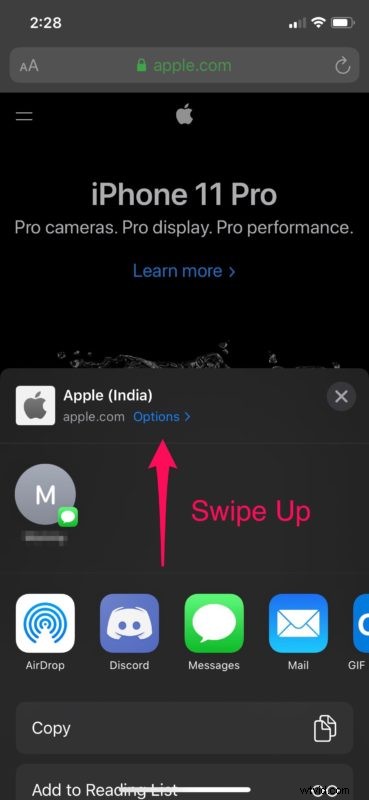
- As you can see here, the Share Sheet is categorized into three segments. The top-most segment is called the Favorites section. Right below it, you’ll see a list of app-specific options. Lastly, the third segment will house shortcuts to perform various other actions, which remains similar across apps.
Here, scroll all the way to the bottom of the Share Sheet and tap “Edit Actions…”
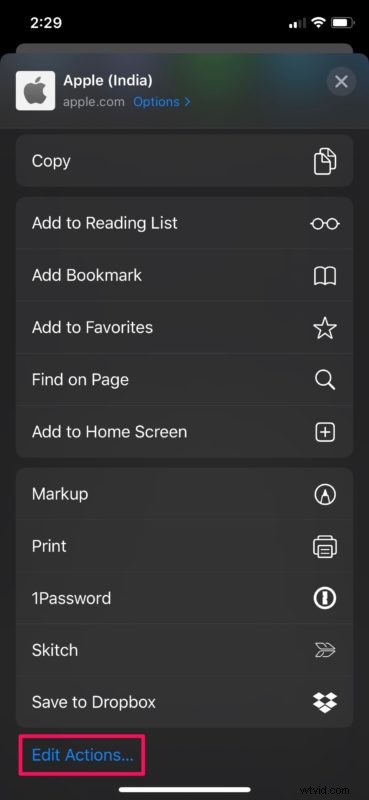
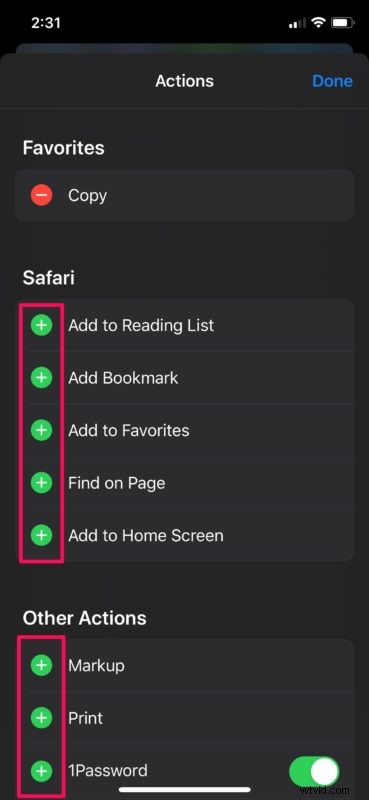
- In this menu, you’ll be able to add app-specific actions and other shortcuts to the Favorites section of the Share Sheet. Simply tap on the green “+” icon located right next to each action, in order to move them to Favorites.
- Now, if you want to rearrange the actions in the Favorites section, press and hold the “triple line” icon located right next to each action and move them around according to your preference.
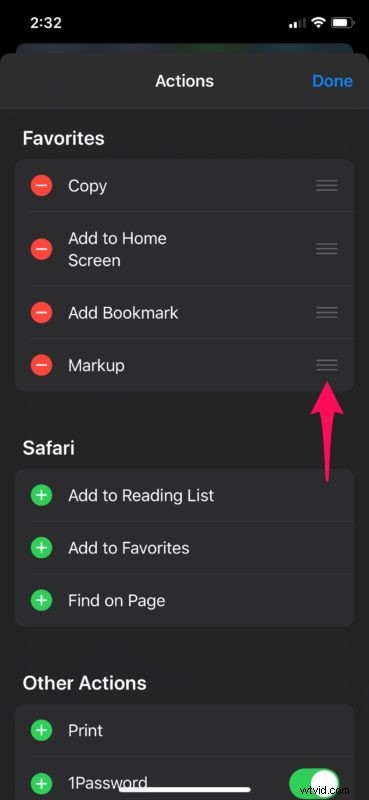
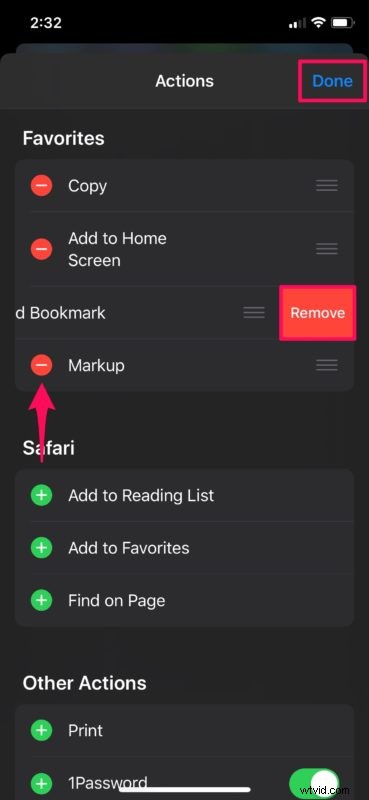
- You can also remove the unnecessary actions from the Favorites segment by simply tapping the “-” icon and then confirming it by pressing “Remove”, as shown in the screenshot below. Once you’ve finished customizing your Share Sheet, tap “Done” to confirm the changes.
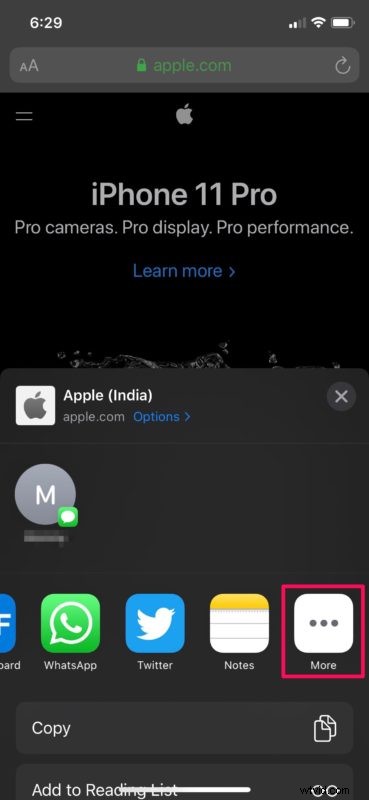
- Similarly, you can also customize the row of apps that show up in the Share Sheet. This is primarly used to send information to other apps, and comes in handy whenever you want to share content on social networking platforms. In the sharing menu, scroll through the row of apps and tap on “More”, which is located at the very end.
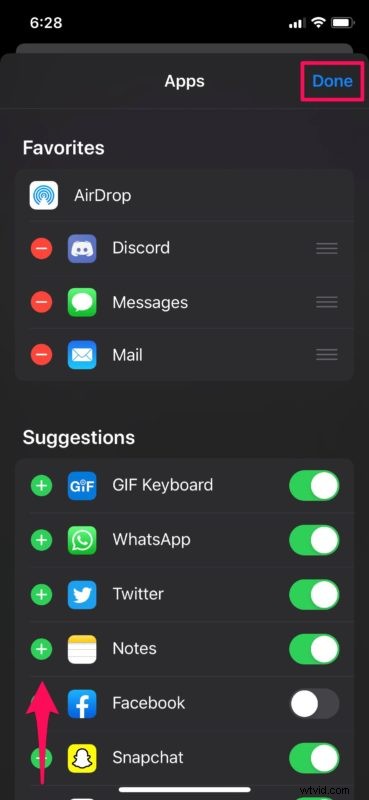
- As you can see in the screenshot below, you can add, remove and rearrange apps in the Favorites section, similar to the steps that we just discussed above. Once you’ve customized it according to your liking, tap “Done” to confirm the changes.
That’s pretty much all you need to do, in order to make changes to the sharing menu on your iPhone and iPad.
Since the content that’s displayed on the Share Sheet is app-specific, you might necessarily see some of your favorite actions as you switch between different apps. Let’s say you added a “Bookmark” action to Favorites in Safari, you won’t find it when you access the Share Sheet in the Music app, because that particular action isn’t supported by the app.
Therefore, you might want to edit your Favorite actions in order to better suit the app you’re using. As a result, it will take some time before you neatly customize the Share Sheet according to your preference across various applications.
This iOS feature comes in handy in so many situations, and you can save plenty of time by performing certain actions within the Share Sheet. For example, you could use the Skitch action in the sharing menu to annotate screenshots right in the stock Photos app, without even having to open the Skitch app itself.
Did you customize the sharing menu on your iPhone and iPad according to your preference? What do you think about the redesigned Share Sheet and the customization it has to offer? Do let us know your thoughts and opinions in the comments section down below.