

REC

Recommended: Video Production, Editing & Gear Maintenance Guide

 WTVID >> WTVID >  >> Filming equipment >> Cell phones

Capture Stunning July 4th Fireworks with iPhone Time-Lapse: Easy Step-by-Step Guide

Capture Stunning July 4th Fireworks with iPhone Time-Lapse: Easy Step-by-Step Guide

Planning on watching an exciting fireworks show and want to preserve a memory of the experience, or perhaps share the firework show with someone else? Consider using the excellent Time-Lapse feature of the iPhone camera!

How to Use Time-Lapse on iPhone Camera

  1. Open the Camera app on iPhone as usual
  2. Swipe over on camera options until you reach “Time-Lapse” camera mode
  3. Set the iPhone down in a sturdy place with a good view of the action, then press the record button
  4. Capture Stunning July 4th Fireworks with iPhone Time-Lapse: Easy Step-by-Step Guide

  5. When the action of the firework show is over, tap the stop button to end the recording
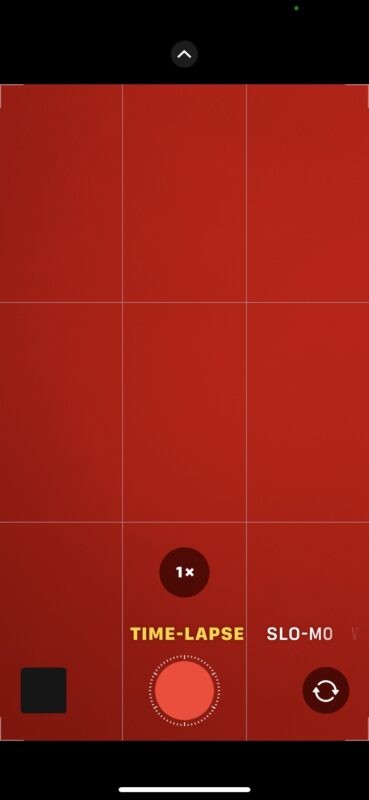
You can find the finished time-lapse video in your Photos camera roll.

If you’d like to shorten the length or modify your time-lapse, you can edit and trim the videos with the built-in video editor or turn to iMovie to cut and trim the video as well.

Time-lapse is a really cool video feature that perhaps doesn’t get as much appreciation as it deserves, it has been around on iPhone and iPad for quite some time. Familiarize yourself with it, and you’re sure to enjoy using the time-lapse video modes to capture some great scenes, whether they’re fireworks, or anything else.

And here’s a little time-lapse video example of a July 4th show in NYC:

Happy 4th of July!


  1. Master iPhone Photo Timer: Easy Guide to Hands-Free Selfies & Group Shots

  2. Master 2x Optical Zoom on iPhone Plus & Pro: Easy Step-by-Step Guide

  3. Ultimate Guide: How to Use Night Mode Camera on iPhone 11, 11 Pro & Pro Max

  4. Master iPhone Portrait Lighting Mode: Step-by-Step Guide to Studio-Quality Photos

  5. Ultimate Guide: How to Use HDR on iPhone & iPad Cameras

Cell phones
  1. Pro Tips for Capturing Stunning Time-Lapse Videos from a Plane with iPhone

  2. Master the iPhone 7 Plus Dual-Lens Camera: Ultimate Guide

  3. How to Use Animoji on iPhone XS, XR, and X: Step-by-Step Guide

  4. How to Master the iPhone Stopwatch: Lap Timing, Modes & More

  5. How to Use iPhone Speakerphone: Easy Hands-Free Calling Guide

  6. Capture Stunning Action Shots: Master Live Photo Effects on iPhone & iPad

  7. How to Quickly Launch Camera Modes from Control Center on iPhone & iPad

  8. How to Use iPhone Volume Buttons for Burst Photos and QuickTake Videos