
Shift your editing into overdrive with these 5 awesome Premiere Pro tips.
Sometimes, even the slightest change in your workflow can save you dozens of hours on a project in Premiere Pro. Even if you’ve been using Premiere Pro for a while, you can surprise yourself by learning something new. Personally, I didn’t know about allocating memory until two years after I started editing in Premiere.
The following video from Cinecom.net takes a closer look at five distinct ways to increase your editing speed in Premiere Pro. If you’d rather read than watch, you can follow along with the tips below.
1. Work with Shortcuts
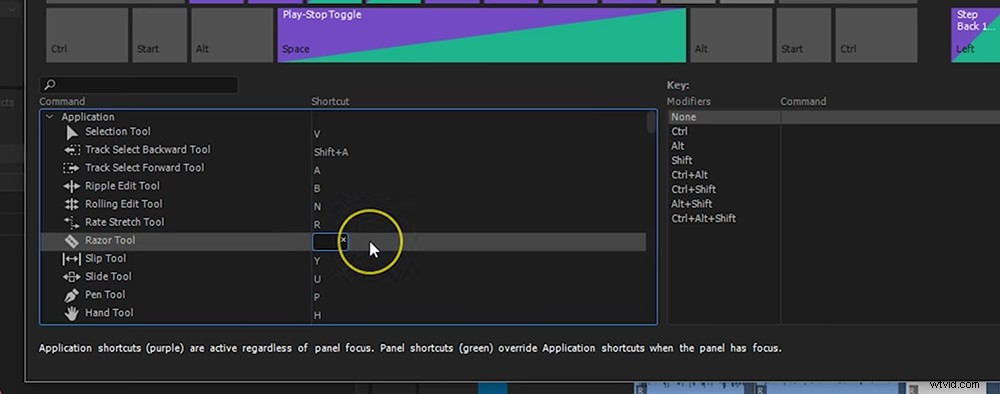
By far the fastest way to increase your editing speed in Premiere Pro is simply to learn your keyboard shortcuts. If there is a repetitive task that you perform in Premiere Pro, chances are there is a keyboard shortcut for it. Shortcuts will only save you a couple seconds here or there, but over time those seconds can add up.
You can see the full list of keyboard shortcuts in Premiere Pro by navigating to Edit > Keyboard Shortcuts. Premiere Pro also gives users the option to custom map their own keyboard shortcuts.
2. Customize Your Workspace
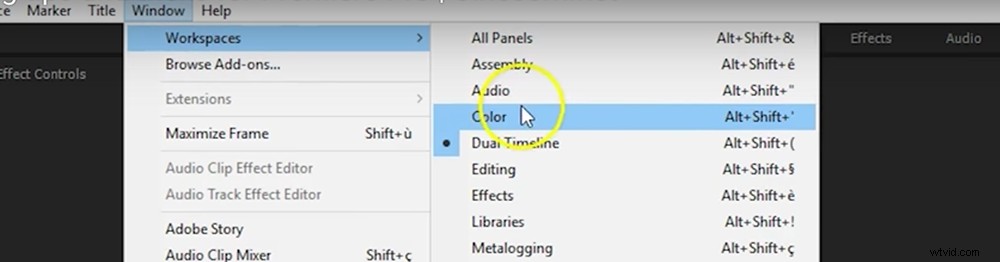
Premiere Pro has all of the tools you need to create a professional video, but sometimes you don’t need every panel to create a cool video. I only use about six panels for any given project, but by default you’ll find no fewer than ten.
Instead of spending time fumbling through the various panels, simply close all of the unnecessary panels by clicking the menu icon and selecting “close panels.” If you ever want the panel back, you can simply revert to your default workspace by navigating to Window > Workspaces > Reset to Saved Layout.
3. Organize Your Files
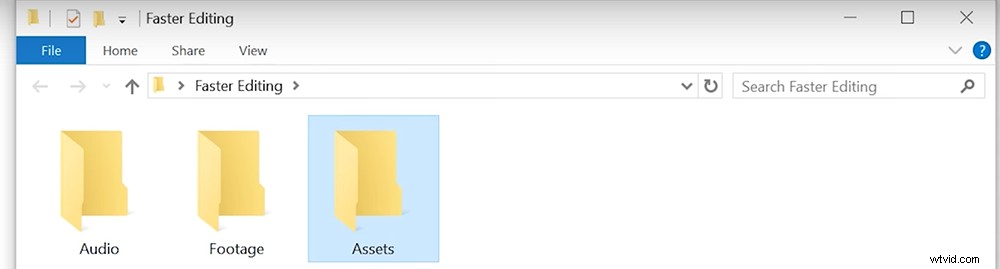
Editors are not normally known for being organized, but some simple organization can save you dozens of hours over the course of a long or complex project. It’s advantageous to create a very ridged folder hierarchy on your computer for each project.
If you want to learn more about the appropriate folder structure for each project, check out this helpful post from the team here at PremiumBeat.
4. Allocate Your Memory
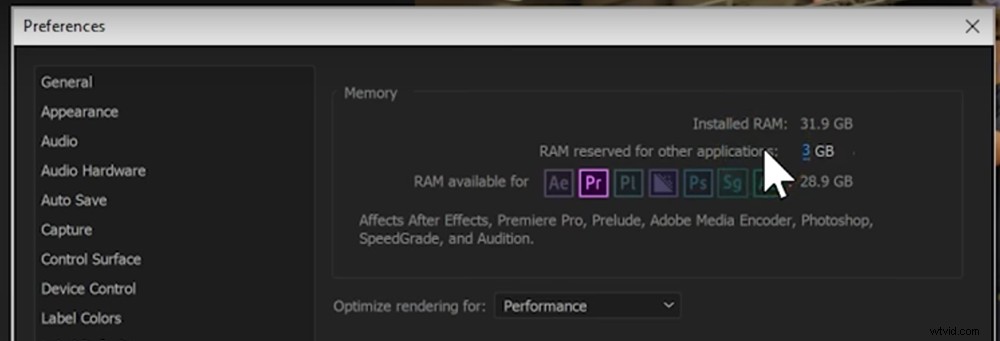
By default, Premiere Pro will not allocate maximum memory (RAM) to work with. However, if you are editing a lot of video, you will want to work with as much memory as possible. So instead of using the default, you can specify how much memory Premiere Pro should use by navigating to Premiere Pro > Preferences > Memory. From the dropdown menu, you can determine how much memory to reserve for other applications.
5. Work with Presets
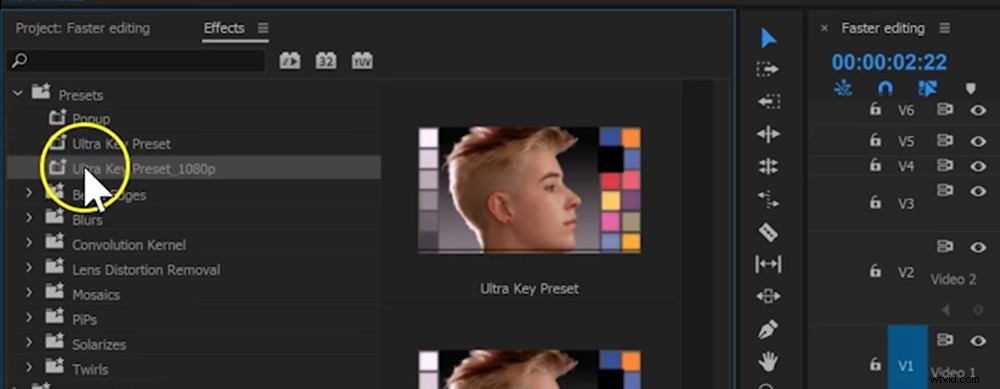
We all want to be creative and original, but honestly, there is nothing wrong with using a preset to help you get from point A to point B faster. Presets can be a great time saver if you work on repetitive projects. After you save a preset, you will see it in your Effects and Preset browser in Premiere Pro.
Download Free Footage
Want to download some free video clips so you can try out these techniques? Simply click the download button below for a custom collection of footage from our friends at Shutterstock. (You are free to use the clips, but please do not distribute them in any way.)
DOWNLOAD FREE VIDEO CLIPS FROM SHUTTERSTOCK
If you want to learn more about Premiere Pro, check out the Premiere section of the PremiumBeat blog.
Know any other tips for faster editing in Premiere Pro? Share your ideas in the comments.