
Working with audio files in Adobe After Effects would be challenging since it is basically a visual effects and motion graphics software, but audio can be added to a video in After Effects by the following method we are going to introduce in this guide.
How to Add Audio in After Effects
1. Start the program and open a new project.
2. Import the files in the project panel. Mute the video sound if neccesary

3. Import the audio file to the project file as well (that is required to be added).
4. Make sure to convert the audio file to .mp3 format.
5. Drag and drop the audio onto the composition.
To preview the audio in After Effects, enable the audio in the timeline first and then Press cmd+0 on Mac to preview.
6. Adjust the audio settings. Double click "L" on you keyboard to show the audio waveform.
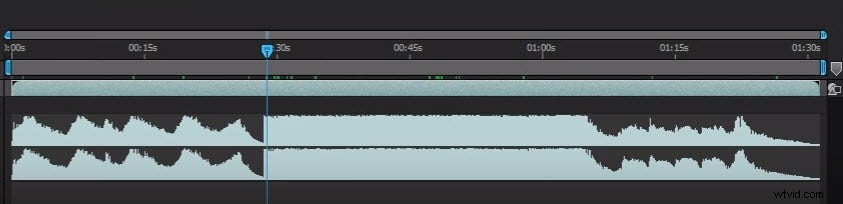
Check this video tutorial to know the details on adding, adjusting audio in After Effects
5 Best Audio Editing Software to Add Audio to Video
1. WavePad from NCH Software
This is definitely one of the most popular editing tools because of how simple and easy it is to use. It is great for beginners who need professional-level editing tools. It is possible to use any audio format on this software including MP3, WMA, OGG, VOX, GSM, etc.
2. Audacity: Free open source audio editing software
This is free software that works on multiple platforms and supports multi-track editing and even live audio recording. It has a very simple user interface that makes it easy to learn on and get used to while offering professional features and ensuring the best quality.
3. Wondershare Filmora
Users are not restricted to working across After Effects to manage their audios. There are a lot of options available in the market that feature simplicity and efficiency. Wondershare Filmora is a unique example of such a platform that provides users with a simple user interface integrated with advanced features to work on. There are a lot of functions that can be performed across audio that is added across Filmora.
Multiple audio adjustment options are available across Wondershare Filmora. While fading the audio and managing its pitch, users can utilize denoising and ducking tools to make different edits across the audio.
To add audio in Wondershare Filmora, you need to follow the steps as explained below.
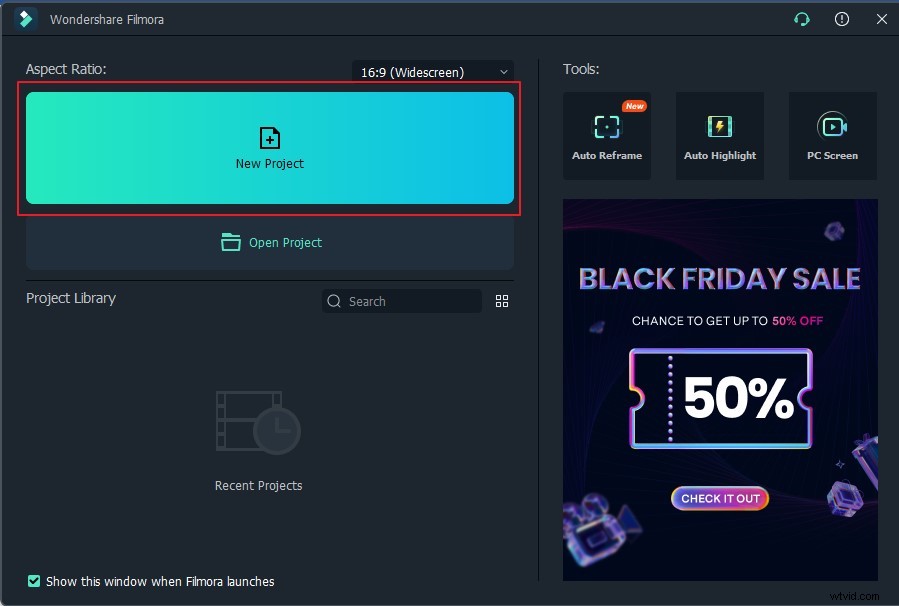
Step 1: Start a New Project on Wondershare Filmora
Download and install the official software of Wondershare Filmora on your device. Once installed, you need to launch it and tap on “New Project” to start working on Filmora.
Step 2: Import Audio File
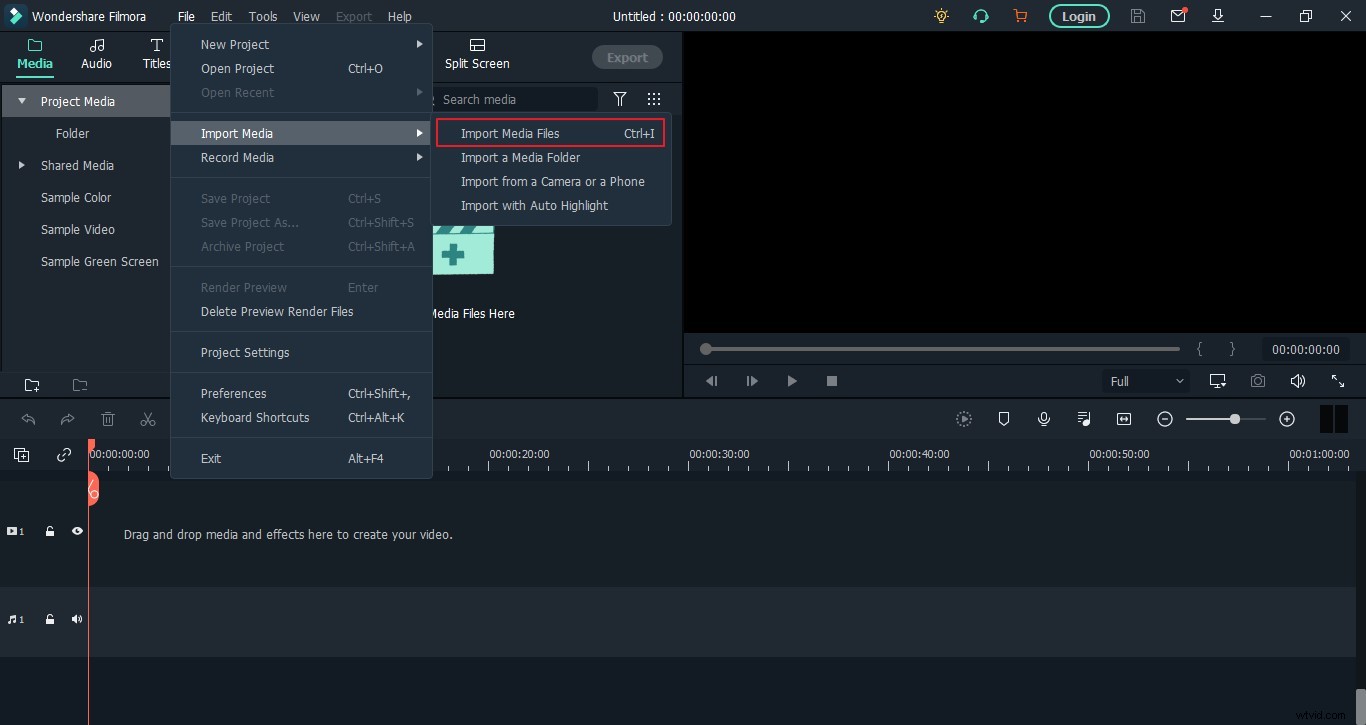
Once a new project starts, tap on 'File' followed by "Import Media." Select the option of "Import Media Files" to proceed to the next screen. Add in the required audio successfully.
Step 3: Drag Audio to Timeline
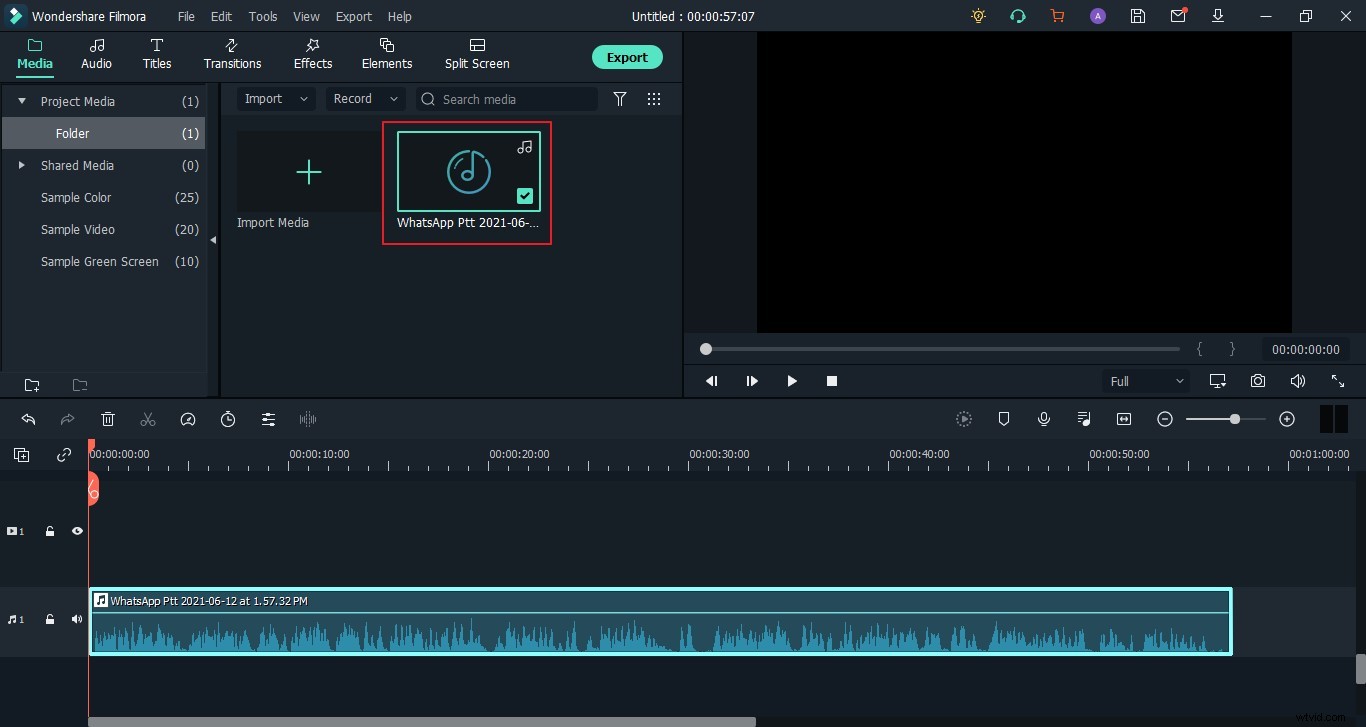
To perform different edits across the audio, the user needs to drag the audio on the timeline.
Step 4: Export Audio File
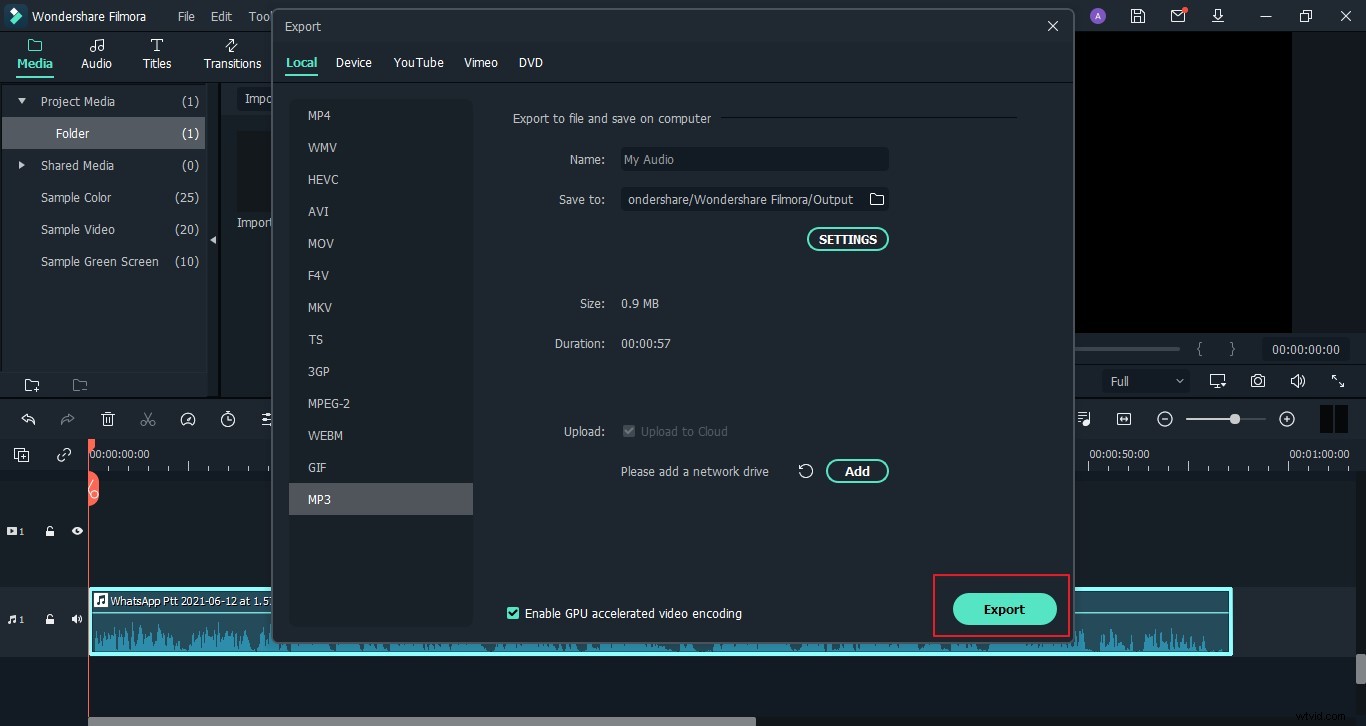
Once you are done editing the audio, you can easily save it across your device. For that, tap on "Export" to open a new window. Across the "Local" section, select "MP3" from the list of formats and figuratively set all the other settings before tapping on "Export."
3. FL Studio 12.1.2
This digital editing workstation is definitely not for beginners. Trained professionals who are familiar with editing software will not have a lot of trouble adjusting to this format. This is a professional tool that offers a convenient platform for editing and mixing.
4. Adobe Audition
Here you will get a mix of simplicity and professionalism. It is easy to get used to but progresses in complexity with time.
5. Wavosaur
Wavosaur is an old tool that doesn’t run on most modern computers and laptops. But it does offer many features and methods of processing for audio clips.