Chances are you want to create a new work by adding an audio track to your source video like MP4. This is because your MP4 file has very good video quality, but gets rather bad sound. Or you just create it for fun.
Well, this is not a difficult thing once you get an efficient video tool like Wondershare Filmora. As a professional and easy-to-use video editing application, it helps you add any music to MP4 video effortlessly. What's more, it also helps to remove or mute your original audio track to achieve the best result if necessary. Record your own voice-over is also possible.
Powerful Video Editing Tool: Wondershare Filmora
Supports almost all kinds of audio formats including MP3, AAC, WMA, MKA, M4A and more;
- Add audio to video without quality loss;
- Export your new video in different ways;
- Supported OS: Windows (Windows 10 included) & Mac OS X (above 10.6).
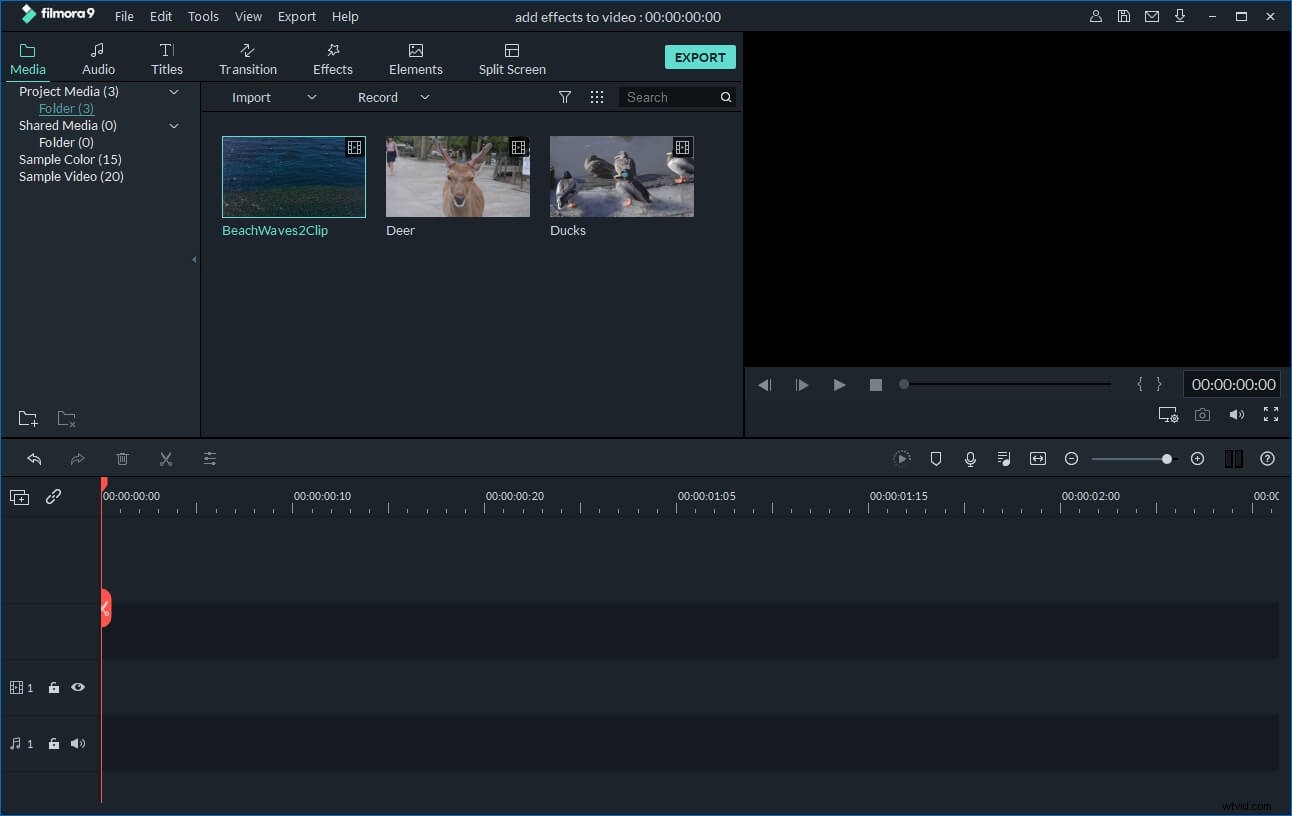
1. Import your media files
Either click "Import" or drag and drop your MP4 video & audio track to this program. When all files imported, they'll show in thumbnails in the Media library. Now drag and drop them into the their respective track on the Timeline.
2. Remove original audio file (optional)
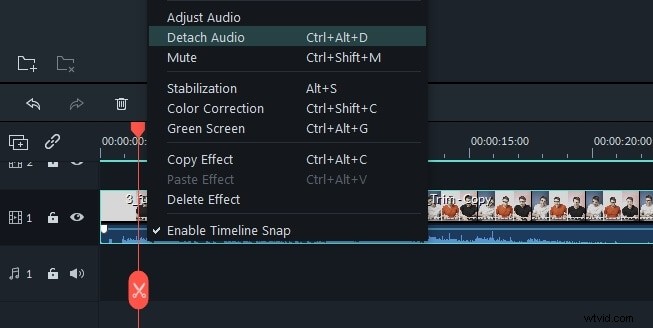
You can remove the original audio in a pretty easy way if you want. To do this, just right click the video clip on Timeline, and select "Audio Detach". or "Mute" as per your needs. If "Audio Detach" has been selected, you'll find a single audio file appearing in the Music Timeline immediately. Then you can easily delete it.
3. Add audio to MP4 video
When all files come to place, you can begin to make the audio and video perfectly matched. In the Video Timeline, cut and paste any video clip to rearrange the order, and trim out unwanted portion while keeping the others. (Note: Don't overlap one into another, or you'll split the original file).
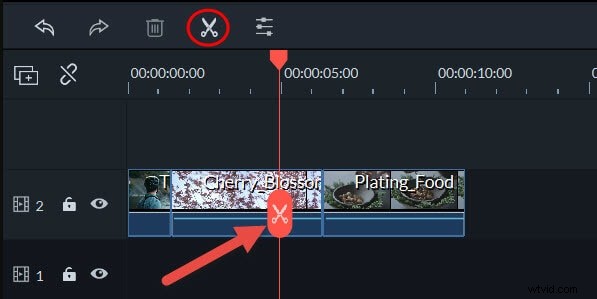
Now play your source MP4 video, and drag the audio track to the exact position that you want it to begin. If you just want a short part showing up, pause it when it comes to the right place. Then click the Scissors icon above the Timeline to split it into two parts. Keep what you want, and remove the others by hit "Delete" on the keyboard. Note that you can always click Undo/Redo to control your operation.
4. Adjust the audio file (optional)
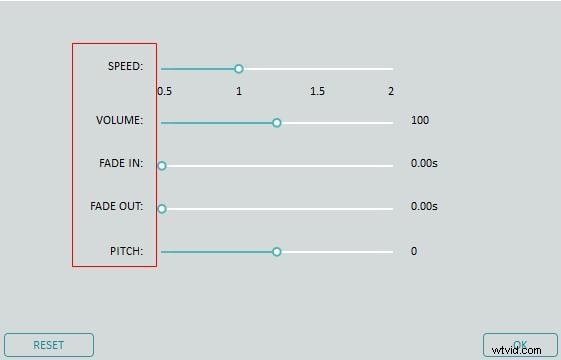
After syncing your music file and MP4 video perfectly, you can further adjust the audio file in the editing panel, like change the playing speed, volume, pitch, etc. To do this, just double click the target MP4 video file and edit it in the pop up window.
5. Save and share your creation
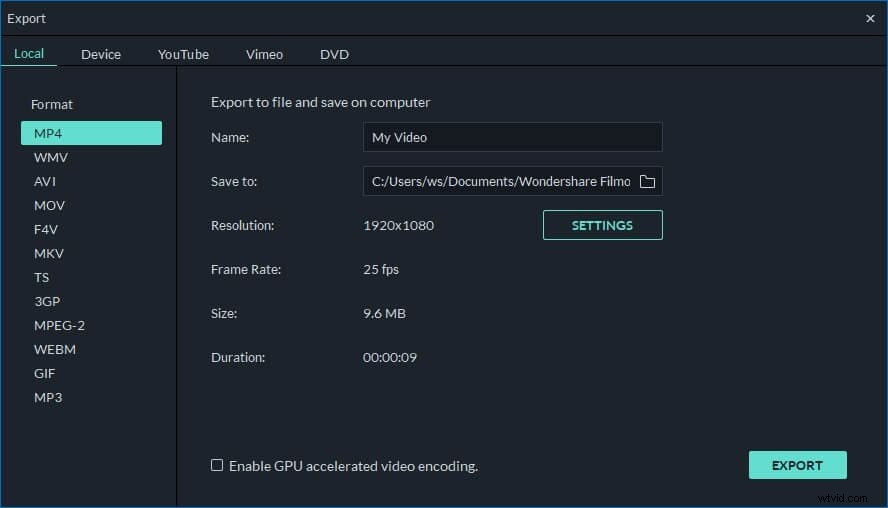
Check your video in the right previewing window. When you're satisfied, click "Create" to export your new work. This program offers four flexible ways letting you save and share video with ease. In the format tab, you'll find almost all popular formats are available to save on your computer. If you want to share your masterpiece on YouTube, select this option to upload it right away. Even you can burn a DVD disk in minutes to watch it on your home cinema.