
Maybe you've got some MP4 files that take up too much space on your computer or portable devices (iPhone, iPad, iPod, Xbox, etc.). Let's be honest, do you really need all those hours of video? Want to split some of them, say, 3 minutes of your favorite scenes rather than 90 minutes? So it's pointless to keep the beginning, end or other useless big stuff. What should you do? Using the Wondershare Filmora introduced below, it couldn't be easier to trim them. Besides, we will also offer other solutions to trim videos, including an online video trimmer and VLC MP4 trimmer. Just continue reading to know more!
- Part 1: How to Trim MP4 Video File with Filmora
- Part 2: How to Trim MP4 Video File Online
- Part 3: How to Trim MP4 Video File with VLC
Easy-to-use MP4 Trimmer: Wondershare Filmora
- The user-friendly interface enables you to easily find what you want.
- One-click to trim MP4 (MPEG/MPG) videos with no quality loss.
- Improve your video by adding effects, transitions, intro/credits and filters.
- Provide you with royalty-free resources from Giphy, Pixabay, Unsplash.
- No longer restricted by fixed speed, your can change the speed of any video clips with Speed Ramping.
- Save your video into different formats, burn to DVD or upload online.
- Supported OS: Windows & Mac OS X (above 10.12).
Part 1: How to Trim MP4 Video File with Filmora
Step 1: Add your videos to this MP4 trimmer
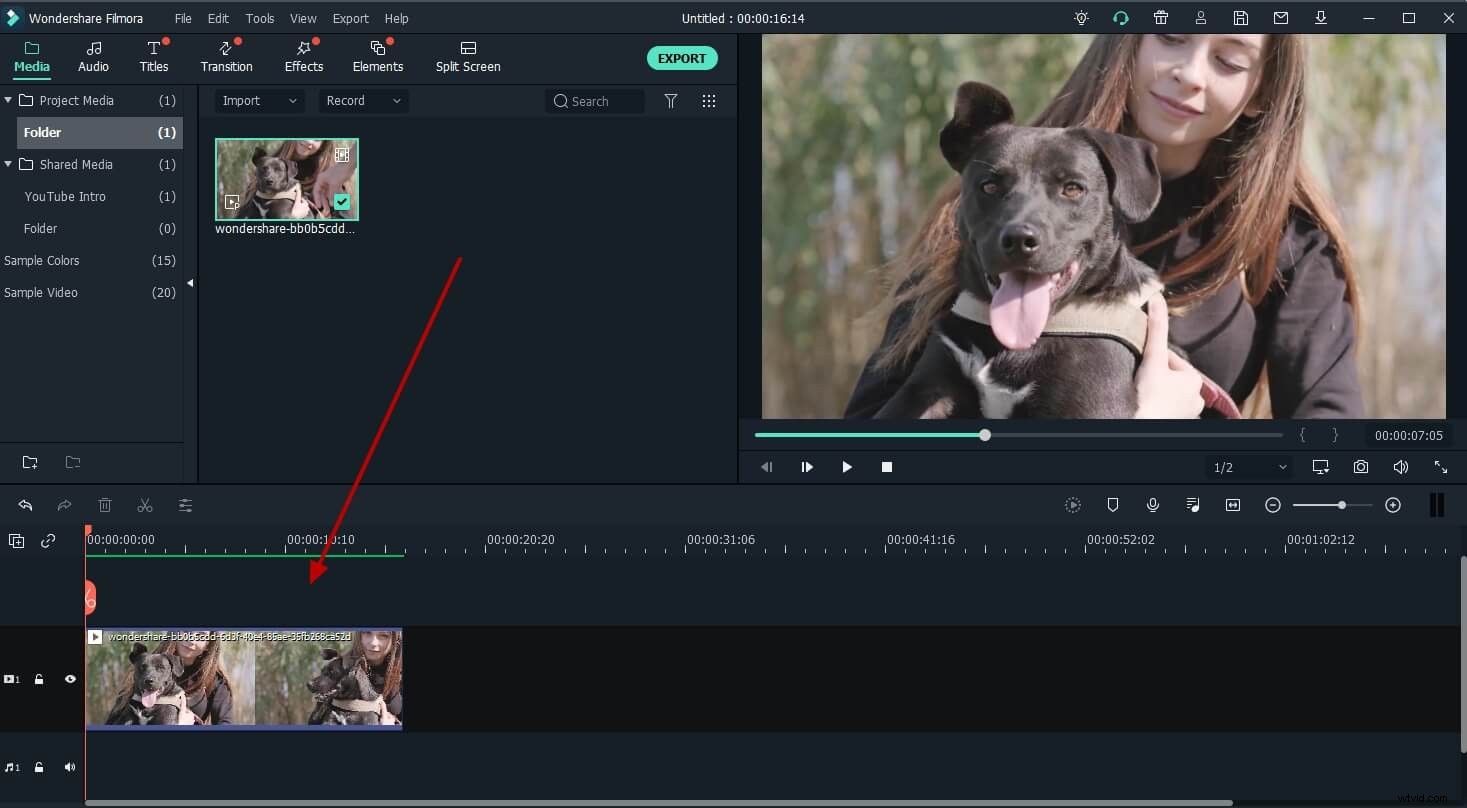
Open Filmora first. Two ways available: 1) Click "Import" to load mp4 files from your computer. 2) Drag and drop files to the interface. Then drag the MP4 file and drop it to the timeline.
Step 2: Detailed instruction to trim MP4 files
You can choose either of the below ways to meet your requirements.
1. Trim from the beginning or from the ending part
Mouse over the left or right edge of your MP4 file on Timeline, and when the "double arrow" indicator appears, drag to trim to any length as you want.
2. Split your MP4 file into several parts and get your wanted clip
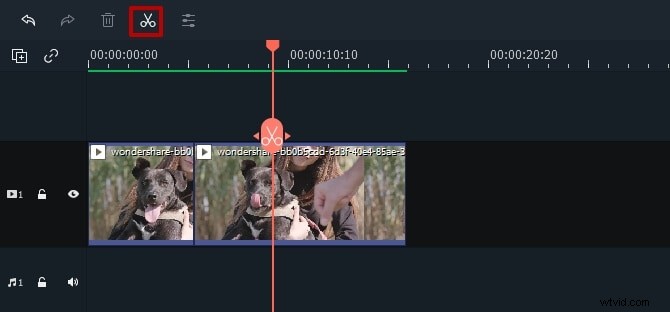
Play your MP4 video, drag the slide in the preview window to your desired location, click "Pause", then choose "split", your video is divided into two parts. You can repeat this to get your wanted part then delete the others.
Note: If you have several MP4 files, you have to trim them one by one.
Step 3. Export your trimmed MP4 files
Hit the Export button, then you will go to the Output window. You can choose MP4 as the output format, or convert to other formats like WMV, AVI, VOB, MKV, FLV, etc. If you want to share your videos on YouTube directly or burn MP4 video to DVD discs for better preservation, please go for it. Then click the Export icon and you are done.
Part 2: How to Trim MP4 Video File Online
If you want to have an online solution, Filmora video trimmer is a free online tool that can help you trim video instantly. You can upload your video from your computer and video link with drag-and-drop. It is easy to use with the slider or just input specific start and end times for precise trim. It also supports various importing and exporting video format, including .mp4, .mov, .wemb, .mpeg, .flv. More importantly, the exported video is free of watermark. It is definitely worth a try!
Step 1: Import video
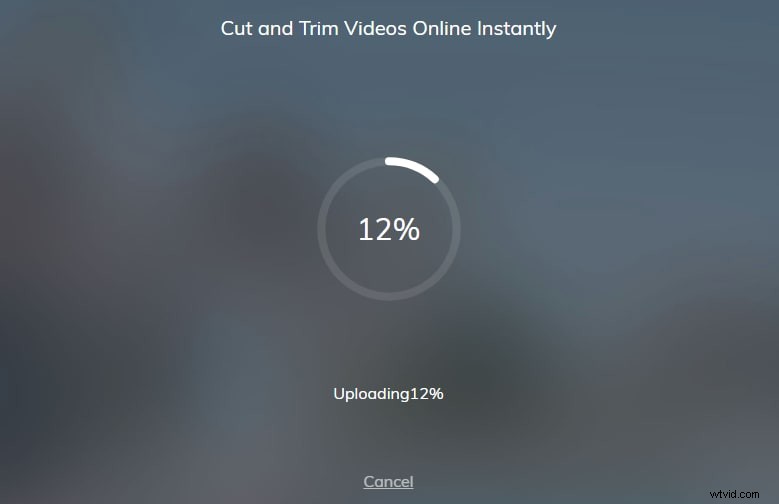
You can click the center area to import video, or just drop and down your video. Besides, you can also enter a URL to import video.
Step 2: Trim video now
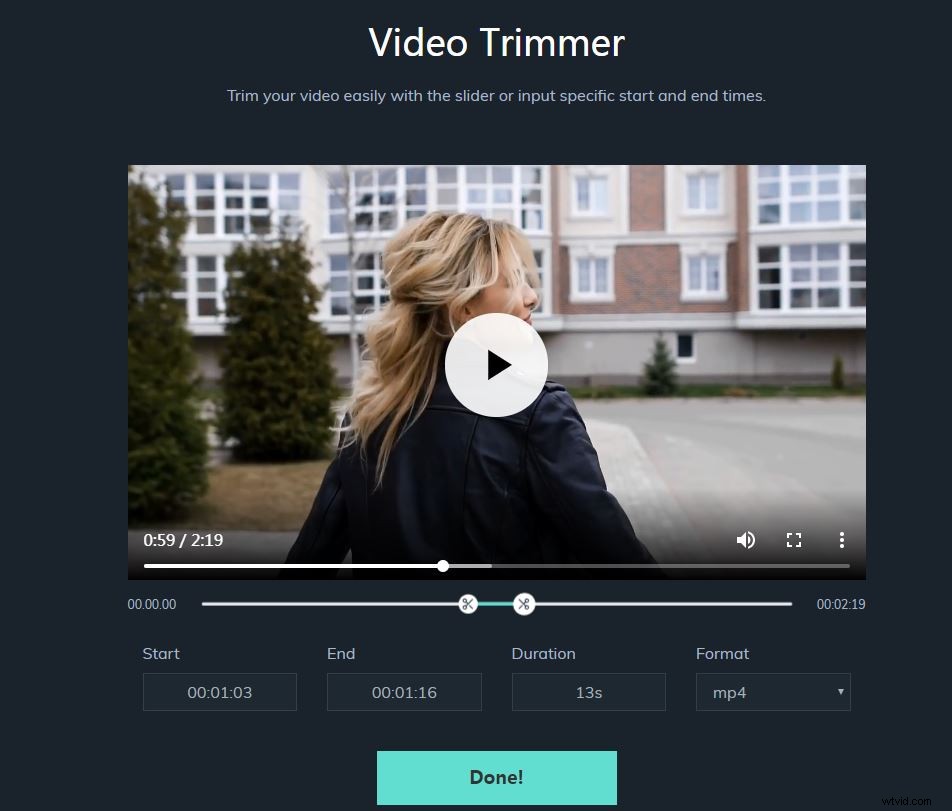
In this step, you can drag the slider to trim the part you want, or you can input specific start and end times. After you get the part you want, just click Done at the bottom. The default video format is MP4.
Step 3: Download it
Now, it is time to download your video. After downloading, share your video to social media platforms Facebook and YouTube to get likes from your friends!
Part 3: How to Trim MP4 Video File with VLC
Many people feel like VLC is just a media player that is used to play video. Not many people will consider VLC if we want to trim/cut/split the MP4 file. However, it can be used as an MP4 trimmer. With its compact design and cross-platform feature. It is deserved for us to think about it. More importantly, it is totally free to use. If you don't know how to use VLC to trim MP4, continue reading!
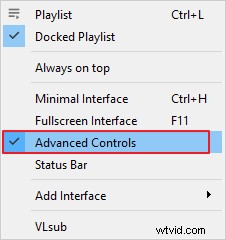
Step 1: Click Advanced Controls
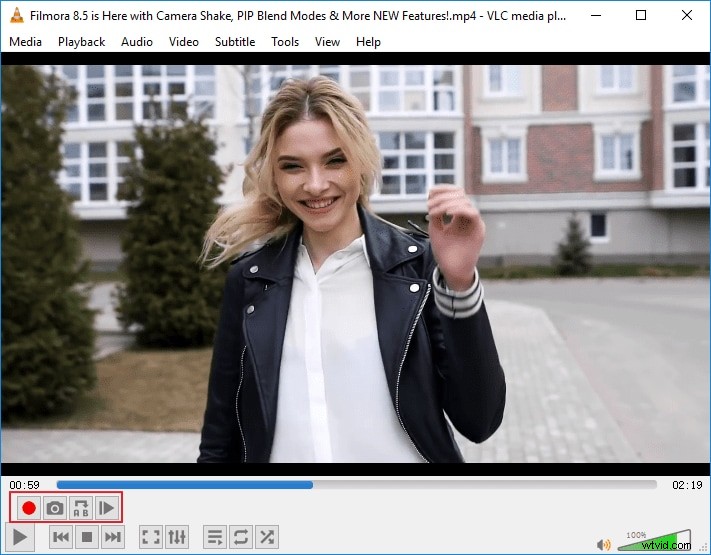
Open VLC first, and then import video. Next, go to View > Advanced Controls to get the recording sets. Now you will see the recording settings at the bottom.
Step 2: Start trimming
Hit the red circle to start recording. At the same time, play the video to the starting frame that you want to trim first. Here, you can also record frame by frame to get an accurate time. After it reaches the ending frame, click the red circle to end trimming.
Step 3: View the trimmed video
Normally, the trimmed video will be saved under C:\Users\Username\Videos. Go there to find the targeted video.
Conclusion
Now, you have three solutions to trim/cut/split MP4 videos. Just choose whichever you want. However, we highly recommend using Filmora to trim the video as it is an easy-to-use video editor with powerful features. Click the video below to know more!