
Sometimes, you may want to resize MP4 files. For example, your MP4 files are too large to upload to YouTube for sharing. Or if you have an HD MP4 video with widescreen, it's not suitable to play on your small-screen devices like iPhone etc. In cases like these, you have to resize your MP4 video files to fit your device best or share on YouTube.
Confused about different kinds of formats? Check out this video to learn what video format is and differences between video formats.
To resize MP4 files, you need a reliable MP4 resizer for help. So here, Wondershare Filmora (Filmora for Mac) is recommended. It can enables you to resize your MP4 files for smaller size while maintaining relatively high visual quality. Now, let me show you how to resize MP4 videos step by step.
Powerful MP4 video resizer: Wondershare Filmora
Wondershare Filmora
- Very simple and clean interface;
- Easily resize your MP4 video with no quality loss;
- More stunning video effects provided;
- Directly upload the video to YouTube or Facebook after resizing;
- Supported OS: Windows (Windows 8 included) & Mac OS X (above 10.6). 30 Day Free Trial with access to all features, download a free trial version below:
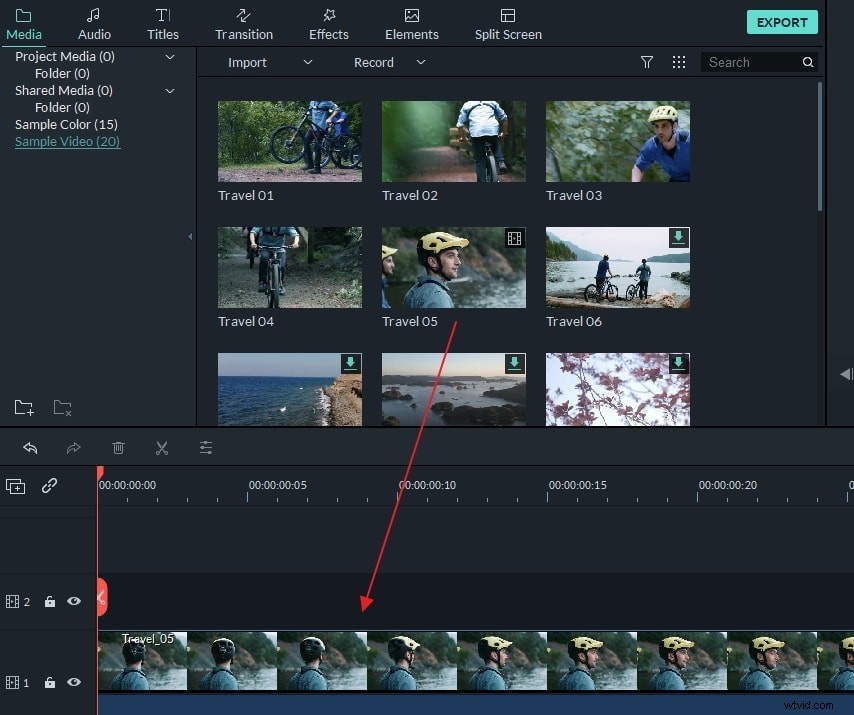
1. Add MP4 files to the User's Album
Press "Import" button on the upper-left corner to load your local MP4 files to the album of this MP4 resizer. Or directly drag MP4 files from the computer to this app's album. After that, transfer one MP4 file from the Album to the Timeline at bottom by a drap-and-drop.
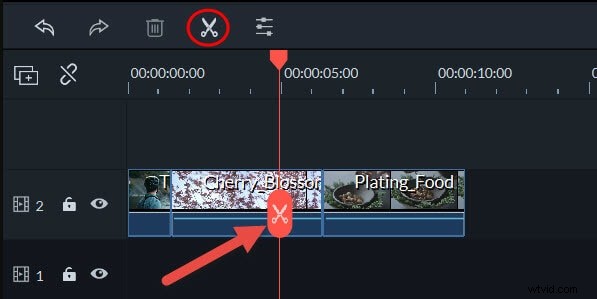
2. Cut off some unnecessary clips if necessary (optional)
On the Timeline, click the MP4 file to select it, put the top of the red Time Indicator to the position you want by dragging, and then hit "scissor" button to cut it. Repeat this operation again and again until you cut all of your unwanted segments into clips. At last, delete your unsatisfied clips.
Tips: To focus on your wanted video quickly and easily, you can use the "Scene Detection" feature to separate your video into different parts first. To do it, just highlight your video in the left item tray, right click it and select "Scene Detection". Then it will finishes scene separation automatically.
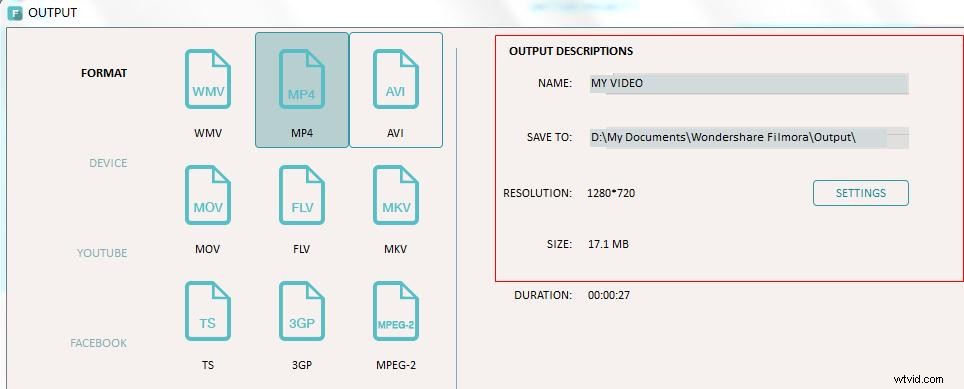
3. Resize MP4 file
Press the "Create" button, click the Format tab in the pop-up output window, and then select MP4 as the output format. Besides "Advanced settings", there is a triangle button. Just click it and you'll see some options like video resolution, frame rate and bit rate etc.
Generally speaking, the lower resolution, frame rate, or bit rate the video is, the smaller it is. So, to resize MP4 for smaller size, you just choose a smaller video resolution, frame rate, or bit rate here.
Download Wondershare Filmora: