
AVI is a very popular video format and has been used anywhere like camcorders, websites, and phones etc. However, there is a big disadvantage for AVI files: they are too large to distribute or share. So sometimes, you may want to resize AVI files for smaller size. For example:
- You record AVI videos with your camera. And they're too big to upload to YouTube. You want to resize them, so you can post them.
- You have lots of AVI files. And they occupy too much space of your hard drive or portable devices. You want a smart AVI resize tool to help your release some spaces.
Under these circumstances, you can choose Wondershare Filmora, a powerful yet easy-to-use AVI resizer to let you change resolution, bitrate and frame rate for smaller size.
Powerful AVI video resizer: Wondershare Filmora
- Support different kinds of AVI video files;
- Easily resize your AVI video with no quality loss;
- Directly upload the video to YouTube or Facebook when the editing is done;
- Supported OS: Windows (Windows 10 included) & Mac OS X (above 10.6).
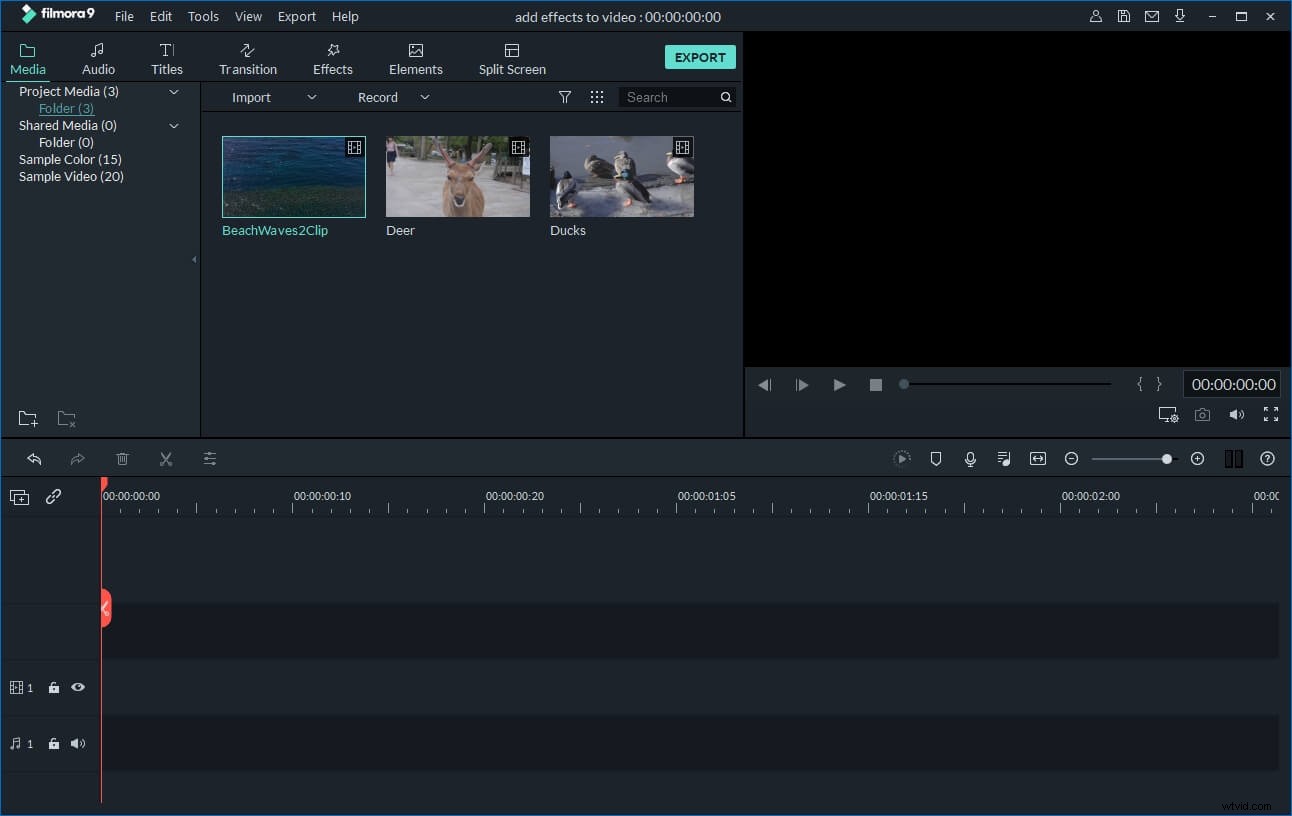
1. Import AVI files to the User's album
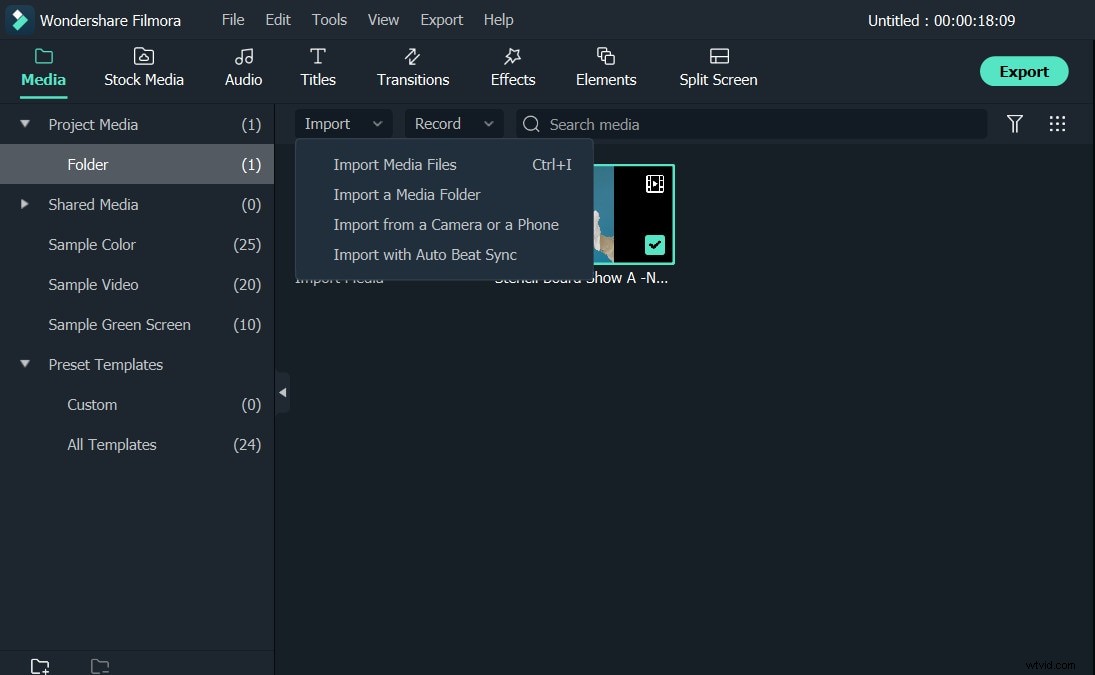
Click "Import" option on the top-left corner to import your local AVI files to the album of this AVI resizer. Alternatively, directly drag AVI files from the computer to the Users' album. Then, drag one of your wanted AVI files from the Album to the Timeline at bottom for video editing.
2. Cut off some unnecessary parts (optional)
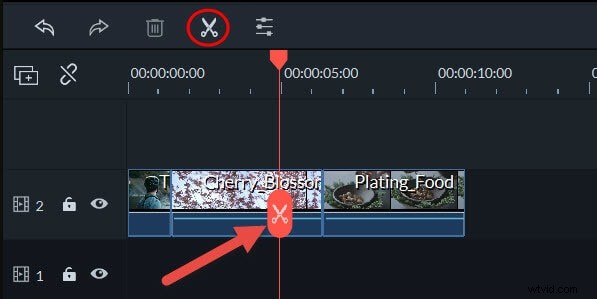
Click the AVI file on the Timeline, drag and drop the top of the red Time Indicator to the position you want, then hit "scissor" button to separate it. Repeat the process and you can cut it into several clips. At last, just delete the unwanted parts of your video.
3. Save the video file
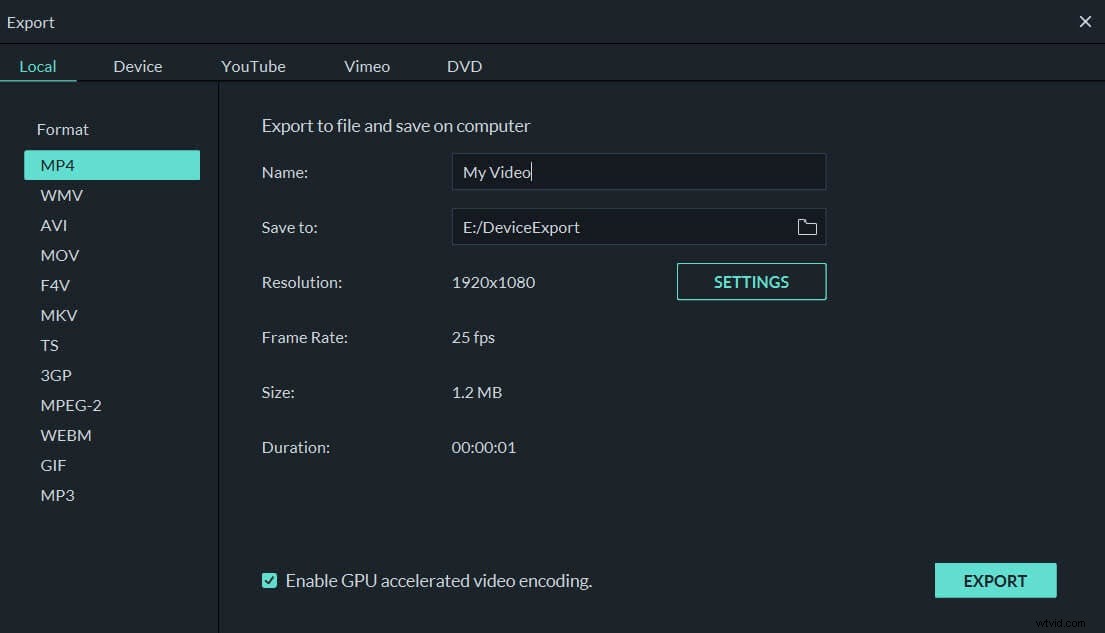
Hit the "Export" button. In the pop-up output window, you need go to Format tab and then select AVI as the output format. Next, click the triangle button beside "Advanced settings". Now, you have some video options, Frame Rate, Resolution, Bit Rate etc.
Normally, lowering video resolution is the most effective way to resize AVI for smaller size. So here, you just choose a smaller video resolution. Not compressed enough? Just select lower the bit rate and/or frame rate to get a smaller output file as well. When it's done, click the "Create" button again to export the new AVI file.