Have multiple AVI files and want to merge them into one? It's a piece of cake for most video editing software. But which one provides the best quality and runs faster?
Here I humbly recommend Wondershare Filmora (originally Wondershare Video Editor), which can automatically merge AVI files together with or without transitions. It joins videos one after another, all in 1:1 quality. For your convenience, you can also directly share merged AVI files to YouTube, or burn to DVD to watch on TV.
Easy-to-Use AVI Merger: Wondershare Filmora (originally Wondershare Video Editor)
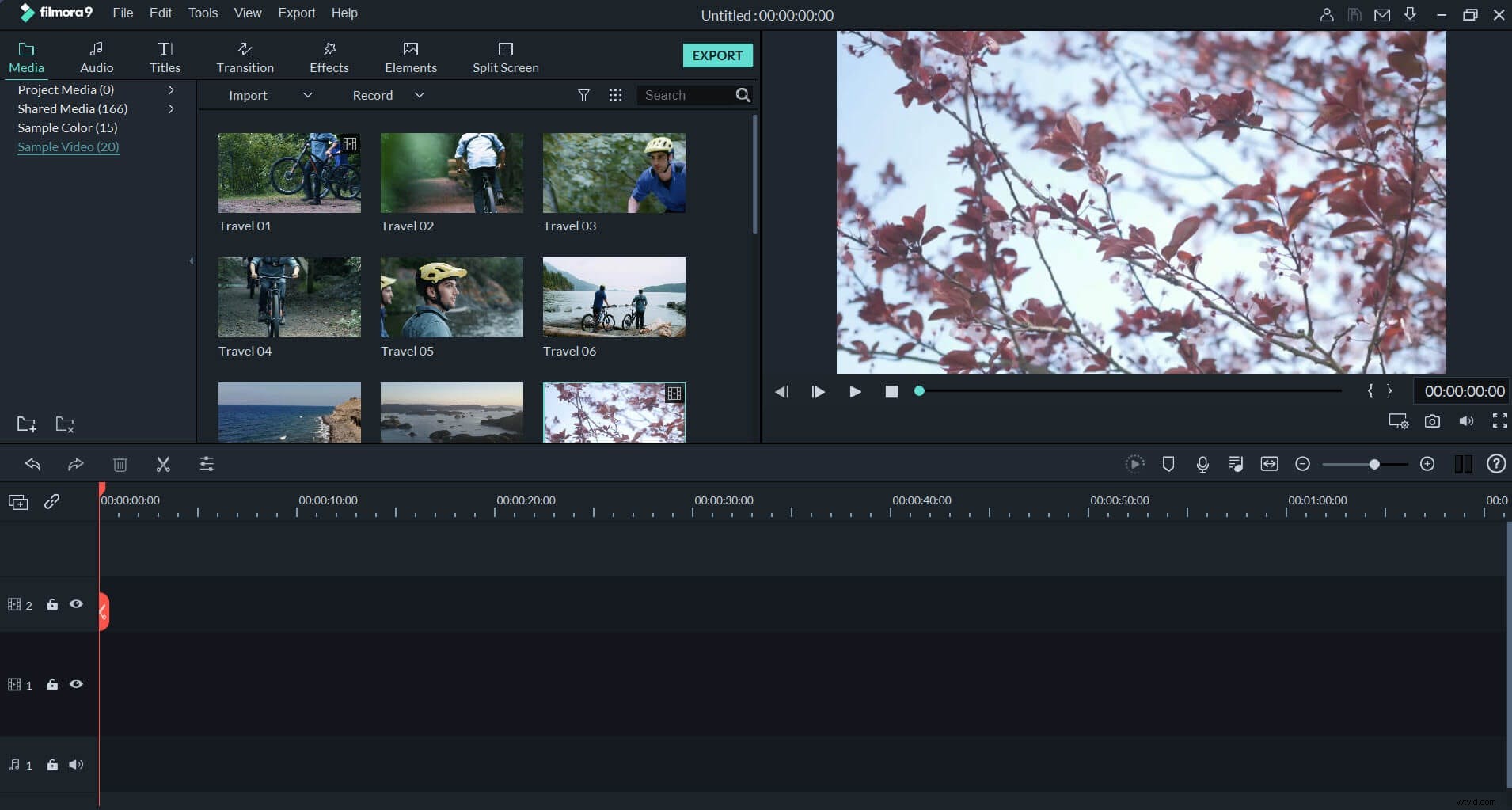
Wondershare Filmora (originally Wondershare Video Editor)
- Fine-tune options including Contrast, Brightness, Saturation, Hue, etc.
- Add transitions between scenes/clips from 48 effects.
- An extensive list of more than 50 visual effects.
- Easily make a Picture-in-Picture video (another way to merge AVI files).
- Save your video in different formats, directly upload online or burn a DVD.
- Supported OS: Windows (Windows 8 included) & Mac OS X (above 10.11).
1. Import AVI files to merge
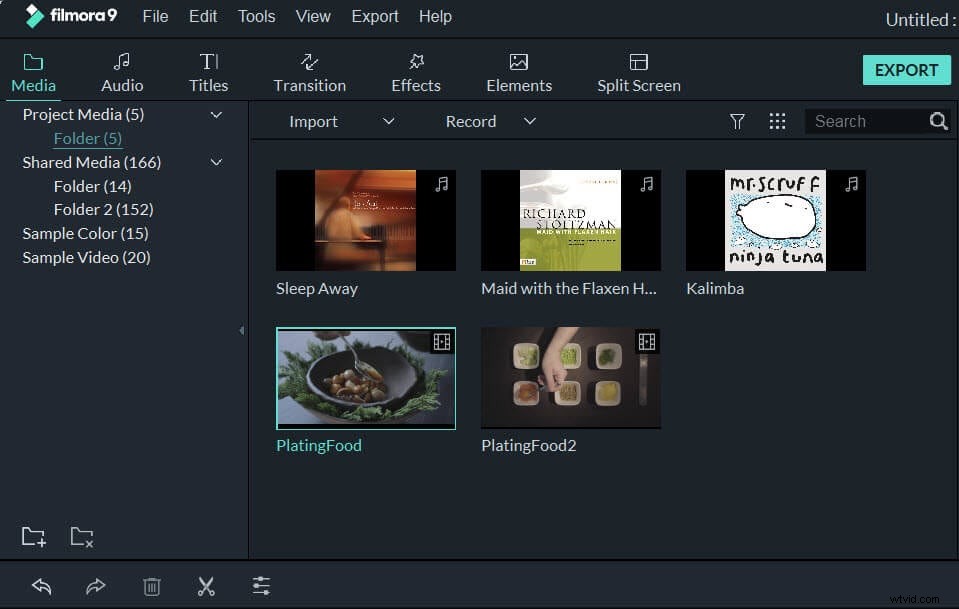
You can either click "Import" button, then browse AVI files on your computer, or just drag and drop AVI files from Windows File Explorer to the media library. And all imported AVI files will be displayed in thumbnails. Double click any AVI file to preview.
2. Drag and drop AVI videos to merge
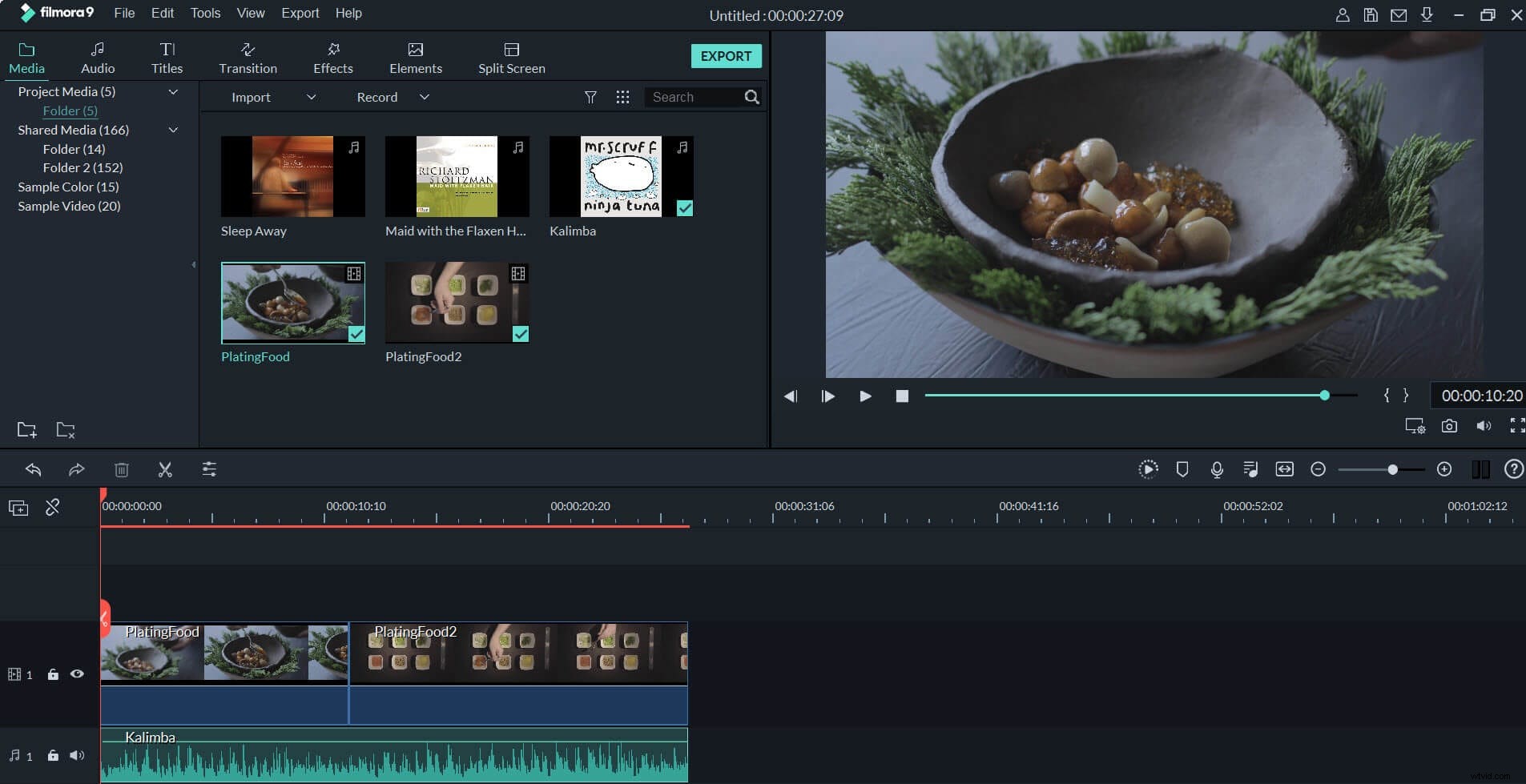
Drag-n-drop your AVI videos to the timeline. They will join one after one without a gap.
3. Add transitions between AVI videos (optional)
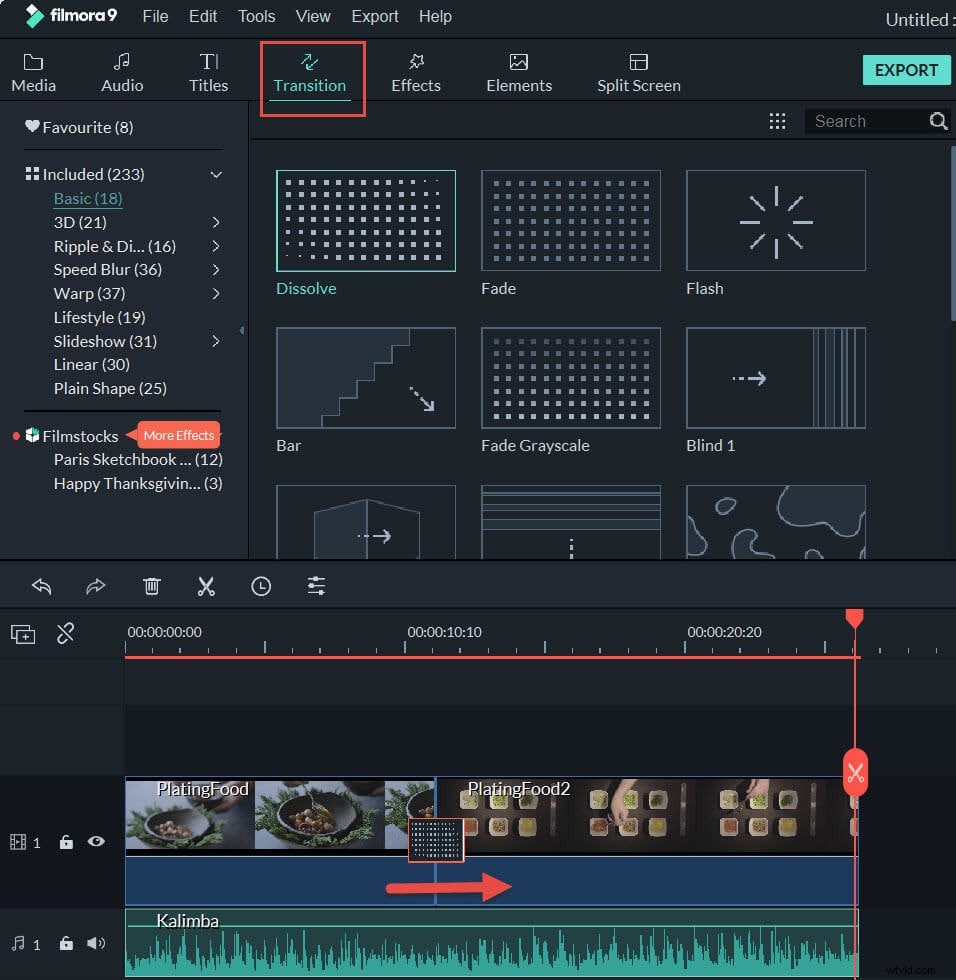
The joining or merging of clips is the transitions from the one to the other. Transitions can be an instant scene or image change, a fade, dissolve, or any digital effect. You can go to the Transitions tab, and apply the transition you want between the AVI clips as you want. It can not only smooth the video, but can add an unique flavor to them. See how below:
4. Merge AVI files to one
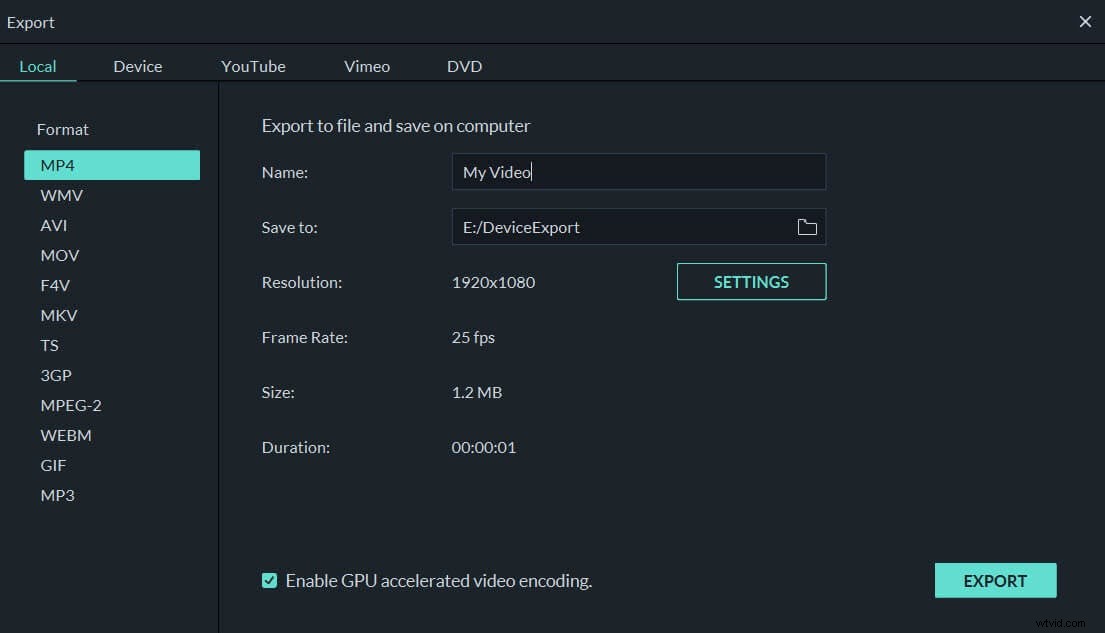
After you finish the editing, you can click the Export button to save your merged AVI videos a single file if you are happy with their preview in the preview window. Then you can select any supported formats such as mp4. But since your source files are in AVI format, it's suggested to select AVI as the export format as well. If you want to play the merged AVI files on iPod, iPhone, iPad, choose "Device" and select the device thumbnail from the list. What's more, you can also directly upload the combined video to YouTube or burn to DVD discs for watching on TV.