
Want a software to cut Divx movies? Give Wondershare Filmora (originally Wondershare Video Editor) a try. It lets you cut at any certain point, and save any part you want. With it, you’ll be able to trim a big Divx file into several video segments with wonderful video quality. Plus, this professional video cutting software also allows you to preview video file before and after cutting with its embedded powerful player. If you’re running a Mac, just adopt Divx cutter for Mac: Wondershare Filmora for Mac(Originally Wondershare Video Editor for Mac) to do it efficiently. Below information will describe how to do it step by step.
1 Add Divx files to this Divx cutter
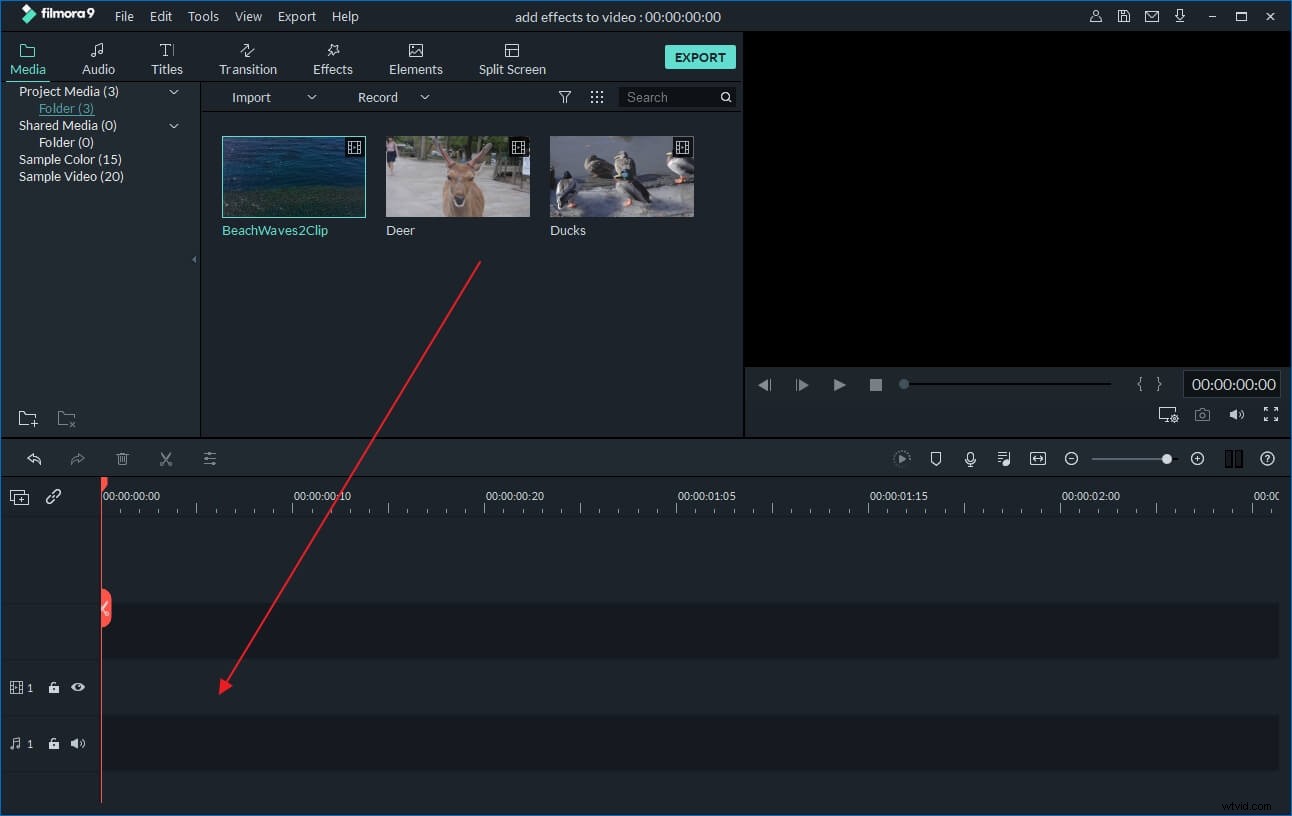
After download and install this Divx cutter, just hit the “Import” button to navigate your file folder and import the Divx file you want to cut. Also, you can simply drag and drop your Divx file directly to the program window. All imported files will show as thumbnails in the Album. After that, drag your Divx file to the video timeline and get it ready for cutting.
2 Cut any part from your Divx file
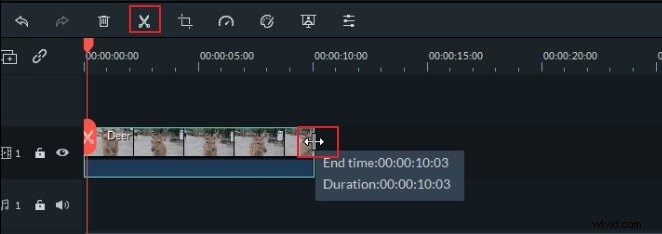
To cut the any place of your Divx file (start, middel, end), please follow below steps.
- 1.Move the red Time Indicator to the place you want to cut.
- 2.Click the scissor-like icon in the tool bar to split it.
- 3.Immediately, the Divx video will be split into two parts. You can delete the part you don't need.
- If you want to cut the middle part of the Divx video, please repeat step 1 & 2 to split your Divx file into several segments first. Then hit the "Delete" button to remove your unwanted part.
Tips: To easily find the accurate position, you can play the video on the right screen and drag the progress bar to the right place, and then click stop. The time indicator will automatically move to the exact point accordingly.
3 Export cut Divx files
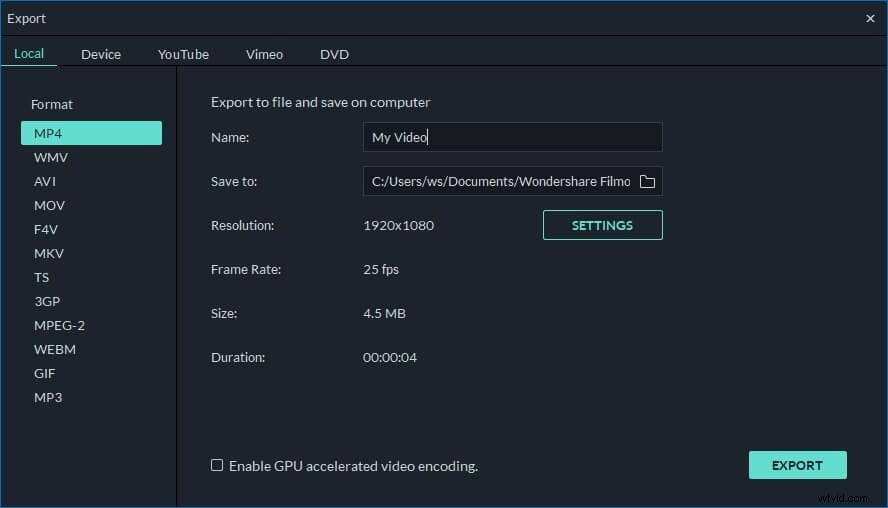
Now you have get rid of unwanted clips, please click the “Export” button to export your cut divx video. In the output window, you can select AVI or MOV video under the "Format" tab, and then specify Divx as the video encoder in the advanced settings. Alternatively, if you want to play the created file on iPhone, iPad, iPod, Samsung Galaxy note, etc. just pick up the right model under the "Device" tab.
When everything is ok, just click on Export button to export the new Divx file. When it finishes, you'll easily find the created file according to the output path you’ve set.
Check out below video tutorial on how to cut Divx files step by step:
Note: This program can only export one file at one time. So if you want to get several segments, you'll need to export several times.