MTS/M2TS is a common video format, widely used on many digital camcorders. If you've recorded lots of these MTS files with your camcorder like Sony Canon Panasonic JVC Lumix, there are always some scenes you dissatisfy or senseless segments in the MTS/M2TS video clips. In this case, you probably want to cut MTS/M2TS files to your desirable segments.
To split MTS files into segments, you can use a wonderful MTS/M2TS cutter - Wondershare Filmora (originally Wondershare Video Editor). This smart MTS splitter can help you accurately cut off your unwanted parts of your MTS/M2TS files without degrading the quality. What's more, there are more formats for you to save the video creation, so that you can continue to use in other applications or devices, etc. without the extra video conversion.
Easy-to-use MTS/M2TS Cutter: Wondershare Filmora (originally Wondershare Video Editor)
- Easily cut MTS/M2TS file into different parts with no quality loss.
- Add transitions, filters, intro/credits and sound effects to make MTS/M2TS video more vivid.
- Save the MTS/M2TS file in different formats, burn to DVD or directly upload online.
- Supported OS: Windows (Windows 10 included) & Mac OS X (above 10.6).
1. Import MTS files to this MTS cutter
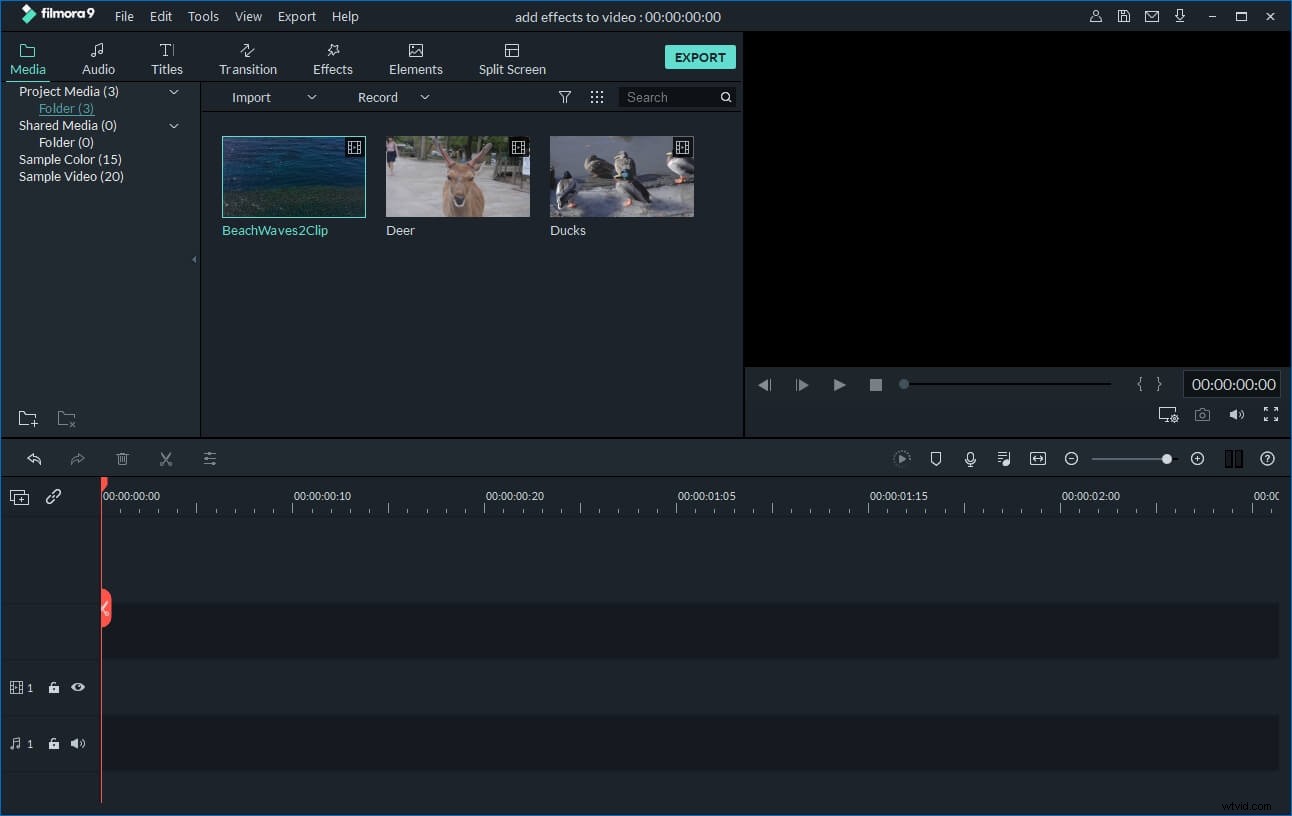
After launching this app, you need to select 16:9 or 4:3 ratio option to enter its editing interface. Then click "Import" option on the menu bar to load your local MTS files. At once, the imported MTS files will be listed in the User's album of this MTS splitter.
2. Cut MTS/M2TS files
Drag a MTS file from the album to the Timeline. Next, you need to cut the MTS file into clips. The operation is as follows:
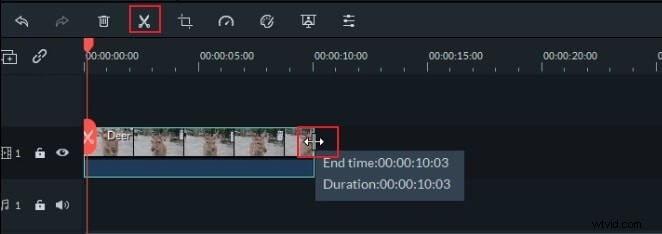
Move the top of the red Time Indicator to put it in any position you want, and then click the Scissor button. Immediately, the original MTS file is cut into two parts. Repeat the process to cut the MTS file into several clips. For those useless clips you want to delete, you just hit them and click the "Rubbish Can" icon to remove them.
3. Save MTS/M2TS files
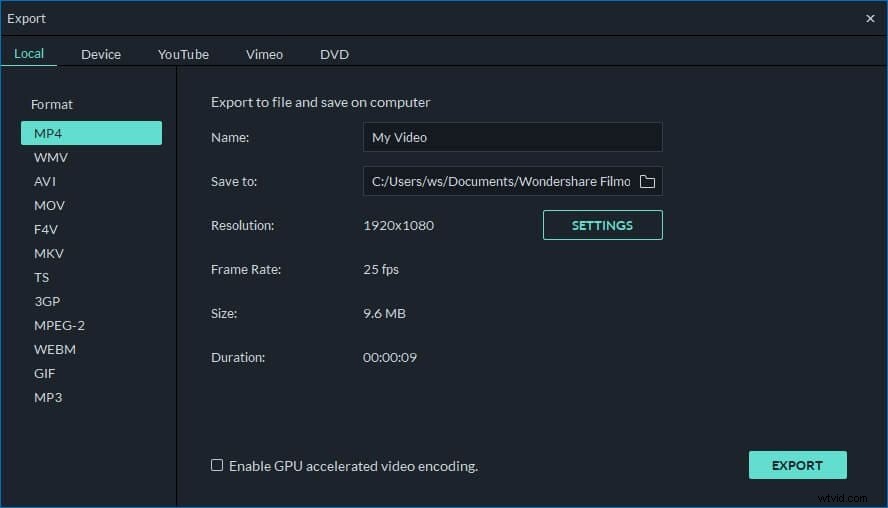
To play your MTS/M2TS file on some device, just go to "Device" tab to select your wanted device model. And then you can import the output file to your device to play smoothly. If you want to save the video creation in other formats, just go to Format tab to select your wanted format for further use.