
Being the most commonly used professional video editing tool, Sony (Magix) Vegas Pro provides complete control over audio files inside every project. If you are new to this platform then following details will help you to get complete information about how to edit audio volume, apply unique effects, remove noise and adjust fade in as well as fade out options for projects.
You May Also Like: How to Edit YouTube Audio >>
Sony (Magix) Vegas Audio Editor: How to edit audio in Vegas Pro
This tutorial is divided into 6 different sections that contain complete details about all possible audio track adjustments and customization options.
- Section 1: Edit volume for audio track
- Section 2: Fade in and Fade Out
- Section 3: Speed up or Slow down
- Section 4: Reverse audio clip
- Section 5: Noise Removal
- Section 6: Apply unique Audio Effects
Section 1: Edit volume for audio track
First of all you need to import your desired audio file to timeline of Vegas Pro; it can be done by using drag and drop option directly. On Vegas timeline you will find so many sound adjustment options that appear on audio track header.
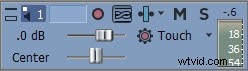
- Mute the Audio Track: Press M
- Manage volume control for all events of loaded track: Use Volume Slider switch that is denoted by dB.
- Pan Slider: It is possible to make adjustments for audio pan using a slider named as Center. Users can slide it to left side or right side as per audio project requirements.
Note:
1. Put on your headphone to better verify the output result.
2. To reset the volume, just double click on the options.
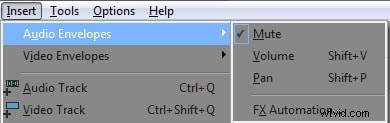
Those who want to control volume separately for different portions of audio file can go to Audio Envelop (go Insert > Audio Envelopes)and then make all essential settings as:
Mute: A blue line is visible on timeline at your selected audio event, simply double click over it for addition of a specific point and then right click for mute adjustments. From appeared drop down menu you can select muted or not muted and the adjustments will be effective on right side of event point.

Volume: Check the deep blue line on selected event and then double click over it for addition of a marking point. Drag this point up or down for appropriate volume settings and use right click option for additional adjustments.

Pan: Pan Adjustments can be done using red lien control over event. Double click over it and move the point up or down to set pan at specific range. Use right click button for advanced options.

Section 2: Fade in and Fade Out
Some professional settings to audio project can be made using fade in/out options. Users can pull the fade adjust curser to any direction for easy customization.
Hover your cursor on the audio event in timeline, you will find the fade in/out offset handle at the up side corner of the audio event. Pull the Fade in/out offset handle as long as you want:

Section 3: Speed up or Slow down:
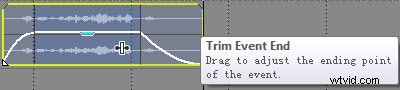
If you want to change the speed of specific portions of your audio project then hold CTRL button and then start moving your curser over Trim Event handle. If you drag it to right side then it will directly speed up your audio clip and dragging to left side will automatically reduce speed.
Section 4: Reverse audio clip:
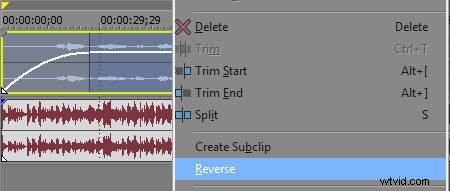
One can easily reverse his selected audio clip; simply right click over it and then choose Reverse option from drop down menu; it will help to move audio frames in reverse order.
Section 5: Noise Removal
One classic feature of Vegas Pro is its Sound Restoration in Audio FX control. But it does not work as good compared to Audacity. Check this article to see how to remove noise from audio using Sony Vegas Pro & Audacity.
Or check this video tutorial below:
Section 6: Apply unique Audio Effects
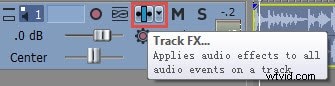
If you want to add specific effects to your audio files then use two simple methods on Vegas Pro with its Audio FX tool: One is to add effects on entire video file and second option is to make changes to specific layers of audio project. Use these steps to achieve great results:
To entire audio layer
To an individual portion of the audio layer
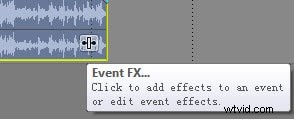
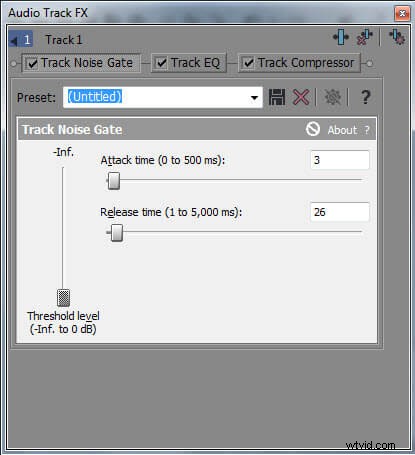
Step 1: First of all go to Track Description Box and then press the Track FX icon, an audio track FX will soon appear on your device screen. The three basic controls are always activated, that are Track Compressor, Track EQ and Track Noise Gate.
For additional personalization you need to use plug-in chain button from right corner.
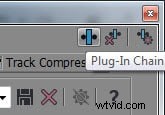
Step 2: Now select any desired effect from list that can make your audio track more impressive and press Add; once applied then hit OK.
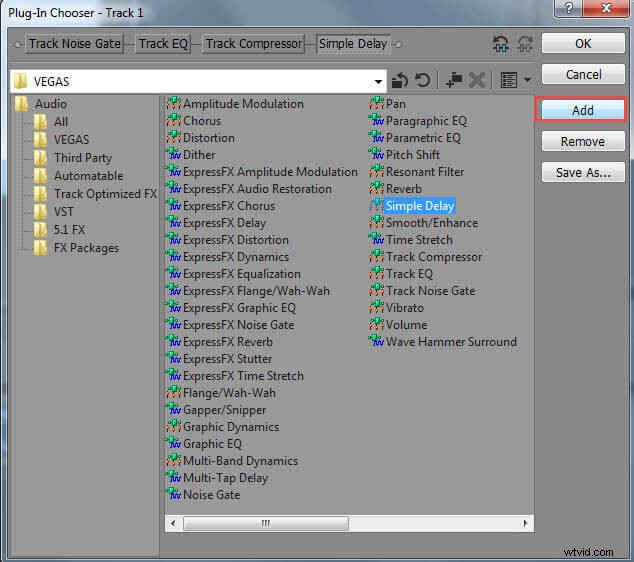
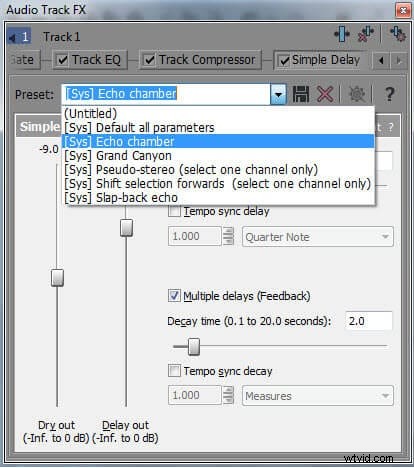
Step 3: Make required adjustments with the help of slider or users can also open the drop down box on screen for selection of present templates as per need.
Recommendation:
The Vegas Pro is rated as a professional editing software tool due to its advanced user interface, high price range and availability on Mac devices only. If you are searching for some video editing tools that can work on Windows as well as Mac devices then Wondershare Filmora is one of the best options for you all.