
Sharing videos on YouTube, Instagram, Facebook, etc. social media, has become a lifestyle that catches on with young people. If you want to apply zoom in motion to your video, remove the unwanted section, or resize, you need to crop the video. The post introduces 4 best video croppers to let you know how to crop a video Windows 10.
People always get used to cropping video on PC because it’s a delicate work and PC software offers many advanced features. However, losing quality and changing formats may often happen to you when cropping videos. The below Windows 10 video croppers can help you solve it. If you are seeking for a beginner-friendly video editor, MiniTool MovieMaker is your best choice.
How to Crop a Video Windows 10 with Windows Movie Maker
Many Windows users may regard Windows Movie Maker as their enlightenment in the video editing aspect. Nowadays, it’s still free available for Windows 10. But how to crop a video Windows 10 with it? You can find the answer in the following step-by-step guide.
Step 1. Download Windows Movie Maker on your computer and launch it.
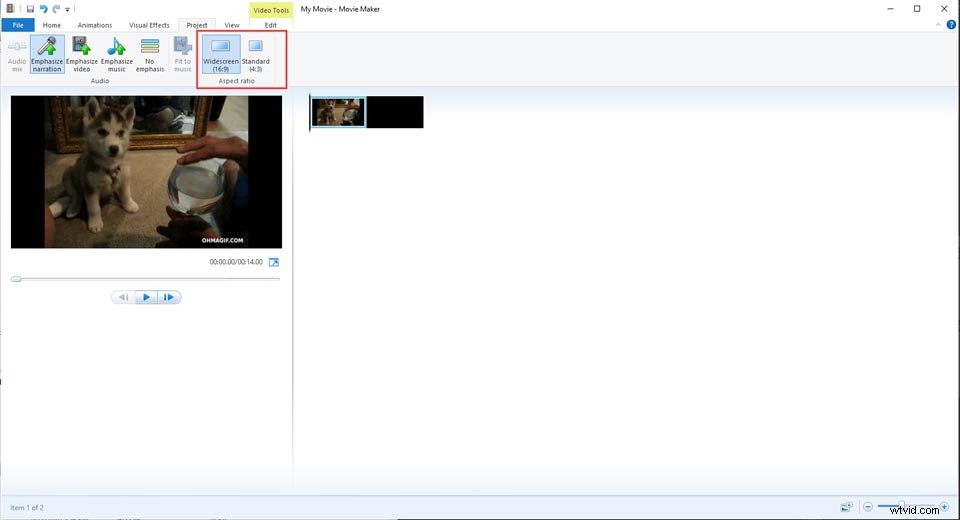
Step 2. Drag the video to the white window, and then click the Project tab in the top menu.
Step 3. There are two options of aspect ratio to crop the video. Choose one and preview the video.
Step 4. After finishing, click the Save icon and share this cropped video on social media.
How to Crop a Video Windows 10 with Handbrake
Handbrake is an open-source, multi-platform transcoder that supports format conversions and offers video editing features, which is also a free video cropper. If you download a video from YouTube, it also can serve as a YouTube video cropper to help you seize the special part and get rid of the unwanted section, which can be called re-create.
Here’s a simple guide to how to crop a video Windows using Handbrake.
Step 1. Launch Handbrake and upload the video you want to crop.
Step 2. Then click the Preview button to open the window, and then go to the Dimension tab to adjust the dimension and resolution.
Step 3. There are four fields marked Top, Bottom, Left, and Right to set the value in pixels.
Step 4. Once you have cropped it already, save the cropped video to your computer.
How to Crop a Video Windows 10 with VSDC
VSDC, a free video cropper, offers professional editing features to help crop a video easily. You can freely customize your video cropping until the size of the video fits your needs. The following part is to help you master the operation step.
Step 1. Launch the VSDC, and then click the Add object button to upload the video you want to crop.
Step 2. Tap on the Crop icon, and then choose one of the options, either Custom region or Auto cropping.
Step 3. Once you click the Custom region option, a pop-up new window allows you to crop video. You can set the zoom in motion, and drag forward or backward to select the zone.
How to Crop a Video Windows 10 with Online Video Cutter
Using an online video cropper is also a good choice for Windows 10 users. Apart from cropping video, Online Video Cutter provides other video editing features with you, such as rotating video, trimming video, etc. And it’s very easy-to-use that just needs a few steps to crop video, not requiring installation.
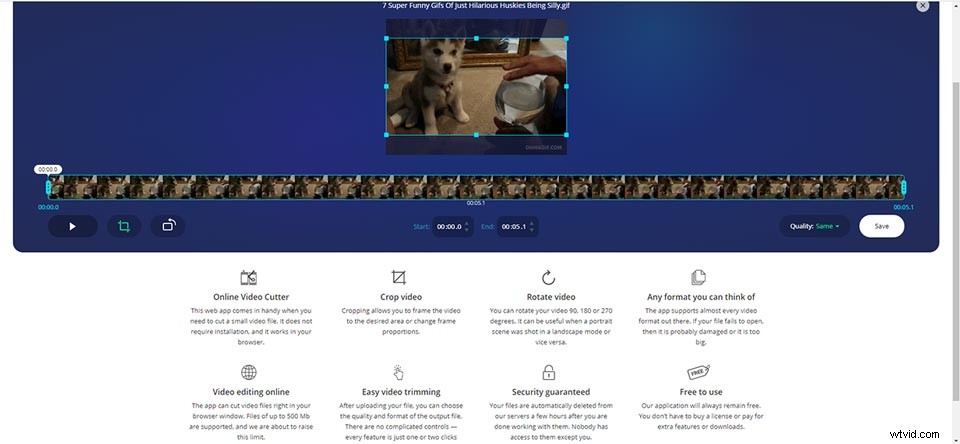
Step 1. Click the Choose File button to upload the target video.
Step 2. Tap on the Crop icon to pop up some optional aspect ratio. Choose one, or choose Custom to crop the video by yourself.
Step 3. Once you finish, click the Save button.
Bottom Line
The above are 4 video croppers to solve how to crop a video Windows 10. You can try them one by one, and find the most suitable one that can meet your needs. It’s a pleasure to help you go through it.
If you have any questions or suggestions about it, please let us know via admin@wtvid.com or share them in the comments section below.