
In this post, you can learn the easiest way to freeze the frame of your video.
Remember Pulp Fiction’s opening kissing freeze-frame scene where they decide on the place they wish to rob. Or perhaps, the freeze of the frame in the ending of Rocky III when Apollo says “Ding Ding,” imitating a bell.
Movies, TV shows, and documentaries all use freeze frames at some point in time. They help emphasize a moment for a few scenes. In others, they help build up the scene, which is key to the story. Add narration to the freeze frame, and you can add a lot of undertone to the proceeding scenes.
Frozen frames is a technique that stops a particular frame of the film, video and is held motionless for a while. Generally held for adding dramatic effect, you can find them in the form of memes as well.
Recreate the same Freeez frame using editors that can do it without any hiccup. We have compiled three of the best freeze frame editors that can do it with ease.
#1. FilmForth
FilmForth is a versatile video editor that can freeze frames with a single button. No going through contextual menus to access the option. The option is prominent on the project screen.
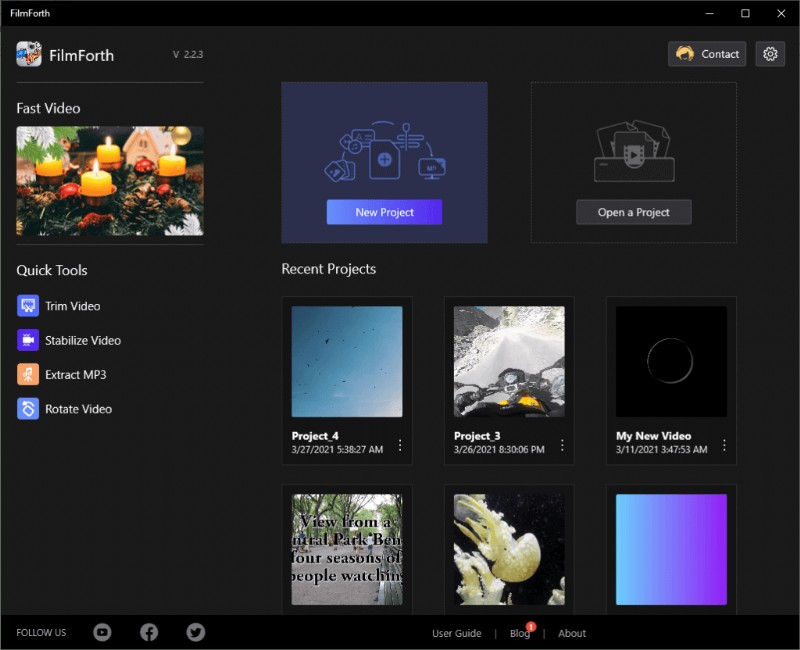
FilmForth Overview
Features
- One-button Frame Freezing – Seek the frame you want to freeze and click on the Freeze Frame button from the tool’s dashboard. After that, set the duration from the timeline or use the tool from the dashboard for it.
- Add flair to Frozen Frame – Frozen frames don’t have to be vanilla. Add transitions, add effects, and more to the frame and add up value to the narrative.
- No Watermarks – Unlike other video editors with premium features, FilmForth does not impose a watermark on your videos. You get the option to remove them while saving the video.
Pros
- Quick-button for Frame Freeze
- Customize frames
- Modern user-interface
Cons
- Cannot remove the background
- Supports only 60 FPS
How To Freeze Frame with FilmForth
Step 1. Download FilmForth, install and launch it. It’s currently available for Microsoft’s latest installment.

Step 2. Click on the “New Project” to start a new project. In case you want to edit a video from an older project, refer to the recent projects section given below.
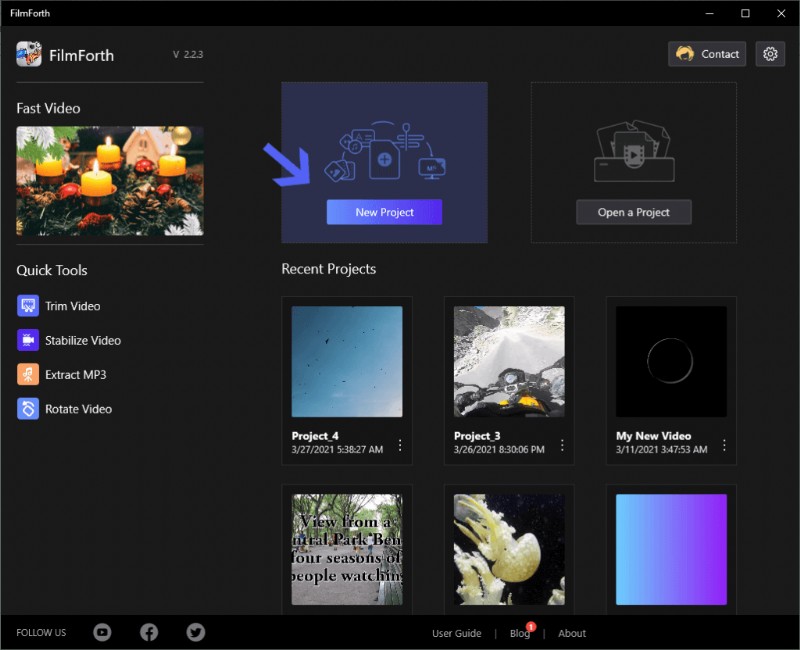
Start a New Project
Step 3. After that, click on the “Add New Video/Photo Clips” button to add a video. Drag and drop works just fine as well.
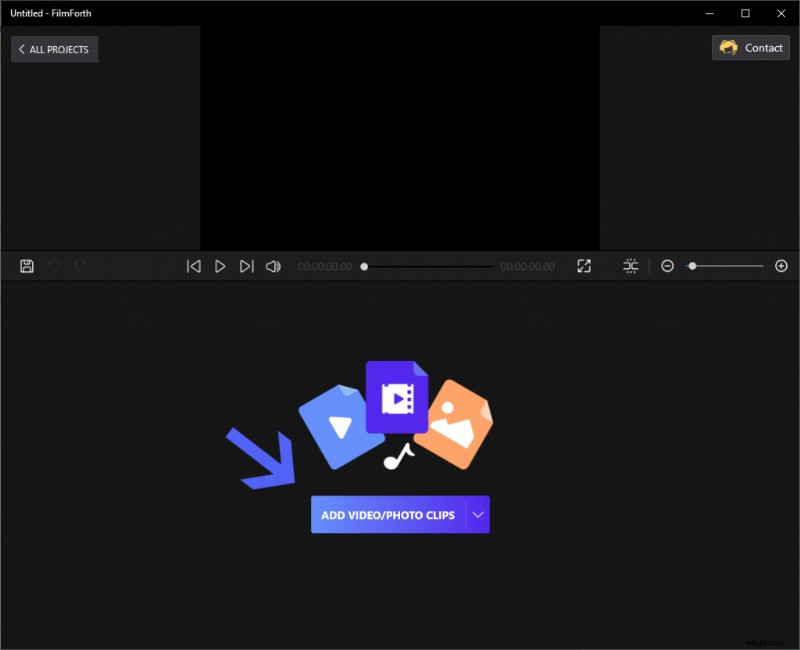
Add Video/Photo Clips
Step 4. Play the video and pause at the frame which you want to freeze. Click on the “Freeze Frame” button from the tool dashboard.
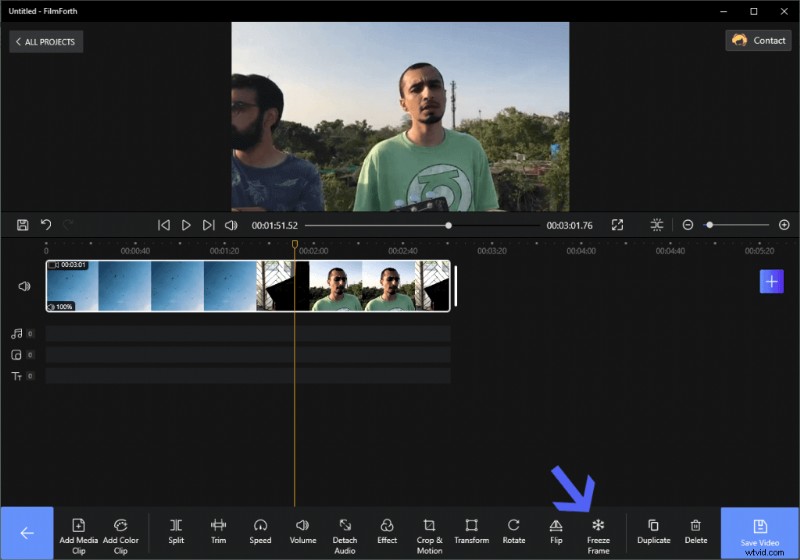
Click the “Freeze Frame” Button
Step 5. The frozen frame will appear in the timeline as a separate clip. You can see the frame, denoted by the arrow A. Set the frozen frame’s duration by using the duration tool, as denoted by arrow B. You can set the duration of the frozen frame between 0.17 seconds to 10 seconds.
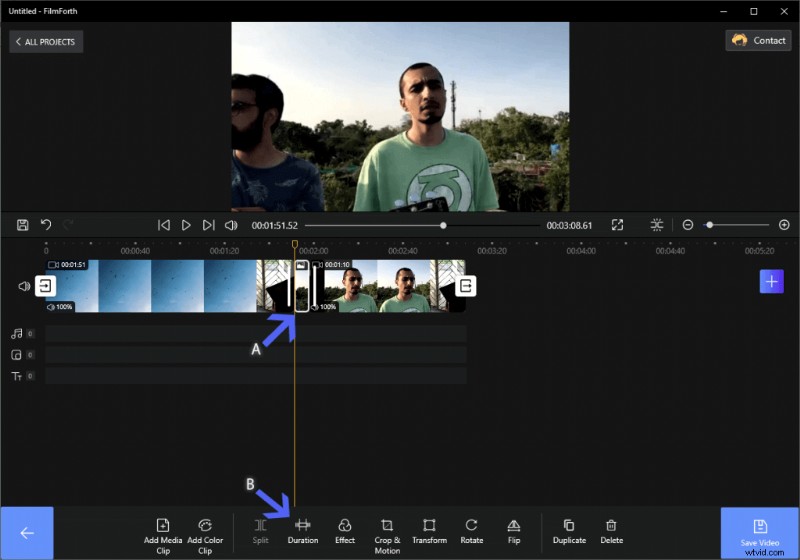
Set Frame Duration
Lastly, save the video once done by using the save video button. In total, with Filmforth, all users, beginners or professionals, can easily freeze video frames, add transition or effects to frames, set frame duration, and so on. It is a highly recommended video editor to freeze frames.
#2. Power Director
Cyberlink’s very own Power Director is a pretty capable video editor to have around. You will get an online installer from the official website. Create an account on Cyberlink to use the editor after installation, as it is a trial version.
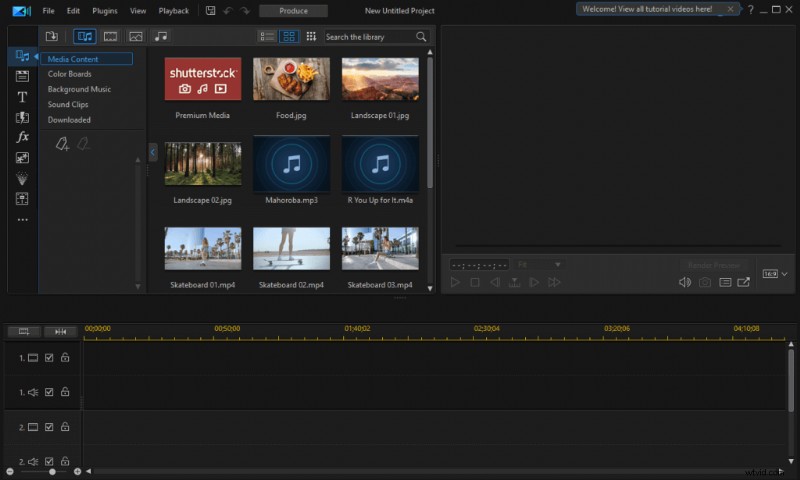
Power Director Overview
Features
- Audio Scrubbing – Peruse the audio while playing it to find the clip you need. Listen to the audio track and inspect it on the go.
- Customize Freeze Frames – Freeze frames of the video and apply different filters, tools to it.
- Intuitive Motion Tracking – Make sure to track every object with the next-gen tracking frame by frame.
Pros
- AI-powered advanced tools
- Wide range of stock elements
- Frame-by-frame properties
Cons
- Requires registration for usage
- Inadequate support articles
How To Freeze Frame with Power Director
Step 1. Launch the editor and create a new project
Step 2. Press Ctrl + Q to add your video.
Step 3. Drag and drop it into the timeline.
Step 4. Seek the frame which you wish and right-click to open the contextual menu.
Step 5. Head to Edit Video > Freeze Frame, and the frame will be frozen.
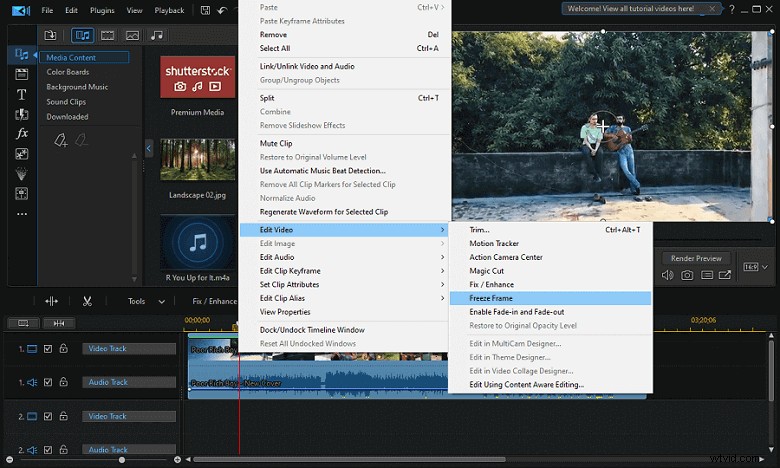
Edit Video & Freeze Frame
Step 6. A separate clip will appear on the timeline. To set the duration, you can right-click on the frame and head to Set Clip Attributes > Set Duration.
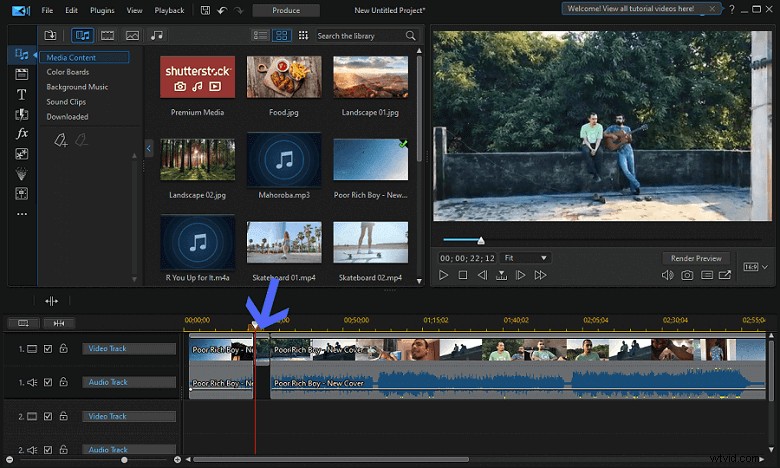
Set Clip Attributes & Set Duration
#3. OpenShot
OpenShot is an open-source video editor that is free to use. It is available for macOS, Windows, and Linux. All the features can be accessed from the home page itself.
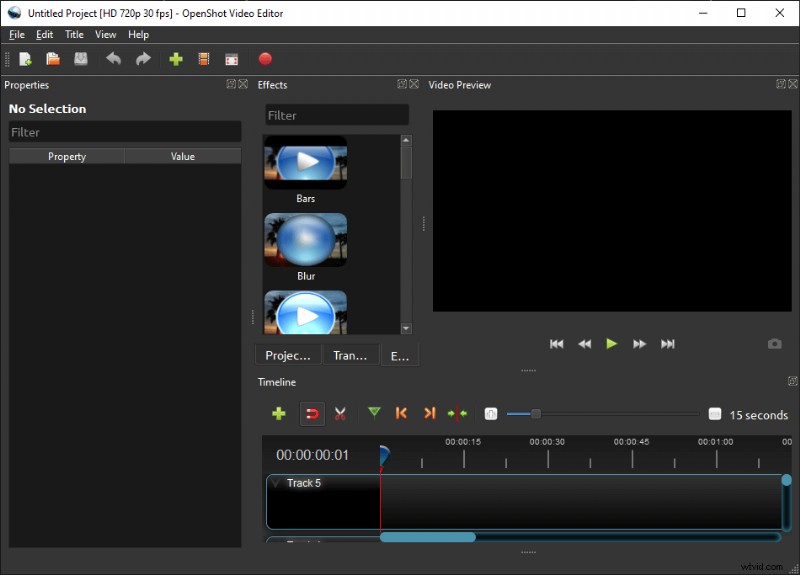
OpenShot Overview
Features
- Open-Source – That means you will never have to shell a penny for it. It is free and forever will be.
- Simple User-interface – The UI is amongst the easiest to operate. From novice to expert in computers, all can use it with ease.
- Available in over 70 Languages – Don’t speak English? Not a problem. Use it in your native language, and you can also translate it to other languages.
Pros
- Easy to use
- Beginner-friendly
- Freeze Duration Setter
Cons
- Dated user-interface
- Lacks AI-based features
How To Freeze Frame with OpenShot
Step 1. Launch OpenShot and create a new project.
Step 2. Drag and drop the video the timeline directly. Alternatively, you can also use the keyboard shortcut Ctrl + F to browse and load the video manually.
Step 3. Seek the video to the frame which you want to freeze.
Step 4. Right-click on the video and the menu will appear on the screen.
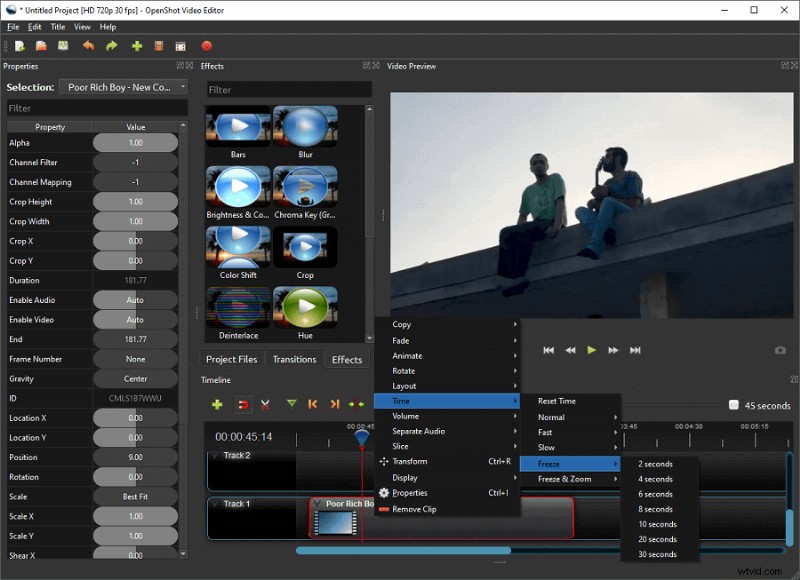
Freeze Frame
Step 5. Head to Time > Freeze and then select the duration you want to freeze the frame in question.
Step 6. The frozen frame will be denoted by two small green bars in the timeline.
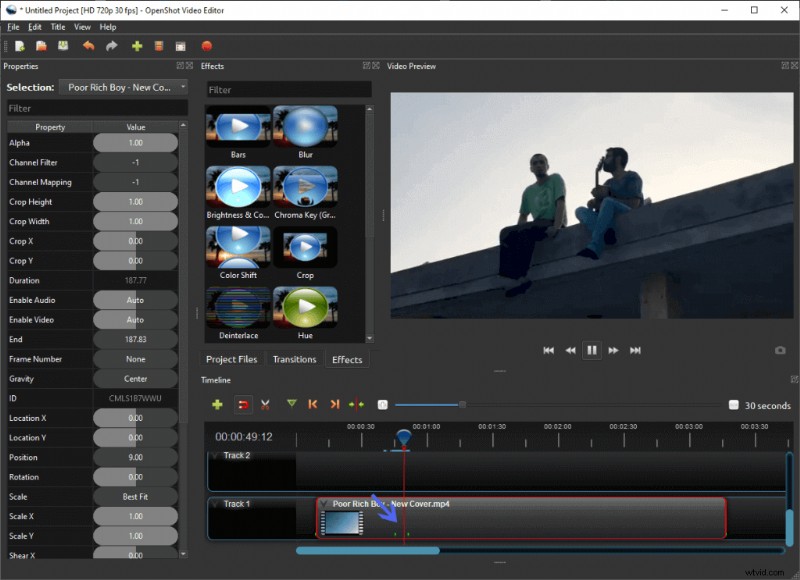
Frame Duration
Conclusion
The three editors above are the best ones in freeze video frames while Filmforth stands out most with its one-click frame frozen and friendly UI design. In addition to freezing the frame, please make sure to add narration, background music, or other elements to the frozen frame. They help in dressing up the context to frame that has been frozen. Insert a new track before adding any element for the frozen frame, and it helps keep the editing on the tidier side.