
There are a lot of videos with the freeze frame effects going viral on TikTok, and you always wonder how those TikTokers did it. You can figure out how to edit videos with the freeze frame effect freely and easily in this post.
CapCut lowers the bar for editing and allows you to make a fabulous video without having any editing knowledge or special skills. For some newbie vloggers, CapCut is really a handy video editor
If you want to capture only one frame of your video for use as a clip, you can use the freeze frame feature. Let’s know more about What is freeze frame video effect.
Do not miss:Top 18 Smooth Slow Motion Video Editors in 2022, How to Slow-Mo Videos in CapCut Smoothly, The Complete Guide on How to Make a Smooth Video Slow Motion on Any Device
What is the Freeze Frame Video Effect
The freeze frame feature allows you to quickly capture still frames from your video footage. Freeze frame is an important effect in video editing software. A freeze frame is to intercept the frame where the time pointer is located, and by default, a second picture clip is generated, and the clip is divided by this. Then we can make various edits to this clip individually.
- freeze the video to achieve a certain visual effect
- Catch up with the trend of Freeze Frame video editing techniques on TikTok
- Bring your videos to a pro level to get more likes
How to Edit Freeze Frame in CapCut on Android
For Android users, CapCut is a handy video editor. When it comes to framing videos on CapCut, you may find it a bit tricky. In fact, it’s quite simple. The straightforward steps are presented for you below.
Step 1. Open the CapCut application to start a new project on your Android phone.
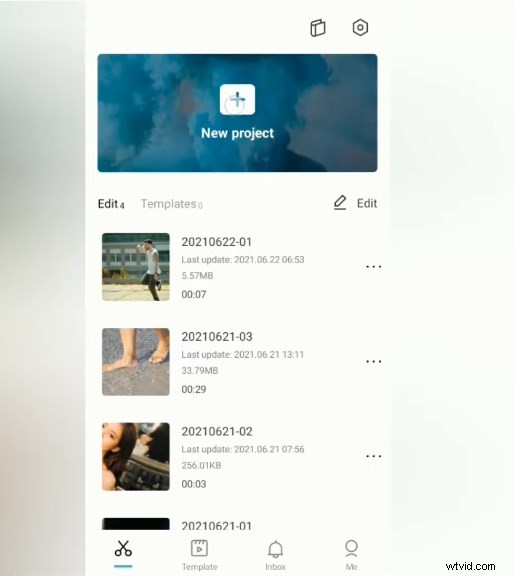
Create A New Project in CapCut
Step 2. Select the video to be edited in your video list and click the “Add” button in the bottom right corner to import it into CapCut.
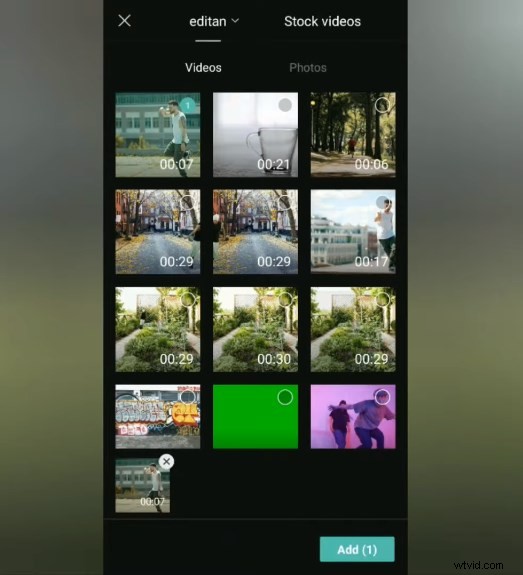
Add Video to CapCut
Step 3. Add music or songs via this audio menu before starting to edit, you can use the music already provided in CapCut. Or add your own music stored in the gallery.
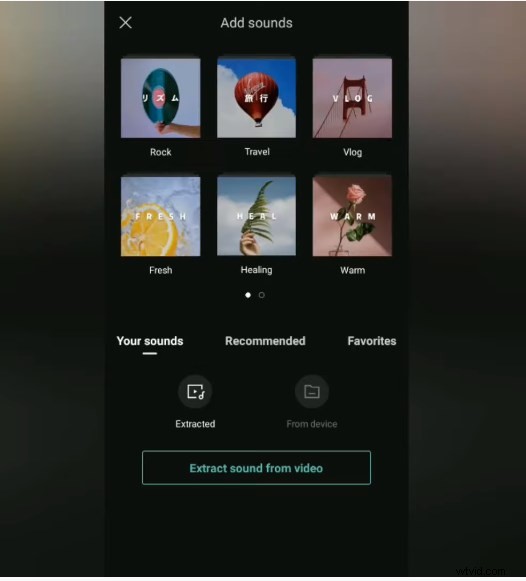
Add Sounds to the Video Clip
Step 4. Select and determine which part of the video you will freeze, then tap the video clip on the timeline.
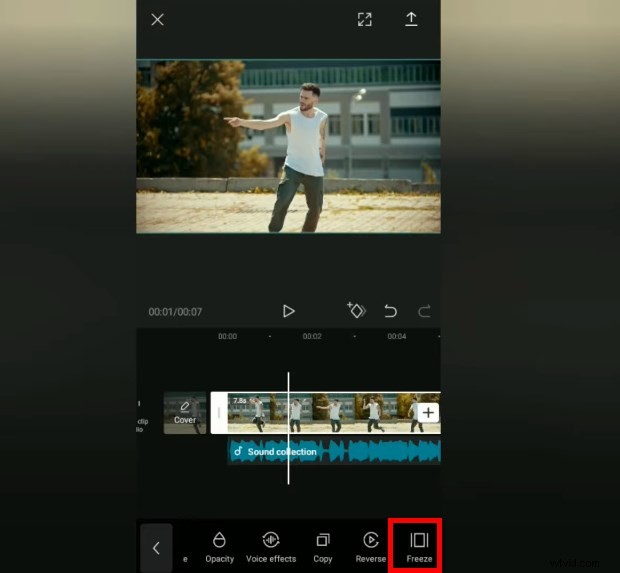
Freeze the Video on CapCut
Find the freeze menu at the bottom and tap it, and you have to make a freeze frame effect on the video.
Step 5. Next, go to the overlay menu at the bottom, then make this freeze video clip an overlay.
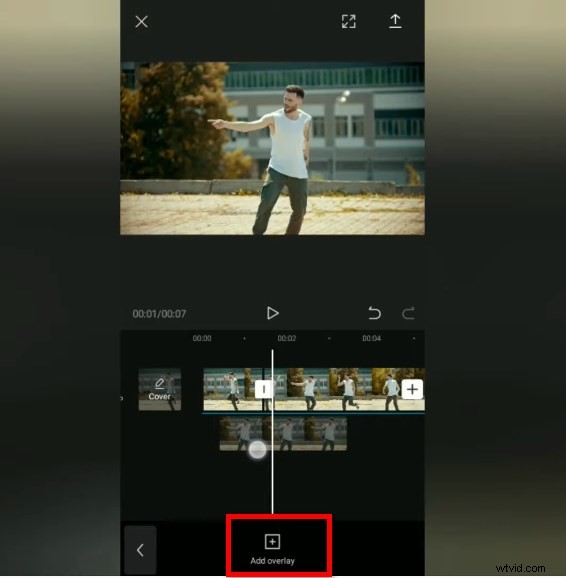
Make the Freezing Video as An Overlay
Tape this overlay menu, then slide the position to cut the duration to your liking.
Step 6. Then remove the video freeze background by taping this remove background menu.
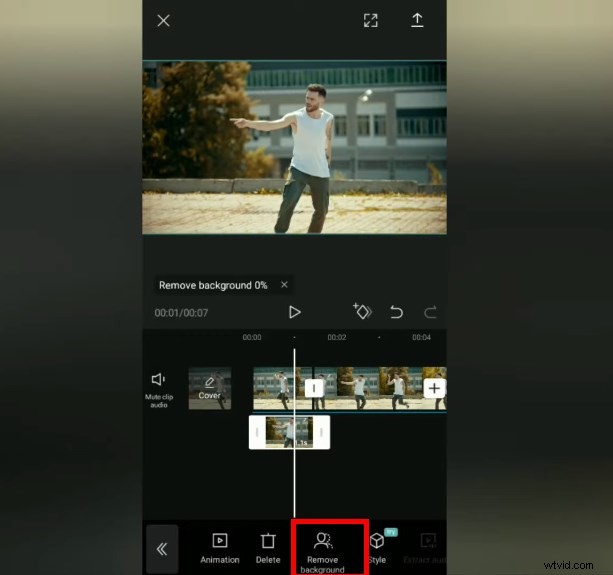
Remove the Background
Step 7. Go to the animation menu and select the animation category. Choose an animation effect that you want and set the duration as desired.
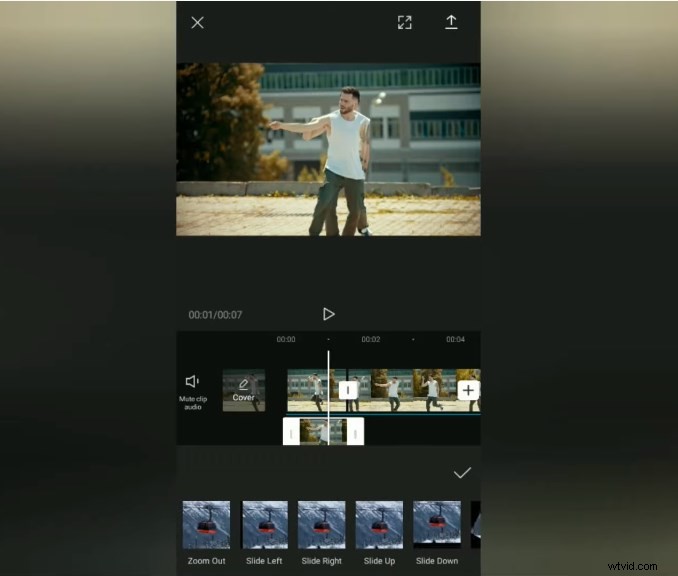
Add Animation Effect to Video
For the rest, you just need to repeat the previous steps on all parts of the video that you will give the freeze effect.
Step 8. When you have finished giving the freeze frame effect in all parts of the video that you want. You can preview the video to see the result.
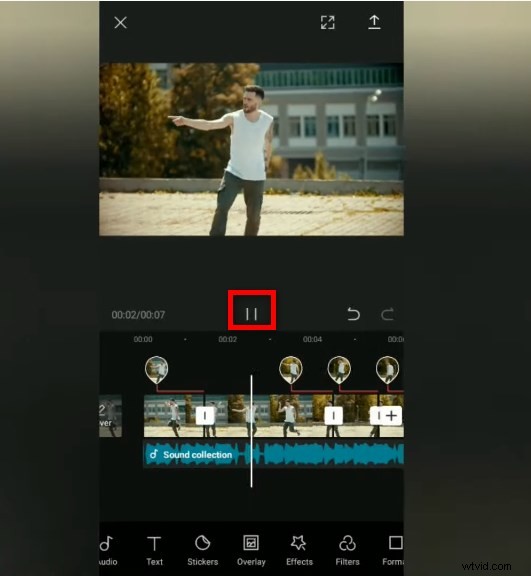
Preview the Freeze Frame Video
Step 9. Finally, you can export the frame video to your gallery phone and share it directly to social media like Tiktok or Instagram.
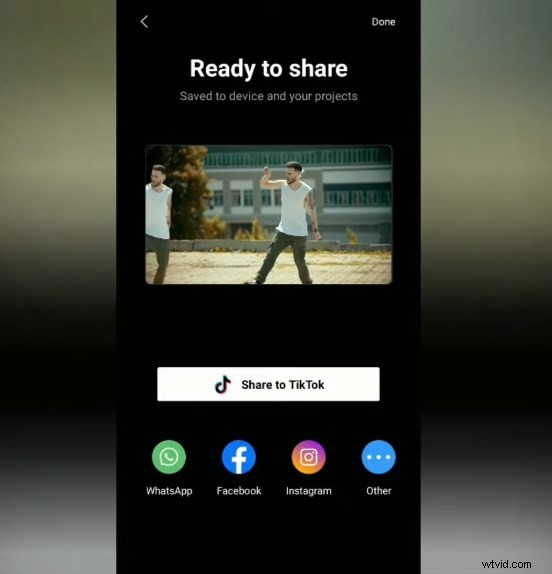
Export and Share the Freeze Frame Video
Here is a wrap. If you want to freeze your video, just hover the “playhead” over the position of the frame you want to freeze, find and click the “Freeze” button.
Tips: Some newbie CapCut users wonder Where is the Freeze button on CapCut? After importing the video into CapCut > Click the Edit icon in the bottom menu bar > Swipe from right to left to find the Freeze button at the end.
How to Use Freeze Frame Effect in CapCut
In addition, CapCut has some built-in effects that let you apply freeze-frame effects to your videos. The operation is so easy that you can make a fabulous video even if you don’t have any video editing skills. Here are the detailed steps.
Step 1. You can use a tripod to record a video for yourself, just try not to shake the camera. Create a new project on CapCut and import your recording file.
Step 2. Find and Tap on the Style button from the menu bar after selecting the clip in the timeline.
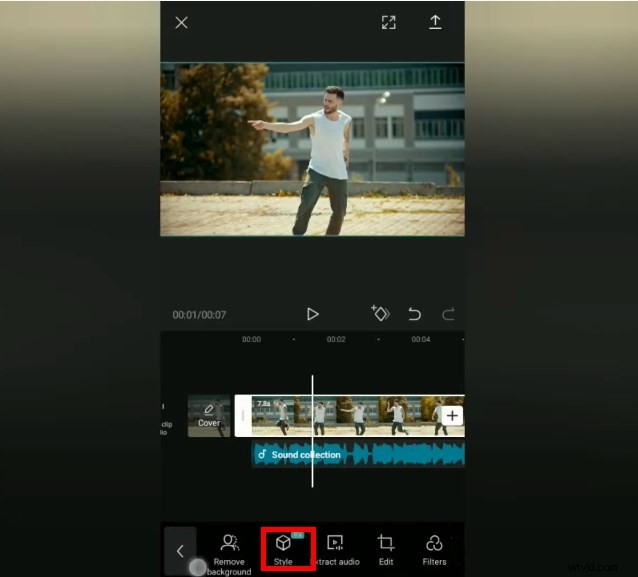
Click on the Style Button
Step 3. Looking for the Freeze Frame effect and tap on it. There are two Freeze Frame effects(eating shadow effect, leave shadow effect), and you can choose the one that you like.
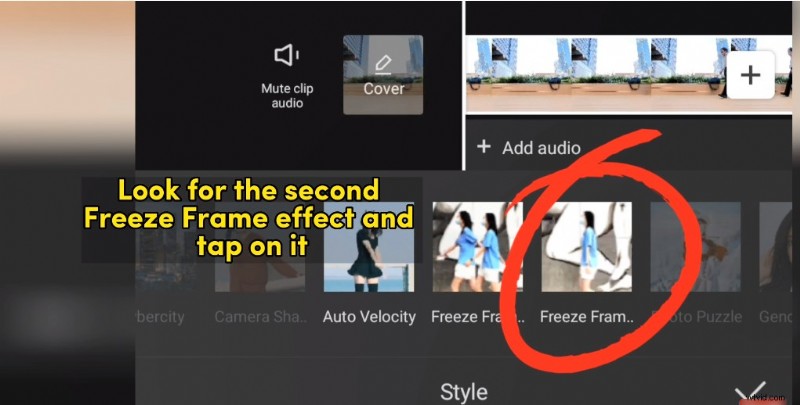
Select the Freeze Frame Effect
Step 4. Then wait for the effect to generate, it will take a few seconds. Voila, it’s done. You can decide to share your freeze frame video on TikTok, or other social media platforms like Facebook and Instagram.
The Bottom Line
The above is simple and straightforward steps on how to freeze frame on CapCut, without any fancy stuff. You can follow these steps to make an edited freeze frame video effect and then post your video to social media platforms to get more likes and followers.