Want to make a still or "Frozen" scene to tell the most exciting or the funniest moment of the story? Or would like to freeze something to give a familiar story some freshness? Actually, it’s quite easy to freeze a video to emphasis an action or add some captions if you get the right tool at hand.
Here, Wondershare Filmora is directly shared with you. With it, you can create a still image with your desired zoom in and out effect in a simple click. Below shows how to do it step by step.
To begin with, get a free trial copy of Wondershare Filmora.
Why You Need to Freeze Frame in a Video
You can show your favorite scene by freezing a video to let viewers know your idea easily. In doing so, the core of your video would be shown naturally. After you apply freeze video, your video will be split into two parts because the edited frame will be in the middle of the clicp. However, it won't affect the completeness of video. Safe and easy!
You may also like: How to Edit Video Frame
How to Freeze Video with Filmora
1 Import your media files
Click "Import" to browse your file folder or simply drag and drop all files into the primary window. This program supports a vast array of media files, including WMV, MOV, MP4, AVI, MKV, MTS, DV, TS, 3GP, M4V, and more.
When you load all of them, they will show as thumbnails in the Media Library. Now drag them to the Video Timeline and get ready for step 2.
Note: by default, all files in Video Timeline will be merged together without any stop.
You may also like: How to Create Freeze Frame in Adobe Premiere Pro
2 Freeze video with ease
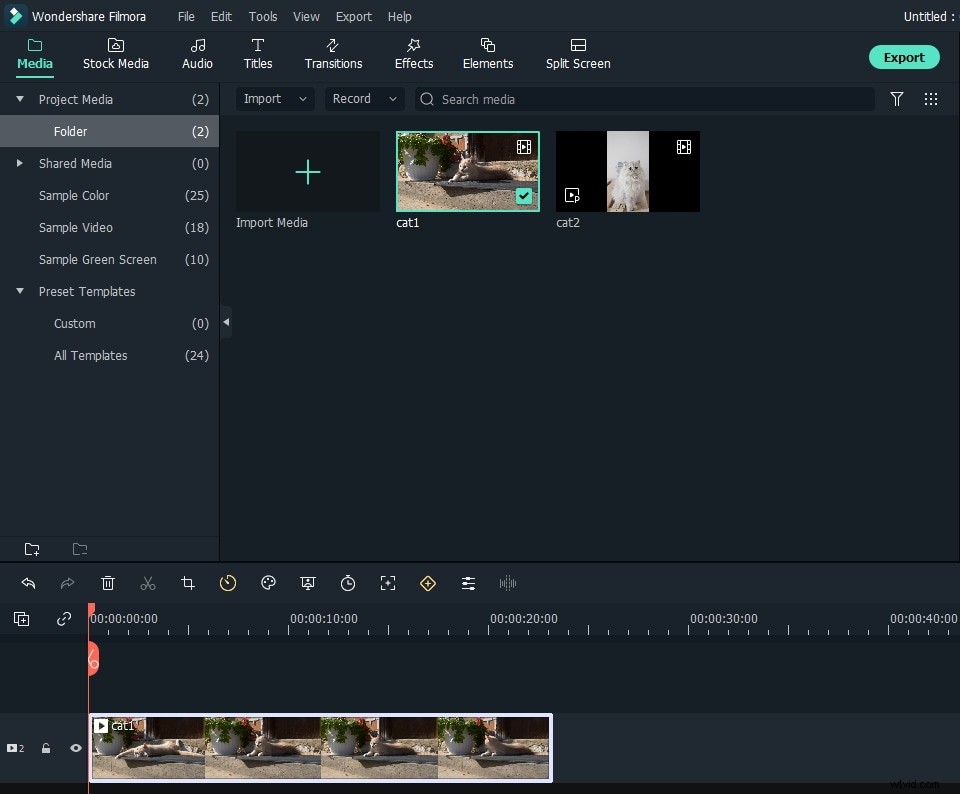
Now play the video clip you want to create a frozen picture, and pause it when it comes to the right position. Click the "Snapshot" incon that locates under the Viewer panel. Immediately, there will be a picture added to media library. Drag the image to the PIP track over the main video track, and set the duration of the still image.
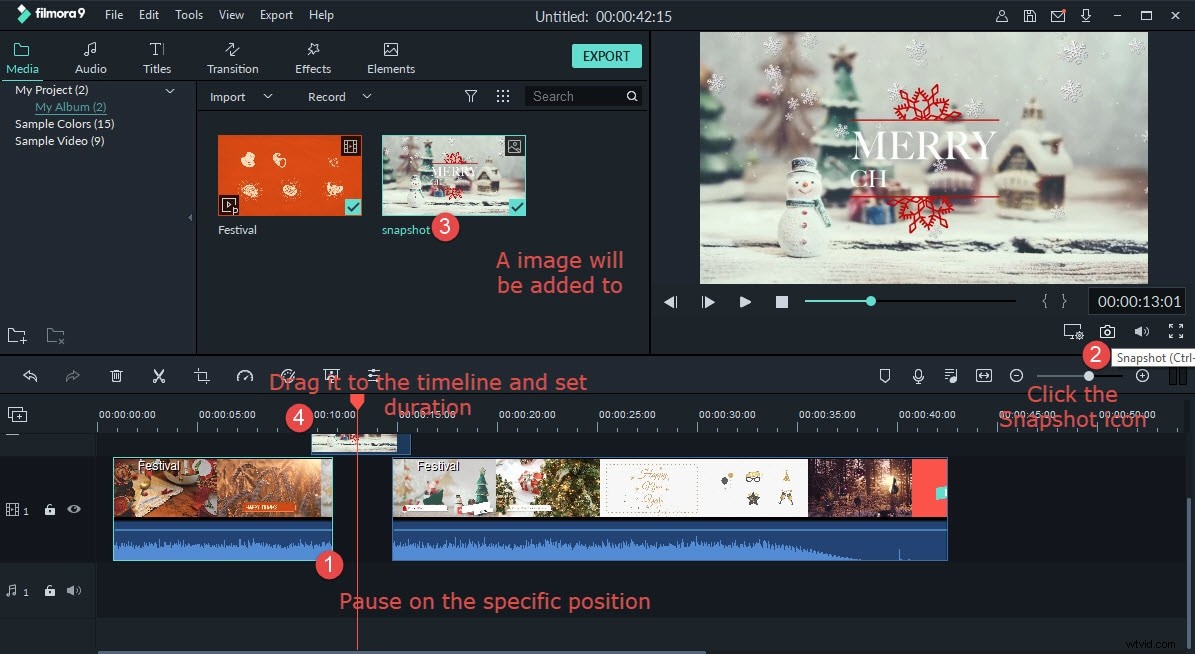
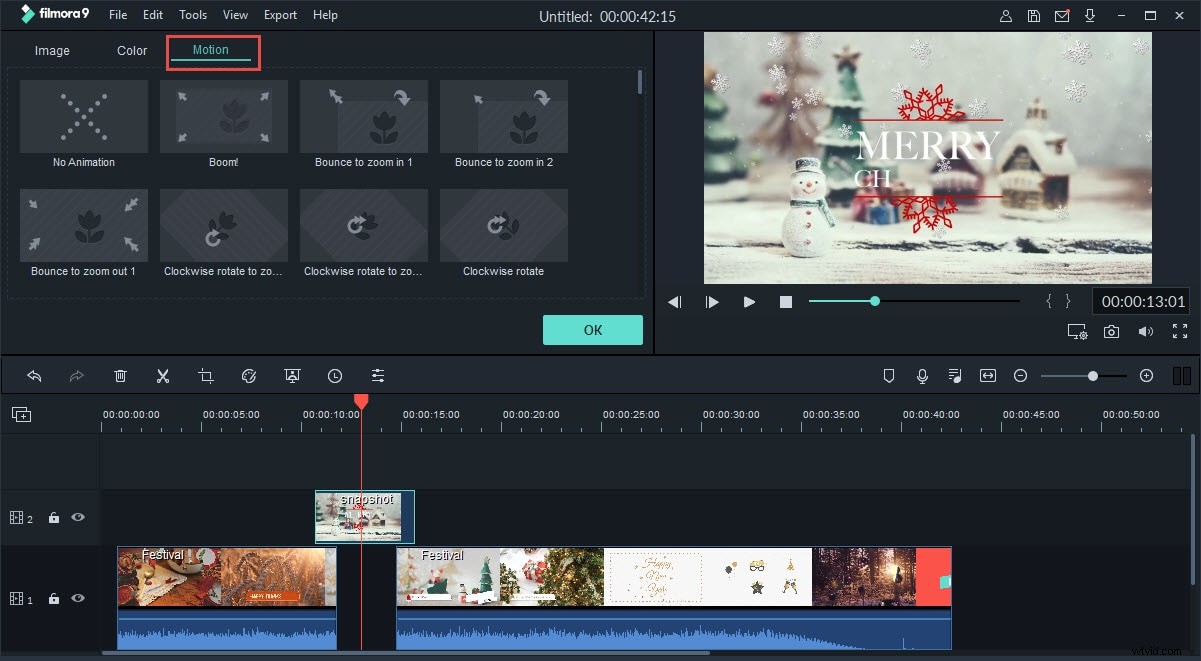
Now you've created a frozen frame, want to further customize it? Double click the picture icon to reveal the editing window. Here, you can rotate it 90 degrees clockwise, adjust the duration, brightness, contrast.
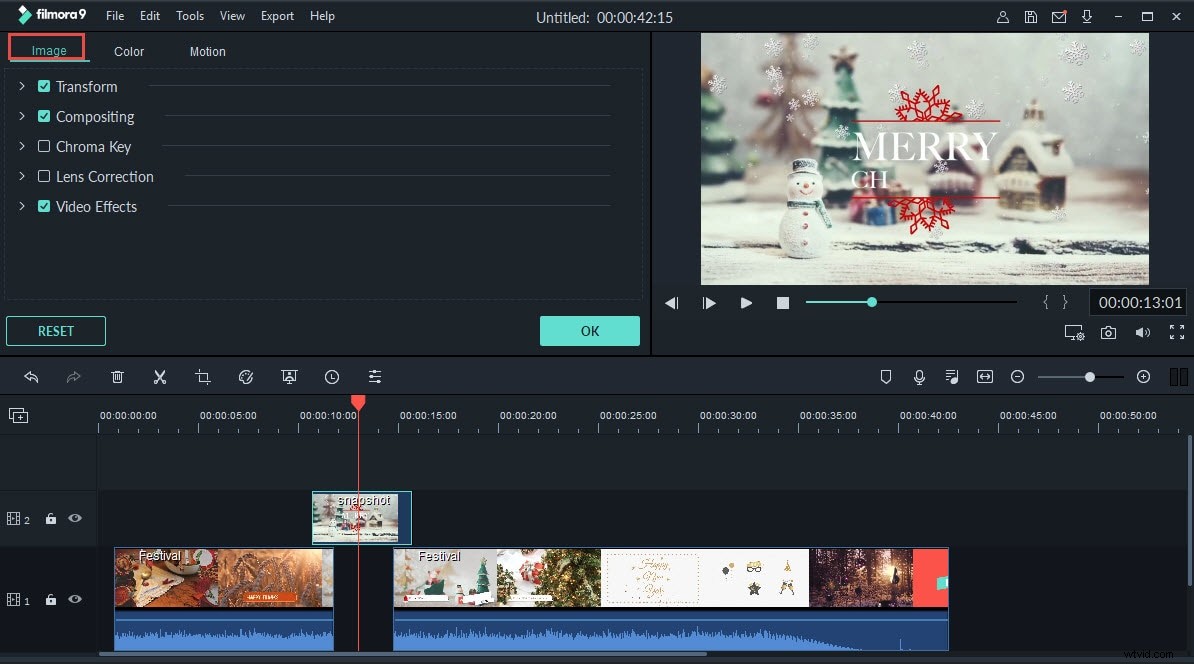
You can also pick up your favorite fade in/out or zoom in/out effect by in the "Motion" pane.
3 Save your creation
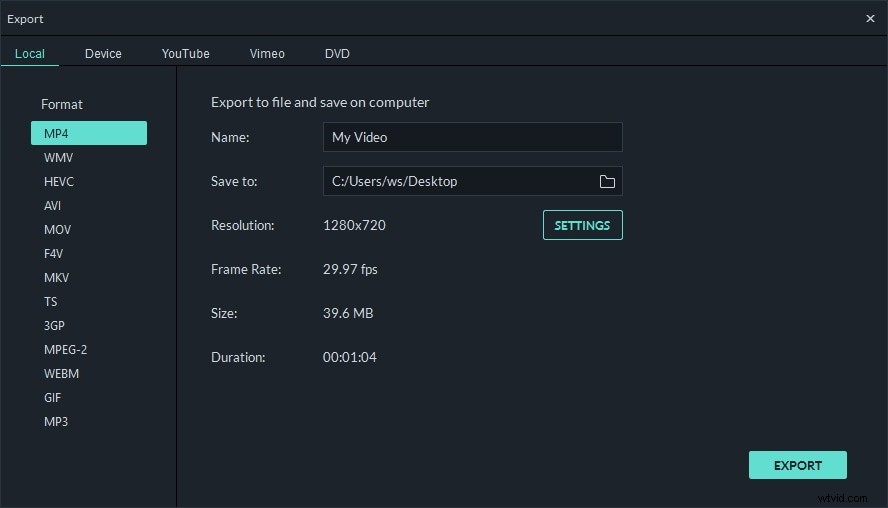
When everything satisfies, simply click "Export" to export your creation. In the pop-up window that appears, choose from a variety of format options to save onto your computer. Or directly upload it to YouTube, Facebook, Twitter to share with your friends or family.
Bonus tips:
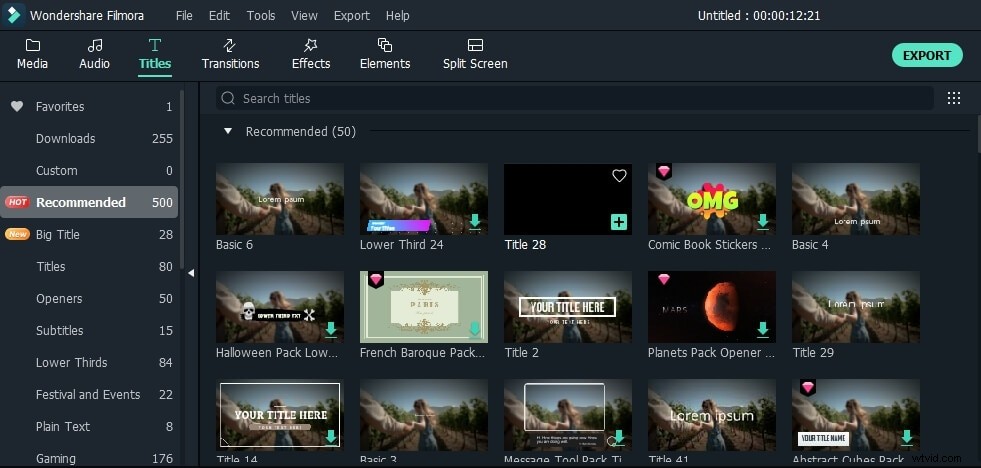
You may also want to add captions for the still image to make it more meaningful. It's pretty easy to do this with the help of Wondershare Filmora. Simply click the "Text/Credit" tab in the toolbar, and pick up your favorite template to further customize it. Time duration, size, and zoom in/out effect are all flexibly adjustable.