You can now easily capture screenshots on your PS4 with the inclusion of the new SHARE button on the DualShock 4 controller. This can be done either through the short or long press settings configured for your SHARE button. Kindly follow me through the different options that you have on how you can capture and share your PS4 screenshots; Option 1: Through the SHARE button or; Option 2: On A Separate Platform.
Capture screenshots on PS4 with SHARE button
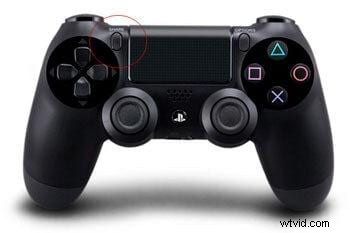
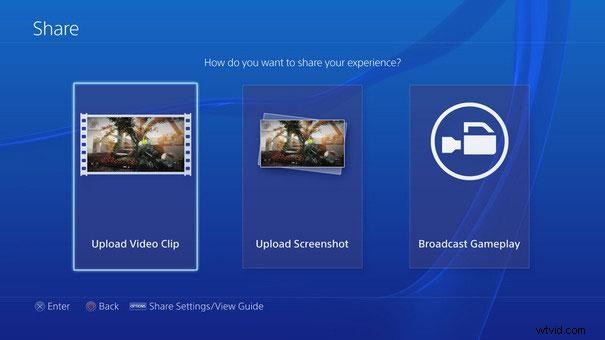
You can’t miss the SHARE button on the new controller for the latest PS4. It’s sitting on the left-hand side of the touch pad (as shown in the screenshot below). A short press on SHARE button (by default) will take you into the Share’s interface. In order to capture a screen shot, you’ll need to perform a long press. Alternatively, change your Share Settings to Easy Screenshots where the press works in contrary of the defaulted settings.
1 Upload Screenshots
Go back to the Share’s interface and select Upload Screenshot. Simply browse through the screenshot that you’ll like to share or upload and then click once to select it. You can also hit Options instead to preview the details of the screenshot before.
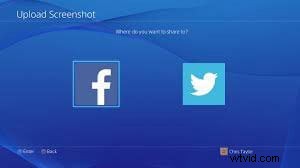
2 Share to Facebook or Twitter
You can choose to share your screenshots online through Facebook or Twitter. Please take note that you will have to log-in to your Facebook or Twitter account prior to uploading your screenshots and be prompted with a message to give your permission. You’ll only have to go through this once.
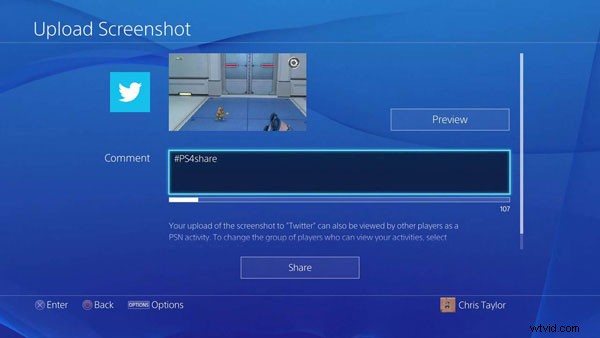
3 Insert Comment
Select either one account to share your captured screenshots and before you proceed with the Share button, Name it as well as type in whatever comments you have. Now you’re ready to go!
Use third party software for screenshot sharing.
You can also share your PS4 captured screenshots on a separate platform such as the Wondershare Filmora. You can easily drag-and-drop your screenshots on the interface, stitch, personalize with effects and even insert your favorite track as the background music.
Other than that, you can also convert your screenshots to a file format that’s compatible with your portable device; uploading onto YouTube (with additional options to share on Twitter as well as Facebook); burn your own DVD and much more. Download the trial version and try it out right now.