
Want to slice large or long video files in order to edit certain sections? Or just cut out the unwanted parts of your camcorder video to save the hard drive space? Here is the solution: find an easily-to-use video slicer like Wondershare Filmora (originally Wondershare Video Editor). In fact, this simple how-to guide will get you started.
How to Easily Slice Your Video Files
1 Import your video files to this Video Editor
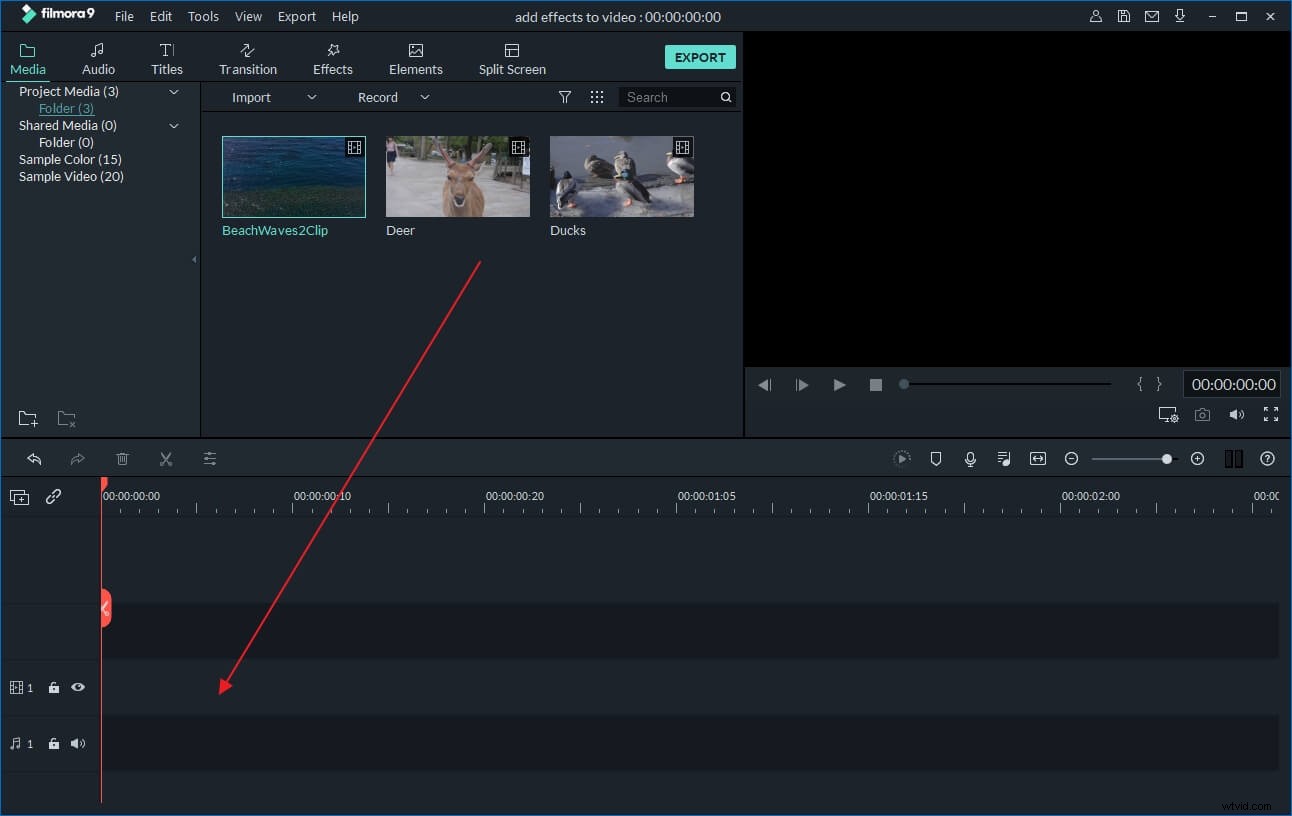
Open the Filmora program; choose between 16:9 or 4:3 ratio to start a new project. Then you need to import your video files from the computer to this video cutter. There are two flexible ways to do it: One is to click Import button to load and import your video files, the other is to directly drag and drop your files to the program. Once you import the video files, they should display in the User's album within Filmora.
2 Slice your video files
Once you import all the video files, drag one or more clips to the timeline to begin the editing process. Then simply drag the clips in the order you want them to be viewed in your video.
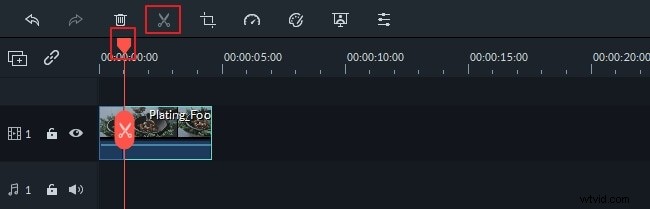
After that, place the cursor over the point in your clip where you want to create a break or cut. Then click the Split tool icon above the timeline which resembles a razor blade and Filmora will automatically create two separate video clips of the single clip. If you want to slice your video files into more sections, just repeat this editing process.
Note: If you want to save the project for backup purpose, just click the button in the top left corner of this video editor, and then select "Save as" option.
3 Export the sliced video files
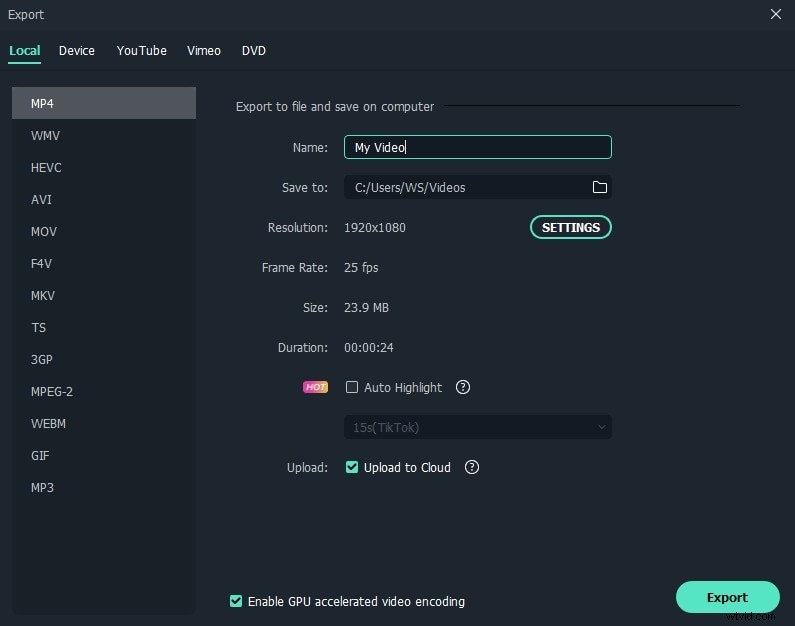
After you’re done the slicing process, preview the video to see the result. Then highlight the sliced video file you want to save on the timeline and click Create to export. In the pop up window, you can hit the Format tab and choose to convert your video into over a dozen of different formats with just one click. Or easily save and play your videos onto iPhone (5, 4 and 3), iPod, iPad, Samsung and HTC mobiles, PSP as well as other supported devices in the Device tab. You can also directly upload the clip onto YouTube and Facebook with no hassle or burn it to a DVD for keepsake.
Know more about Wondershare Filmora: