
Resizing images in photoshop is simple and easy. You can do this with Lightroom, but when you only have a single image to resize, it’s often faster to do it in Photoshop.
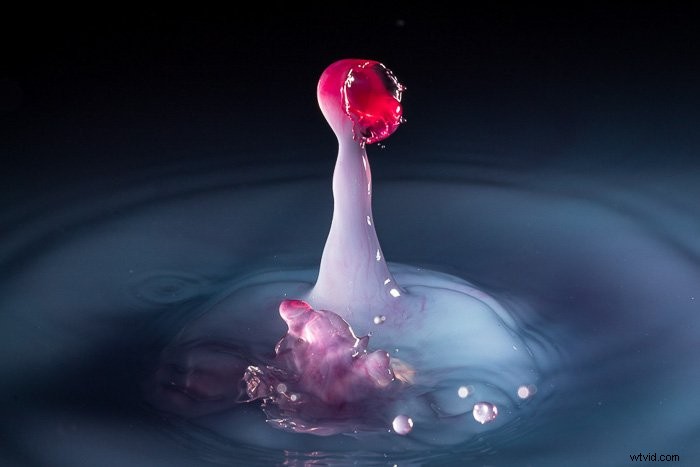
I’m going to resize the image above that I shot for my creative photography course, Wow Factor Photography. Follow these steps on how to resize an image in photoshop:
Step 1 – Open the Image Size Editor
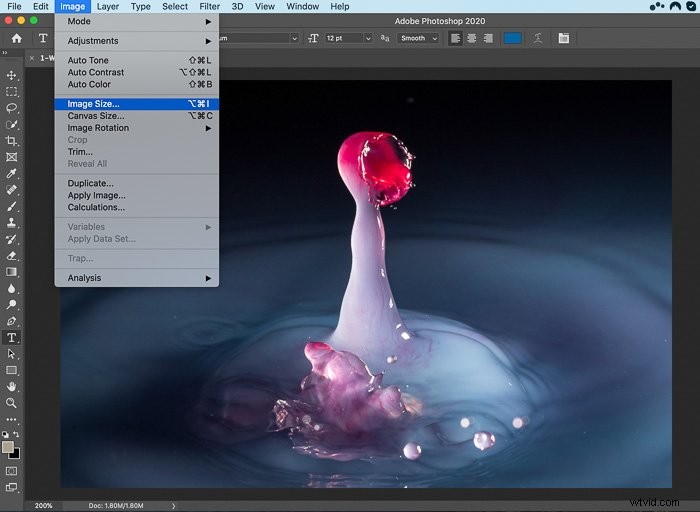
Open the image in Adobe Photoshop, then click on Image in the top bar menu, and then click on Image Size.
Step 2 – Set the Resolution (Optional)
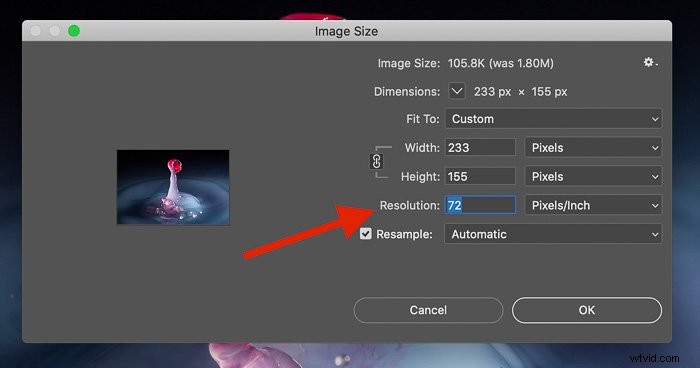
Depending on the purpose of your size change, you may wish to change the resolution. For example, if you’re printing the image, you may set it to 300 dots per inch (dpi). If you change it to a lower dpi, the image size will get smaller.
Step 3 – Change the Dimensions
If you are changing the size of a photo, you will probably want to keep the same aspect ratio (proportions), otherwise, the image will look distorted.
To do this, ensure that the Width and Height are connected together using the chain icon in the screenshot below
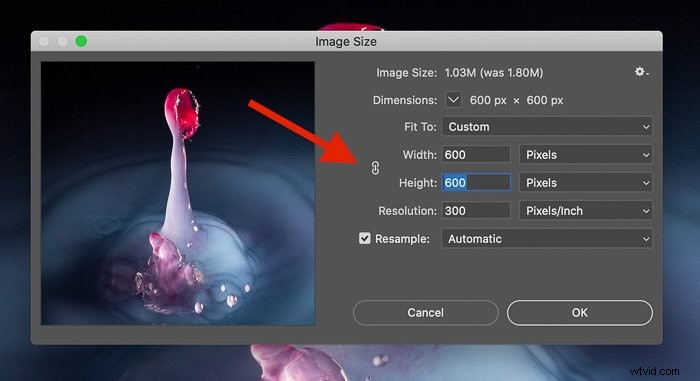
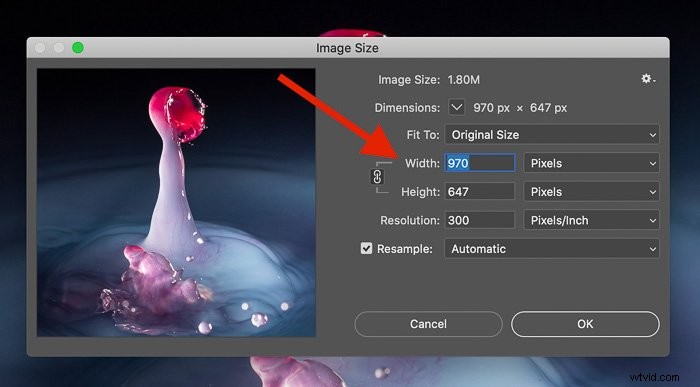
If you disconnect this when you adjust the width, the height won’t change in proportion to the width, and vice versa.
To change the size of an image, you simply adjust the Width and Height using the dialog below.
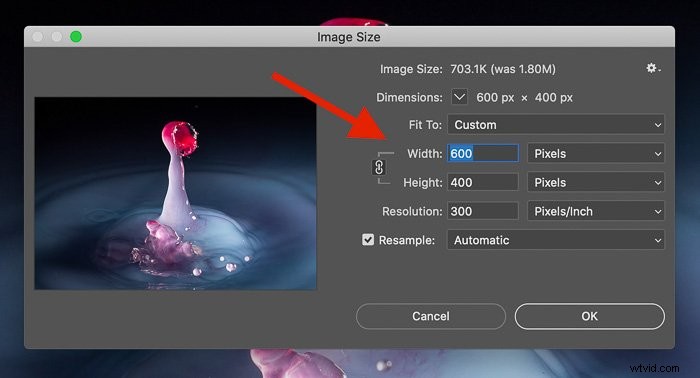
Click OK, and you will be taken back to the main interface.
Finishing Touches
If you resized the image to make it smaller than the original image, it will appear smaller on the screen. You can zoom by pressing Z on your keyboard, then clicking on the image to zoom.
Smaller images also have the benefit of a smaller document size (file size), which is great for using on the internet.
This process is great if you’re only working on one image, but sometimes Lightroom is a better option for resizing images. If you have lots of images to resize at once, check out this tutorial to do it with Lightroom.
And click here if you’d like to learn how to crop and straighten your image using Photoshop next.