
REC

Recommended: Video Production, Editing & Gear Maintenance Guide

 WTVID >> WTVID >  >> Video Editing >> Adobe Photoshop

Create Realistic Smoke Effects in Photoshop: 6 Easy Steps Tutorial

Regular contributer John Short submitted the following photoshopping post on adding smoke to an image (click to enlarge example images).

Thought you might like a new imaging technique to make smoke.

1. The first job is to set the foreground and background colors to white and mid grey
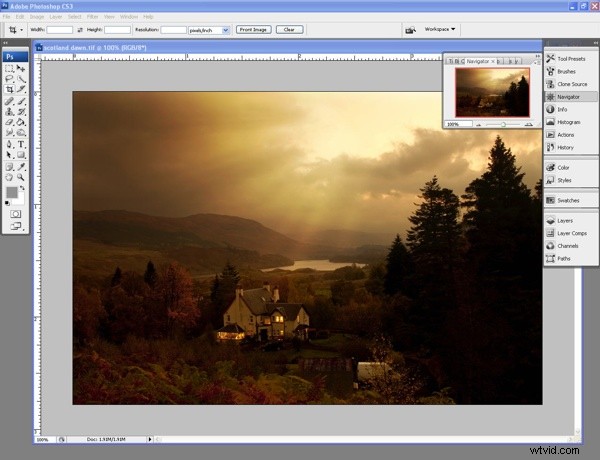
Create Realistic Smoke Effects in Photoshop: 6 Easy Steps Tutorial

2. Duplicate the layer, draw the shape of the smoke area with the lasso tool with a feather of 15 and fill the shape with clouds ( filter,render,clouds )
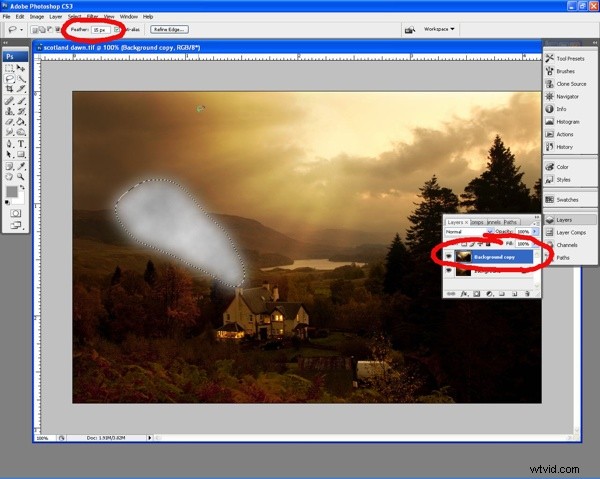
Create Realistic Smoke Effects in Photoshop: 6 Easy Steps Tutorial

3. Now we need to add some motion blur ( filter,motion blur ), set the angle to match whichever way your smoke is moving and the distance to suit the movement you want to create.
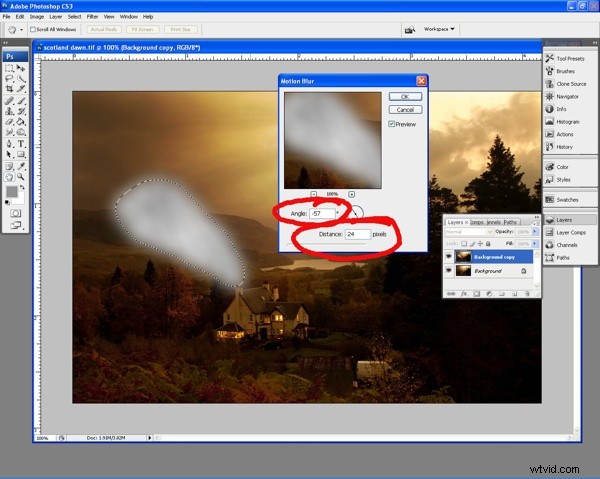
Create Realistic Smoke Effects in Photoshop: 6 Easy Steps Tutorial

4. Now use the shear tool ( filter, distort,shear ) to move the smoke as you would like it to appear
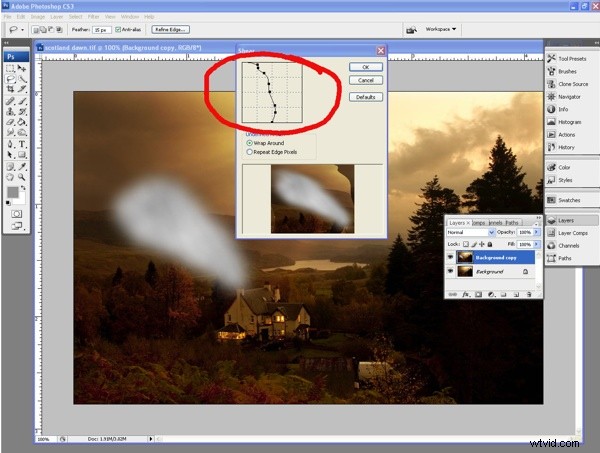
Create Realistic Smoke Effects in Photoshop: 6 Easy Steps Tutorial

5. Then select ( filter,liquify. ) Using the warp tool move the smoke to give light and shade as needed
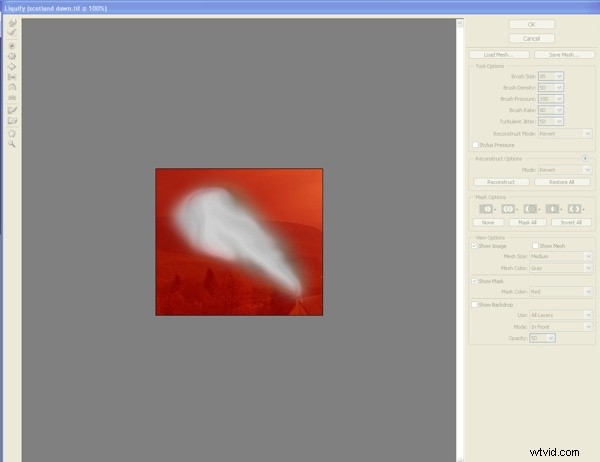
Create Realistic Smoke Effects in Photoshop: 6 Easy Steps Tutorial

6. Now you can deselect the lasso. With a large eraser brush set to an opacity of no more than 6% ( I used 4% ) blend the smoke from the edges to the middle creating the final shape. You should also adjust the layer opacity to blend the complete effect with the master image.
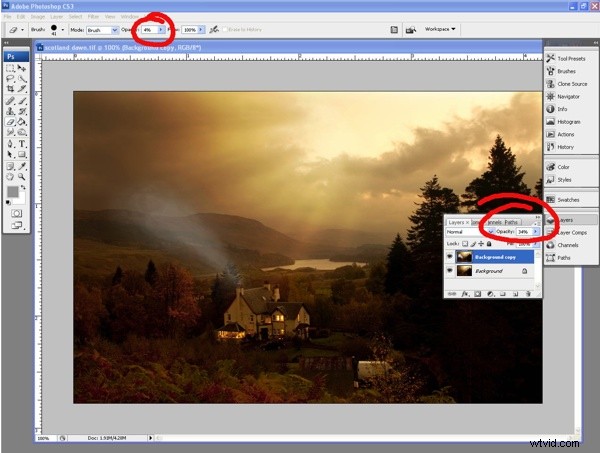
Create Realistic Smoke Effects in Photoshop: 6 Easy Steps Tutorial


  1. Master Quick & Easy Curves Adjustments in Photoshop: Beginner's Guide

  2. Photoshop CS3 Tutorial: Simulate a Neutral Density Gradient Filter Effect

  3. How to Change Image Resolution in Photoshop: Easy Step-by-Step Guide

  4. Master Displacement Maps in Photoshop: 7 Easy Steps for Stunning Effects

  5. How to Sharpen Images in Photoshop: Step-by-Step Expert Guide

Adobe Photoshop
  1. Remove Image Background in 5 Easy Steps: Beginner-Friendly Guide

  2. Master Professional Image Processing in Photoshop: Expert Tutorial

  3. Effortlessly Remove Tourists from Travel Photos in Photoshop: Quick Guide

  4. Create Realistic Reflections in Photoshop: 6 Simple Steps

  5. Master 4 Stunning Lighting Effects in Photoshop: Pro Tutorials

  6. Master Natural Portrait Retouching in Photoshop: 3 Essential Steps

  7. Effortless Skin Smoothing: Master Photoshop's High-Pass Filter Technique

  8. Batch Resize Images in Photoshop: Easy Step-by-Step Guide