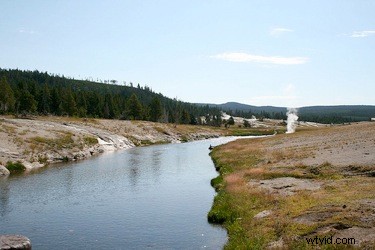
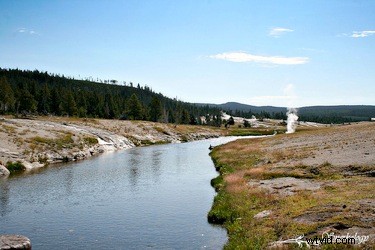
In this post Laura Charon from Beyond Megapixels shares a process for adding a Neutral Density Gradient Filter to an image using PHotoshop CS3.
A key piece of equipment in a photographer’s gear is a neutral density gradient filter. This is a filter that affixes to the camera’s lens. One half of the filter is darkened and one half is light or clear. The purpose is to reduce the brightness difference between the top of the photo and the bottom. It’s typically used in landscape photography where the sky’s brightness needs to be compensated.
Even if you don’t own a physical filter, it’s easy to adjust your photos in Photoshop CS3 (the technique is common to other versions of Photoshop as well) to achieve the same effect.
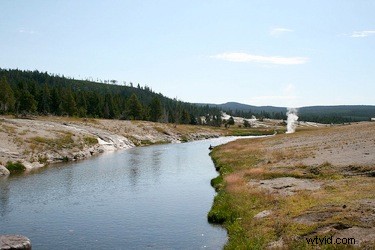
This is a photo that I took in Yellowstone National Park. It’s exposed for the ground, which left the sky too bright.
In order to adjust this photo, I first opened it in Photoshop CS3. In order to set the Foreground color to black (mimicking the gray neutral gradient filter on a camera lens), I pressed the letter “D” on my keyboard (shortcut tip!). Then from the “Layers” panel, I chose “Gradient” from the Create New Adjustment Layer menu.
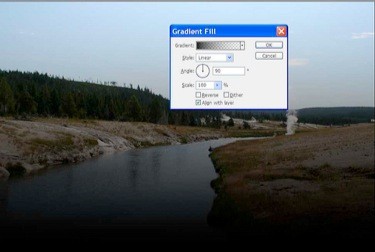
You’ll notice that the default setting is to apply the darkened gradient to the bottom of the picture and the light to the top of the picture. Since what we want is exactly opposite of that, I simply clicked the “Reverse” checkbox to flip the gradient.
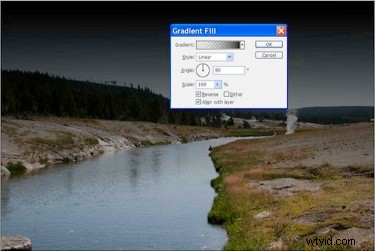
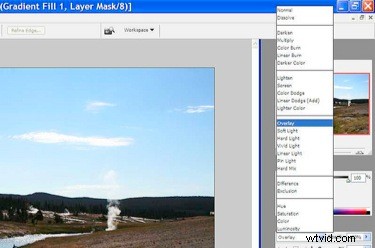
Now we need to blend the layer to suit the photograph. This is simply accomplished by going to the Layers panel and changing the setting of the adjustment layer from “Normal” to “Overlay”.
Now, since the gradient is applied across the entire photo, we need to tell Photoshop where to differentiate between the sky and the ground. In the Layers panel, double-click on the thumbnail image of the adjustment layer. Then click once on the Gradient drop down (black and white checkers that graduate from white on the left to black on the right) to bring up the Gradient Editor.
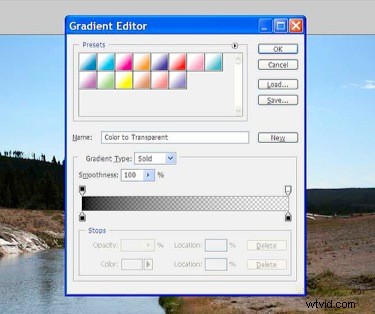
The gradient map on the bottom of the dialogue box has a sliding opacity setting that can be dragged left toward the darker part of the slider, or right toward the lighter part of the slider. Since we want the sky darkened but not the ground, I dragged the slider toward the left, which moves the bottom of the gradient applied to the photo upwards, toward the horizon.
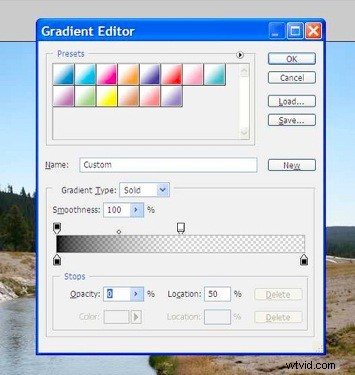
Click OK, and then OK again, flatten the image, and you’re done! Once again, here is the before, and then the finished photo (which I sharpened it and added my signature to, as well):