
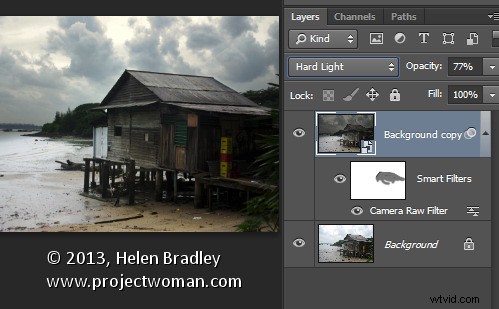
One feature that is new to Photoshop CC is the Camera Raw filter. Using this filter you can make powerful nondestructive edits inside Photoshop.
What the Camera Raw Filter offers
The Camera Raw filter is new to the Creative Cloud version of Photoshop – Photoshop CC – so it’s not available in earlier Photoshop versions. It gives you access to most (but not all) of the features of Adobe Camera Raw (ACR) from inside Photoshop.
You can use it on any image – even those file formats that ACR doesn’t support – and on any layer. So, you don’t have to be working on an image that is in one of the formats that ACR can open. You can also use the Camera Raw filter at any point in your workflow not just when you first open an image.
Combining the Camera Raw filter with Smart Objects also means that you can make an edit using the filter and come back anytime to revisit and change those edits, if desired.
How the Camera Raw Filter works
To see how the Camera Raw filter works open any image in Photoshop CC.
So that you can revisit and edit the changes made by the filter, start by converting the layer that you want the filter to act on into a smart object. To do this either right click the layer and choose Convert to Smart Object or choose Filter > Convert for Smart Filters.
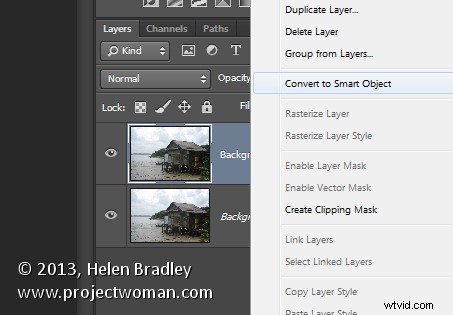
Either way the result is the same and you will have a layer converted to a Smart Object. Using Smart Objects ensures that the adjustments that you are about to make can be edited later on.
If you have multiple layers that you want to apply the filter to, then select those layers in the Layers palette before converting them all to the one Smart Object.
To apply the Adobe Camera Raw filter choose Filter > Camera Raw Filter. This opens the current layer inside ACR.
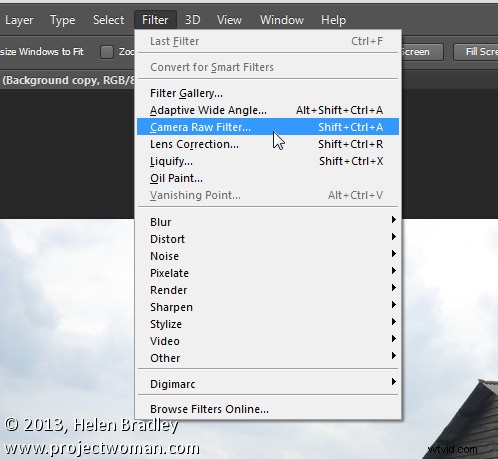
Now you can make your adjustments to the image using any of the tools in ACR.
So you can, for example, adjust the white balance by clicking on the White Balance tool and click on something in the image which should be neutral gray. This is a fix that isn’t as easy to make in Photoshop itself. Other useful adjustments you can make include adjusting Highlights, Shadows, Whites and Blacks and Clarity – settings which are easy to access in ACR and less easy (or not available in the case of Clarity) in Photoshop.
The ACR filters are also available so you can use the Gradient Filter and the new Radial Filter to adjust the image. Once you have made your changes click Ok to apply the changes to the image and return to Photoshop.
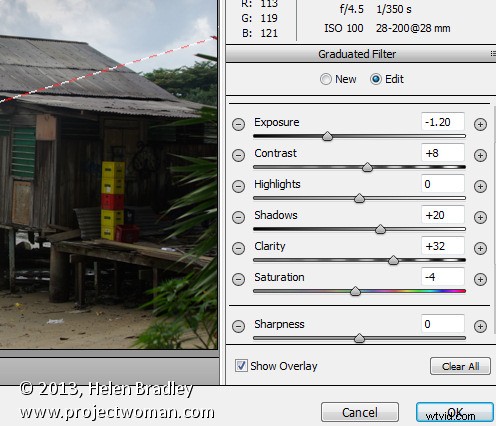
Notice that the Smart Object layer in Photoshop has its own layer mask so you can, if desired, use the layer mask to adjust the effects that you just applied to the image. Paint with black on the mask to remove them and with white to reapply them. This feature is useful for adjusting the effect of a Gradient Filter where there are objects which fall inside the area affected by the filter that you don’t want to be affected by it.
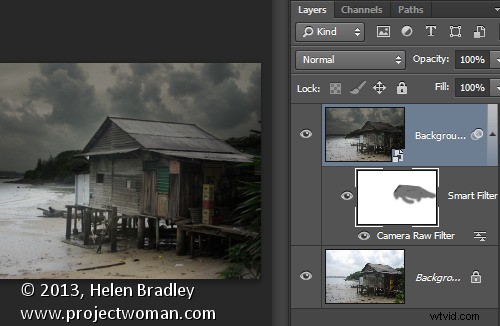
You can also alter the Camera Raw Filter settings at any time by double clicking on the Camera Raw Filter entry in the layers palette. This reopens the layer in ACR so you can make changes to the settings.
The benefits of using the Camera Raw filter
The Camera Raw filter offers some real benefits to Photoshop users. One is that you can use the filter to sharpen an image and take advantage of the Masking slider when sharpening in ACR. This lets you limit the areas of the image which are sharpened to just the edges in the image and not areas of flat color.
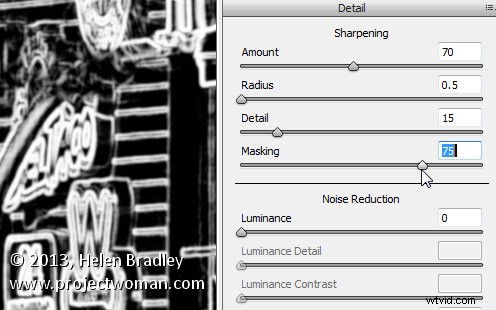
You also get access to tools which aren’t available in Photoshop such as Clarity, and the Graduated Filter, Adjustment Brush and Radial Filter.
The Camera Raw Filter also provides a handy way to work with a JPG image in ACR. You can, of course, open a JPG in ACR but, if you forget to do so, the Camera Raw Filter offers pretty much the same functionality at any time in your workflow.
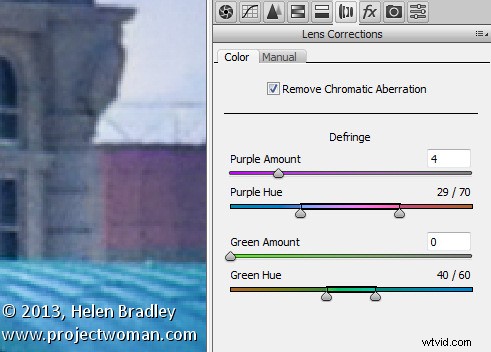
Other options that the Camera Raw Filter provides is access to the Split Toning effect sliders, presets, the new upright correction, post crop vignette, the new chromatic aberration and defringe tools, and the noise reduction sliders.
Provided that you save your image in a layered file format such as PSD then you’ll be able to come back at any time and edit the Camera Raw Filter adjustment that you made.
Chances are that if you are familiar with using ACR for processing your raw images you’ll find that the new Camera Raw Filter in Photoshop CC is a welcome addition to your workflow.