
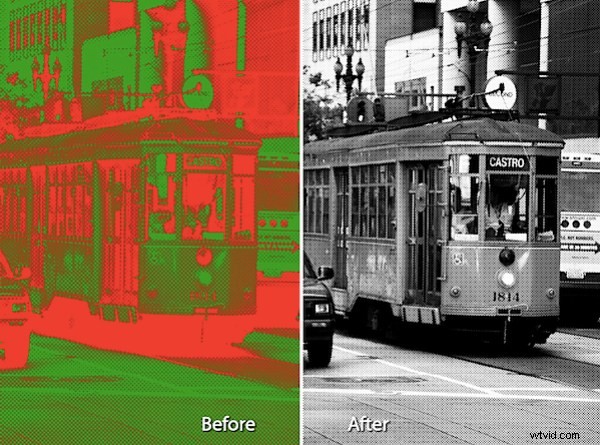
When I was young, my dad told me that if at first you don’t succeed you should try and try again until you do. In today’s post, I am going to tell you why this adage relates to editing photos by working with filters in Photoshop Elements and in Photoshop.
Step 1
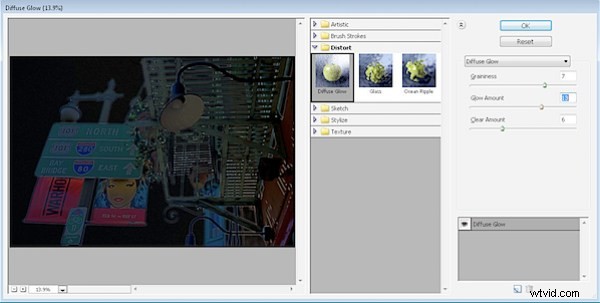
Start by opening an image that you like, set the foreground color to white and the background color to black and choose Filter > Distort > Diffuse Glow. When you do this, the image will take on a rather nasty dark glow. There is pretty much nothing that you can do to this image that is going to make it look good. You can try to remove the graininess and glow and increase the clear amount to 20 but if you do that, you’ve effectively removed the filter effect. The short answer is it looks ghastly and you might be wondering just what you did wrong?
Step 2
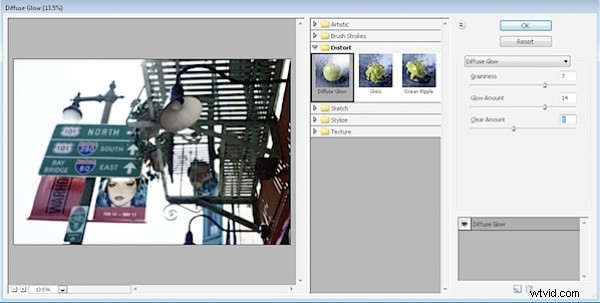
Exit the Filter Gallery, switch the foreground and background colors so that black is now the foreground color and white is the background color. Reapply the filter using Filter > Distort > Diffuse Glow. This time the filter looks very different.
The explanation is that Photoshop Elements (and Photoshop) use the foreground and background colors when applying the filter. This time go ahead and crank up the Graininess and adjust the Glow Amount until you get a nice glow on your image. Adjust the Clear value to suit and click Ok. Now you have a very different looking result.
Understanding colors and filters
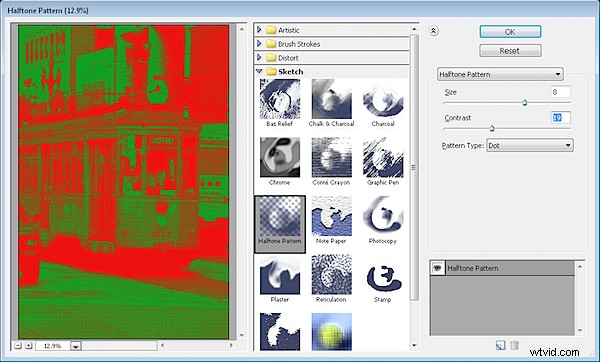
There are many of Photoshop Elements Filters that work differently depending on the current foreground and background colors settings. The Halftone Filter is one of these so, for example, if you have red and green selected the halftone pattern will appear in red and green – not always the desired look.
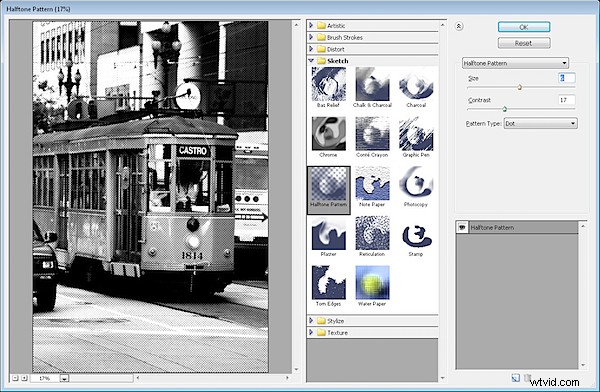
Instead, set the foreground to black and the background to white and apply the Halftone Filter using Filter > Sketch > Halftone Pattern. This time you’ll get something more like the result that you are looking for.
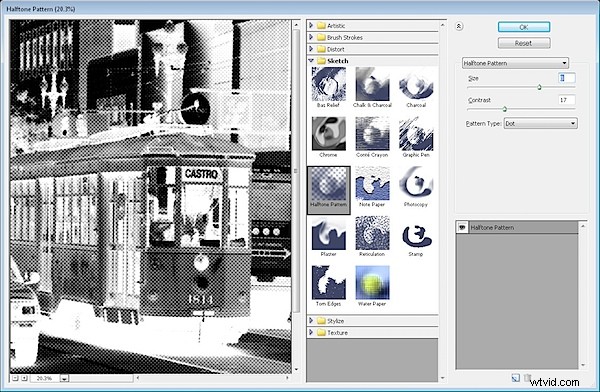
Switch black and white in the color swatch and try again – and the result is different and not so appealing.
What you need to know
The short lesson to take away from this post is that when you are applying filters in Photoshop Elements or in Photoshop the foreground and background colors that you have selected will have a big impact on how some of the filters work. In most cases the filters affected are the Sketch filters but others use the colors too.
Select the right color mix and the result is pleasing to the eye. Select the wrong color mix and you could be excused for thinking filters just aren’t for you.