How to create a slideshow on iPhone easily
Moreover, if after creating a slideshow we resort to re-edits, changing the music or the concept in general, it can really take an eternity.
That's not taking into account the time you need to figure out how the video editing software that professionals use works.
With our online tool, you don't need to install anything or look long for the right buttons. It allows you to make a slideshow on iPhone or any other device using photos, videos, GIFs and audio of any format.
Upload the files
Go to Clideo's Slideshow Creator and click the blue "Select files" button to upload them from the iPhone camera roll.

If you want to do it directly from your cloud storage account, just hover over the down arrow on the right, which will display a drop-down menu with the appropriate options.
Create a slideshow with your memories
If you want to add more media, just use the "Add more files" button. Select one of the crop options for your future clip. It all depends on where you plan to use or publish it. Choose 9:16 for Instagram or 16:9 for YouTube and so on.
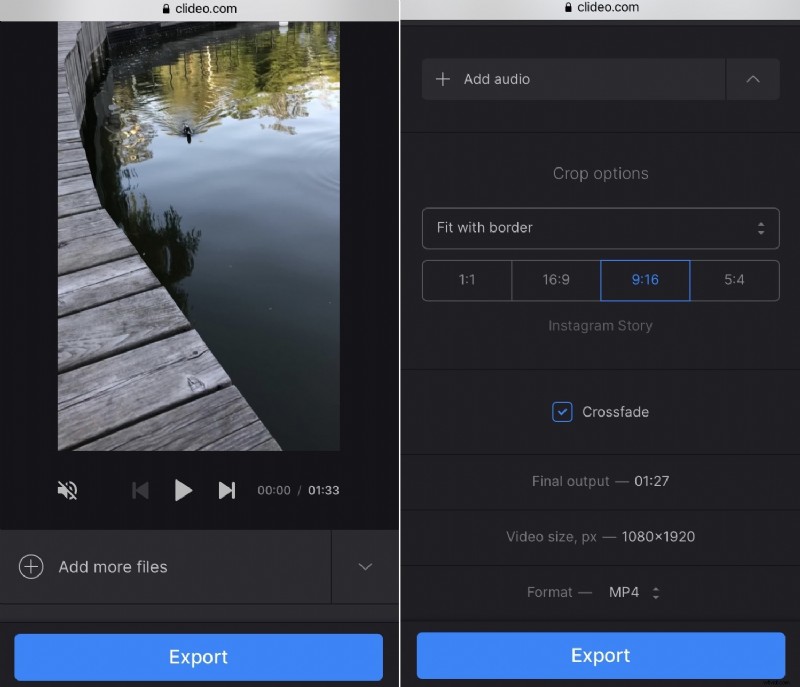
If you've added images, you can also choose how long they will be displayed, with the "Image Duration" option. Then add a crossfade effect by checking the box at the bottom, it will make the transition between the frames smoother.
Do not forget to add music too. After the audio track is processed you can trim it and change its volume. If your video also has a sound you can adjust it too.
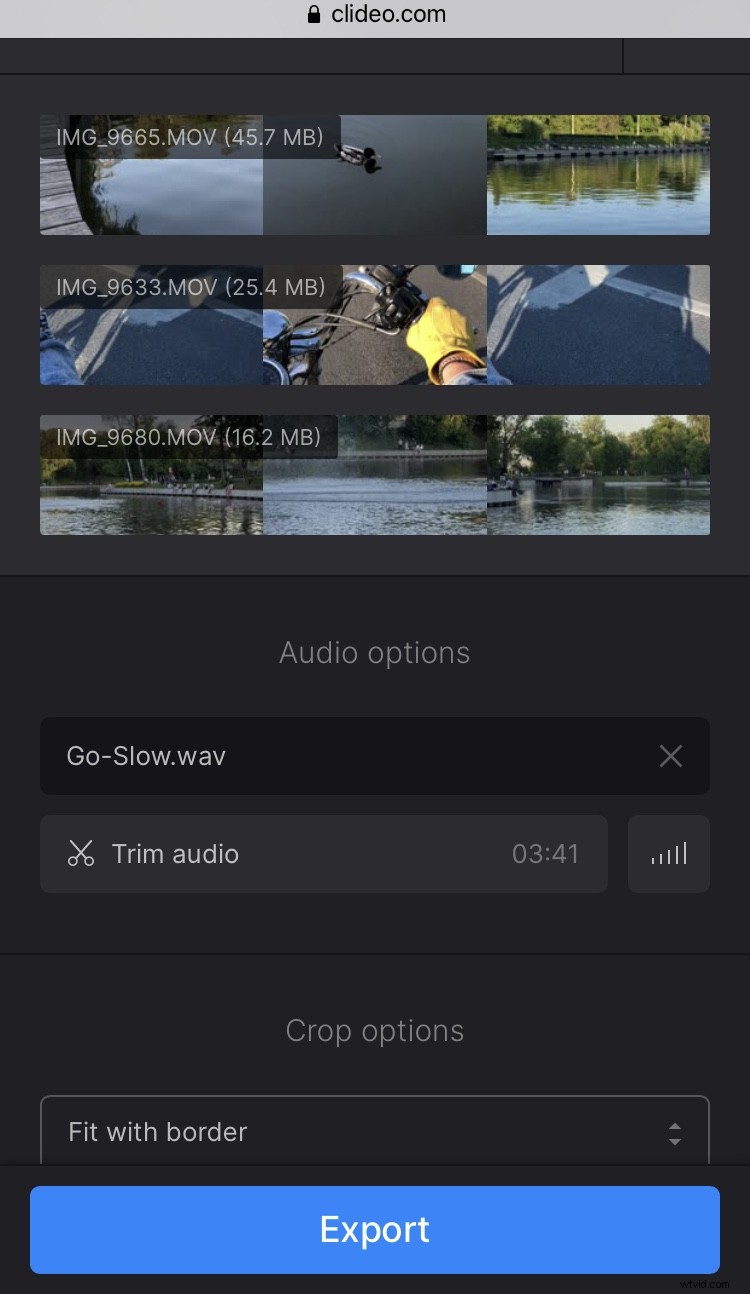
There is also a possibility of changing the video format. MP4 is the best option, but you can choose another one depending on your preference and the platform requirements your slideshow is designed for.
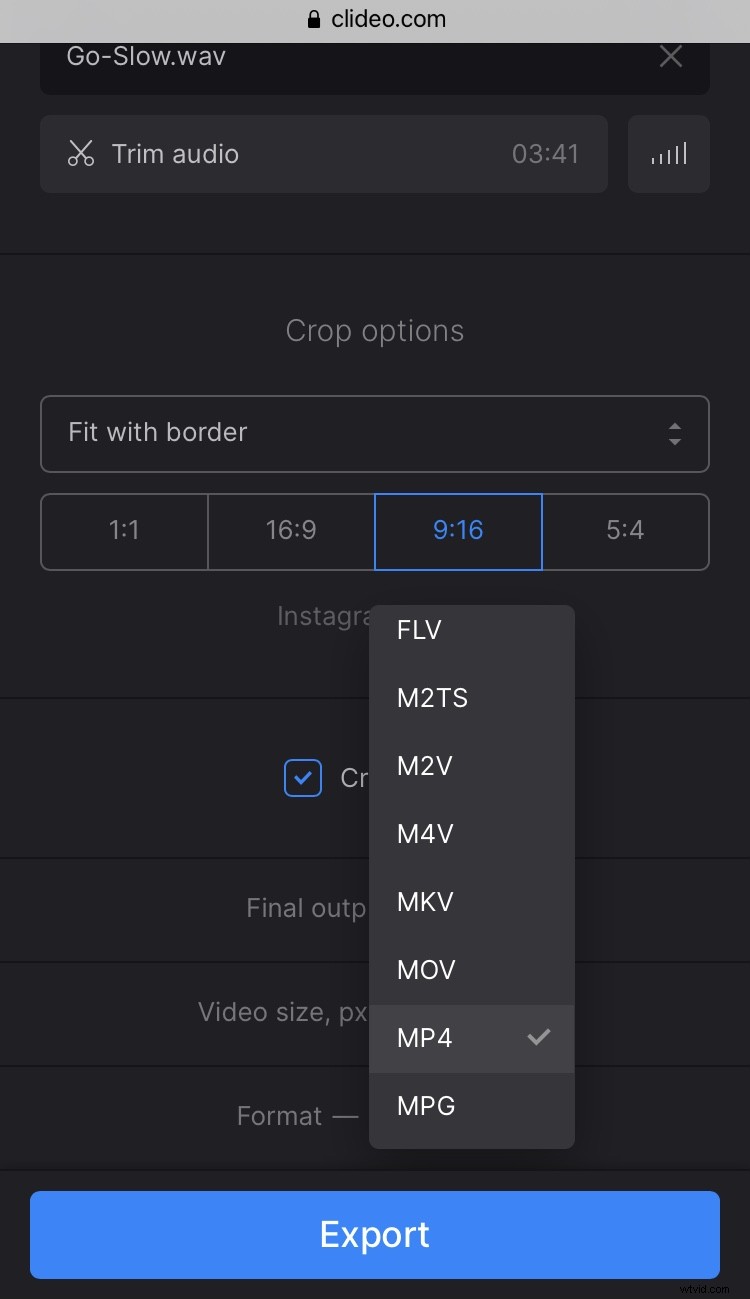
Click the "Export" button to continue.
Save the clip
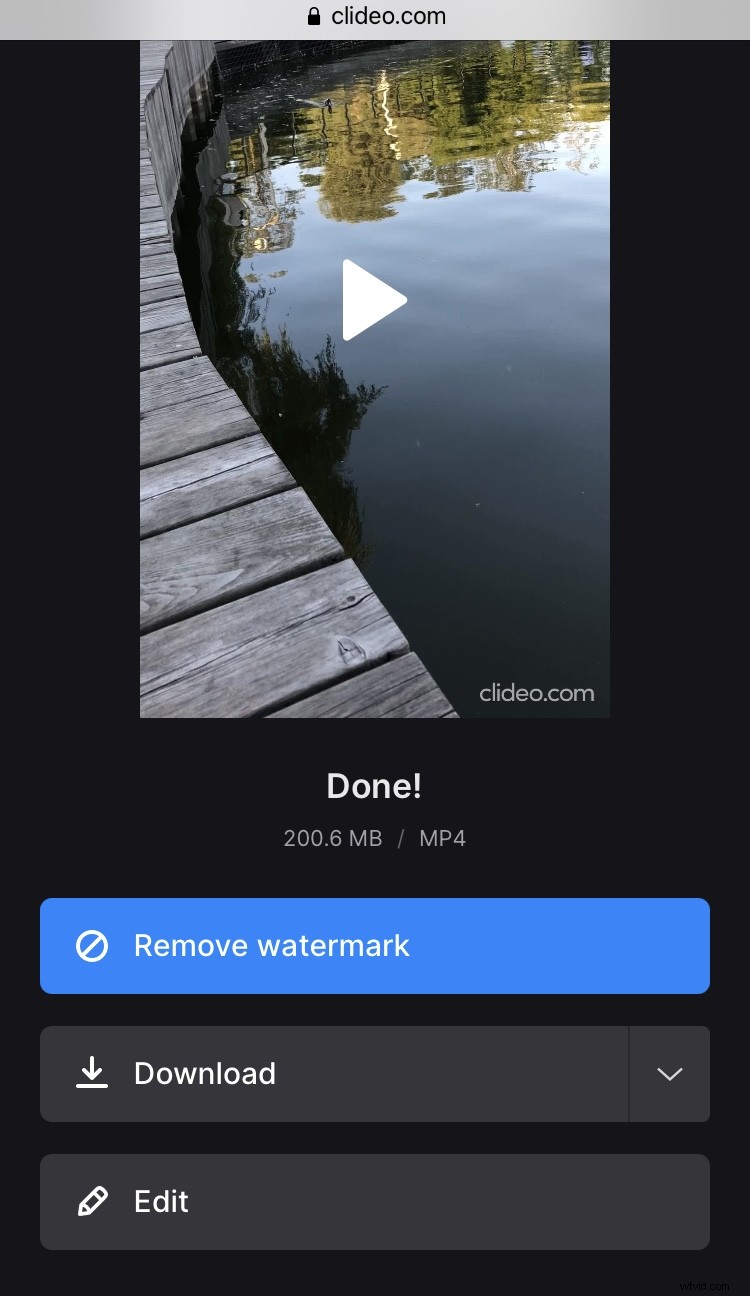
Look at your slideshow one more time. If you want to change something, just click the "Edit" button. Once you're happy with the result, download the slideshow to your device or save it to your cloud account.