How to make photos into video
Thanks to the boom of image-lead social media and on-to-go streaming services, video is fast becoming the most popular media format in the world. It’s quick, engaging and easy to follow. As a result, there might come a time when you want to display your pictures in a video format. Well, one quick sure way of doing the above is to use our online tool.
It’s not a difficult task at all if you have a good photo sequence maker. Read on to find out how you can easily combine images into video in minutes and better still, through your web browser without needing to buy expensive software.
Upload your snaps
First things first, head over to Clideo’s Image to Video Combiner tool. This can be accessed from any device with a web browser (as long as it can connect to the Internet) and on any platform, be it Windows, Mac, iOS or Android.
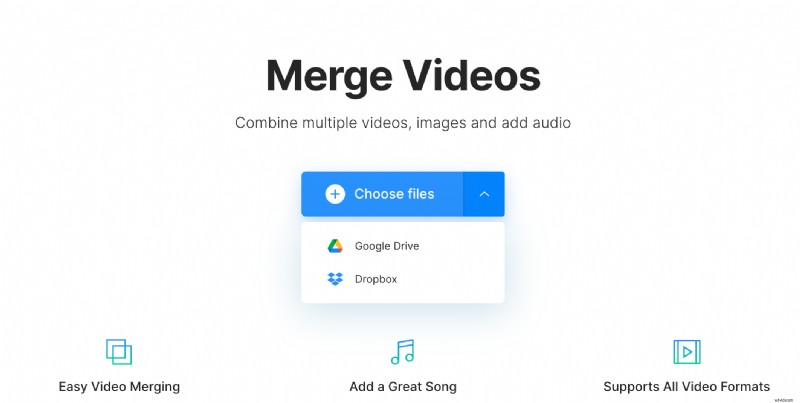
You’ll be greeted by a welcome page and a big blue “Choose files” button, where you can add the images you want to be featured in your video. Hit that to upload photos stored on your device, or - alternatively - tap the downwards-facing arrow to upload from one of two cloud storage providers: Google Drive or Dropbox.
Please note: several files can be chosen simultaneously to save time and most image formats are supported, including PNG, JPEG, TIFF, GIF, AVI, MOV, etc.
Once you’ve chosen the desired images files you’d like to merge, hit the OK button and the tool will begin adding them to Clideo’s servers for processing.
Edit ‘til your heart’s content
When your images are uploaded, you’ll be taken to the Clideo tool’s editing page. Here is where all the magic happens! Your uploaded files will be viewable in the carousel along the bottom of the page and displayed in the order that they will be shown in the video once it’s been created. You can rearrange these easily using drag-and-drop until they are in the order you prefer.
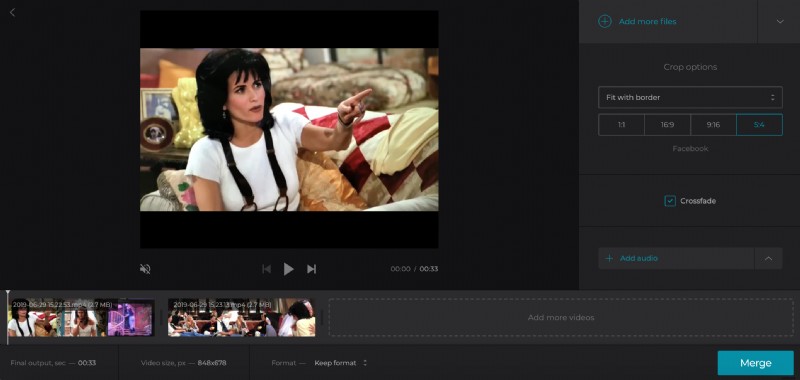
Next, you can also change the video dimensions and border type of your video via the Crop Options tool on the right, adding audio, too, if you’d like for some cool background music. Do this via the selection box on the bottom right.
To finish off the editing and process your video, preview what it will look like beforehand by hitting the play button on the preview pane in the centre of the screen. Once you’re happy, click the "Merge" button on the bottom right-hand side. Clideo will start working its magic and the video will be ready in a few moments.
Download your newly-created video
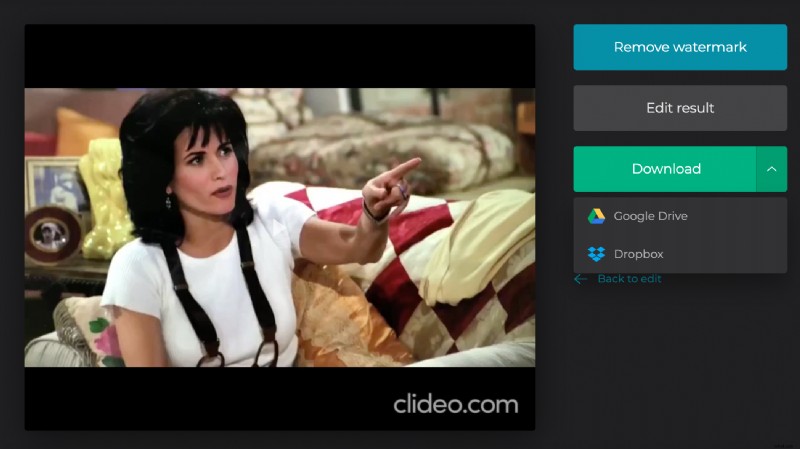
Once your photos have been merged into a video and it’s ready to go, click on the "Download" button to save the file back to your device. As before, you can opt to save it directly to your Dropbox or Google Drive accounts.