

Sometimes people think of editing audio as the job of an audio engineer, but you don’t have to be an audio engineer or sound designer to get the perfect fade. The subtle build-up of a song can make movie transitions seamless or pack a punch in key moments. In this post, we’ll show you when and how to fade music using iMovie.
When to Fade Music
Fades frequently serve as audio transitions, and there are two basic types of fades—fade-ins and fade-outs. A fade-in begins with silence as the music builds up and, eventually, rises to full volume. Fade-outs, on the other hand, begin at full volume and decrease slowly into silence.
Two of the most common fading techniques are using music to fade into your video’s intro music and fading out audio for a video’s outro. This creates a seamless entry and exit for video productions. Fading also comes in handy when you’re transitioning between pieces of music. This could indicate a tonal shift or a change of scenes. For this tutorial, we’ll show you how to fade your intros and outros to bookend your clips.
How to Fade Music
Now that we’ve reviewed when to fade music, we’ll show you how to fade audio in five simple steps. If you’re looking for a basic tutorial to help you learn how to navigate iMovie before you begin editing audio, read through our post on getting started with iMovie.
1. Import video/audio to your iMovie project
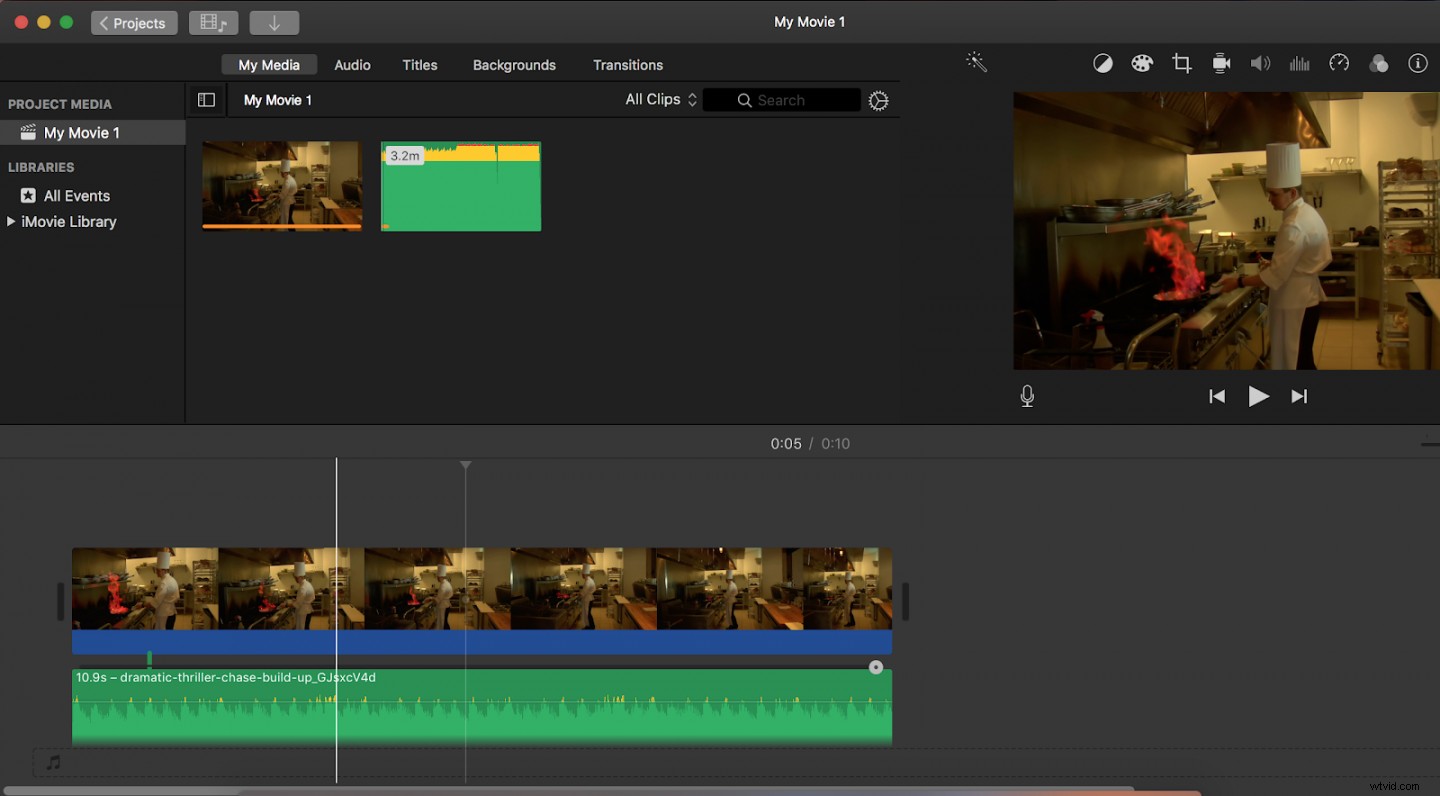
You can import audio and video by either dragging your files onto the “my media” dock, or by hitting “file > import.” (Stuck? Click here to learn more about the basics of using iMovie.)
2. Enable “Audio Waveform”
For this step, you’ll want to click “Settings” and check “Show Waveforms.”
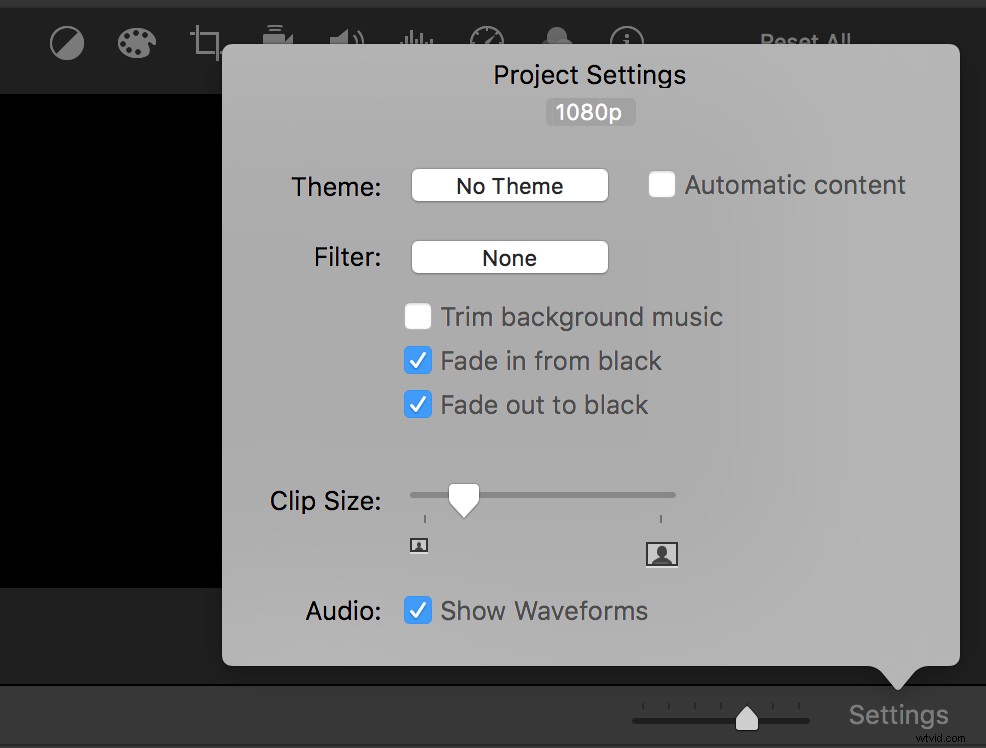
3. Add “Audio In/Out Effect”
Once your waveforms are showing, you can add an “audio in/out effect” to your video by dragging the fade handles.
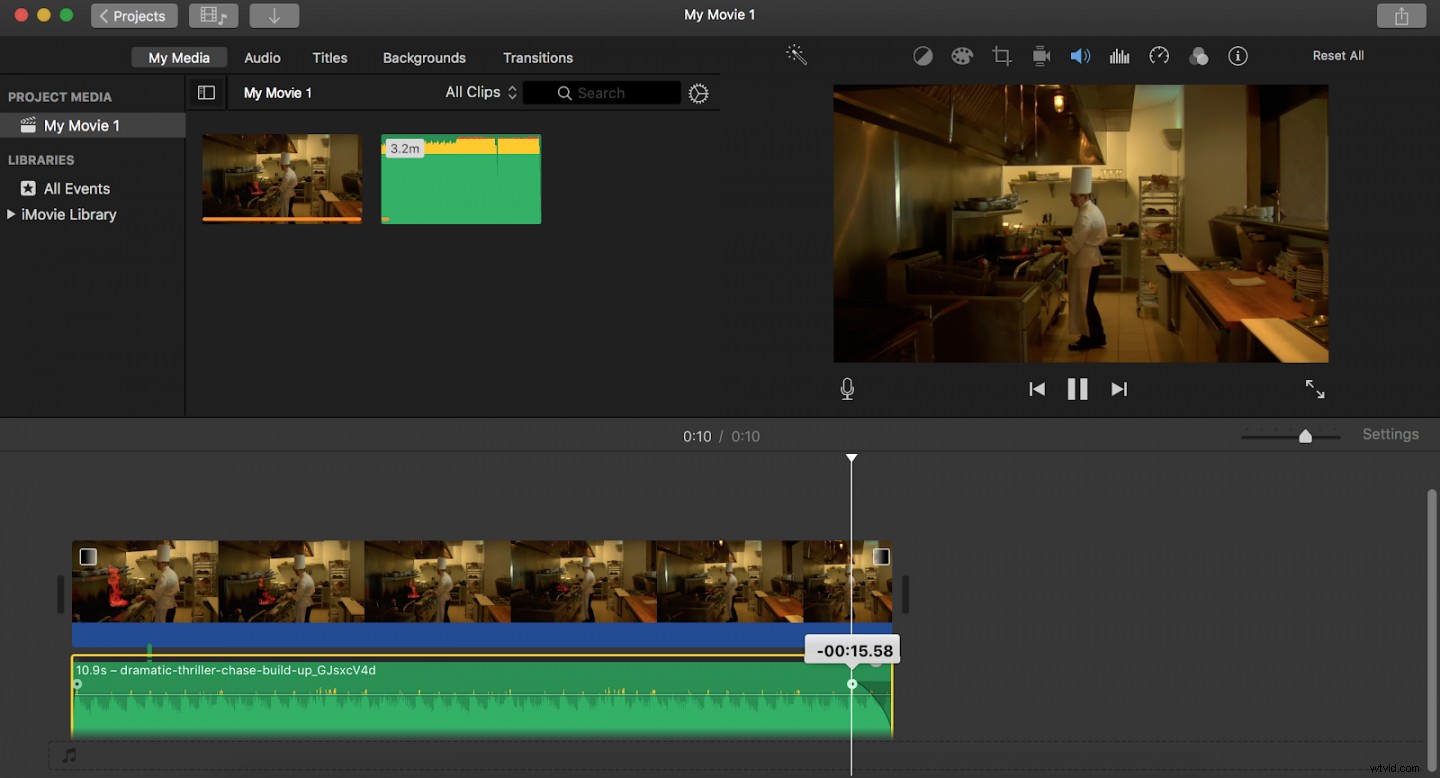
The audio handles are a little hard to spot–they are the small white/grey concentric circles on the audio strip, and they look like this:

By dragging these circles, you can make the fade as short or long as you’d like. Longer fades sometimes feel less dramatic and more natural, but it really depends on your music and the effect you’re going for. You know your project best!
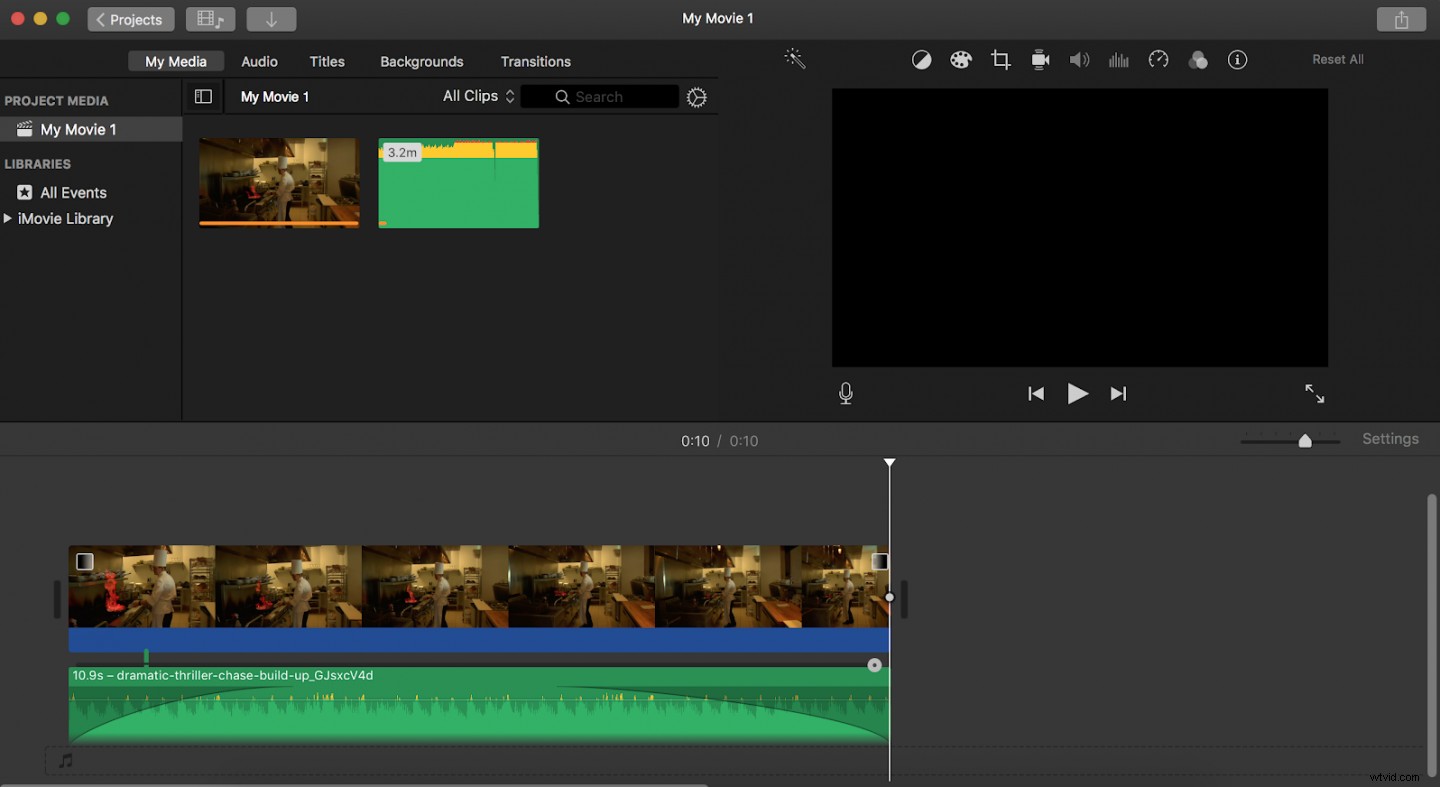
4. Playback to check
Make sure you play back your video to check if the fade-ins and fade-outs are working. If you’re unsatisfied, keep iterating until the transition is to your liking.
5. Save and export your movie.
Apply whatever video or audio effects you see fit and be sure to save your video. Then, just export to whatever format is best for you.
Want to learn more? Explore our beginner’s guide to editing video in iMovie, then learn how to cut music. Find audio and video content for practice and for projects and get ready to create the Next Big Thing.