
Blurred background makes subject stand out which lets viewers only focus on the subject. If you don’t know how to take a blurred background photo, you can blur background of a photo using Photoshop, Lightroom, and online. How to do it? Read this post now!
Do you want to learn how to blur background of a photo? If yes, let’s take a look at the 3 best methods to blur background. Want to make a photo slideshow? Try MiniTool MovieMaker!
- Blur background in Photoshop.
- Blur background in Lightroom.
- Blur background online.
How to Blur Background in Photoshop
As you know, Photoshop is the world’s popular photo editing software. It can blur background of a photo, unblur photo, add text to photo, pixelate image, and so on.
Now, let’s see how to blur background in Photoshop.
Step 1. Open the Photoshop app on the computer.
Step 2. Then import the photo that you need to blur its background by clicking on File > Open….
Step 3. Go to the left panel and choose the Quick Selection tool. Then use the tool to select the subject. If it’s over select, move this tool and press & hold the Alt key to reselect the wanted area.
Step 4. Next, press and hold “Shift + Ctrl + I” to inverse the selected area.
Step 5. Tap on Filter> Blur> Gaussian Blur and adjust the number of pixels in the Radius box. Then click the OK button to apply the change.
Step 6. Go to File> Export> Export As… and save the blurred background image on the drive.
How to Blur Background in Lightroom
Another method for blurring background is to use Lightroom. It seems like Photoshop, which allows you to blur background and manipulate photos with other editing tools.
Here’s how to blur background in Lightroom.
Step 1. Run Lightroom on your PC.
Step 2. Import the photo you want to blur the background of and go to Develop Module.
Step 3. Choose the adjustment brush tool in the right panel and adjust the sharpness.
Step 4. Control the brush to blur the background of this photo.
Step 5. After blurring the background, you can tap on Done> Export to save the blurred background picture.
Want to learn how to blur objects of a photo? Here recommend this post: How to Blur a Picture - 3 Effective Methods.
How to Blur Background Online
If you want to apply a blur effect to a photo online, Fotor is a free online blur background app. Below is the guide on how to blur background of a photo online.
Step 1. Enter the Fotor official website.
Step 2. Choose the Edit a Photo option to launch the photo editing tool.
Step 3. Click the “+” icon to load the desired photo from the local.
Step 4. Shift to the Effect tab and click TILT-SHIFT > Circular or Linear to blur background of the photo. Or choose the paid tool “TILT SHIFT - BRUSH” to apply the blur effect.
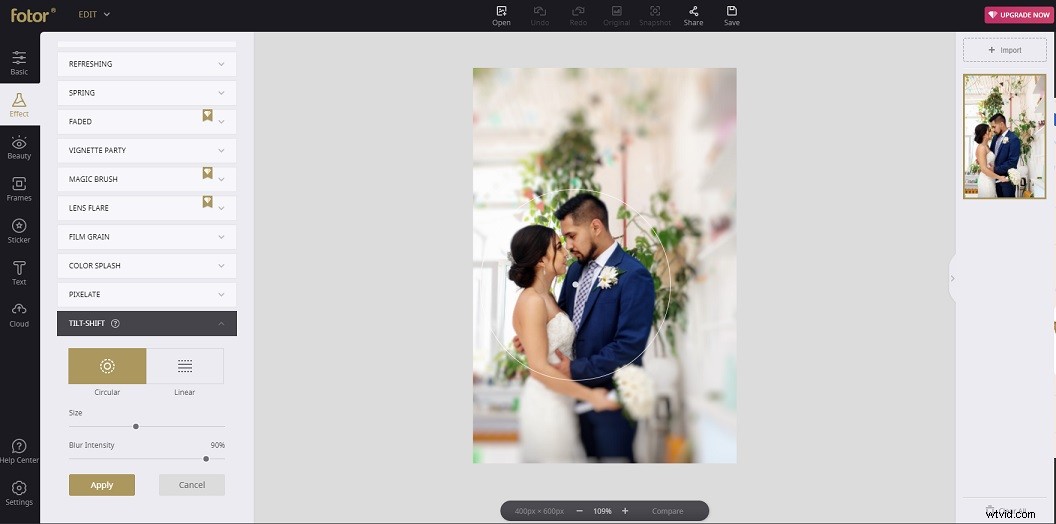
Step 5. Finally, click on Save, choose the JPG format, and download it from the website.
Conclusion
Have you mastered the 3 best methods to blur background of a photo? Choose your favorite blur background app and have a try!