
Do you have a photo with a background color you don’t like? We’re here to show you the step-by-step process of how to change background color in Photoshop.
It takes some patience, but it’s so easy to do. So let’s get started!

Step 1: Choose Your Photo
The quality of your finished image depends on the amount of time you spend on the process.
If it’s your first time to change background color in Photoshop, choose an image with sharp edges and a clean background. This will be easier to work with than a more complex composition.

Here are some things to avoid when you are new to isolating a subject to change the background color:
- Hair that’s loose, frizzy, spiked or not smooth;
- Subjects with detailed edges;
- Anything with edges not in focus;
- Motion blur;
- A background that blends with the subject.
Step 2: Create Two Layers
Open your photo in Photoshop and make a duplicate layer (Ctrl or Cmd +J). Then turn off the original layer.
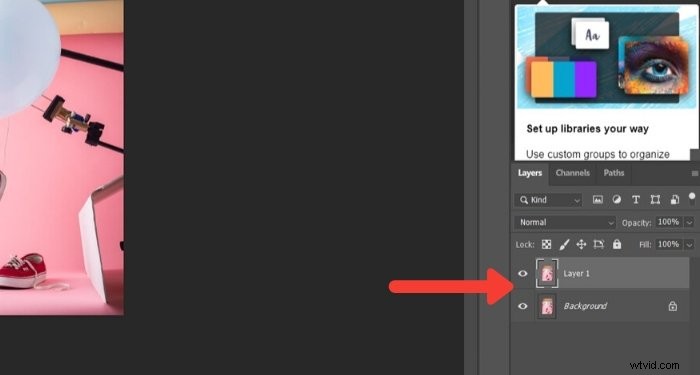
Make a solid layer by clicking the ‘Create New Fill or Adjustment Layer’ icon in the ‘Layers Panel’.
Choose ‘Solid Color’ from the top.
Pick a color close to the background you will use, or choose white.
Step 3: Select the Subject
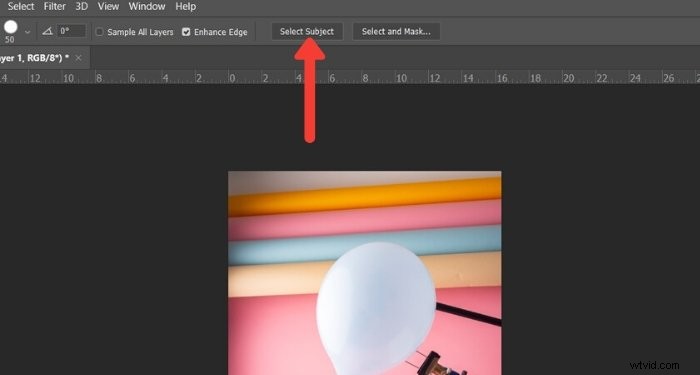
Click on the ‘Quick Selection‘ tool in the ‘Tools Panel’. Then click on the option ‘Select Subject’. It’s in the top bar above the image.
If the edges of your selection aren’t sharp, Photoshop will let you know that it cannot find a prominent subject. If you see this, try other tools such as the ‘Magic Wand‘ or ‘Object Selection’ tool.
Step 4: Clean up the Edges
Unless your subject is super sharp, the resulting selection will not be perfect. So the next step is to polish it.
Keep the ‘Quick Selection’ tool selected. And click on the ‘Select and Mask’ option box above your photo. Doing this opens a new window where you can begin to refine your selection.
Use the ‘Refine Edge‘ brush to include edges that blend too much with the background.
To help you see the effect of this brush, select either ‘Overlay’ or ‘On White’. These options are in the ‘View’ panel on the right side of your screen.
You can adjust the opacity to a point where you can see the effect of the brush as you use it.
Here is an example showing the ‘Overlay’ option from the view panel at 50% opacity.
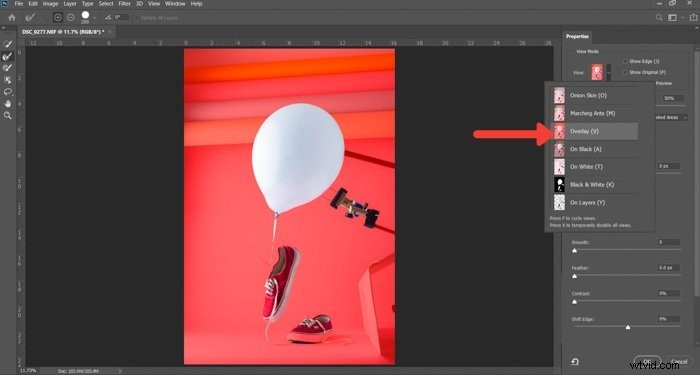
Work your way around the edge in a clockwise direction to make sure you cover the whole outline.
You can control the size of this brush by using the [ and ] keys. You can also control the effect better by using the ‘Radius’, ‘Smooth’, ‘Feather’, and ‘Contrast’ sliders. These are on the panel at the right of your photo.
Experiment with these controls. You’ll find the best balance for the different areas of the image. They will have a varied effect depending on the detail of your photo.

Once you are happy with your selection, switch the ‘View’ to ‘Black and White’. Without the distraction of color, you can better see how your edges look.
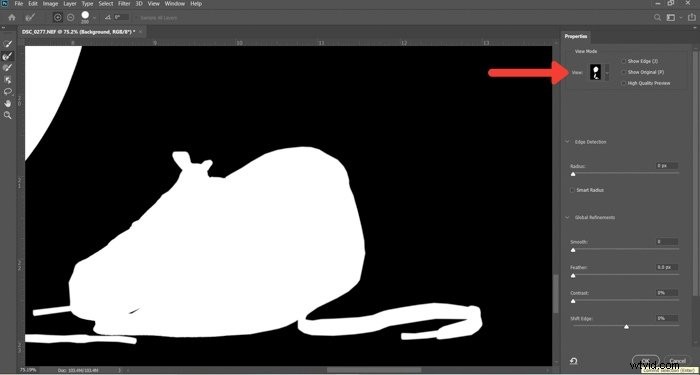
If there are no further changes to make in the ‘Output To Box’, select ‘Layer Mask’ and click OK.
Step 5: Paint on the Layer Mask
Now you have a new mask on your layer. If you want to refine the fuzzy edges further, use the brush tool.
Set it to 50% black, and paint on your subject to erase and parts you do not wish to see. Set it to 50% white, and paint over the background, which is still visible, to erase it.
Using the brush at 50% or lower opacity gives you more precise control. Doing so helps blurred or fuzzy areas of the edges look more natural.

Step 6: Select and Isolate Your Subject
Press Ctrl or Cmd and click on the layer mask to select the subject. Now duplicate the selection to a new layer using Ctrl or Cmd + J.
Hide other layers, so you only see your isolated subject and not the background.
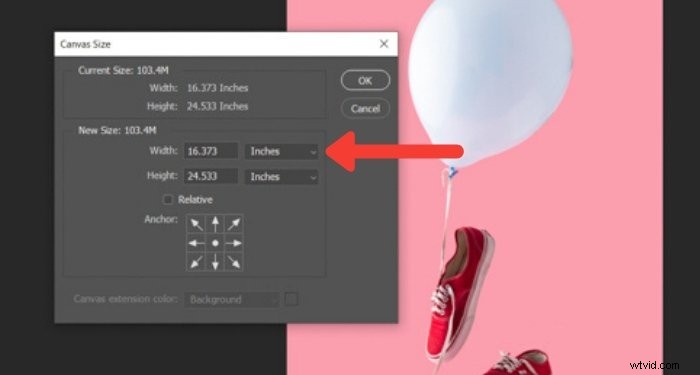
In this step, you can also resize your canvas if you wish. This step is helpful if you want to add some text with your photo. Or, if you’re going to make a composite with other images on the same background.
I chose to crop the image square because it looks best on Instagram. But you can try other sizes, too.
Step 7: Make a Solid Fill for Your New Background
In the Layers Panel, click on the ‘Create New Fill or Adjustment Layer’.
Select ‘Solid Color’ from the top and choose the color you want your new background to be.

Now how do I change the background color to white in Photoshop? Simply pick the color picker, choose white, and you’re good to go!
Of course, you don’t need to limit yourself to solid colors. You can try a realistic background as well.

Conclusion
Changing background color in Photoshop is a simple process once you get used to it. Once you isolate the subject, selecting the background color is as easy as clicking on the color picker.
Practice this method as much as you can — you’ll find it useful, especially on social media.
And don’t forget to show us your results in the comments section!
Want to learn more about post-processing techniques? Check out our course Effortless Editing with Lightroom next!
Why not check our articles on best apps to add background to photos or how to batch resize in Photoshop as well!