
Taking photos of landmarks or tourist attractions without people is impossible these days. But at least you can easily remove people from photographs if you know how to use Photoshop.
I always encourage photographers to find a way to include people in the frame. Sometimes it doesn’t work. People in the wrong place at the wrong time can mess up a photo.
It’s time to learn how to use Photoshop to remove people from photographs.
Taking Photos Without People in Famous Places
Traveling is getting cheaper and more people explore the world every year. That’s great but it’s also a problem for photographers. Where we used to have the place all to ourselves, it’s now crowded. Taking a photo without people seems impossible.
Luckily, there’s a solution. You can Photoshop your pictures and remove those people. There are different ways to do that.
You can take photos with the clear intention of removing people from the picture later. A common technique takes advantage of the fact that people move around all the time. Put your camera on a tripod and take the same photo different times.
If you combine all those photos in Photoshop, you’ll be able to create one clean shot without people.
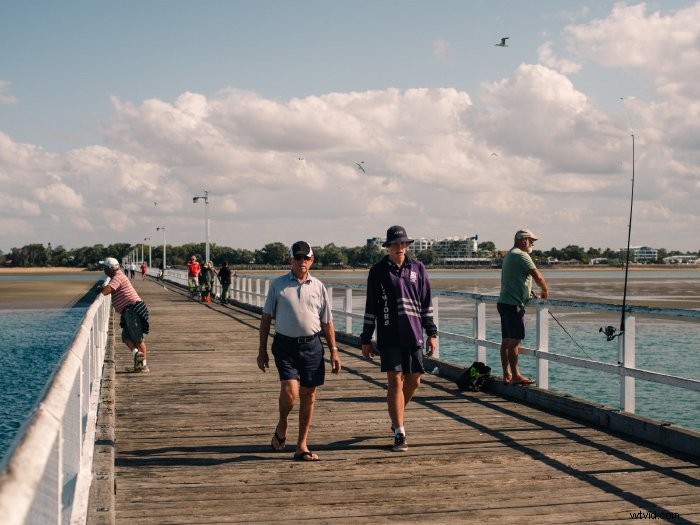
But sometimes that’s not possible. You forgot your tripod or you discover when you’re already home that a person ruined your photo
You’ll have to remove that person from the picture using Photoshop. Here’s a quick way to do that.
How to Photoshop Pictures to Remove a Person
An easy way to to remove people from a picture is by using the clone stamp tool. But, it doesn’t work with every picture. Only by practicing, you’ll learn when you’ll be able to remove a person by using the clone stamp tool.
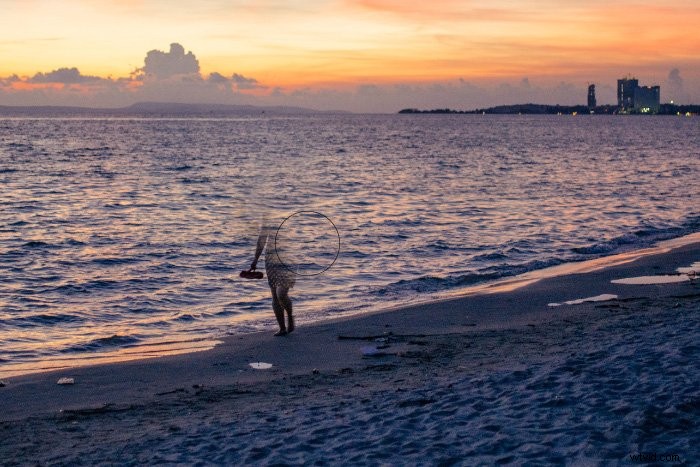
I’ll remove the person in this picture of a sunset in Cambodia.
Step 1: Open the Photo
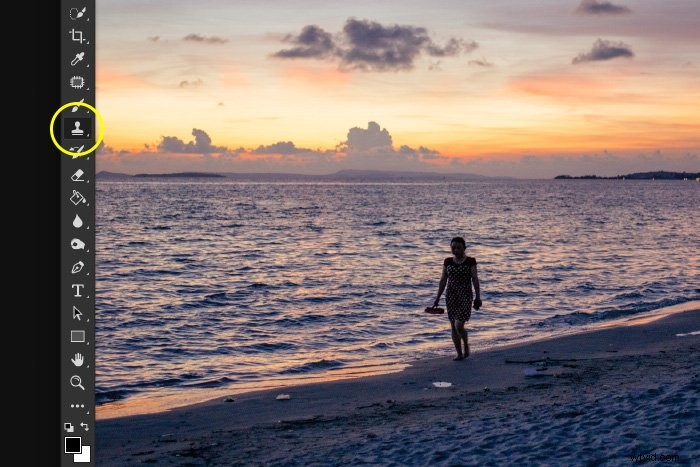
Open the picture from which you want to remove a person and select the clone stamp tool. Shortcut S.
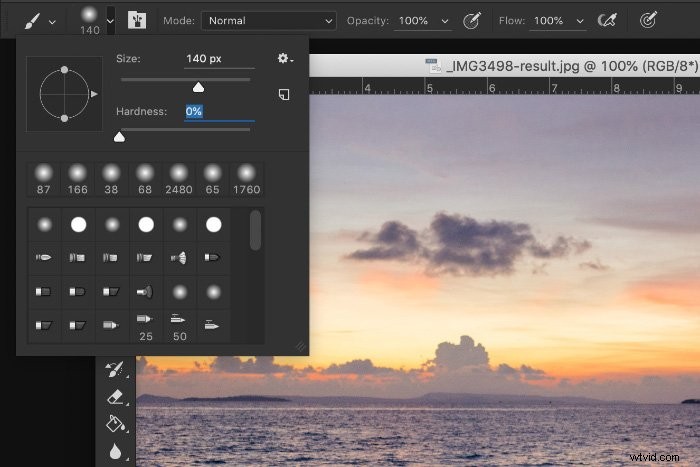
Start with a soft brush and set it large enough to cover the person you want to remove.
Step 2: Select a Clone Source
The easy part is removing the part of the woman which is over the water. Water has a random pattern which makes it easier to Photoshop.
Use Option + Click to select a clone source when using Mac OS. Alt + Click for Windows. The cursor will change into a cross hair.
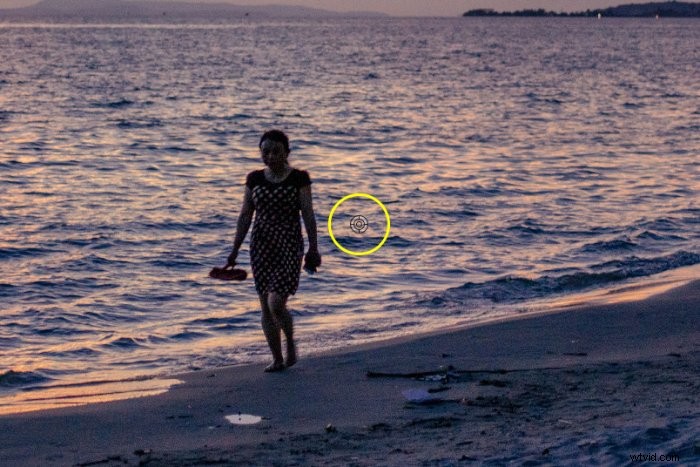
In this case, I need a part of the water next to the woman. The cursor will change into the pixels you’ve selected.
Step 3: Paint
Now start painting over the person you want to remove. Repeat ‘Step 2’ to select different cloning sources to make it look as natural as possible.
Step 4: Take Care of the Details
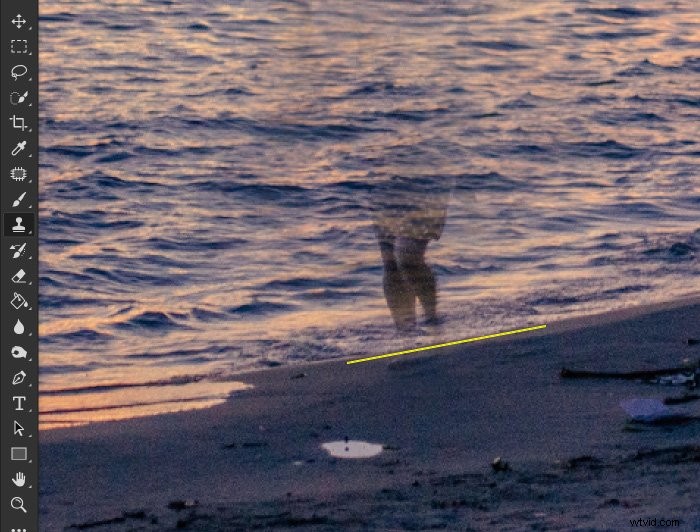
In my example, there’s a sharp line between water and sand. To clone this and remove the feet, I need a smaller brush. Then, I selected a clone source right next to the feet.
Using the smaller clone brush, I painted over the feet making sure the line looks natural.
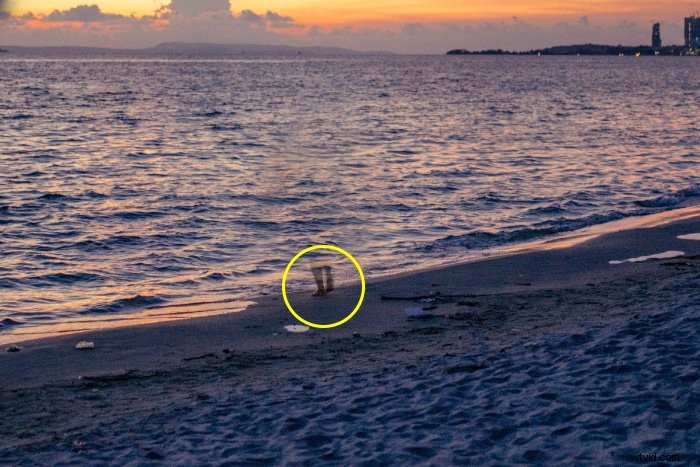
Straight lines or symmetrical shapes are difficult to clone. Zoom in as close as possible and use a small brush for the details. Everything has to match.
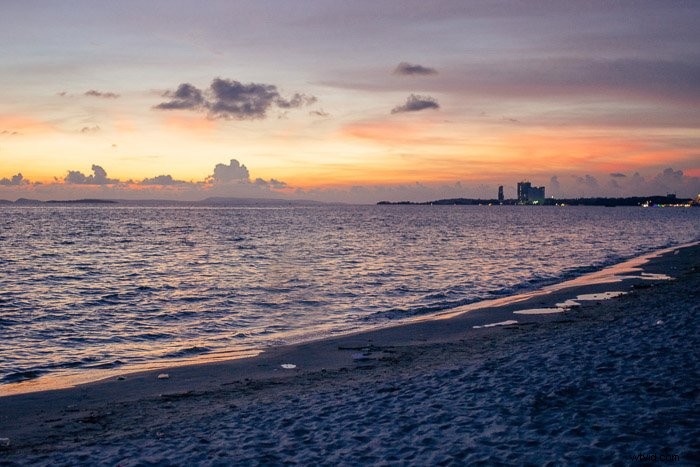
And here’s the result.
Conclusion
Unwanted people in your travel pictures is definitely a problem these days. You can try to include them in your photos but that’s not always the solution. Some photographers prefer to shoot famous landmarks without people.
Photoshop your pictures to remove people and other objects for a clean result. Practice different techniques to find out what works for different photos and situations
Why not check out our post on how to replace a face in Photoshop next?