
Even people who have never taken a picture in their life will have heard of Adobe Photoshop. Now enter Serif, with an equally powerful, accessible, and cheaper integrated design package. But can Serifs Affinity Photo software rival the reigning champion? In this article, we take a look at the ins and outs of Affinity Photo vs Photoshop.
The Industry Standard
Photoshop was originally designed as a darkroom replacement for working on digital photographs. Some of the digital tools you use today are named after darkroom processes. Dodge and burn, for example, replicates the process of exposing areas of photographic paper to less (dodging) or more (burning) light.
Jump forward three decades, and Adobe software is everywhere. This inspired Serif to step up and create the Affinity range of applications. But can Affinity Photos do everything Photoshop can?
Layout
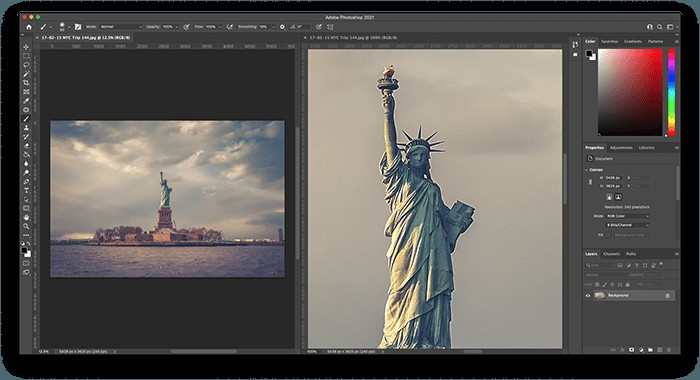
At first glance, the layout of both apps is similar. The tool pallet runs down the left side of the screen. The selected tools properties run across the top. The layers, histogram, and adjustments live in a panel on the right. I am a fan of the colour icons in Affinity Photo. They say, ‘I am friendly’. The grey icons in Photoshop are all business.
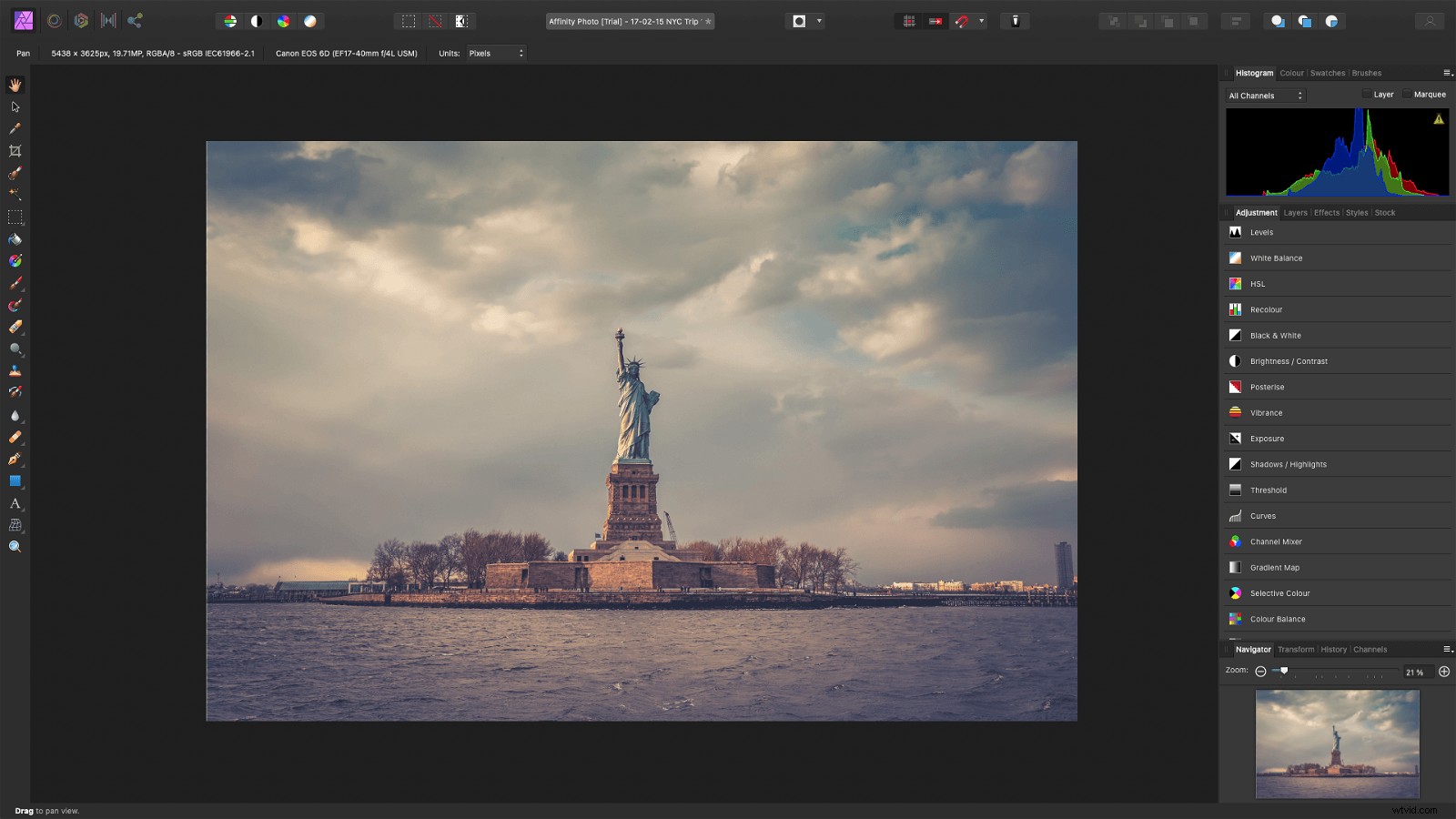
Both Affinity and Photoshop are built for photo editing, so the main window is for your image. Although Affinity wins me over with its colourful design, Photoshop allows you to open the same image file in more than one window. This means you can zoom in and edit one window while the other shows your editing in context.
Tools
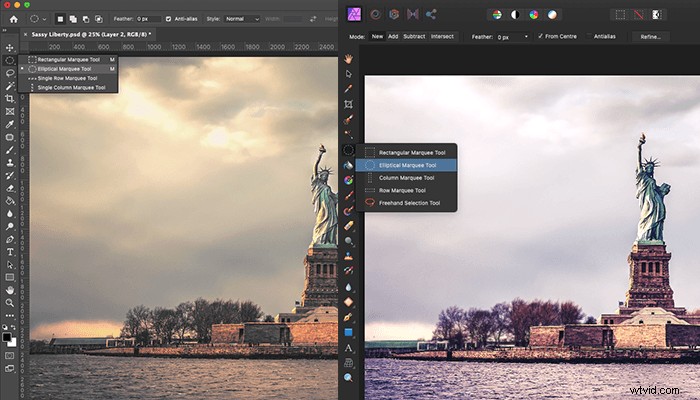
I could spend the rest of the day listing every tool in either program’s arsenal. Suffice to say, the expected selection, brushing, and cloning tools are present in both, with pop-out menus when you click and hold.
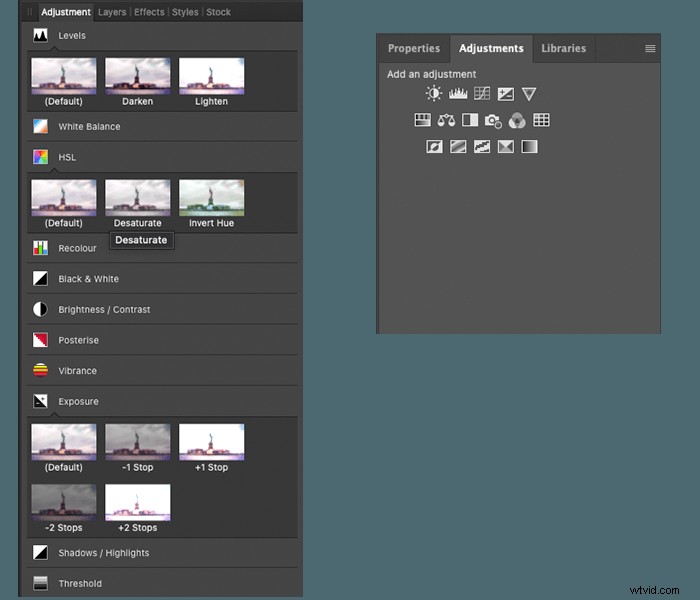
Affinity and Photoshop are layer-based editors. Adjustment layers can be created, rearranged, and edited in the Panel to the right. Again Affinity wins on design here, as each adjustment type shows thumbnail previews of the change it will make. Once the adjustment layer is applied, it can be fine-tuned in the properties tab/pop-up window.
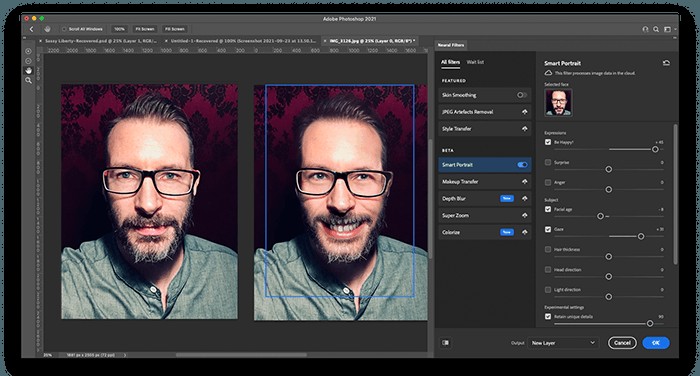
Photoshop brushes are compatible with Affinity Photo, as are most (but not all) plugins. When it comes to effects, but, Photoshop has the upper hand. With years of updates and improvements, the Adobe filter gallery and Neural Filters give you options out of Affinity’s reach.
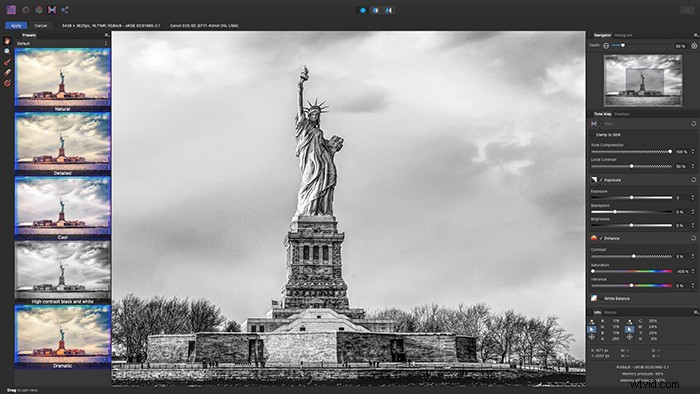
The photo editing workflow in either application is much the same. When you first open a RAW file, you are presented with adjustment options before loading the image into the software. Adobe Camera RAW lets you adjust detail and exposure before opening in Photoshop. Affinity makes these same RAW adjustments in its Develop Persona.
Much like Photoshops workspace menu, Affinity Persona’s chooses which tools are presented in the main window. These personas are Photo, Liquify, Develop, Tone Mapping, and Export.
- Photo—for basic image editing tools
- Liquify—a dedicated window equivalent to Photoshop’s Liquify filter
- Develop—for spot removal, retouching, and gradient overlays on RAW files
- Tone Mapping— a filter gallery for adding and adjusting looks
- Export—where you select file size and format for saving your photo
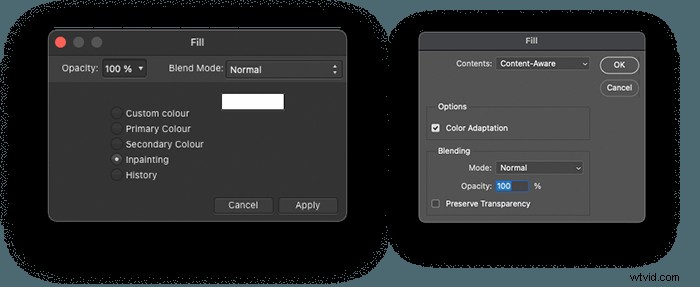
Both applications use the same shortcuts for navigation- command +/- for zooming in and out and the space bar for panning around. There are a few differences in some tool tips and terminology. For example, the Affinity brush shows you a preview of what it is about to do. Furthermore, what is referred to as Content-Aware Fill in Photoshop is called inpainting in Affinity.
Resource-hungry filters and effects like Liquify can slow down your machine to a standstill. We tested the liquify Filter and Liquify Persona, and both programs rendered changes in real-time with no lagging.
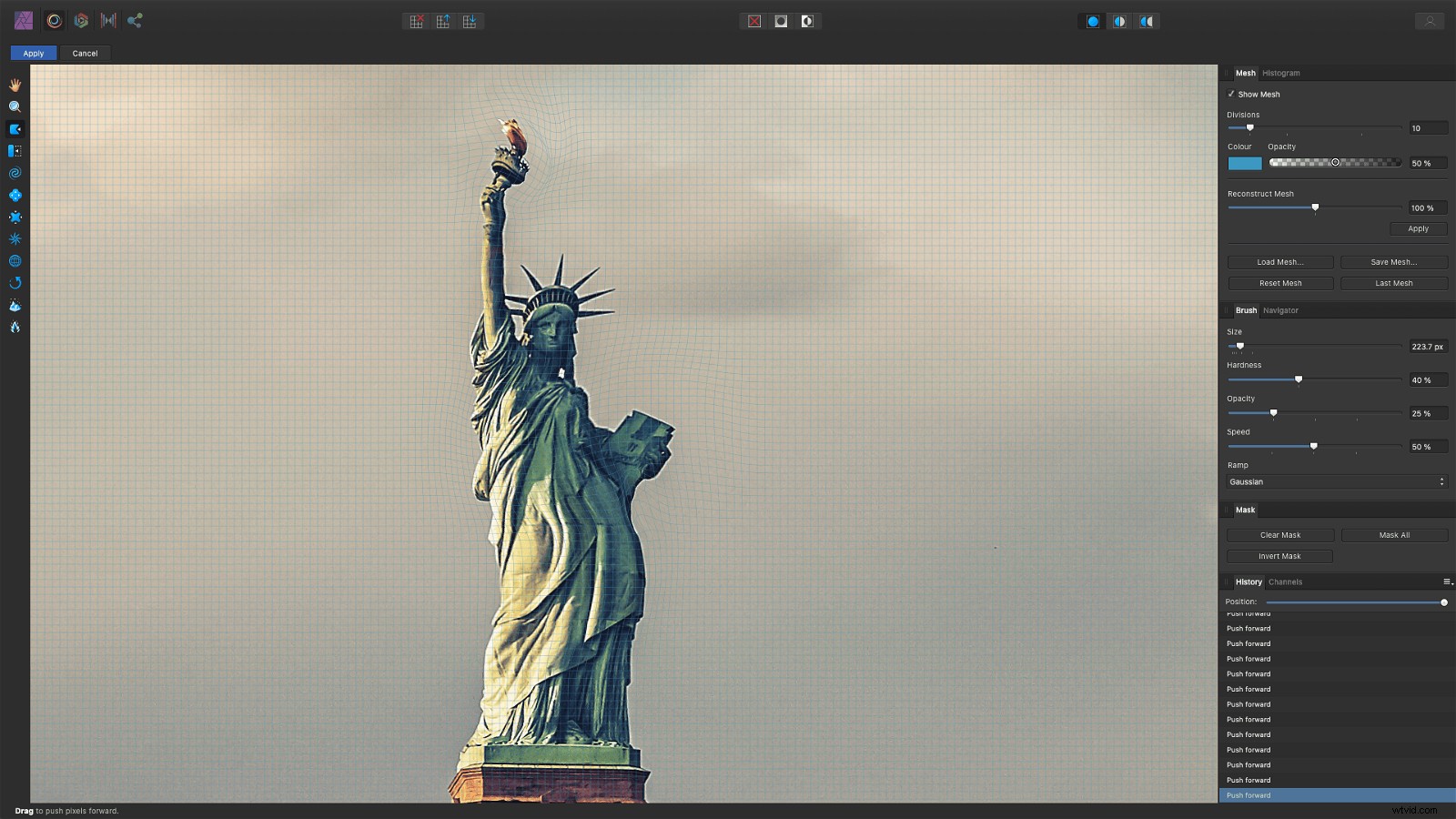
Both programs will stitch panoramas, stack, and align images. Photoshop seems to load and respond marginally quicker when dealing with files of 100MB+. Both have layer effects, masks, and blend modes—also, text and vector tools and the ability to automate tasks.
One thing I had not accounted for when making resources to teach Photoshop was Adobe’s continual upgrades. You may find that the menu option you were looking for has been hidden beneath a sneaky disclosure triangle. Because of these updates and built-in AI, Photoshop has to take the lead in feature sets and usability.

Cost
Affinity is a one-time buy of $49.99. The Affinity iPad app is $19.99.
An Adobe subscription starts at $9.99 per month. This gives you Photoshop and Lightroom on desktop and iPad along with 20GB of storage on the Adobe cloud.
When it comes to cost, Affinity is a much cheaper alternative to Photoshop.
Integration
Although the difference in cost is staggering, Adobe sells an integrated package. You can shoot, upload, and edit your shots in the field using the iPad Lightroom app. When you open Lightroom on your desktop at home, your pictures are there waiting for you to edit in Photoshop. These edits then update in Lightroom. When you show your work to the client, you can make adjustments in photoshop on the iPad. The Adobe Creative Cloud app also manages your fonts, software, work, and stock imagery. You can even share assets such as graphics and videos with other Adobe users to include in their designs.
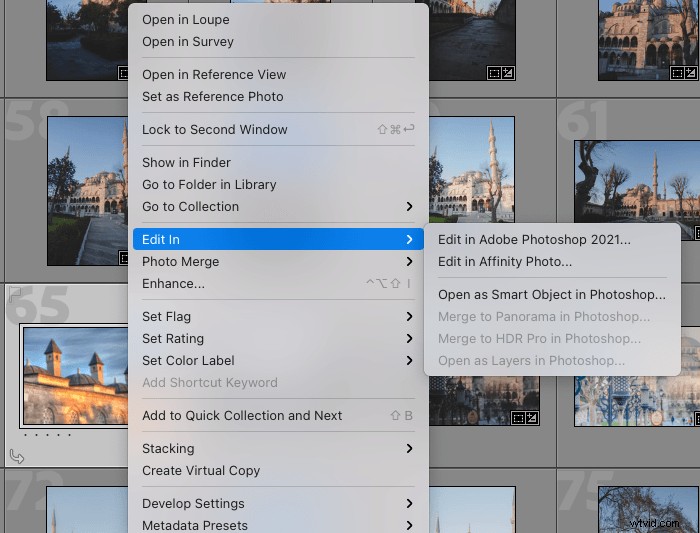
Images can be sent to Affinity photo and Adobe Photoshop from most catalogue software. A right-click in Lightroom, Capture One, ON1 Photo RAW will give you an ‘Edit In..’ option.
Although Photoshop PSD files open in Affinity, Adobe products cannot open Affinity’s native AFPHOTO file format. Meaning you have to export PSD files to share work with Photoshop users.
AFPHOTO files are integrated with Serifs family of products, Affinity Designer, and Affinity Publisher (each $47.99). So if you are looking to move away from Adobe, this could be your solution.

So Which is Best? Affinity or Photoshop?
Affinity shares many design and control features with Photoshop. The well-laid-out, comprehensive software is a superb edit platform for those beginning in the editing world.
Would I recommend Affinity for beginners? Absolutely! With no ongoing subscription, it is a highly accessible avenue for photo editing.
Can Affinity do everything Photoshop can do? Not yet. Photoshop has developed for long enough that there are several ways to most things.
Conclusion
In the battle between Affinity Photo vs Photoshop, who prevails? The real advantage of Adobe software goes beyond the number of features. It lies with its Creative Cloud integration.
If you work as part of a creative team that uses Adobe products, Adobe Photoshop wins hands down every time.
If you are a hobbyist or student Affinity Photos is a great Photoshop alternative.
Also, try out our Effortless Editing course to master all the secrets of professional editing in Lightroom.