
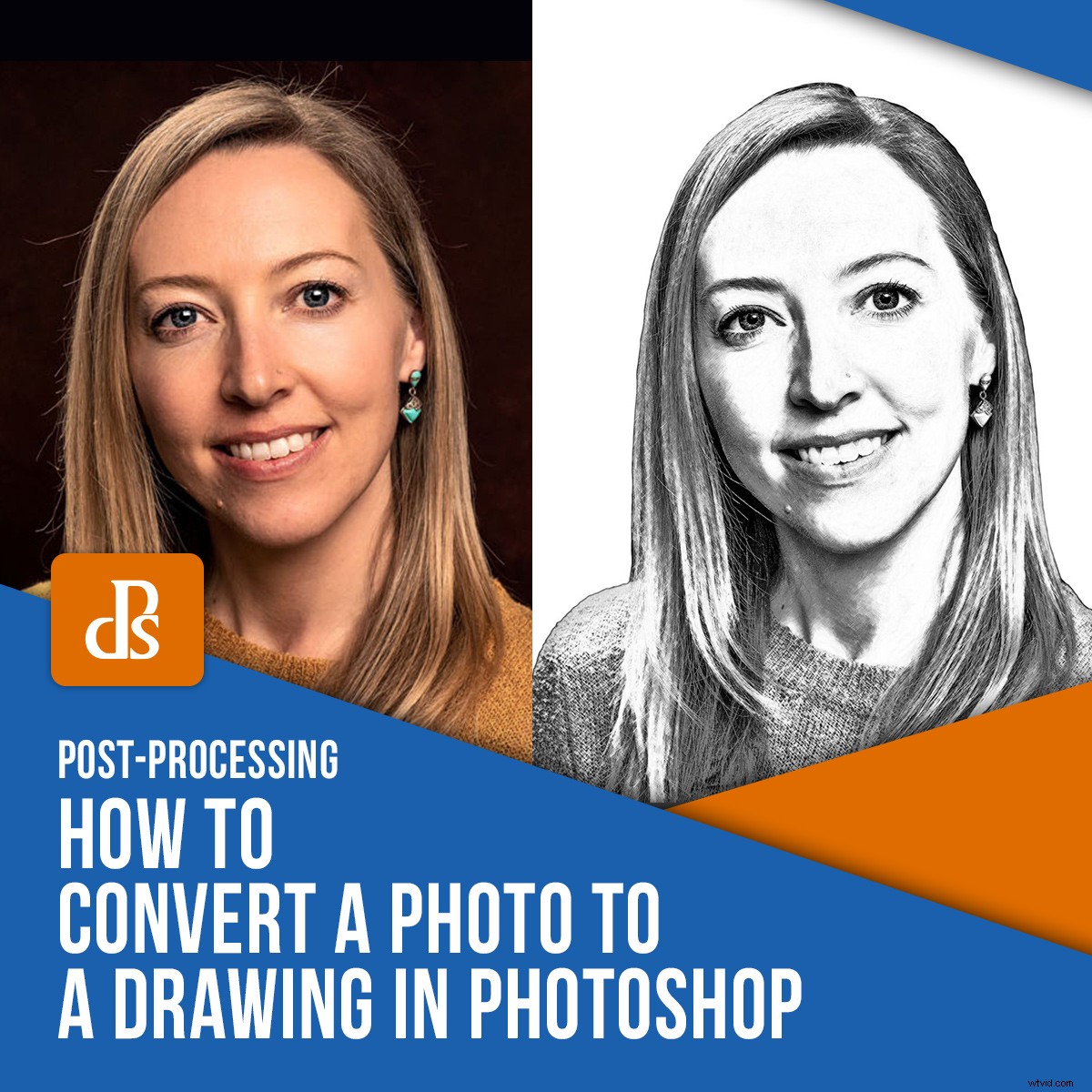
If you are anything like me, your artistic skills with a pencil are not great. I can, however, take pretty good photographs. So, this technique will show you how to convert a photo to a drawing in Photoshop.
The steps aren’t complicated, but we will use smart objects, filters and blend modes. If you are not familiar with these, check out the related links to learn more about them.
You will need to use Adobe Photoshop for this particular technique and I will be using the current 2020 CC version of Photoshop. Different versions of Photoshop may require slightly different approaches, particularly as it applies to smart objects.
Start with a portrait
To convert a photo to a drawing in Photoshop, I will start with a portrait of a writer I know, Jane Marshall. I photographed this during a recent portrait session. My version of Photoshop is windows-based, but the commands apply to Mac too.
Make sure you are working with an 8-bit image, or some of the filters will not be visible within Photoshop.
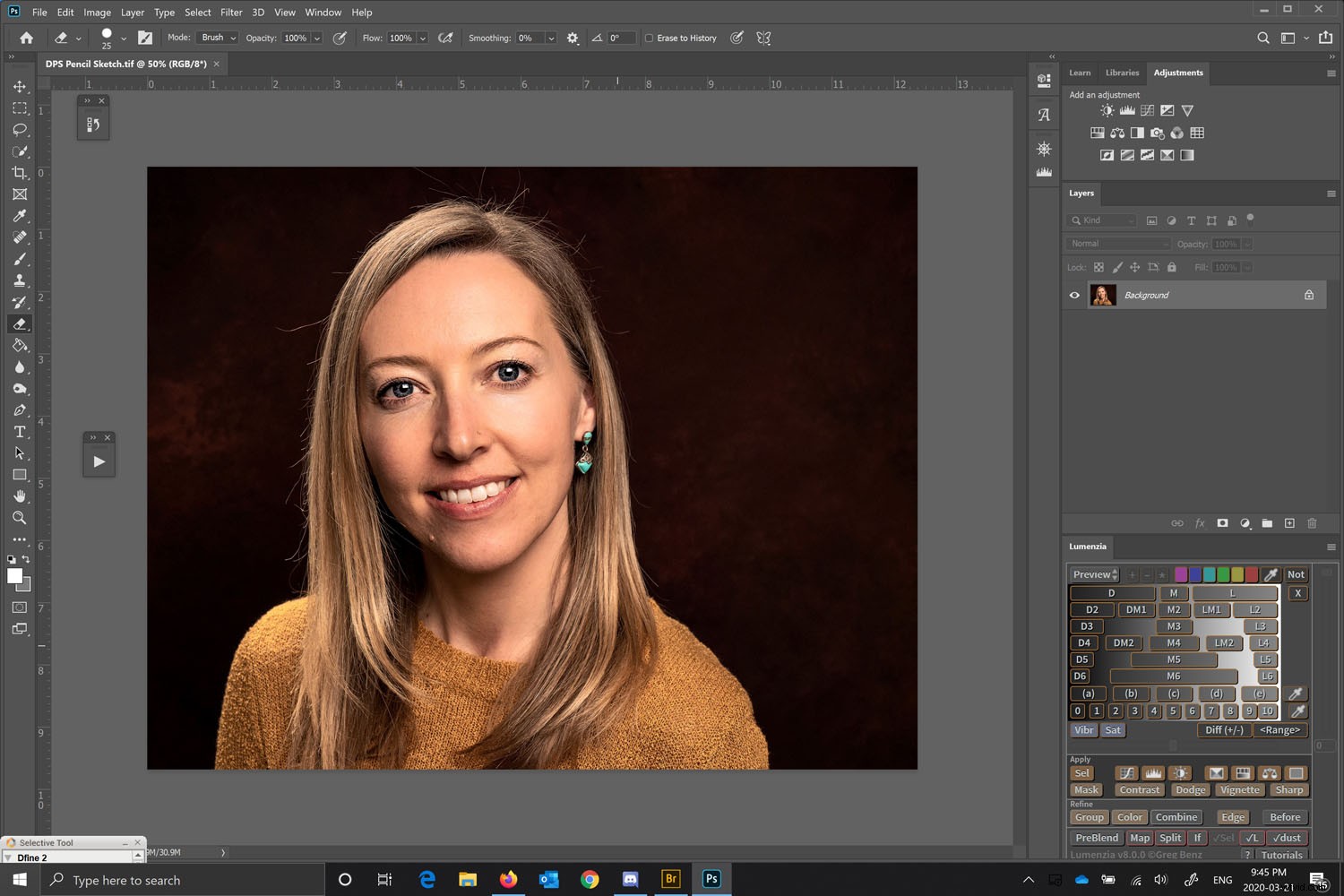
We will be converting the layers into Smart Objects. Converting them into a smart object will allow you to make modifications to each layer.
Before you do this, use the Quick Select tool on the left side. With that highlighted, you can look across the top of the bar (on Adobe Photoshop CC) and use the Select Subject.

This uses Adobe’s Sensei AI technology and selects the subject for you. It generally does a pretty good job.
Mask out the subject
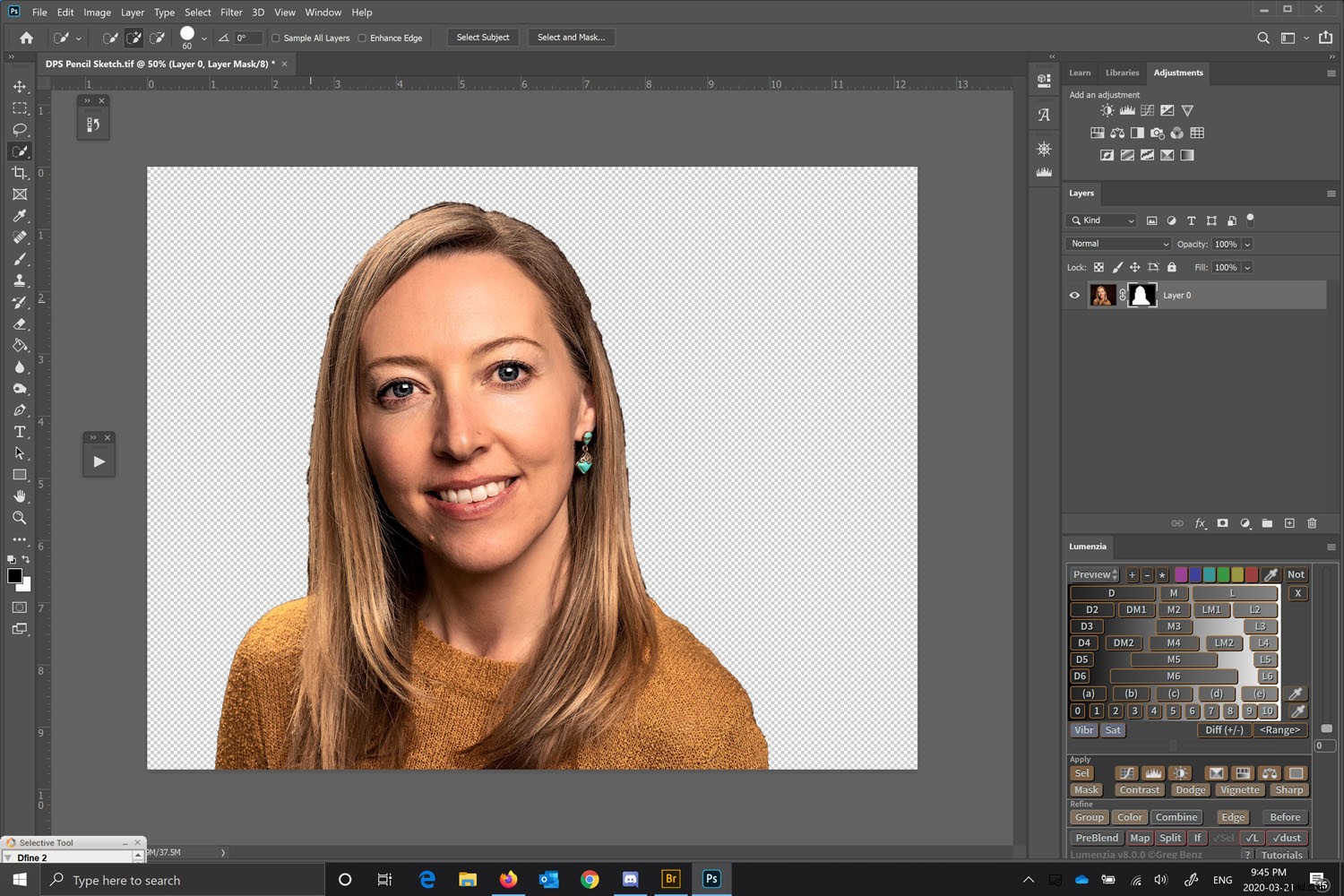
Create a layer mask so that you are only working on the portrait.
To do this, with your selection still made, go to Layer > Layer Mask > Reveal Selection. Alternatively, select the little layer mask icon in the Layer palette.
Clean up the mask by either using a black brush on the layer mask or use the Select and Mask tool. The Select and Mask tool is similar to the prior versions Refine Mask function, but works much better now. Fundamentally, the mask doesn’t need to be perfect, just smooth.
Remember when working on the mask, white reveals and black conceals.
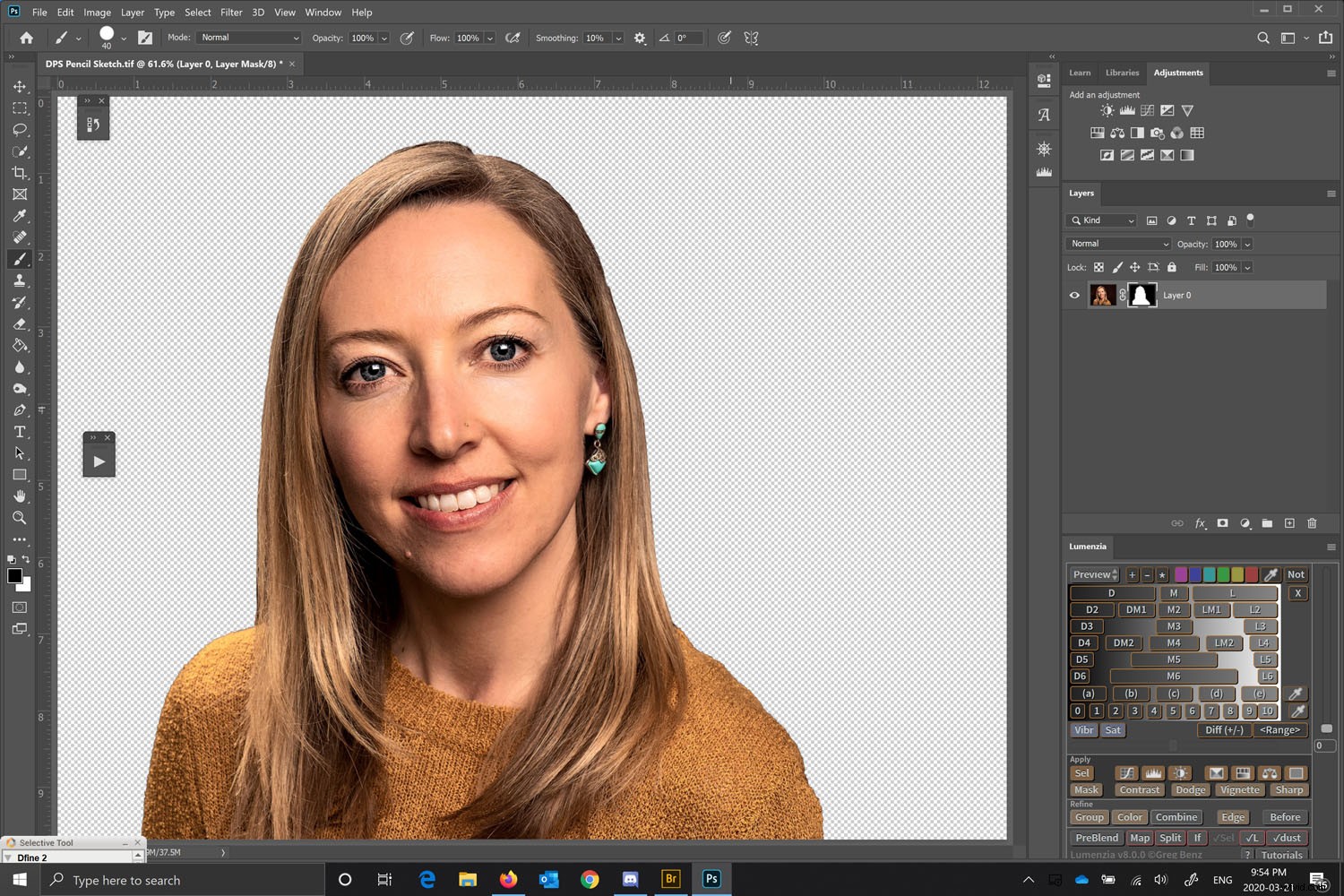
Once you are happy with the mask, we need to invert the selection, so press Ctrl I or Command I (Windows/Mac) and select the background.
Press Delete and the background will disappear. We will proceed to convert the layer into a Smart Object by clicking on the layer. You can also do this from the Edit menu.
Convert the base image into a Smart Object
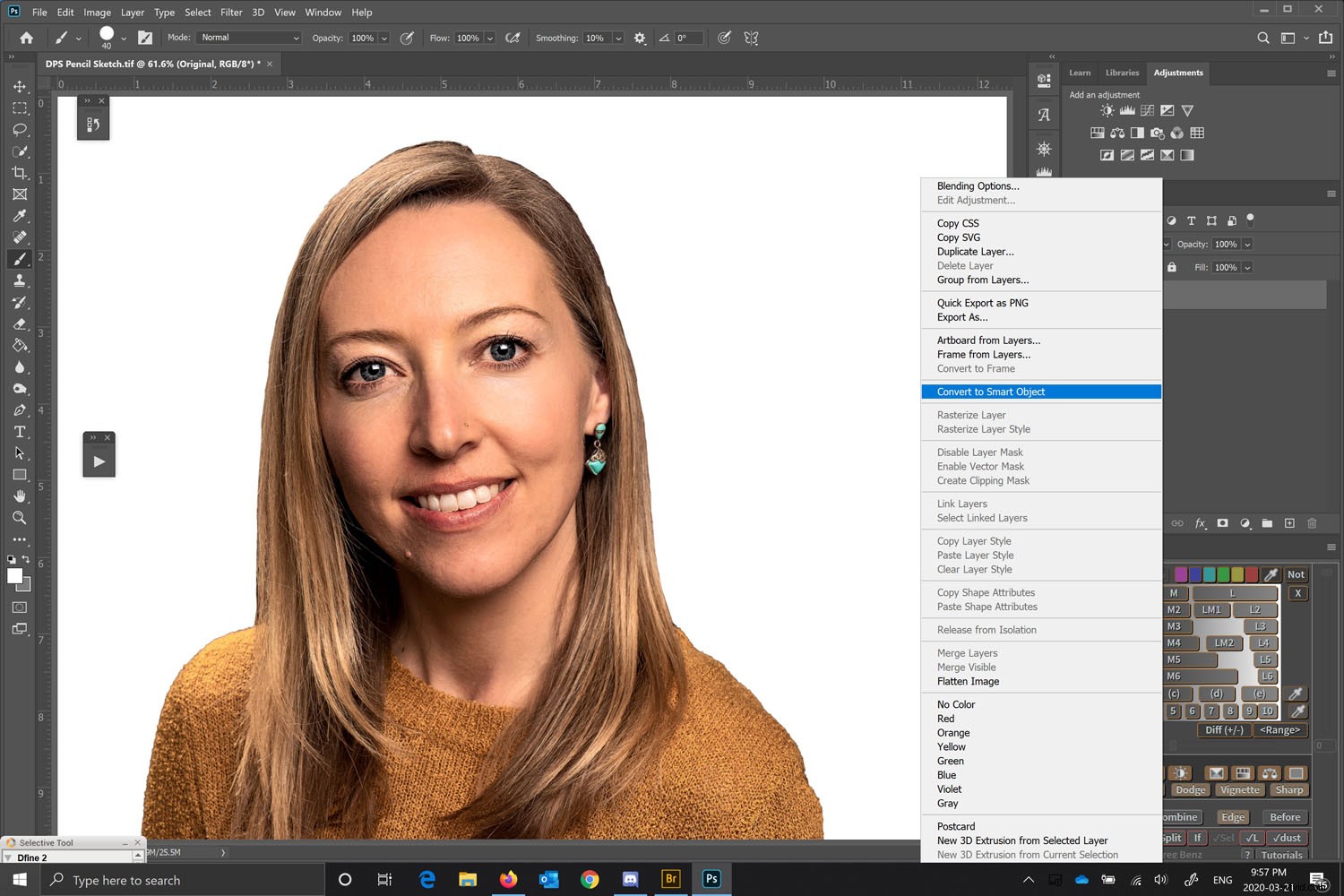
Duplicate the layers and rename the new layers.
Because the layer was already a smart image, all the duplicates will also be smart images and will be tied to the original layer (more about that later).
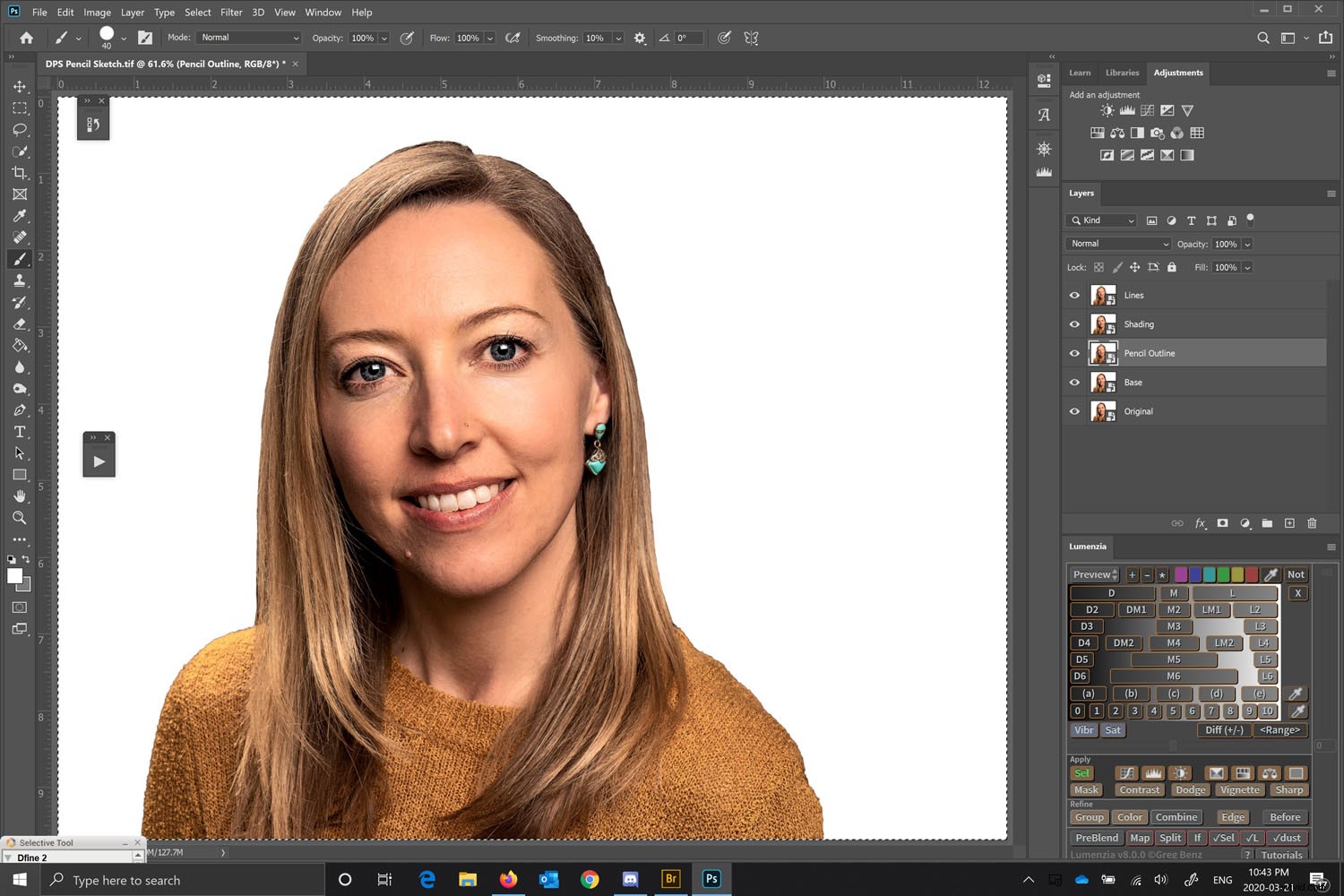
There will be four layers above the original layer.
The original layer should be called Original (it will change from “Background” when you convert it into a Smart Object). We will leave that one alone and only work on the layers above it.
Title the layer above the original “Base.” We can call the layer above Base, “Pencil Outline.” The layer above that, call “Shading” and the Layer above that, call “Lines” or “Edges.”
Naming layers makes adjustments easier to keep track of. Smart objects will make the files larger, but will make all the changes non-destructive and editable.
Create multiple Smart Object layers
Create the Pencil Outline layer
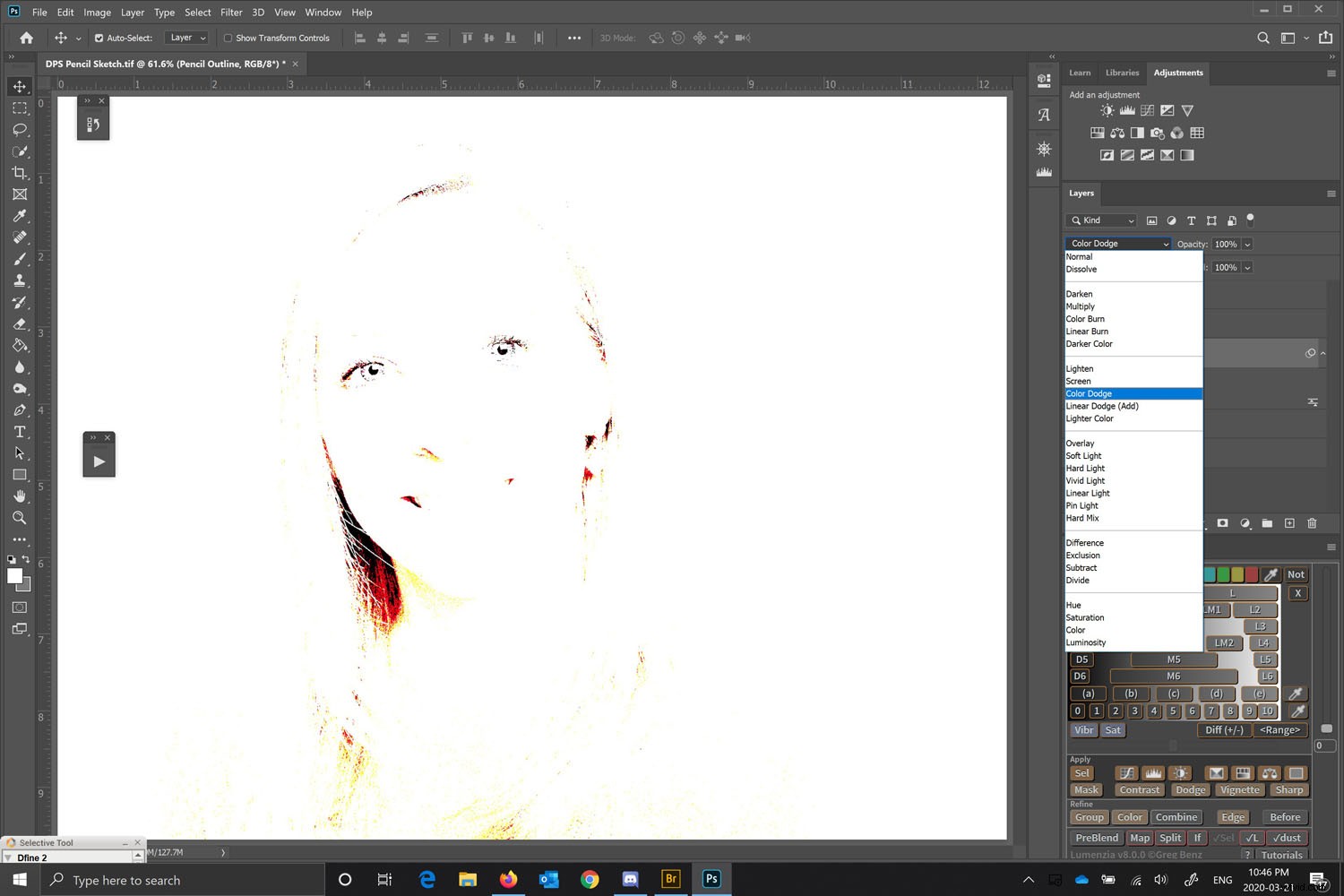
Turn off all the layers bar the layer you are working on using the Eye icon next to the name of each layer in the Layers palette. In this case, we will start on the Pencil Outline layer. To start the conversion, press Ctrl I or Command I to invert the layer.
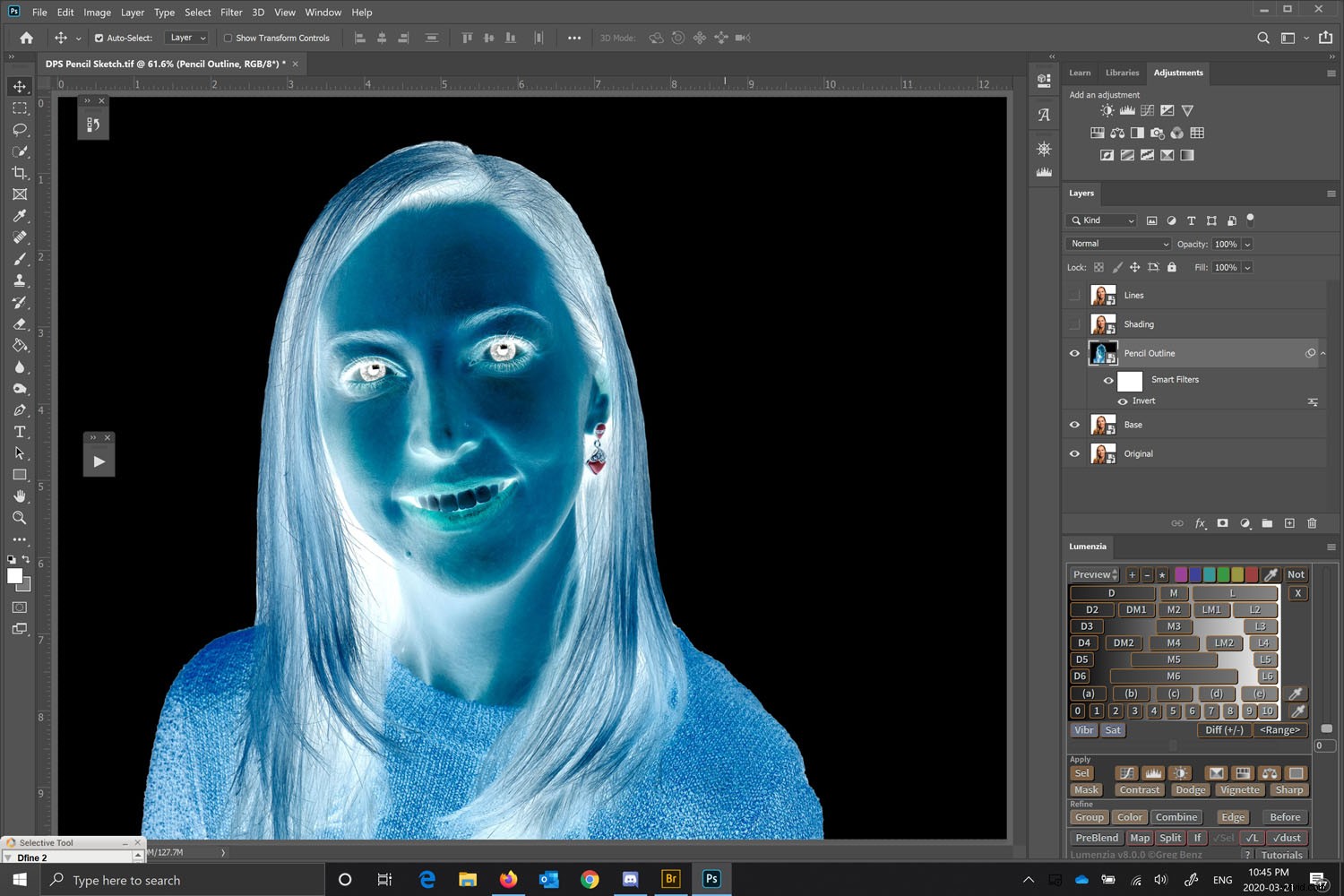
Once you have inverted the image, we are going to use the blend mode, “Color Dodge” to create the initial colored pencil outline effect.
Add a Gaussian Blur
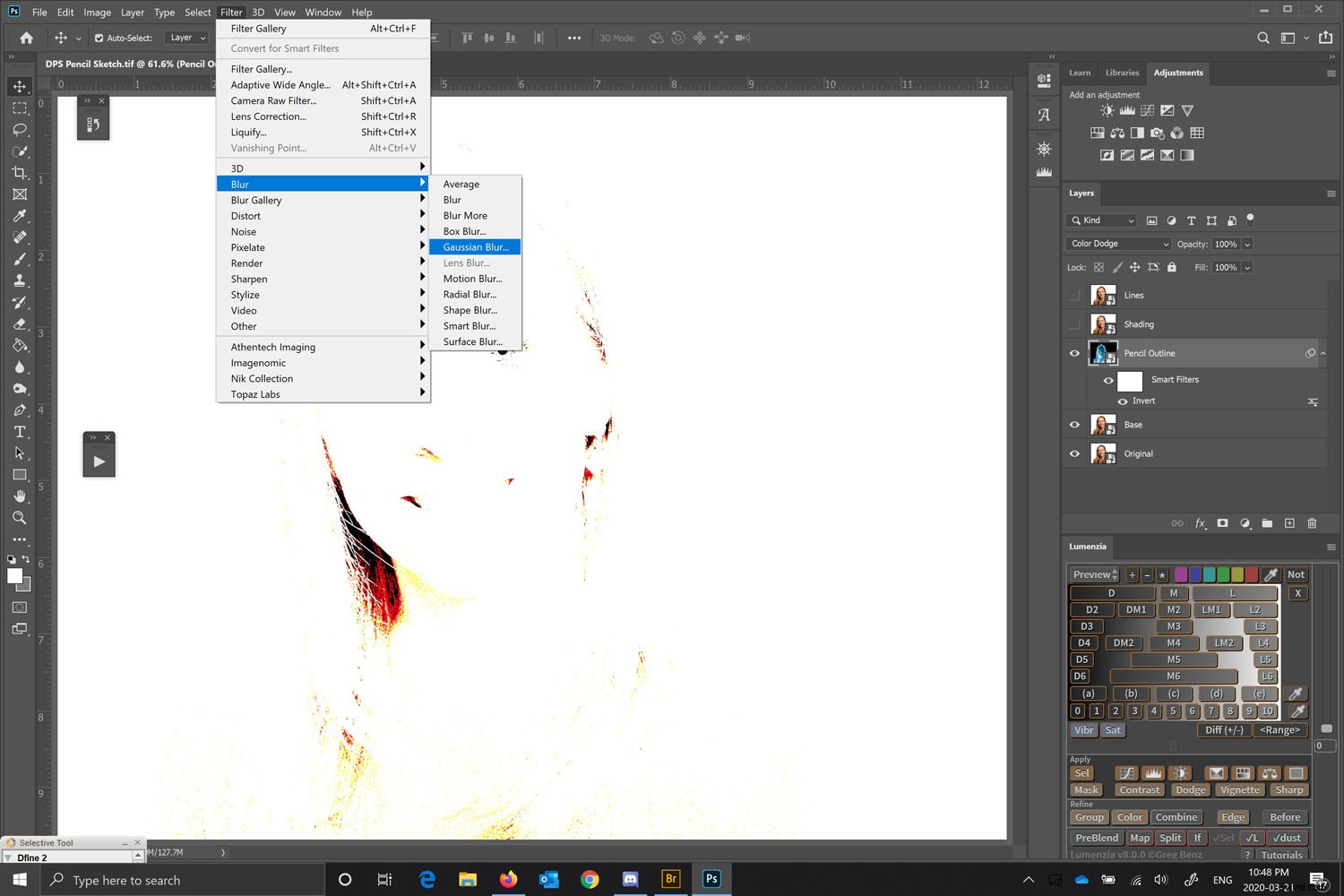
The next thing we need to do to convert a photo to a drawing in Photoshop is to add a Gaussian Blur. We will do this to improve the appearance of the initial colored pencil effect.
Select Gaussian Blur from the Menu bar, by going to Filter > Blur > Gaussian Blur. The amount of blur you add will affect how much of the underlying image appears.
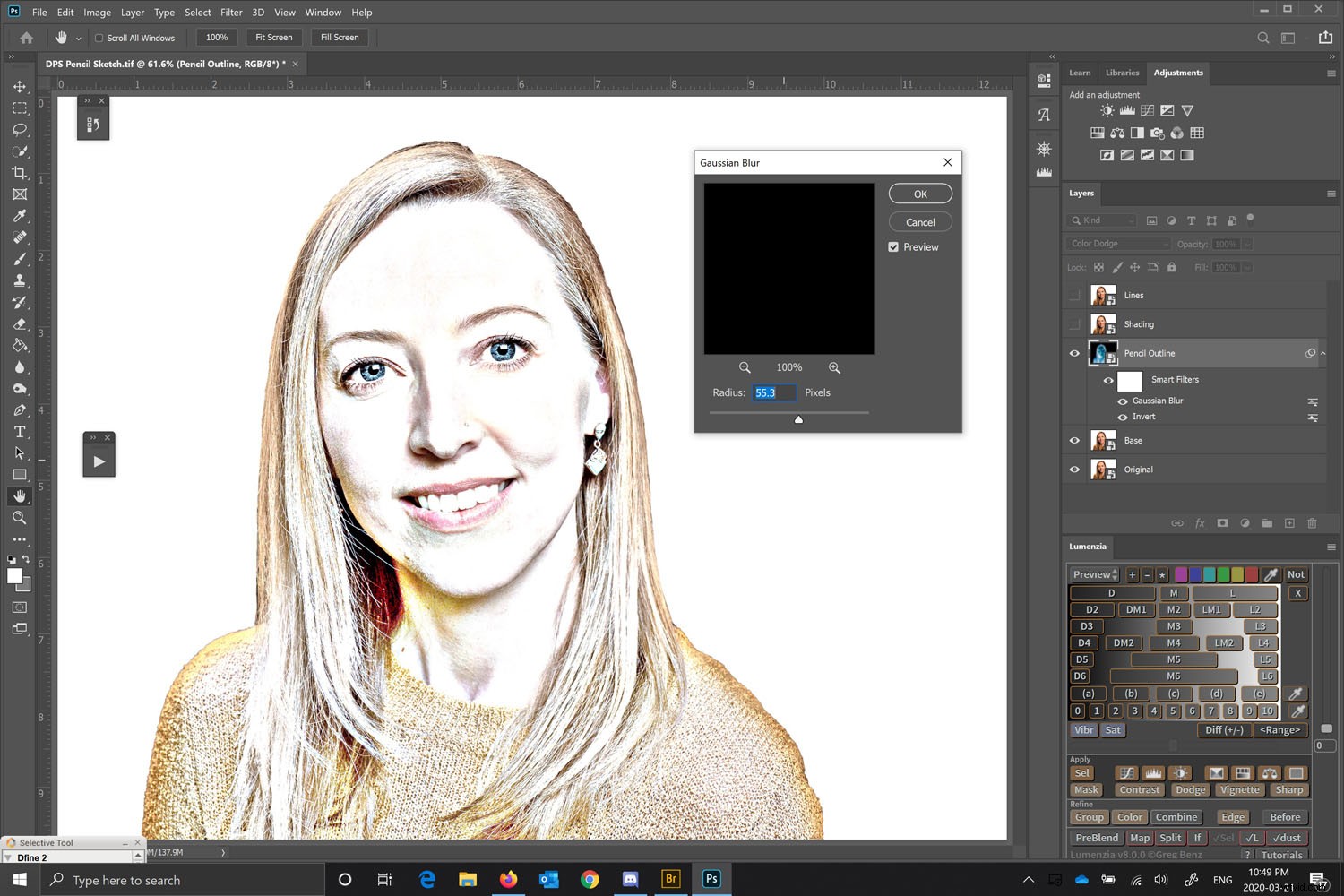
Adjust the amount of Gaussian Blur you want, and a color version of the pencil sketch will start to appear.
However, we can improve the image by creating shading and emphasizing some lines.
Adjust the amount of Gaussian Blur to an amount you like, but you want to clearly see your subject.
Make the image black and white
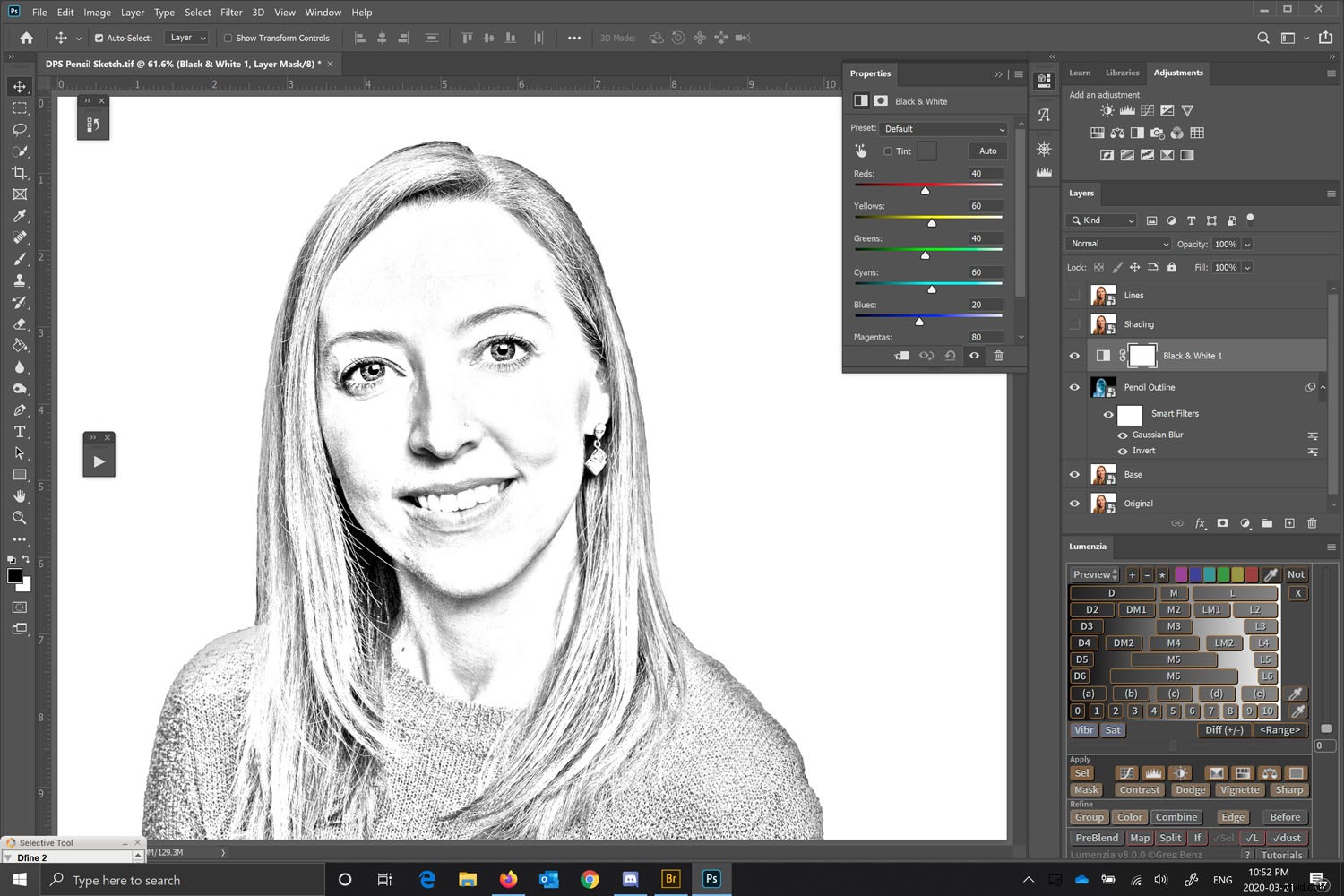
While on the Pencil Outline layer, add a new Black and White Adjustment Layer from the Adjustments Panel. This will add a layer above the Pencil Outline layer.
If you cannot find your Adjustments Panel, go to the menu bar and select Window > Adjustments. You will then see the panel open. The Black and White Adjustment icon is a box with a positive and negative rectangle inside.
Remember that if you have the layers above the one you are working on turned on, you will not see any changes. So make sure only the layer you are working on and the ones below are turned on.
You don’t need to change anything from the default settings for the black and white adjustment layer for the purposes of this exercise.
Working on the shading
When you are converting a photo to a drawing in Photoshop, you want some shading to give depth. However, pencils are usually shaded with texture and blending.
You can create this appearance in Photoshop.
Select your Shading layer.
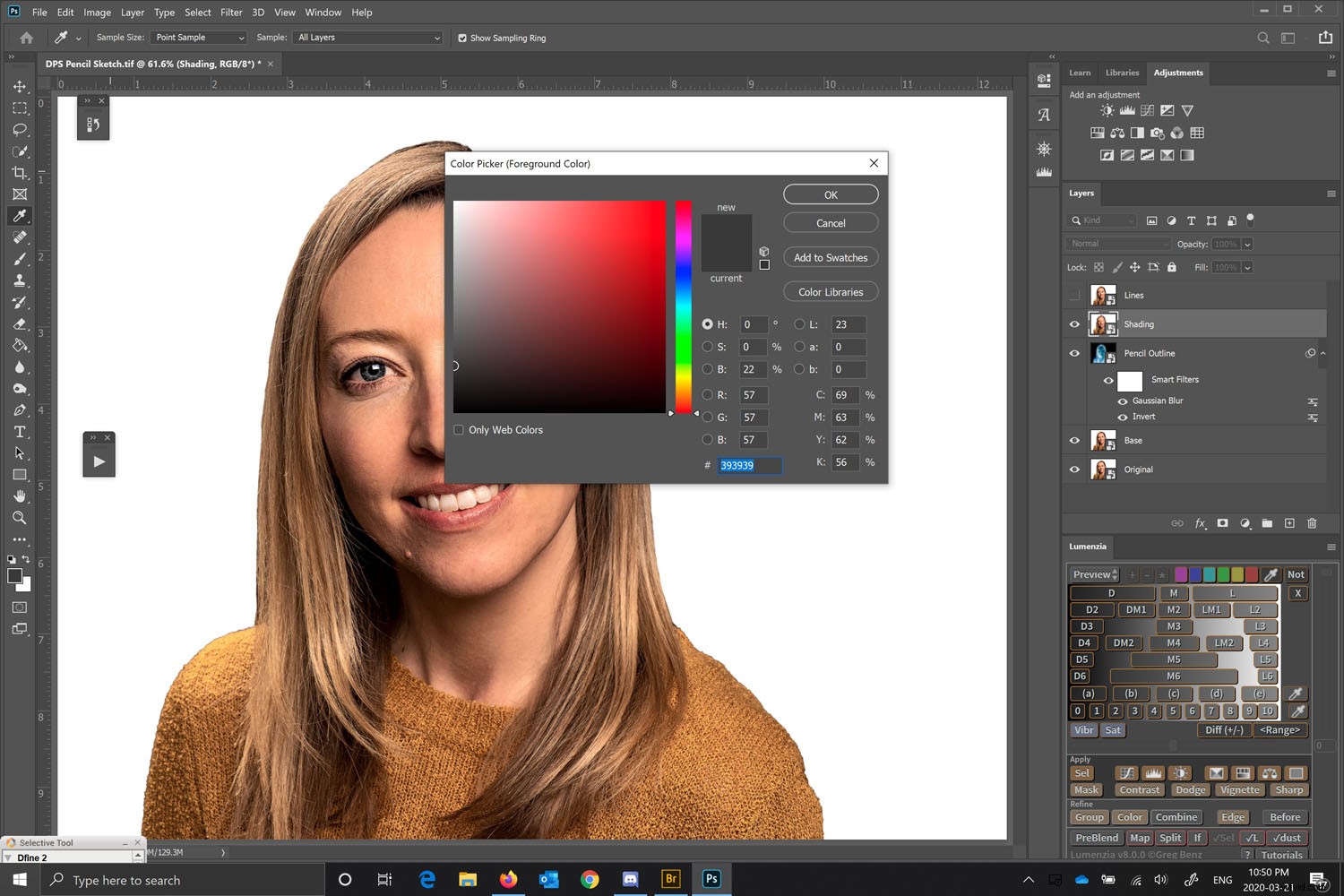
To improve the effect, we are going to change your brush color from pure black to a dark grey and leave the white as white. You want the foreground color to be the dark grey and the background to be white.
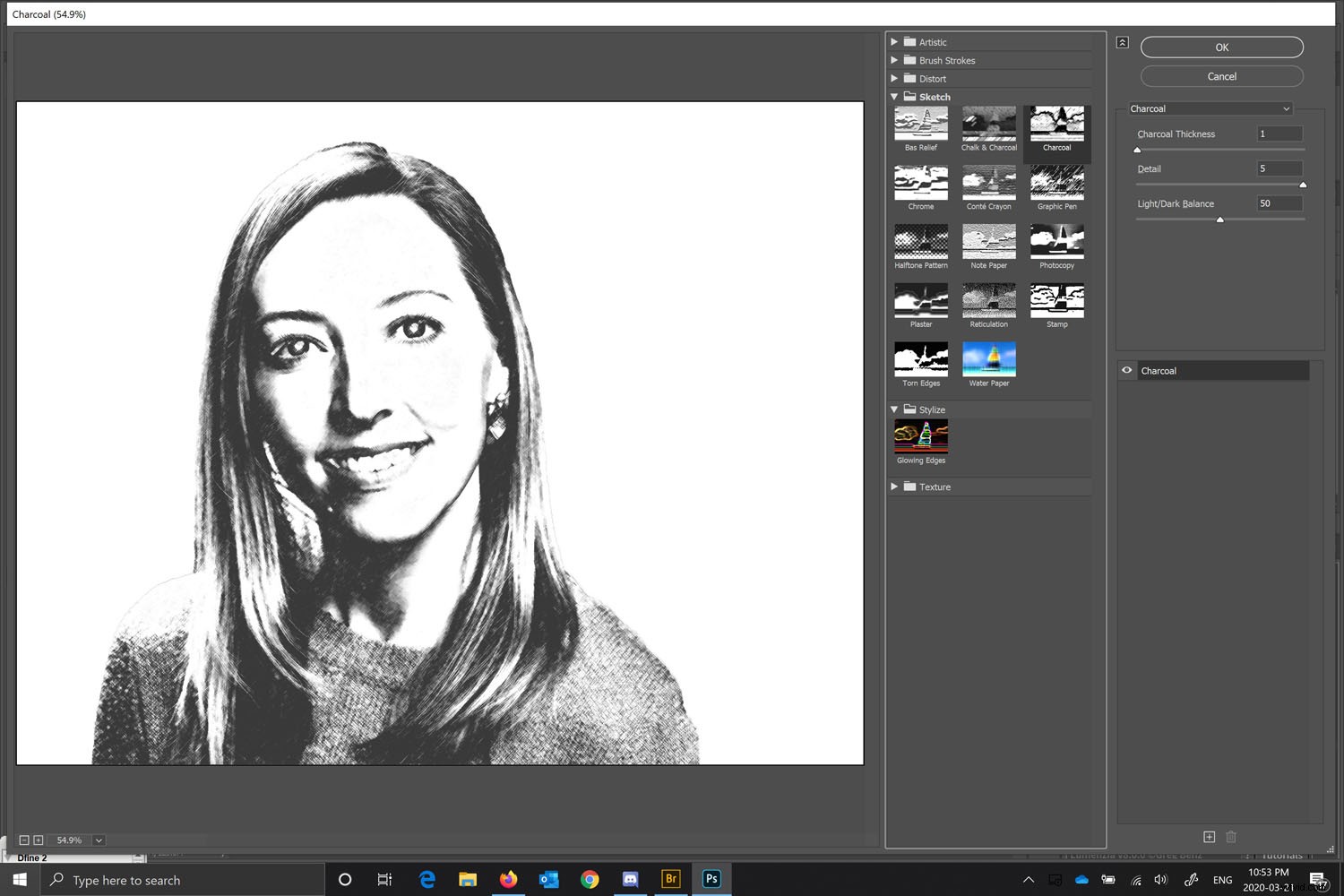
With the shading layer selected, go to the Filter Gallery (Menu > Filter > Filter Gallery) and choose the Charcoal Filter under the Sketch Group. Set the Charcoal thickness to 1, Detail to 5 and Light/Dark balance to 50.
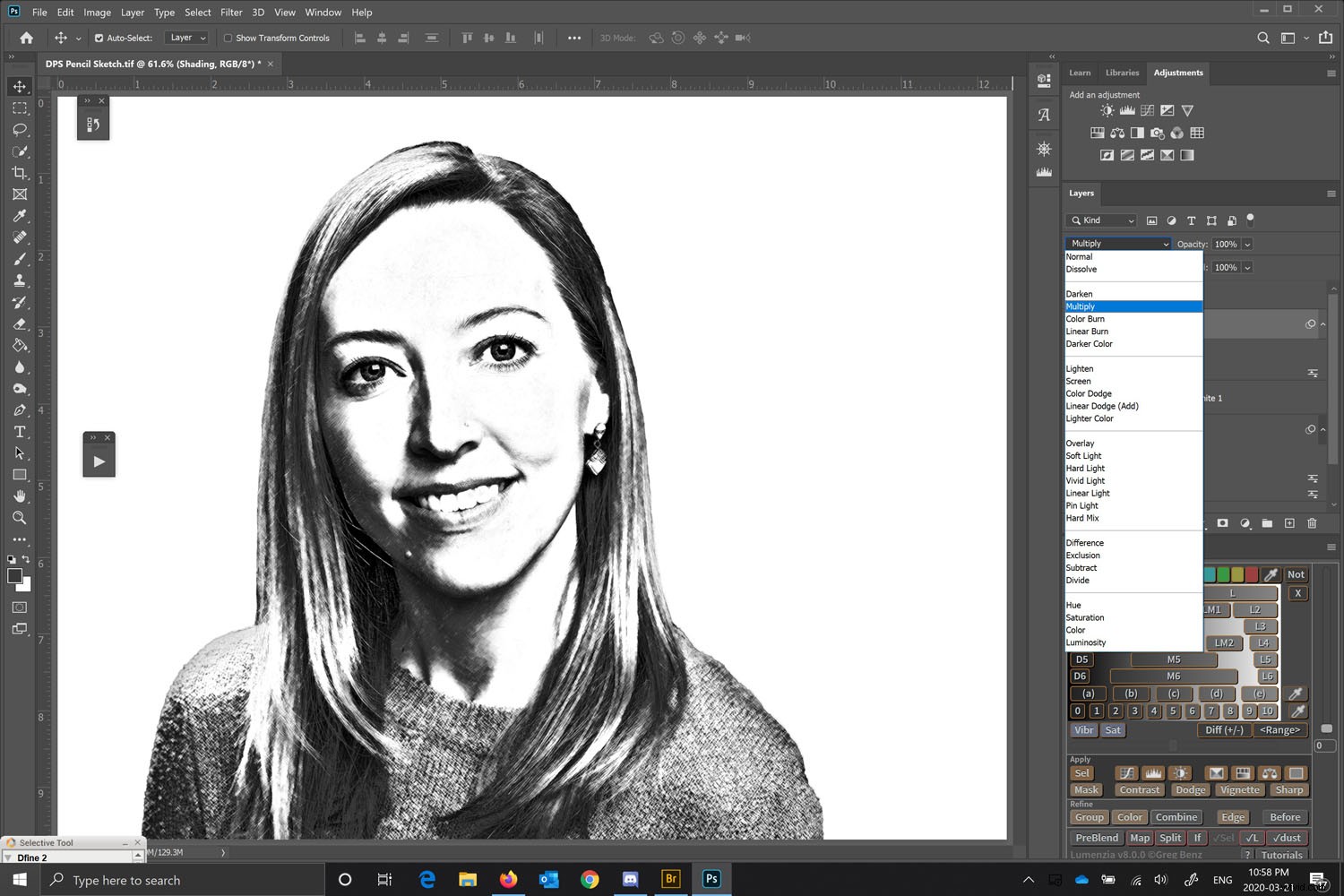
On the Shading Layer, change the blend mode to “Multiply.” This allows the underlying layer to merge with the shading layer, creating some detail and some shading.
Change the Opacity
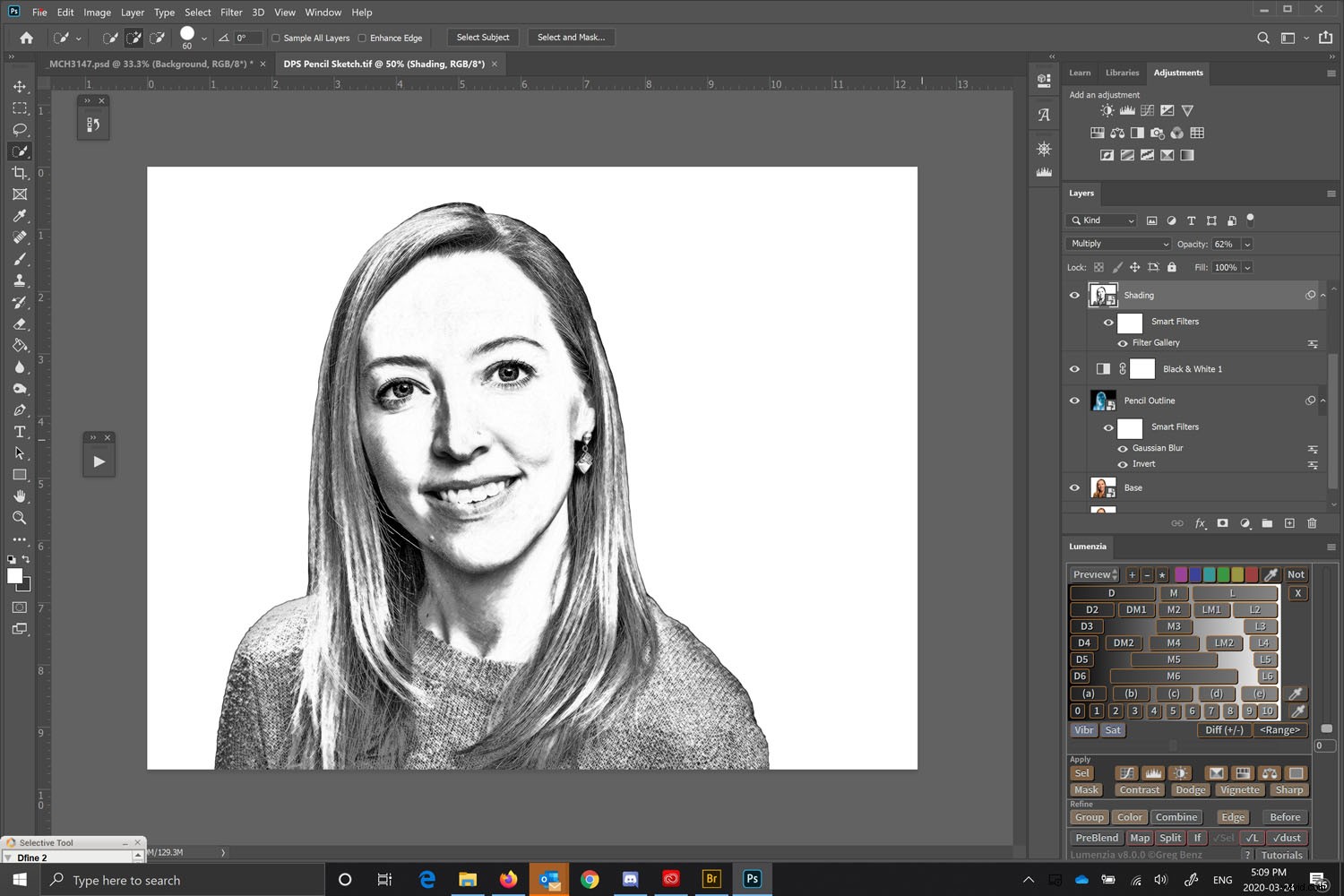
Change the Opacity of the Shading layer to a pleasing amount. This will add texture to the image and make it look a lot more like a pencil drawing with shading. For this example, I used 62% opacity for the shading layer. This allows the underlying layer to start showing through. Choose an amount that works for your image
Improve the outer edges
Most pencil drawings have stronger edges emphasized. Because we are converting a photo to a drawing in Photoshop, the photograph has lots of details but the edges aren’t pronounced. To do this, we are going to work off the Lines layer (this is the top layer we created earlier).
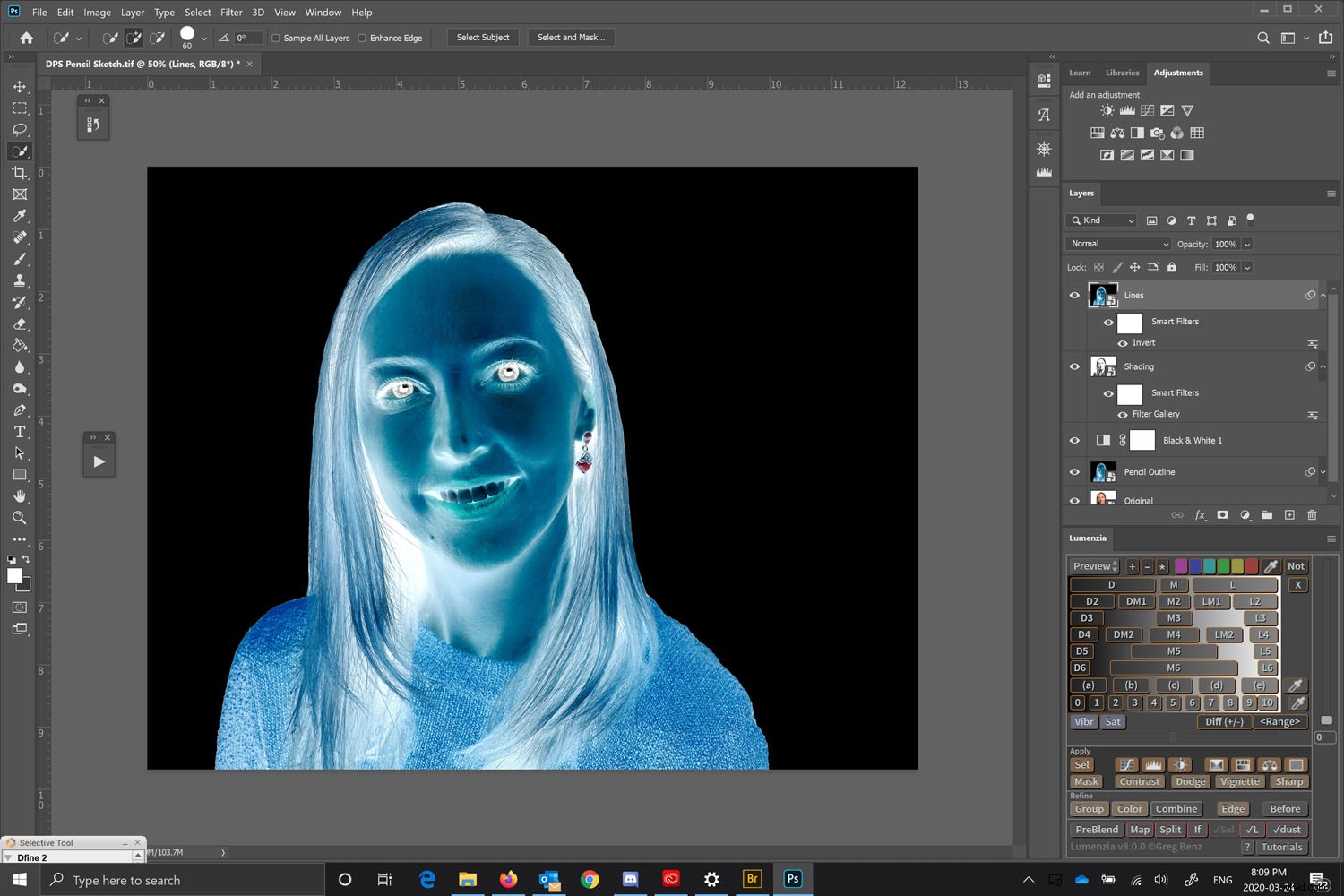
Invert the image by pressing Ctrl I or Command I.
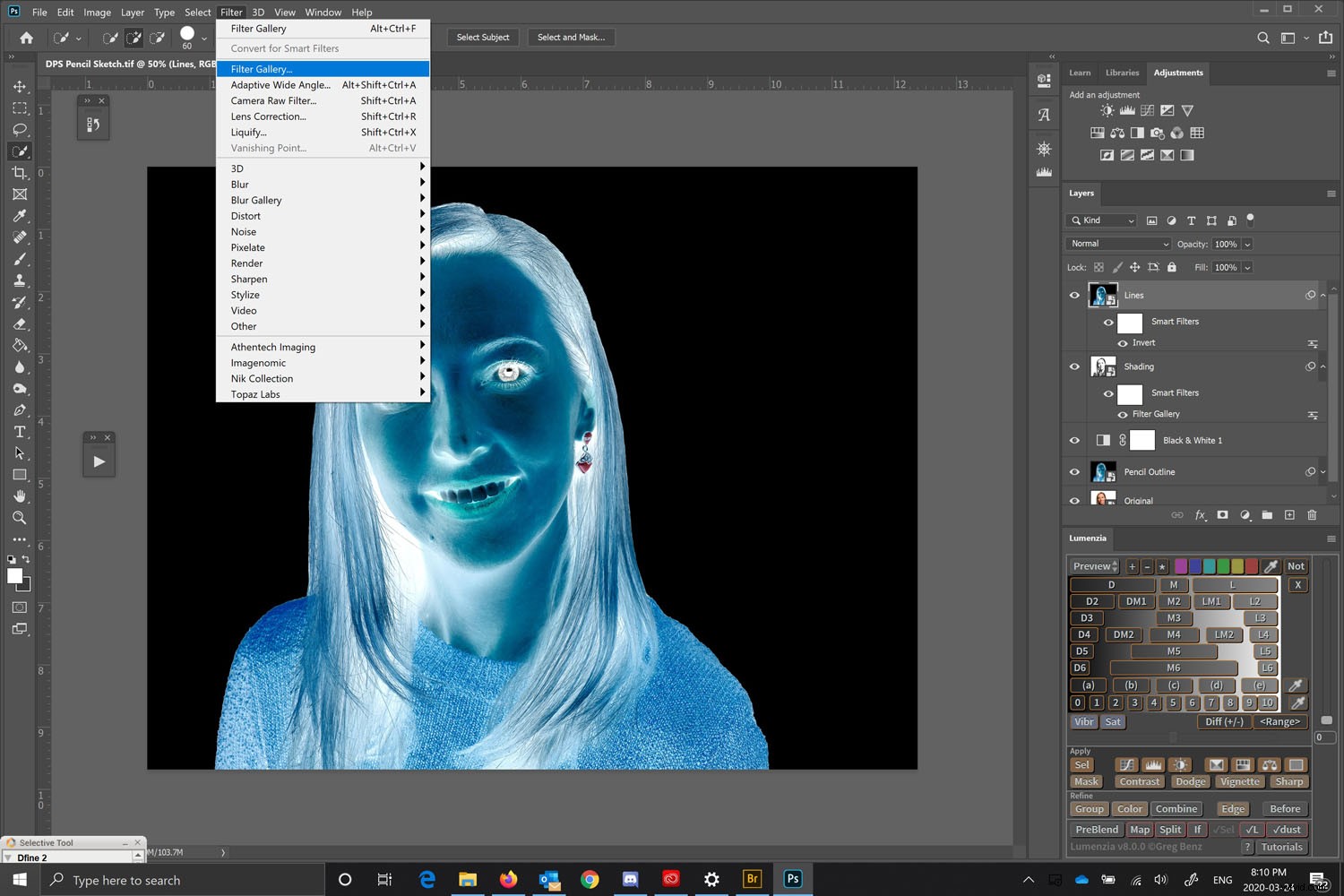
Once the image has been inverted, we need to go to Menu > Filter > Filter Gallery and chose “Glowing Edges.”
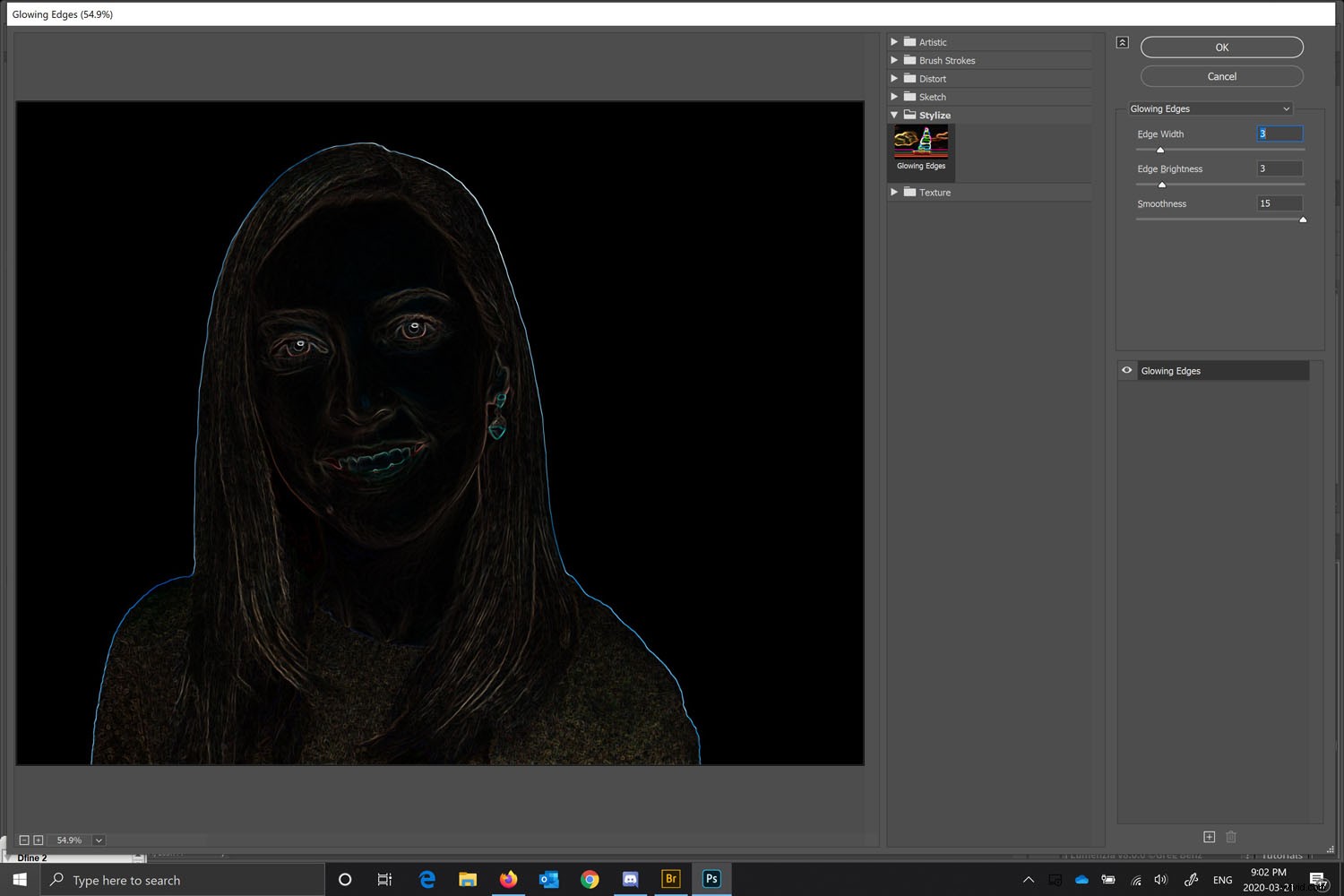
With Glowing Edges chosen under the Stylize Folder, use this to create the lines. Don’t worry that they are color – we are just looking for stronger edges like an artist would draw.
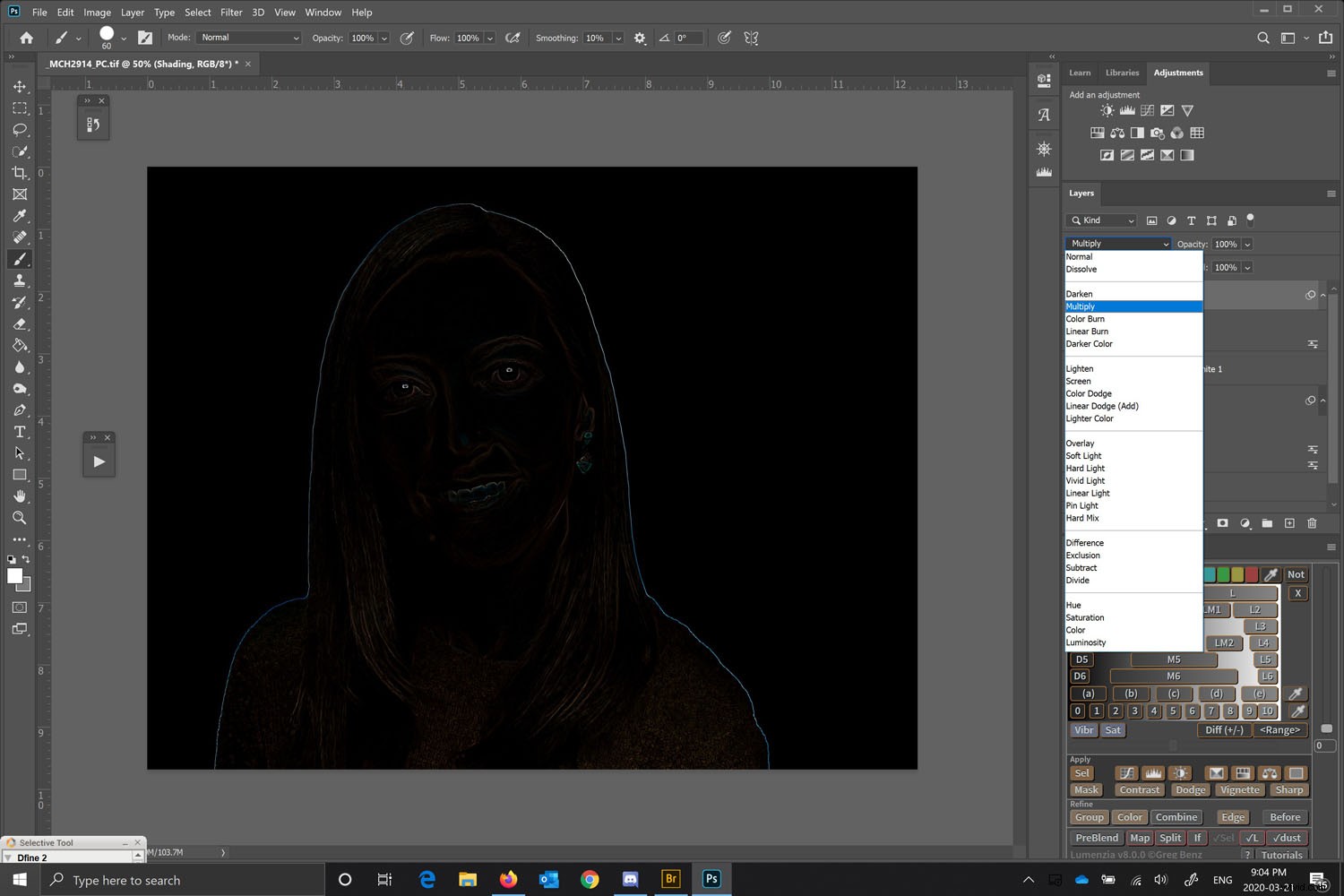
Change the blending mode to “Multiply.”
Convert it to black and white
This time, instead of adding another layer, we can convert this layer to black and white. Do this by going to Menu > Image > Adjustments > Black and White.
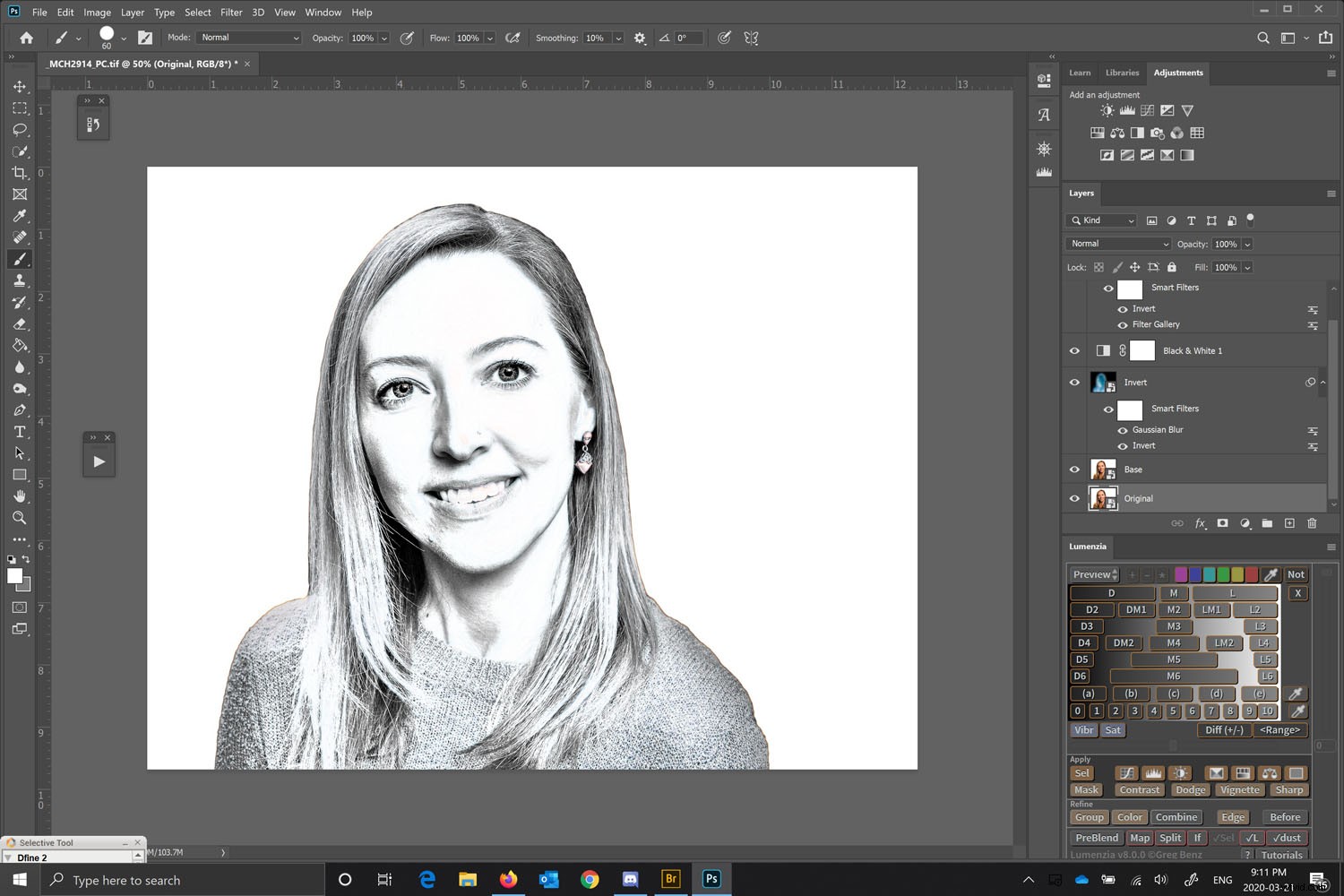
Any filter effects below other filter effects will not show up live until you move to a different layer (no live preview as you change).
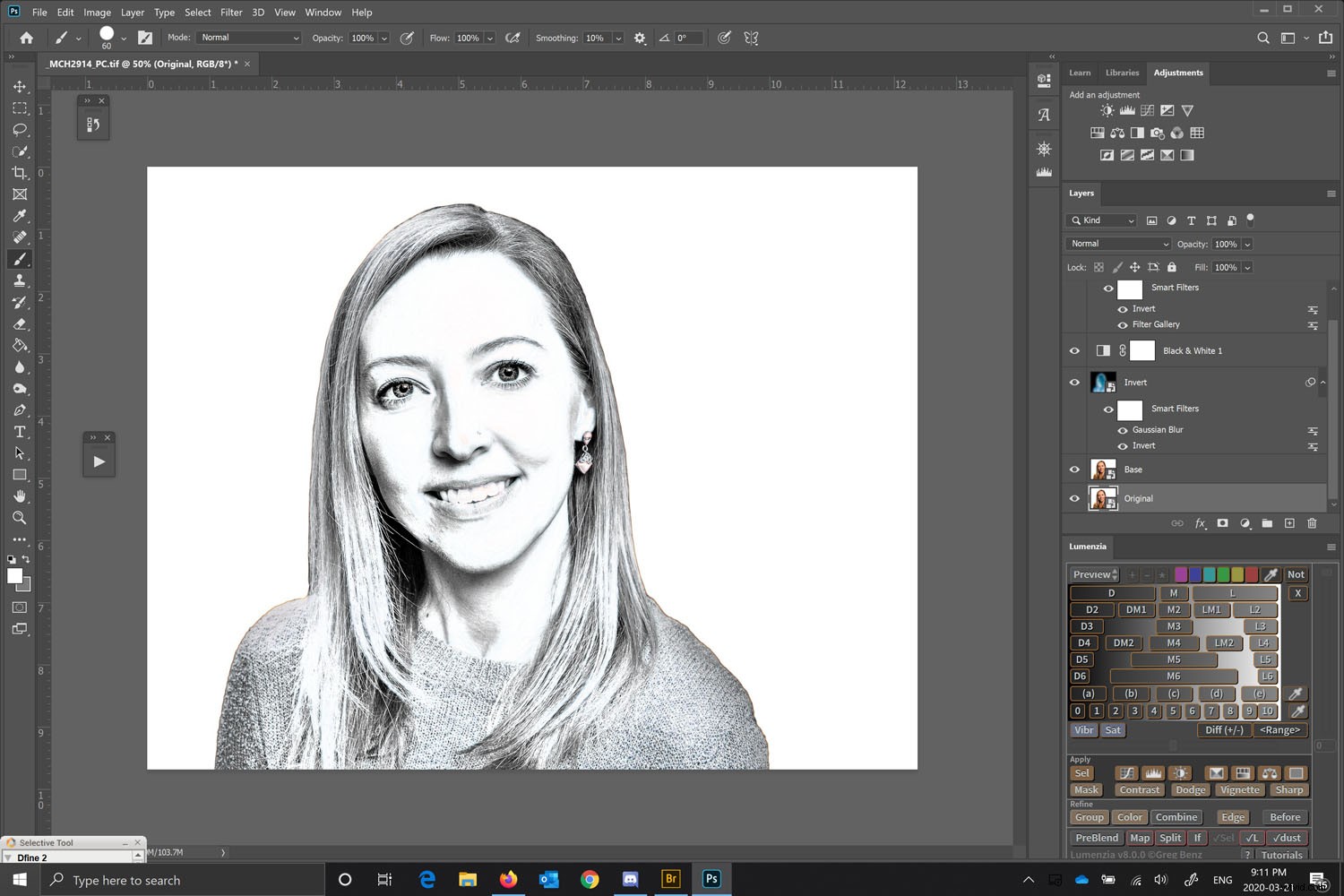
Because each layer is a Smart Object, you can go back and adjust each layer’s filter settings to your liking. Essentially, everything is non-destructive. You can even replace the original image and apply the same settings (but that is a more advanced topic).
The finished look
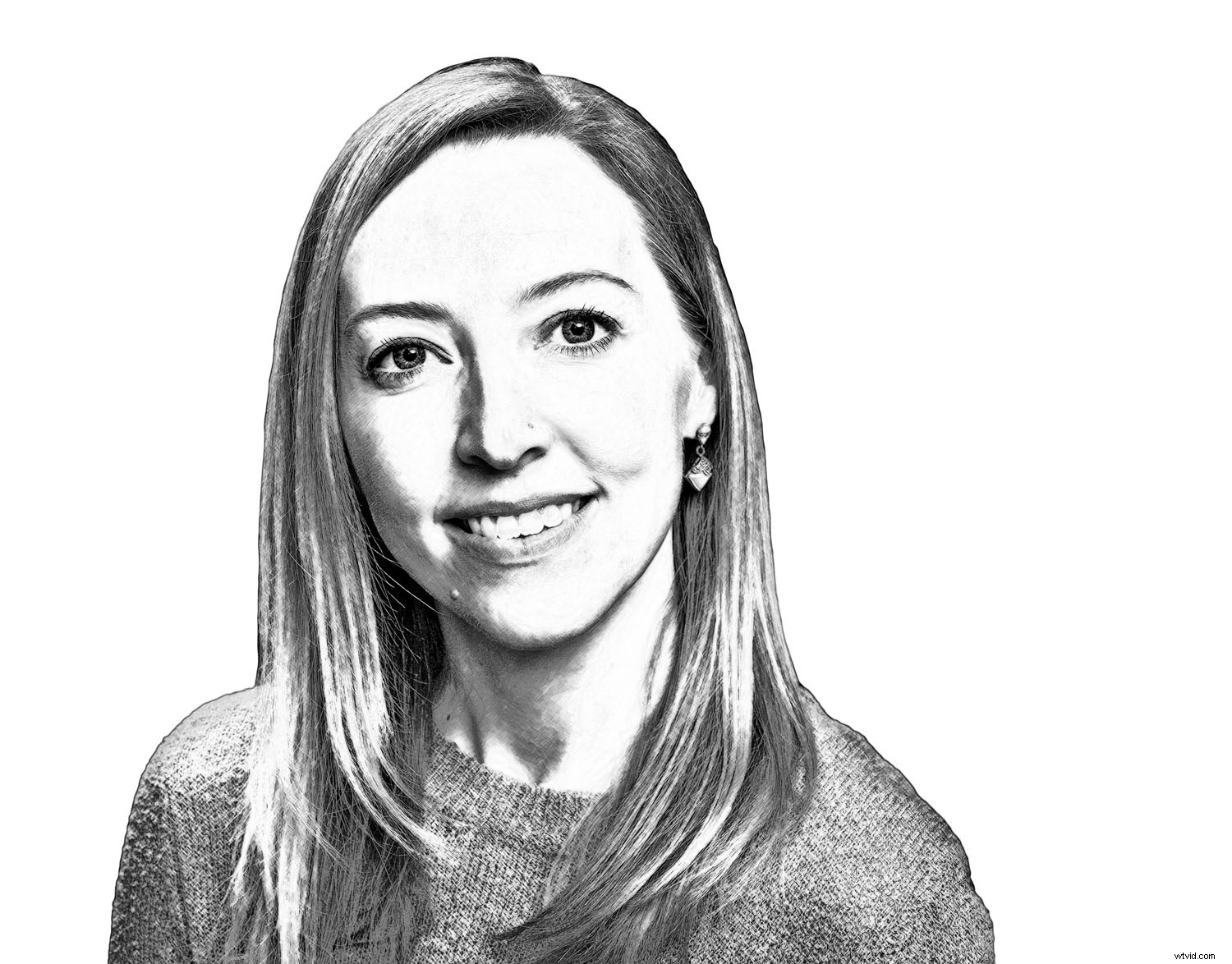
In conclusion, by following all these steps you get a lovely pencil drawing image with shading and definition all starting from a color portrait photo.
There are other ways to accomplish converting a photo to a drawing in Photoshop, but I like how this technique adds subtle shading. This is how a sketch artist would convert a photo into a pencil drawing sketch.
Try converting a photo to a drawing in Photoshop yourself at home, and share your results in the comments section!