
Layers were presented for the first time in Adobe Photoshop in version 3.0, which launched in 1994. We take them for granted nowadays, but they were a total game changer at the time as they allowed image composites to be taken to a whole different level with image stacking and transparencies.
Layer Masks may seem like a scary monster for a Photoshop newbie, but they are in fact quite easy to understand as they work the same way as layer transparency. But layer masks use a non-destructive way to reveal or hide portions of a layer by defining pixel opacities without affecting the original data.
It all happens with greyscale data: think of black as transparent, white as opaque and gray as different levels of opacity depending on if they are lighter or darker. Following this theory, this also means that you can convert any greyscale image into a Layer Mask and use it to create many types of effects on your image.
This tutorial is a step-by-step example on how to use this technique.
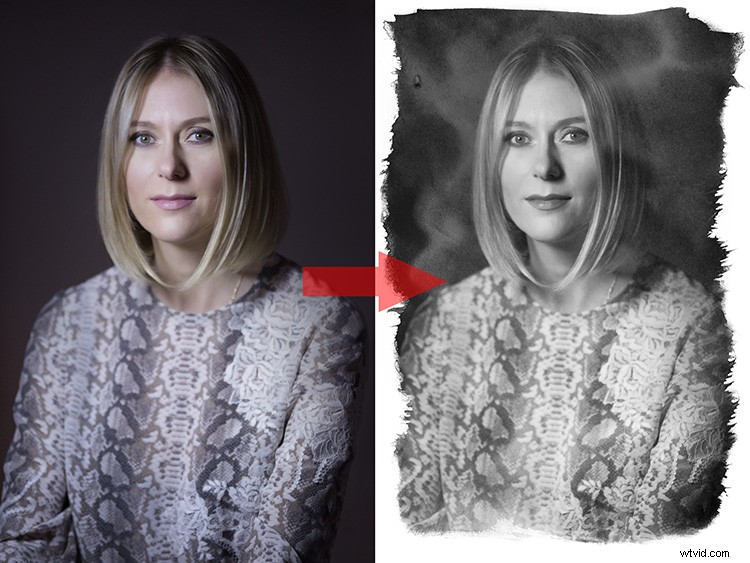
Create an old school effect
For this particular image, I wanted to create an old-school or antique effect, like an alternative darkroom process of developing a black and white image with a brush. This mask could be done in many different ways, but, because I wanted to make it really textured and as authentic as possible, I used an oxidation process.
Prepare the paper first
To give this process a try, you will need a paper sheet and some lemon juice.
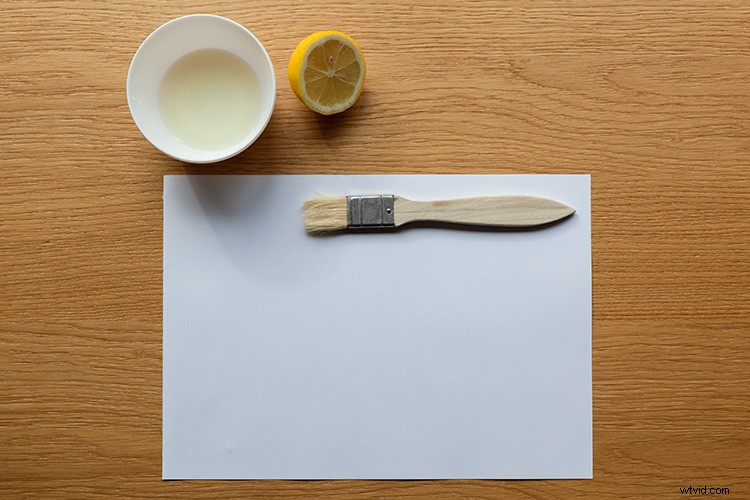
Brush the paper with the lemon juice and create you mask area
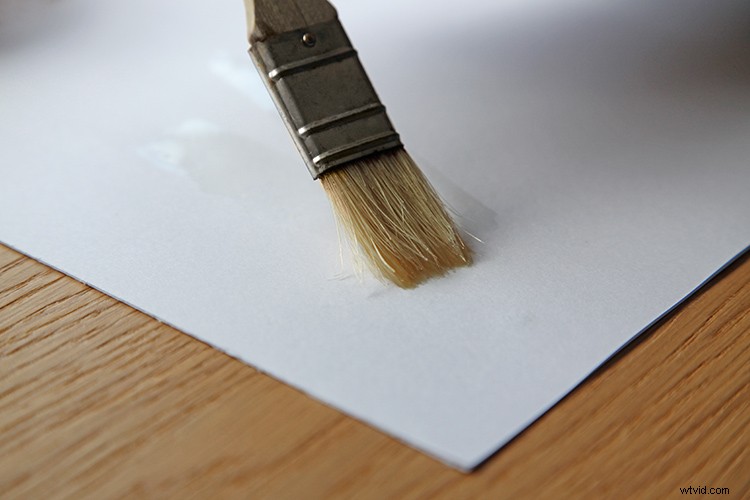
The lemon juice will oxidate upon contact with air, but it will take a long time. To accelerate the process, you can put the paper near a heat source like a tungsten lamp or if you want it even faster, you can use an oven at a low temperature setting like I did here.
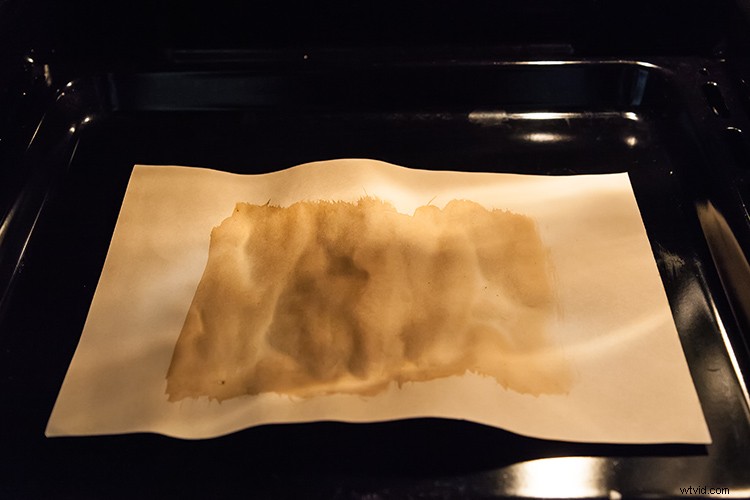
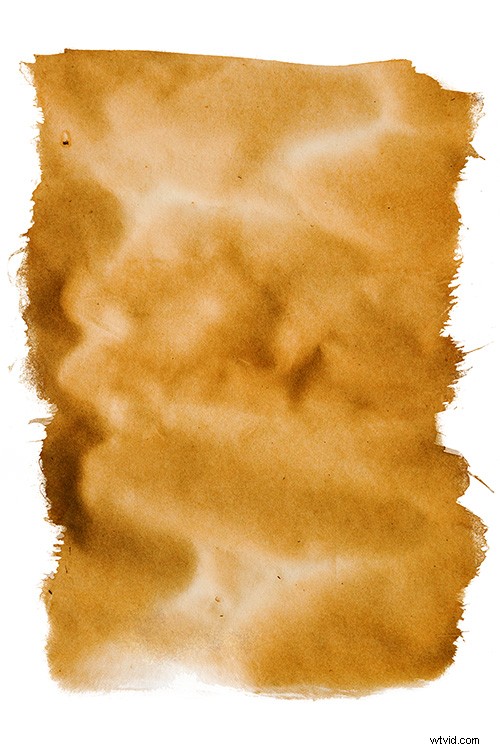
The lemon juice will start to turn a brown color. Remove the paper from the oven when you get the color and texture you intend, and your paper sheet is ready to be scanned or photographed to create an image file like this:
Photoshop technique
Now open Photoshop and the image on which you want to create the mask.
Convert the layer to a mask
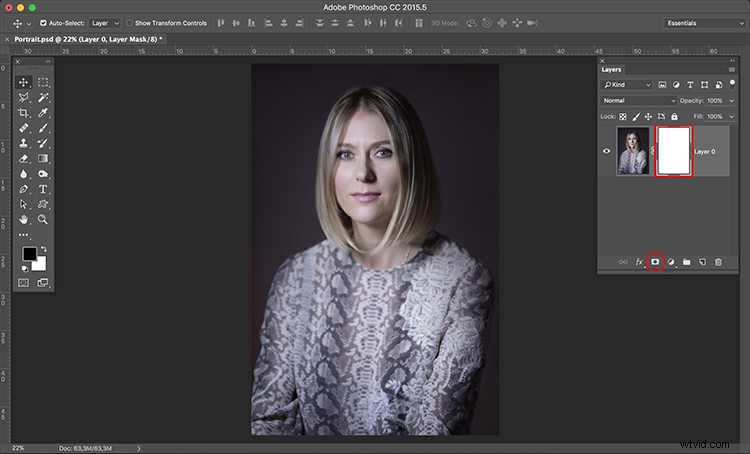
Now click on the layer mask icon on the bottom of the layers’ palette and your background layer will be converted into Layer 0 with a white mask next to it.
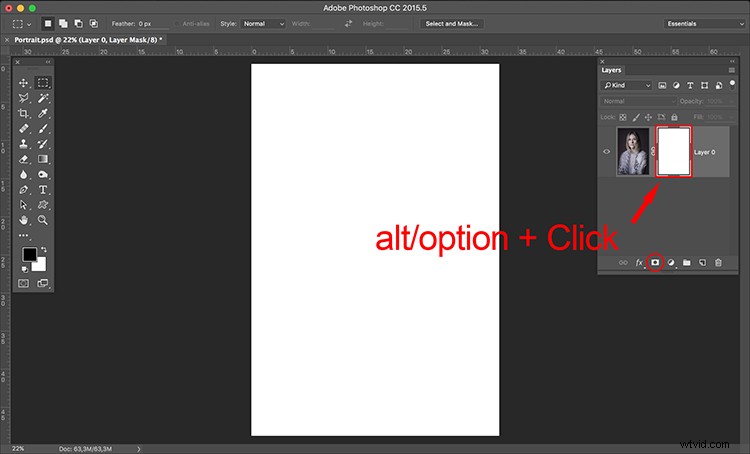
Press the alt/option key on your keyboard and click on the white mask to make it visible and active. This is a very important step! If you miss this step the image itself will be active and visible instead of the mask, that is what you will be working on.
Once you have done this, the image itself will not disappear, it will just be hidden.
Convert to greyscale
Now it’s time to open your mask image and convert it to greyscale. One easy way to do it is to use the desaturate function located in: Image > Adjustments > Desaturate (or keyboard shortcut Control/Cmd+Shift+U)
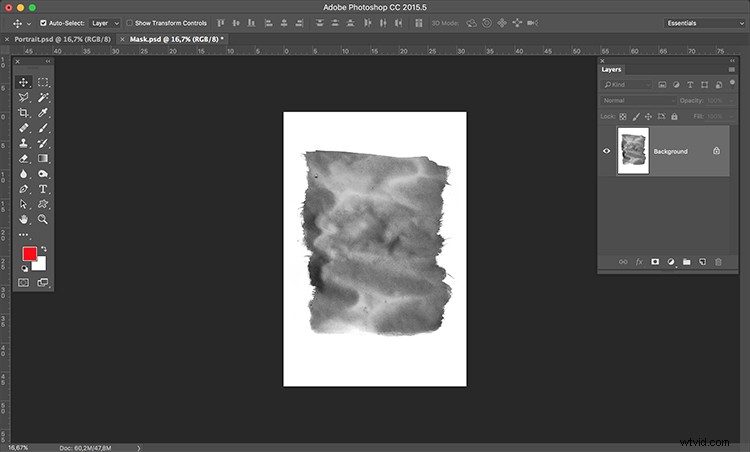
The final image you want to create is white around the edges, so your mask should be the opposite. You can use the invert function for this: Image > Adjustments > Invert (Control/Cmd+I)
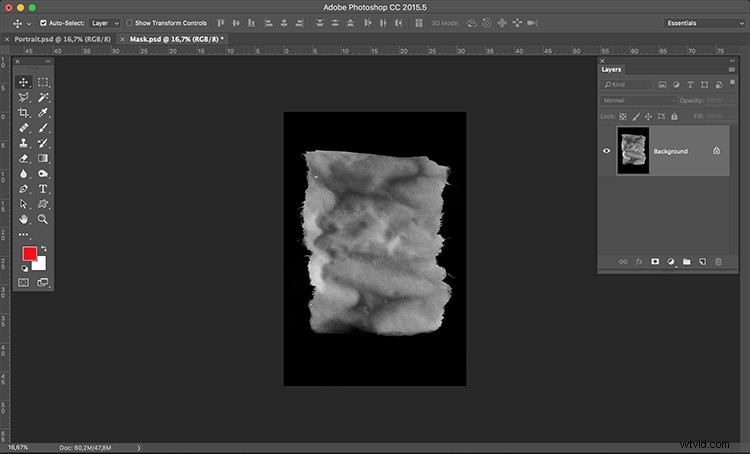
Put the image into the mask
Next, it is time to paste the image into the mask with these simple steps:
- Select > All (Control/Cmd+A)
- Edit > Copy (Control/Cmd+C)
- Now click on the original image where you created the layer mask and go to: Edit > Paste (Control/Cmd+P)
- Click on the eye icon on the left side of the layers’ palette to see the image and the mask working together.
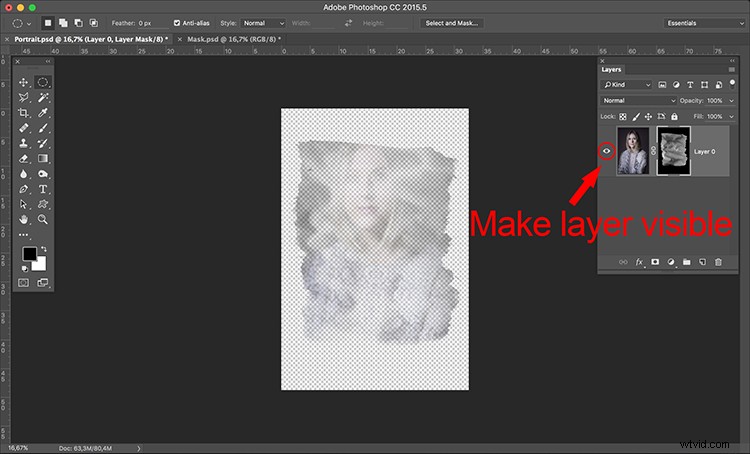
Add a white layer
As you can see the mask creates different levels of transparency on the image. To be able to see the transparency as white we can create a new white layer to use as a background.
- Go to: Layer > New > Layer (Control/Cmd+Shift+N)
- Edit > Fill > Contents: White; Mode: Normal; Opacity: 100%
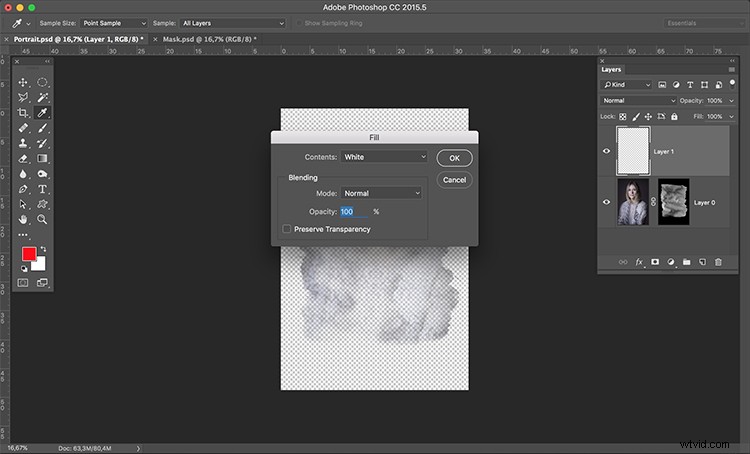
Now just drag the new white layer to the bottom position of the layers panel, and you will have a full view of the final image appearance.
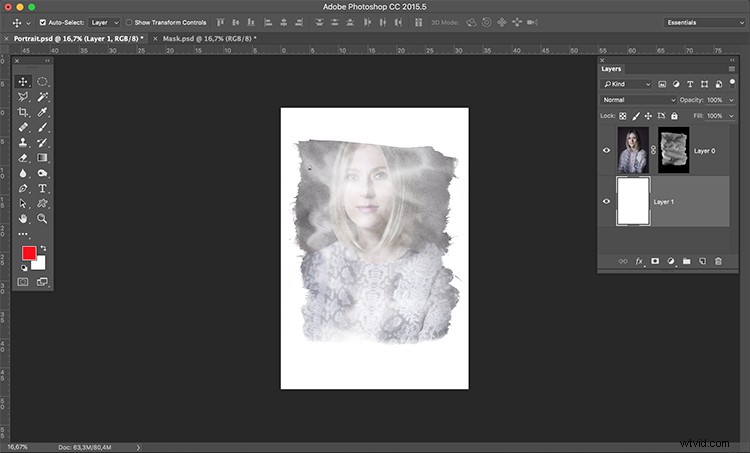
Fine-tune the effect
Now it is just a matter of a few adjustments to fine-tune the effect you want. In this particular image, I will adjust the size of the mask. Click on the mask icon in the layers’ palette and then click on the chain between the image and the mask icon to unlink them.
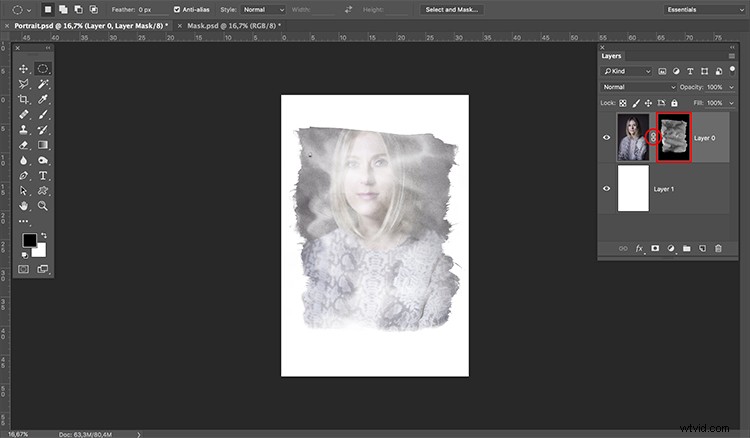
Next go to: Edit > Transform > Scale (Control/Cmd+T). Drag the image edge lines to transform the shape of the mask and adjust it to the image size.
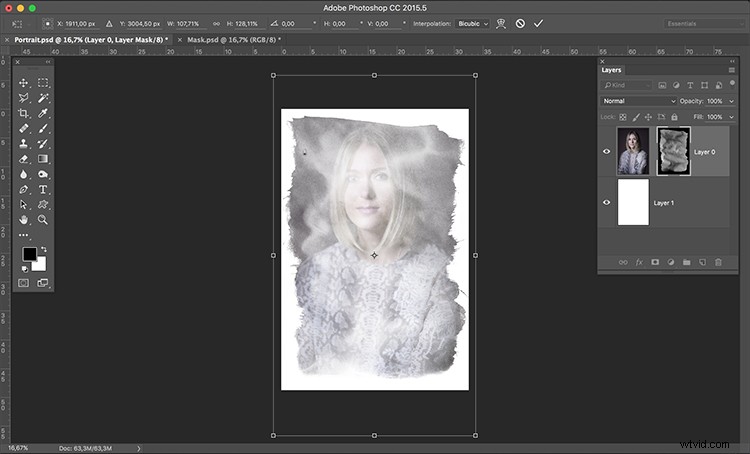
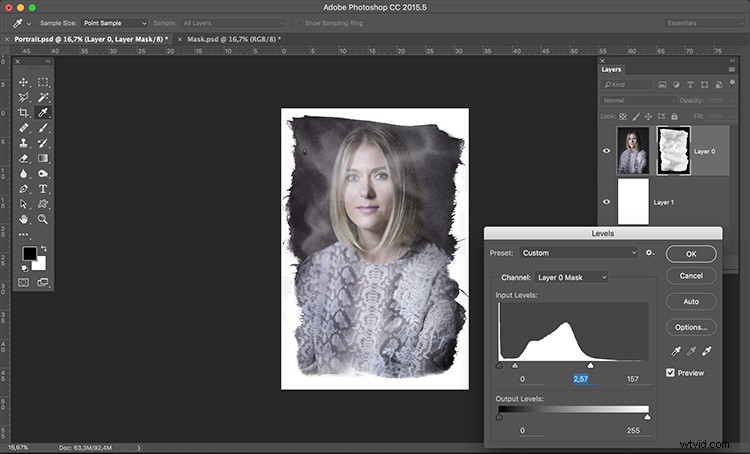
The size of the mask is right, but the image looks to washed out. We can increase the contrast of the mask to make the blending with the image look better.
Go to: Image > Adjustments > Levels (Control/Cmd+L). Adjust the sliders on the levels dialogue box to create the effect you want.
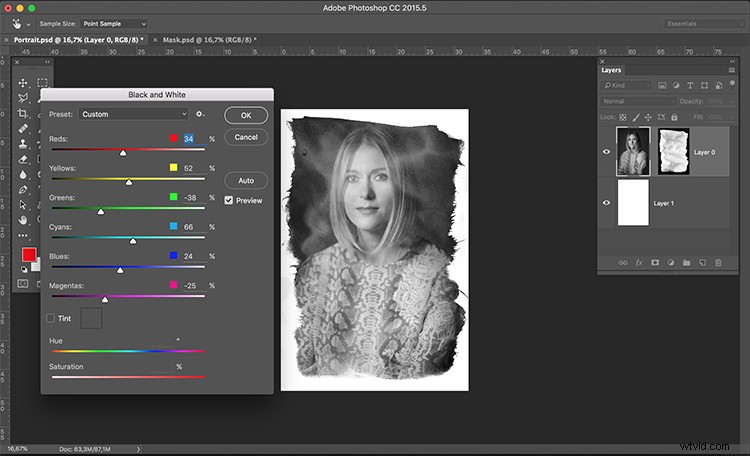
Lastly, for the old image look, you can use the black and white function. Click on the image icon in the layers’ palette so that you are editing the image and not the mask, then go to; Image > Adjustments > Black & White (Control/Cmd+Alt+Shift+B). Adjust the sliders on the Black & White dialogue box to create the effect you want.
Note: You can also add the black and white as an adjustment layer to keep your editing non-destructive. Additionally, you can paint on the mask with a black brush, over any areas you want to keep clear (such as her eyes or face).
There it is, a quick and easy way to create your own layer masks. Give it a try and share your images with us in the comments below.