
As known to all that you can cast videos to Roku to better watch the videos you want to watch with others. Now there are many apps that can meet your needs. However, do you know how to use these apps to cast videos to Roku?
Read the following content, you will know the specific operation method of casting videos to Roku.
Do you want to make an amazing video? MiniTool MovieMaker can fulfill your requirement.
How to Cast Video to Roku from PC
You only need to move your fingers to complete the following simple steps to achieve video casting.
To cast videos to Roku from pc, take the windows 10 operating system as an example:
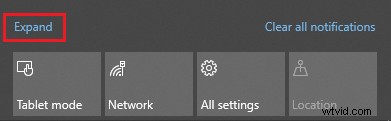
Step 1: Click the Action Center or press the Windows key + A to open the Windows Action Center and click Expand.
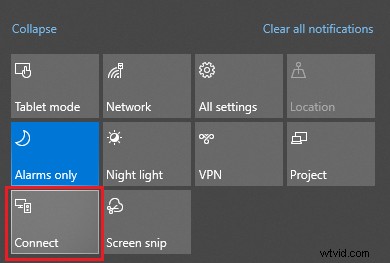
Step 2: Click Connect to open the Connect sidebar.
Step 3: Select your Roku device in the sidebar.
Step 4: Using the Roku remote, choose Allow or Always Allow and press the OK button.
Step 5: Confirm that the video on your computer is displayed on Roku.
How to Cast Video to Roku from Your Phone
Before you cast videos to Roku, you need to make sure of a few things. On the one hand, you need to ensure that your mobile phone and Roku are connected to the same work. On the other hand, you need to make sure that the app you want to use is installed on your phone and Roku.
In addition, you need to note that your video casting is only available on supported Roku channels. In other words, when you see a cast icon in the video on your mobile phone, it means that this app supports Roku channels.
The most humanized thing is that you can either use the Roku remote or use your mobile phone to control the playback of the video during projection. If you use the Roku remote to control playback, you can use your phone to freely handle other tasks, use other apps or even turn off your mobile phone.
Below I will explain how to cast video from phone to Roku:
For iOS devices:
Step 1: Click the Cast button.
Step 2: Select your Roku device in the prompt box.
Step 3: Your phone will display a pop-up Connecting. You just need to wait for your phone to connect with Roku.
Step 4: Confirm that the video from your phone appears on Roku.
Step 5: If you want to stop casting, you just need to click the Cast icon in the app again and then click Disconnect.
For Android devices:
Step 1: Click the Cast icon on the homepage.
Step 2: Choose your Roku device in the prompt box.
Step 3: Wait for your Android device to connect with Roku, and the video on your phone will be displayed on Roku.
Step 4: You can use the Roku remote or your mobile phone to adjust the volume of the video, pause or play the video.
Step 5: To stop the video projection, click the Cast button in the app again and select Disconnect.
Conclusion
After reading this article, I believe that it is no longer difficult for you to cast videos to Roku from a PC or mobile phone.