How to use automatic caption generator
In that case, you can use the online Clideo tool to auto add subtitles to your video. It’s completely online, so you can work with it right away without downloading any software. Plus, it’s free to use, provided that your video is up to 30 minutes in length. If it’s longer (up to 2 hours), consider upgrading to Clideo Pro.
The tool is pretty simple; just take a look at the instructions below.
Upload a video
Open Clideo’s Auto Caption Generator.
Use the "Choose file" button to upload a video from your device. If the file is on Google Drive or Dropbox, click the arrow on the right side and choose the cloud storage you need.
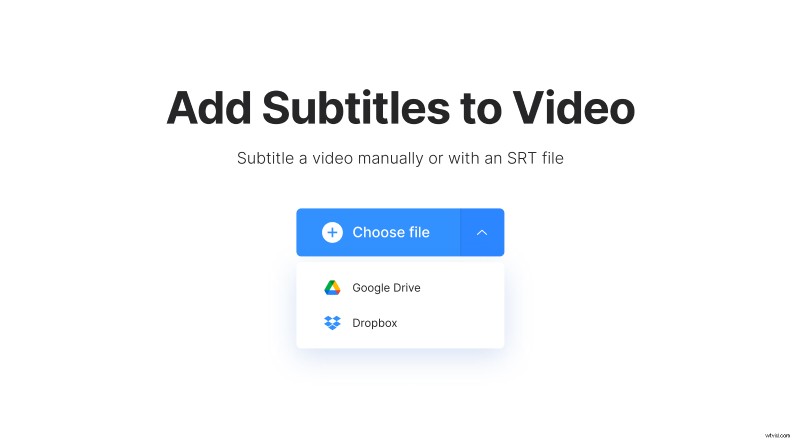
On PC, you can also drag the video directly from the folder to the page.
Generate auto subtitles
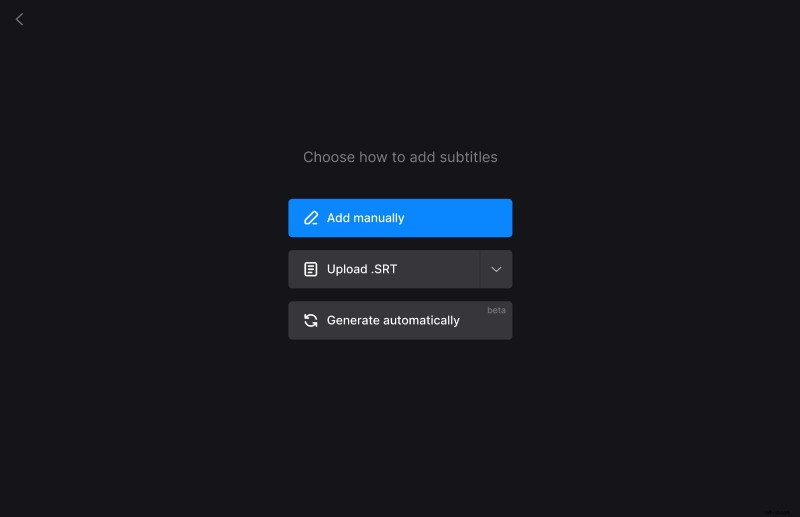
When the video is uploaded, you can choose how to add subtitles to the video. Click the "Generate automatically" option.
After processing, you can see that the subtitles are already added along with the timestamps. This feature is in Beta, so there might be mistakes here and there. To fix them, simply click the section with subtitle text and write the correct words. If timestamps are skewed too, you can either write accurate time in text boxes or drag the subtitle sections under the player.
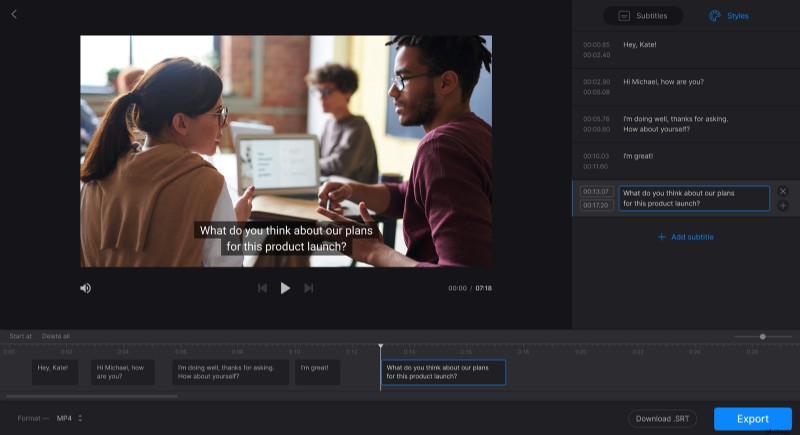
In the "Styles" tab on the right side of the editor, you will find options to change the font of the subtitles, their color, background, size, and alignment. You can also change the video’s format by clicking the option with the same name under the player.
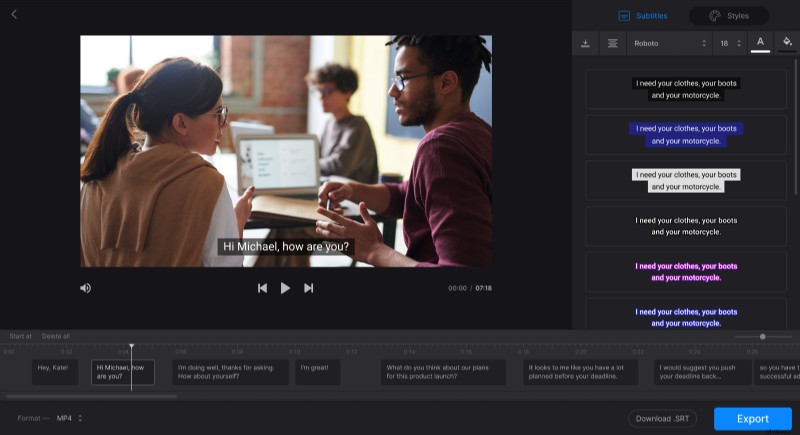
If you need an SRT file separately from the video, click "Download .SRT".
When editing is finished, click "Export".
Please note that the tool adds hard subtitles only. Hard subtitles are burned in, or hard coded, as an overlay over your video and cannot be turned off or on later in a player.
Download the video
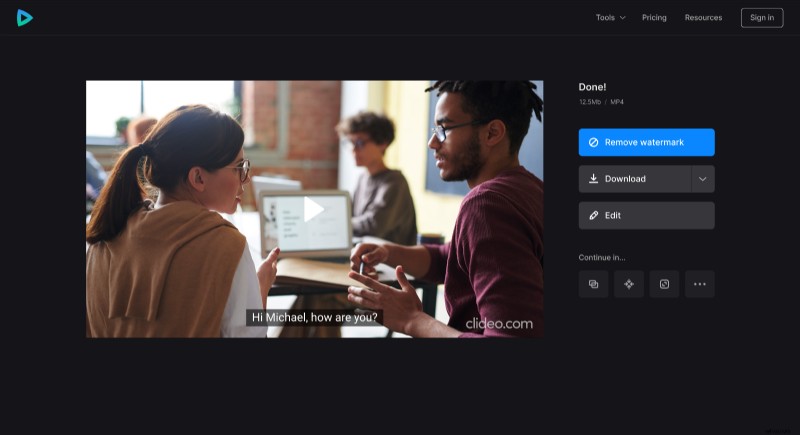
On this page, watch the preview to make sure everything looks right. If you need to make some changes, click "Edit" and it will take you to the previous page without losing any progress. Otherwise, save the video to your device or upload to Dropbox or Google Drive.