
I have a long video. How to shorten it?
Well, sometimes you may want to keep the funniest part of a long video or want the same material but over a different duration. To solve this problem, you can either cut the unwanted parts if you want less video, or modify the speed to keep the same material.
Here a simple yet effective video editing tool- Wondershare Filmora is introduced. It gives you an easy way to shorten your videos and also lets you edit videos in many different ways. After shortening, you can also add video effects to make your video more attractive. Besides, Filmora also has more than 150 filters to use. Download this program right now and learn how to shorten a video clip using the simple step-by-step guide below. In the end, a video tutorial will let you know how to cut a video easily.
1 Import the video file you want to shorten
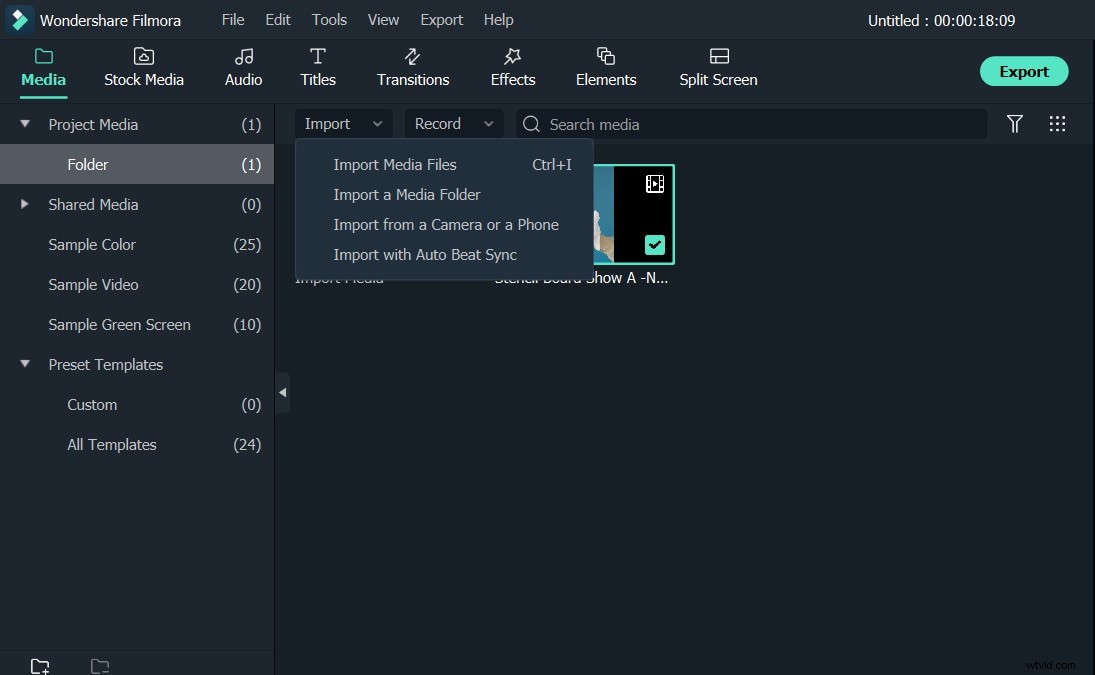
Install and open the program. Click the Import button to add your video file or directly drag and drop it to the program. Then place it to the Video timeline for editing.
2 Cut unwanted part of your video
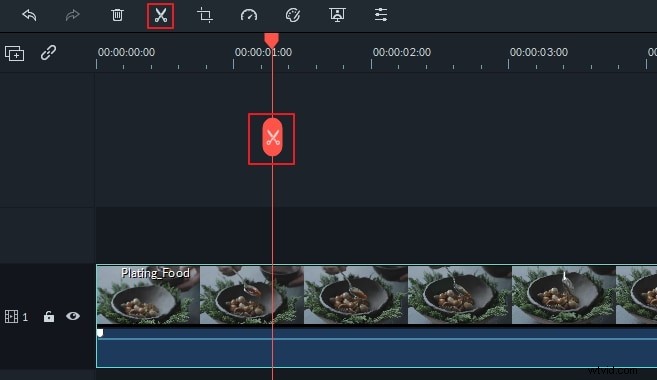
Move the slider bar and stop it at the point where you want to start cutting. Click the Split icon in the toolbar. Then your video is cut. If you want to delete any of the resulting parts, press the Delete button. Repeat this step until you cut all unwanted part or the video clip is short enough.
3 Change the speed of your video
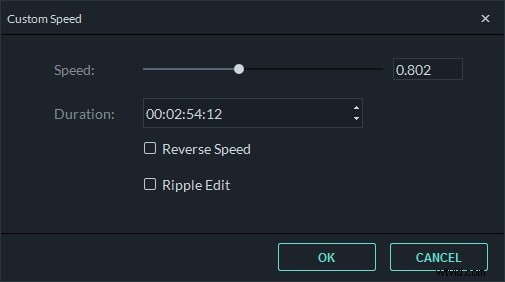
If you want to keep the same video content with just a different duration, change the speed. For example, if you have a 2 minutes footage and want to see it in 1 minute, change the speed to 200%. To do this, right click the target video in the timeline, and then choose Speed and Duration. Move the speed bar to the right to increase the speed of your video. Click OK to confirm your setting.
4 Export your video
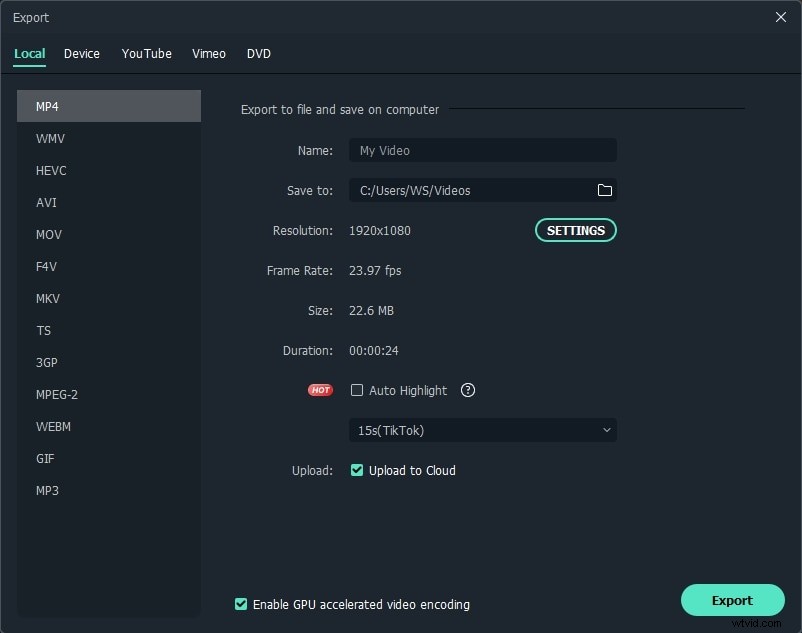
Play the video to see if you’re satisfied. Then click the EXPORT button and choose from the available options: save as a video file, burn to DVD, upload to YouTube or Vimeo, or convert for viewing on your mobile phone or tablet.
To save the new file as a video file, go to the Local tab and select any video format, including AVI, MPEG, WMV, MP4, FLV, MOV, and more as you like. If you want to convert for a mobile device, switch to the Device tab and select the appropriate output preset in the pop-up window and click the EXPORT. When the file is saved, click Find Target and the folder containing the shorten video will open.
Conclusion
See, it is so easy to shorten a video with Filmora. If you want to know more information, check the tutorial below. Now download it to start resizing your video.