
There are a lot of reasons why you’d need your video inverted, flipped, mirrored, or rotated. Maybe it’s clearer using a different perspective. Maybe it is easier to see important details. Or maybe it’s just your preference to have it inverted.
If you are using a Mac computer, there is a solution to rotate, flip, and mirror the footage for free with the built-in iMovie video editing software. In this article, we will show you how to rotate the video horizontally and vertically in iMovie, as well as how to flip video footage in it.
- Part 1: How to Rotate/Flip Videos with iMovie on Mac?
- Part 2: Rotate/Flip/Mirror/Invert Videos Easily with Wondershare Filmora
Part 1: How to Rotate/Flip Videos with iMovie on Mac?
The value of iMovie is that anyone can easily use it, and it has more tools than ever to alter your videos to get the desired result. In this part, we will show you how to rotate the video clockwise and counterclockwise, and how to flip video clips with one click in iMovie. Here are the detailed steps.
Step 1. Open iMovie and the Cropping Tool
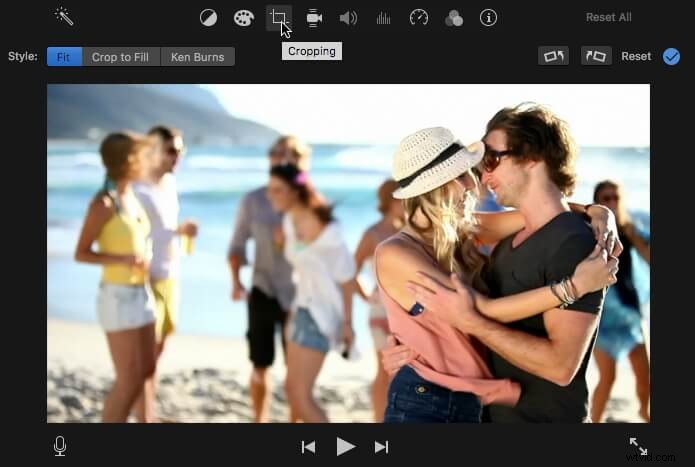
Open the iMovie application and drag the video clips to the timeline. Select the clips that need to rotate in the timeline and then click the Cropping icon in the menu above the viewer window.
You may also like: How to Crop Photos and Videos in iMovie
Step 2. Crop Your Video Clips [Optional]
When you get to the cropping tool viewer, you just drag the rectangle box to resize the video to your specifications. Use the pointer to a corner until you see a plus sign. Drag it to make the video either smaller or bigger.
You can also use the “allow black” option to keep a border on your video. This is a nice option if you want to have a virtual frame on your resulting video.
Step 3. Rotate the Video
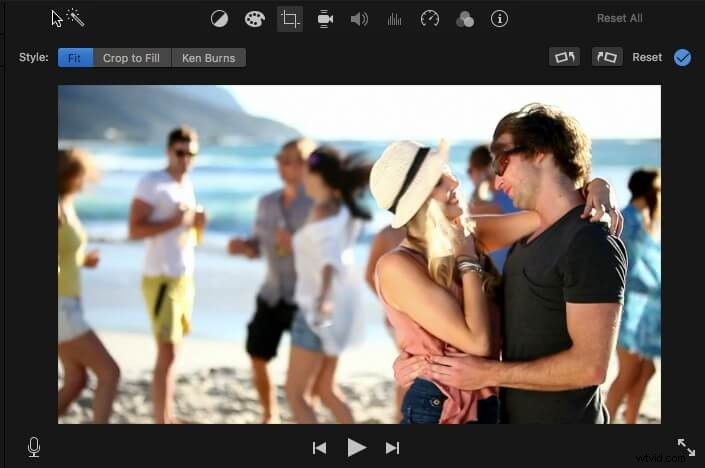
Click the Rotate icon on the right side of the cropping tool's interface. You can choose to rotate clips in clockwise or counterclockwise directions to turn the video left or right.
Whichever icon you click, the video shifts 90-degrees in a clockwise or anticlockwise direction. Always check to make sure your video’s image still fits the aspect ratio. Black bars may appear on the top and bottom of your video image if you don’t watch out for this.
You May Also like: How to remove black bars without Degrading Quality
Step 4. Flip Clips in iMovie
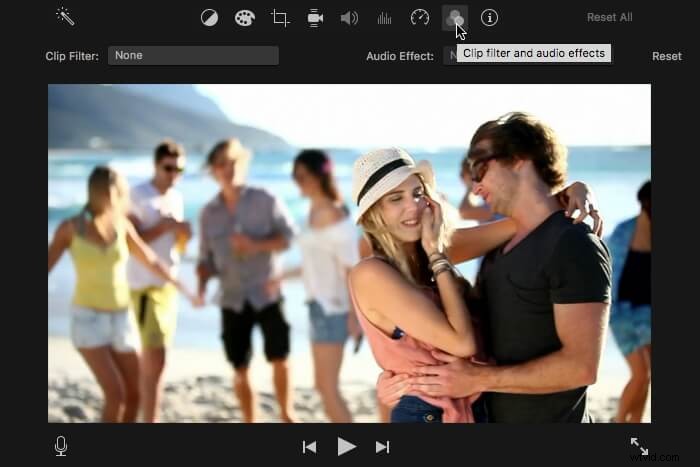
Mirroring and flipping video footage in iMovie is easy. You just need to click the Filter icon as shown below:
And then click the Clip Filter option and select the Flipped filter in the pop-up window.
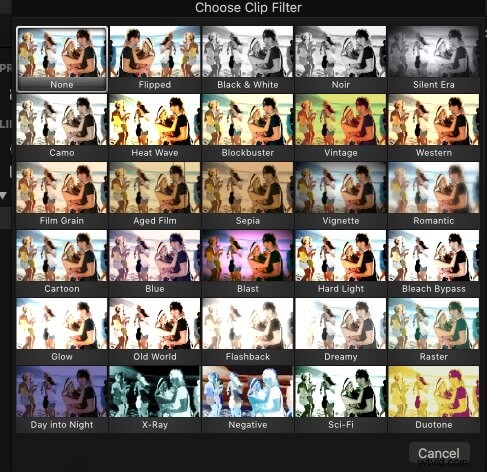
The video clip in the timeline will be flipped and mirrored automatically.
Step 5. Preview and Save
When you get the look you want, click the Apply icon to save the change. This is where you can see the eventual project. If you’re happy with the result, click Done. It will automatically save your video.
Part 2: Invert Videos Easily with Wondershare Filmora
If you are editing a movie in iMovie, most of the time the movie isn’t supported by your software. Because of this, you have to convert the video before working with it. To help you do this, you can use Wondershare Filmora.
It is a professional video editing software for both Mac and Windows. And it supports just about every video and audio format you may use. With Filmora, you can easily invert videos on Mac and edit them as you like. Just click the download button above to have a try.
Here’s how to easily work with it:
Step 1. Import Your Video Clips
As usual, you have to import the files you want to work on. This is simple though with the import tool. Go to File and then click on Import Media. You also can use the drag-and-drop feature to do it in one step.
You have a media browser built-in so if you don’t know where your file is, you can easily locate it from the program. Formats such as Photo Booth and iTunes Library are compatible. It also gives you the ability to capture video with its capture device or with the iSight, which also is built-in.
Step 2. Trim Your Video
Next, you can crop your video. Just click the Crop button. There are two preset window options of 16:9 and 4:3, and you can also use the window to get the desired size you want manually.
Step 3. Invert the Video
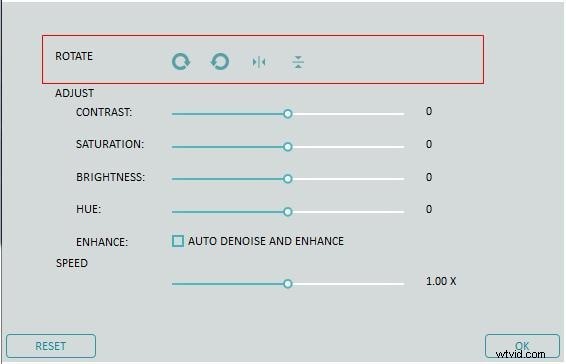
Use the Rotate button to shift the video to how you want it. You can also right-click for the rotate option. Again, the video will be rotated 90 degrees. From this screen, you can also flip your video vertically or horizontally.
Step 4. Preview and Save
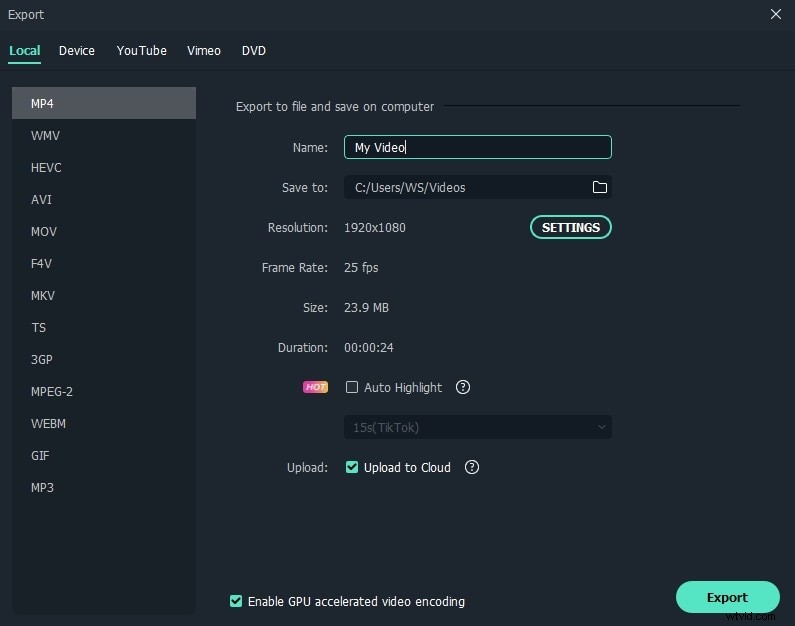
Once you’re ready to finish your editing, click Export. This is where you save the new format video. You can upload it to a file-sharing platform like YouTube or burn it to your DVDs for distribution.
Working with Filmora is going to be an easy and quick option for your videos. Its value is how simple it is and how compatible it is with different formats. You don’t have to be an expert to make fabulous videos and manipulate them exactly the way you want them.
That's all about how to invert, rotate, flip, or mirror a video clip with iMovie and its best alternative - Wondershare Filmora. Have you learned them? If you have any questions, please feel free to contact us.