
You may have shot various raw videos by iPhone and want to eliminate the unwanted areas and center the main object. Or you may want to remove the annoying border graphics which disturb the video enjoyment and take up unnecessary space. Video cropping is the way to go. A slim and responsive video tool, Wondershare Filmora (originally Wondershare Video Editor), can bring this task within the reach of everybody. It supports crop 16:9, 4:3 and customized aspect ratio movies to iPhone videos. Let’s see how to crop iPhone video with Wondershare Filmora (originally Wondershare Video Editor) now. If you're looking for iPhone video editing apps, check this top list.
You May Also Like: iPhone Photo Cropping Apps >>
The differences between iPhone X Face ID and Samsung Face Recognition >>
1 Import your iPhone videos
Download and install Wondershare Filmora (originally Wondershare Video Editor). Then click the “Import” button to load iPhone Video file for video cropping. You can also directly drag-n-drop your video files to the program.
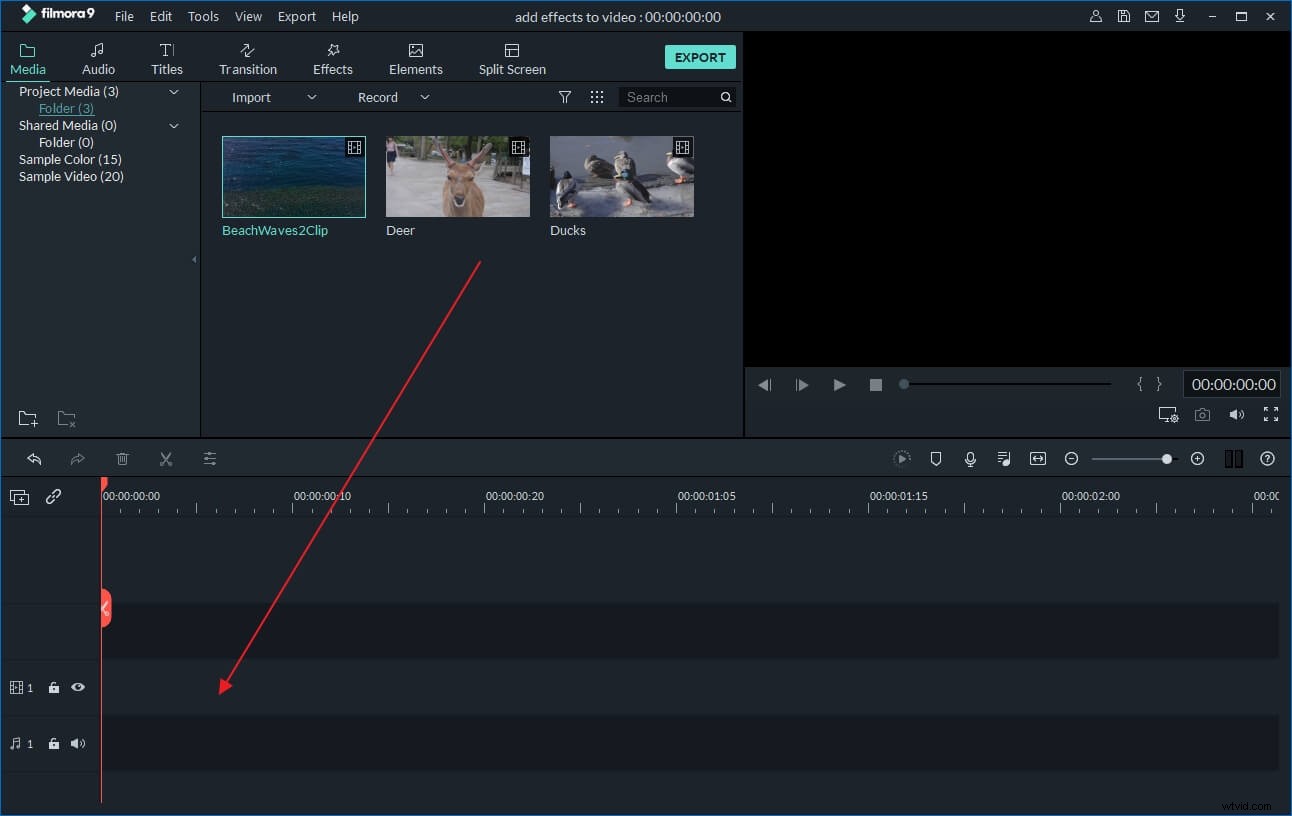
2 Start cropping your iPhone videos
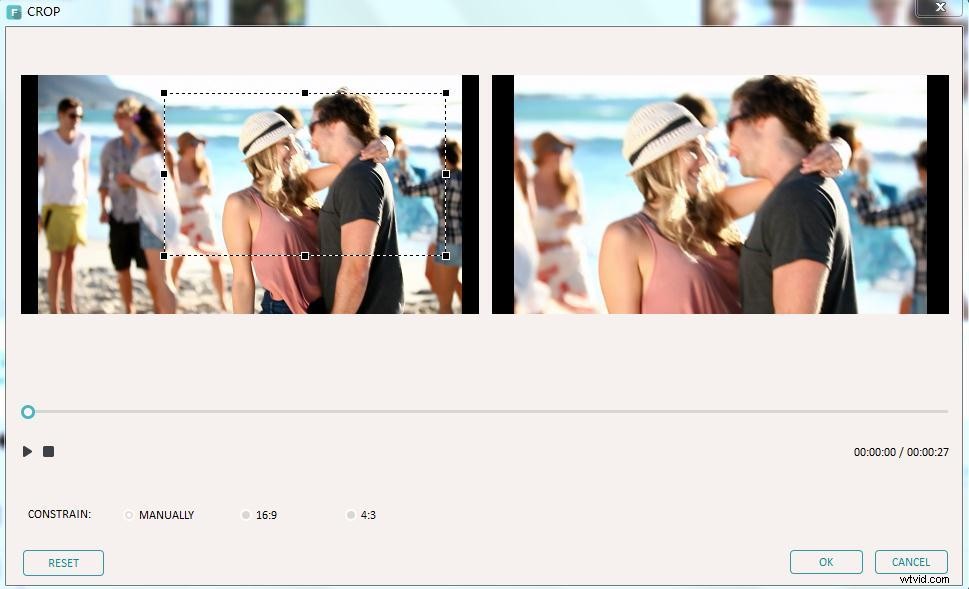
Now drag your video file from the User’s Album to the timeline. Then double click the target file and you’ll find the “Crop” button in the middle of the screen next to the return button. Click it and you’ll go to the crop window.
As you can see, there’re two preview windows. The first one gives you a view of the original video, while the second one displays the real-time effect of your cropping effect.
Then you can choose either crop manually or automatically. Click 16:9 or 4:3, your iPhone videos will be cropped into the aspect radio. If you choose manually, just use the left mouse button to drag over the area that you want to retain on the video image. Then click the “Play” icon to compare the original video and the cropped video, modify the crop position, crop width and crop height.
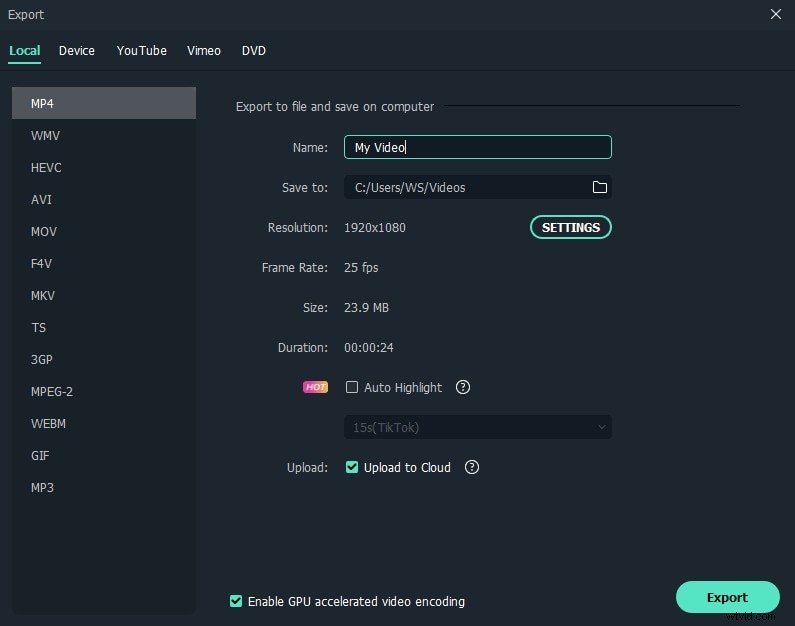
3 Export the cropped iPhone videos
If you’re satisfied with the result, click the “Create” button to save the cropped iPhone video. Go to the “Format” tab, and then export your videos in different video formats to your computer. If you want to play the cropped video on other devices such as iPod, iPad, Zune, ect, go to the “Device” tab and choose from the list. Besides that, you can also directly share the video on YouTube, Facebook and Twitter or burn to DVD disc for playing on TV with a DVD player.
In fact, Wondershare Filmora is a feature-rich video editing tool to add more fun to your iPhone videos. For example, you can join several videos together, split videos, add watermark to video, change background music and more. Download and enrich your video world now!