How to brighten dark videos to make them worth keeping
Often, we end up with movies that are too dark or too bright, especially when shot at night when details aren’t very visible or in conditions where there’s too much light for the camera sensor to handle. Content that you might consider unviewable and not worth sharing can be saved with a special online tool by Clideo.
It lets you adjust several imagery settings to get the most out of what you’ve captured. There's no need to download anything and you can use it Windows, Mac, Android, iPhone, or any other device.
It’s completely free for files up to 500 MB (larger files require a subscription to Clideo Pro).
Selecting your clip
Now you’ll begin the process and learn how to make videos brighter and clearer, or making other adjustments, using the editor.
Open the Video Brightener by Clideo. It allows uploading the clip from your device, Dropbox or Google Drive accounts.
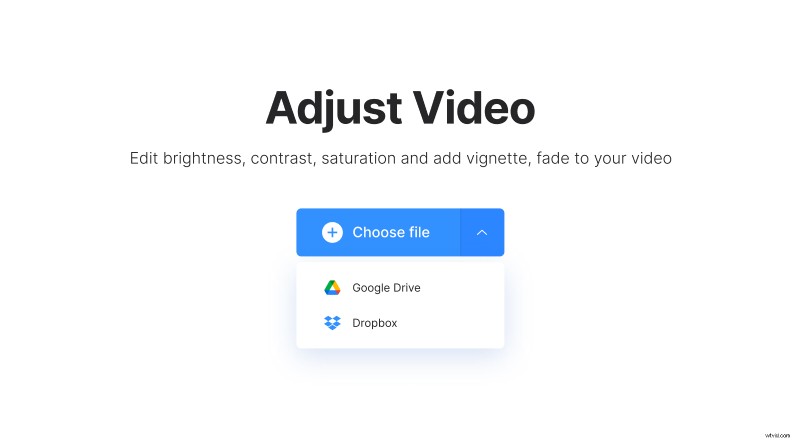
Once you choose the clip, a progress bar appears showing you the status of the upload. It could take a few minutes if you’ve selected a very large file or don’t have fast upload speeds on your internet connection, so be patient until the transfer is complete.
Lighten up video
Once it’s uploaded, you’ll see a preview box that allows you to view the clip. You have the option of playing the preview with sound or with audio muted.
- They are “Brightness”, which can change the exposure of the imagery by changing the brightness of the pixels themselves.
- “Contrast” makes the light areas lighter and the dark areas darker.
- “Fade” is an effect that can make it look aged.
- “Hue” changes the wavelength and color spectrum.
- “Saturation” can make a washed-out video look more vibrant in its colors or an oversaturated image look less colorful.
- Lastly, “Vignette” is an effect that can spotlight the center of your footage by adding a circular photo-frame border effect around it.
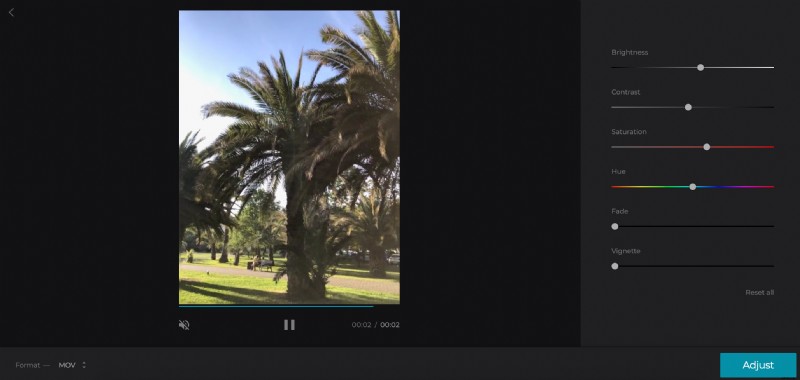
Using different combinations of these sliders can create different effects; you should experiment with all six, particularly Brightness and Contrast, before moving on to the next step.
If you made changes you don’t like and want to start over, you can select “Reset all” at the bottom. Once you are happy with the settings, click “Adjust”.
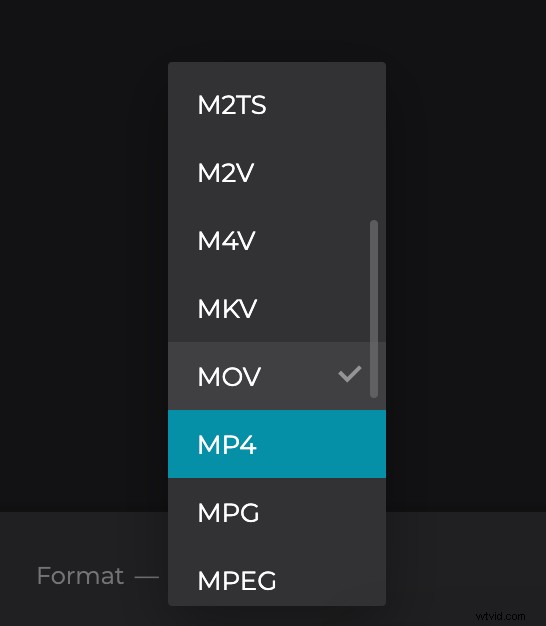
Change format of the output file if needed. If you're going to share it on social media, pick MP4.
Preview and download your content
Processing the adjustments may take a few minutes depending on the size of the file.
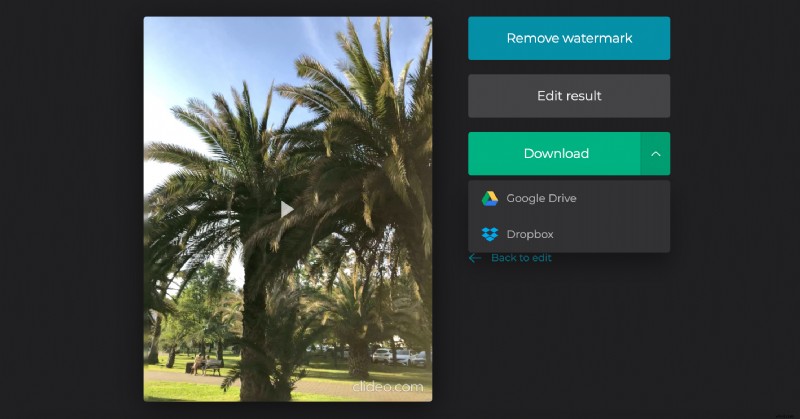
You can download directly to your device by clicking “Download”. Alternatively, you can save the file to your Dropbox or Google Drive account. You can remove the watermark from the video by selecting “Remove watermark" and subscribing.