Add filter to video in three steps
Whether you want to make your footage look older, more vibrant, toned-down, or just better, you can do it by adding filters. They can make a small shift to highlight what you want or totally change how people see your content.
So how do you add them to your clip? Many people use expensive video editing software to create custom effects. But this takes a lot of time — and the software is very expensive.
Why not do it online? Clideo gives you access to over a dozen different effects with no download. You don't even need to open an account.
Let's take a look at how to add filters to videos with the tool. It just takes three simple steps:
Add a video
Head to the Online Video Filter Tool by Clideo, then click "Choose Files." Use your Windows, Mac, Android, or iOS device to pick the movie you want.
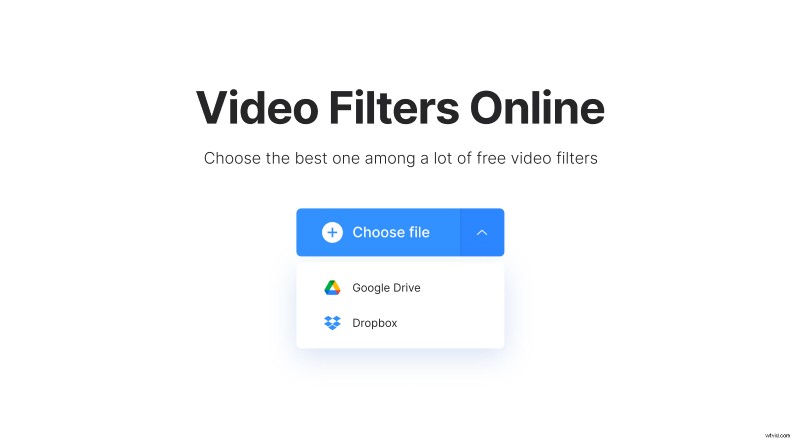
You can also click the buttons below to upload a clip from Google Drive or Dropbox.
The service supports a huge range of video files, including MP4, WMV, OGG, FLV, and more. No matter what device you're uploading from, you should be able to load your movie.
Once Clideo has loaded up your file, you can start using the tool's free video filters.
Add a filter to your footage
In the center of the screen is a preview—you can use it to see what your video will look like after you've applied an effect. On the right side are your options. Watch what happens when we click on the "Japchae" thumbnail:
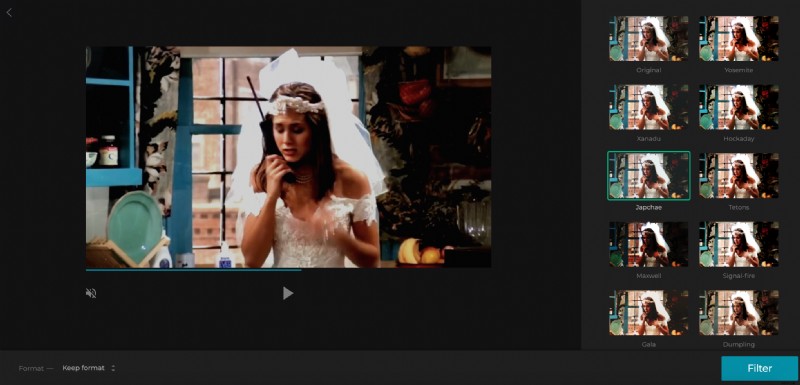
Just like that, you've put a filter on your video. Look at the difference a single effect makes! There are tons of different color options, as well as some more striking ones like black and white and sepia.
Here's what our sample looks like in black and white:
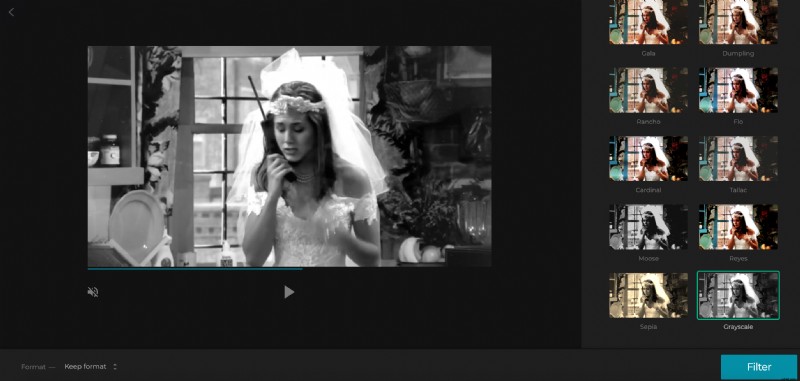
Because you can preview a filter with a single click, you can try as many as you want before downloading the final result.
Try different effects and watch them in the preview window to see exactly how your footage will look. When you've found the right one, you're ready to take the next step.
Before you do, though, you can choose the file format that the video will be in. Use the dropdown menu in the bottom-left corner to choose from popular formats like MPEG, MP4, AVI, and more.
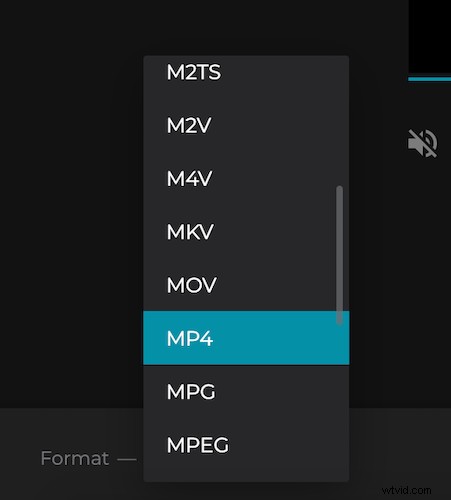
Once you've chosen the best format, hit the "Filter" button in the bottom right. Clideo will process for a moment and then tell you that your file is ready to download.
Download your video with filter
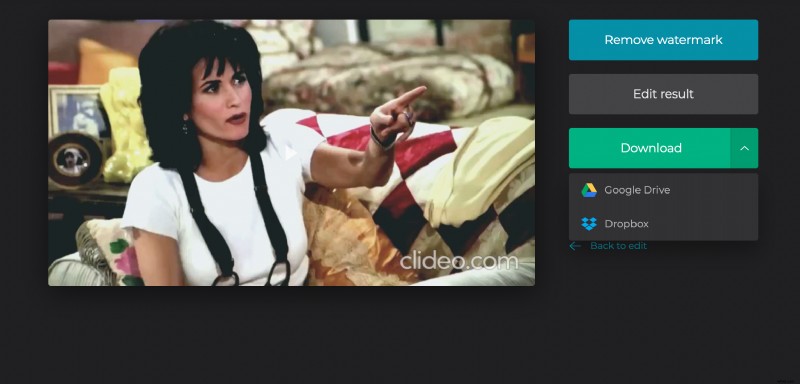
Save the video to your device, Google Drive or Dropbox account. Now you can share it on Facebook or Instagram, send it to other devices, or do anything else you'd like.