
How to brighten a video on Android
If you’re an avid smartphone camera user, chances are you’ve experienced the dark recording phenomenon that can often occur when taking video clips in low-lit conditions.
It can happen all the time on Android phones, especially when indoors or outside at night: you’ll be snapping away with photo-taking mode without any problems but as soon as you switch to video recording, the clip will appear much darker, making it harder to see what’s going on.
Read on to find out how to brighten a video on Android using Clideo’s brightness editor, for free, in just three simple steps.
Grab your dark video
To get going, head over to Clideo’s video brightener tool. This link will open in the browser of any device, whether that’s Windows, Mac, iPhone or Android, just make sure you’re connected to the internet!
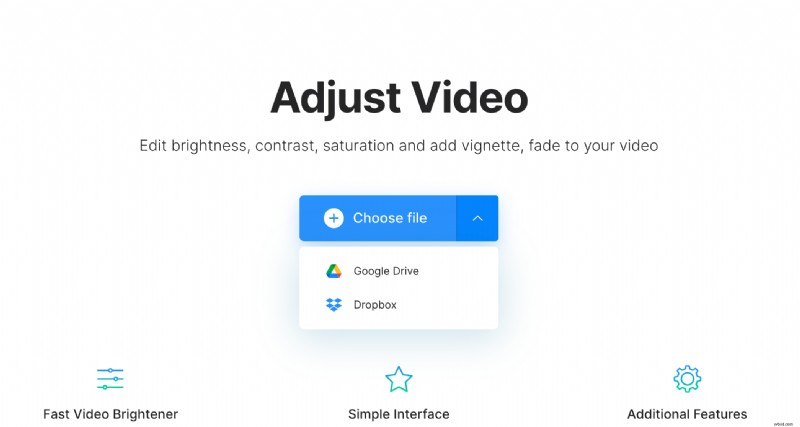
Now, it’s time to upload your dark video. In the centre of the tool’s homepage, hit the blue ‘Choose a file’ button and you can choose the file from your system. If you’d prefer to upload it straight from your cloud storage account, you can do this too! Just tap the downward-facing arrow on the right on the button and a drop-down menu will appear with the option to upload from Dropbox or Google Drive.
Please note that the tool works with all major video file formats including MP4, WMV, MOV, VOB, AVI and will accept files of up to 500MB.
Let there be light!
Once your video is uploaded, you’ll be taken to the editor page where you can increase brightness, saturation, contrast and other settings via the help of the sliders on the right-hand side.
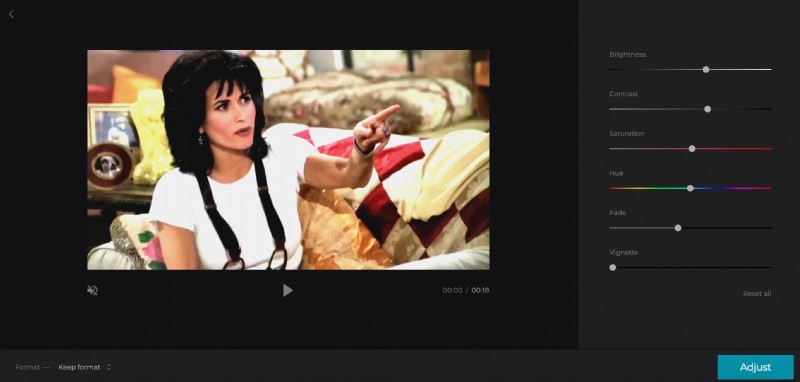
The video will be previewed in the middle, in real time, so once you’re happy with the result, select an output format via the option on the bottom left. We advise converting the clip to MP4 if you want it to be played on your phone. All done? Hit the blue Adjust button on the bottom right.
Download and enjoy
Once your changes have been successfully processed, you’ll be given the option to play back your clip online - and if you like the result - download it back to your device. To do this, just tap the green Download button. Again, you have the option to save it back to your Google Drive or Dropbox if preferable.
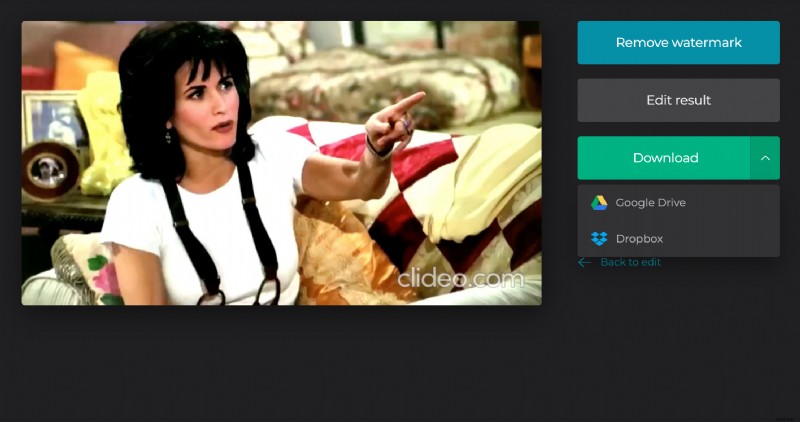
However, if there are some further changes you’d like to make, click the ‘Back to edit’ link and you can do so without starting over. And that’s it - in just three simple steps, your video is brighter and better than ever!