
To protect your privacy in a video, you may want to blur a portion of the video or blur faces in a video. So how to blur a video? In this post, you will learn the top 2 methods to blur video for free.
Most video editors (To make videos without watermarks, try MiniTool MovieMaker) come with blur effect or video masking that helps you blur out objects. Here recommend three video editors to help you blur videos with ease.
Method 1. Add Blur Effect to Video
The first method is to apply blur effects to video. Windows Movie Maker is a free and simple video editor for Windows. It’s easy to use. This video editor has all the basic editing tools. With it, you can blur video, zoom in video, trim and split video, add text to video, mute video, etc.
Now, let’s see how to apply the blur effect to a video in Windows Movie Maker.
Step 1. Open Windows Movie Maker after installing it on your Windows computer.
Step 2. Click on Add videos and photos to import the video you want to blur.
Step 3. Move the playhead to where you want to split and right-click on it. Then choose the Split option.
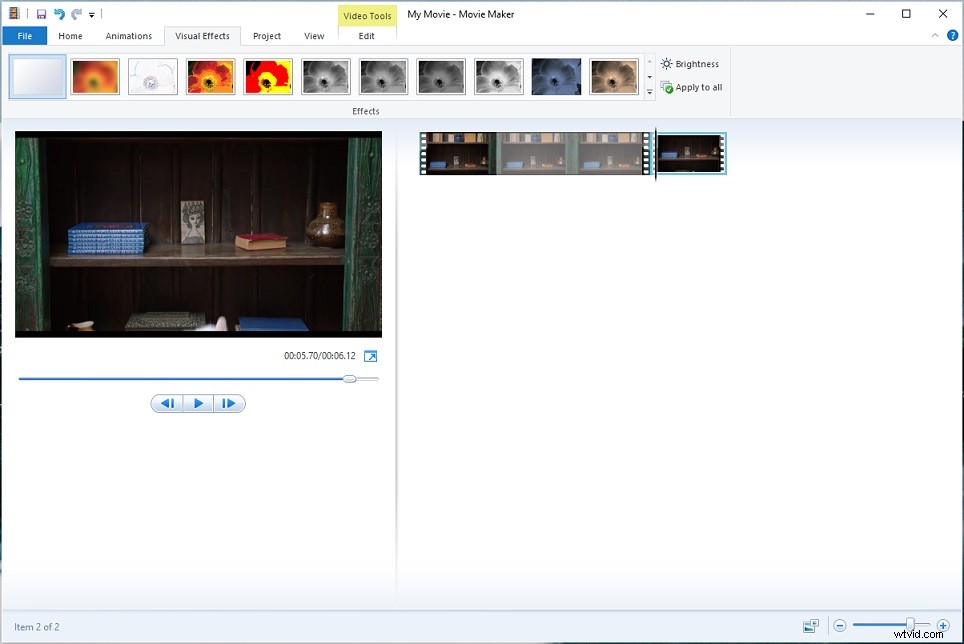
Step 4. Go to Visual Effects, expand the Visual Effects list and select Multiple effects. Then browse available effects, find and choose Blur effect and click Add to add it to the Displayed effects section.
Then choose the clip you wish to add a blur effect to and choose Blur in Visual Effects.
Step 5. Click on File and choose Save movie > For computer to save the blurred video.
Method 2. Blur Face in Video Online
Another method is to blur faces in a video. Here are two video editors to help you blur video online – Kapwing and YouTube Video Editor.
Kapwing
Kapwing can be used to blur objects or faces in a video. Here’s how to blur faces in a video.
Step 1. Go to Kapwing and sign in to your account.
Step 2. Click on New Content and upload the target video from your device.
Step 3. After uploading the video, duplicate the video layer by clicking Duplicate in the EDIT section.
Step 4. Select the second layer and click the Crop button to crop the area you’d like to blur. Click on Done Cropping to continue.
Step 5. Click on Adjust in the EDIT section and move the blur slider to the right. Then save the change by pressing Done Adjusting.
Step 6. Then adjust the position of the blurred section on the video.
Step 7. Once done, click Export and download the video.
YouTube Video Editor
YouTube Video Editor is designed to editing videos on YouTube. With it, you can add music to video, trim video, and blur video online.
Below are the steps on how to blur faces in a video.
Step 1. Log in to YouTube.
Step 2. Click on the profile picture and choose YouTube Studio. Click on Content and find the video you want to blur.
Step 3. Click on the video and tap on Editor in the left panel.
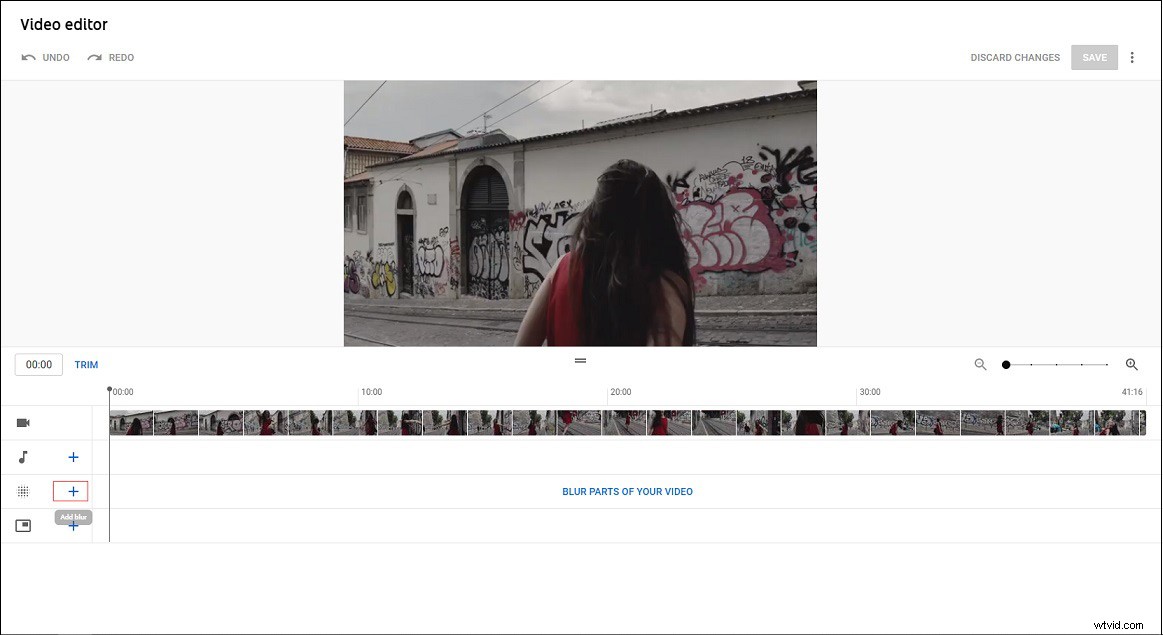
Step 4. Click the + and select Face blur or Custom blur to blur the video. Then adjust the duration of the blur part. Then save changes.
Step 5. Then make the video public or download it to your computer.
Conclusion
After reading this post, you must know how to blur videos quickly. Now, choose your preferred method and have a try!