
When you send a video via email, you may be told that the file size exceeds the attachment limit. If you want to share this video via email successfully, you must compress the large video file. How to compress video for email? This post will offer 3 ways. Want to trim a video to reduce its size, try MiniTool MovieMaker.
Before learning how to compress video for an email, let’s look at the attachment size limit of 5 email providers: Gmail, AOL Mail, Outlook, Yahoo, and iCloud Mail.
Gmail: 25 MB
AOL Mail: 25 MB
Outlook 20: MB
Yahoo Mail: 25 MB
iCloud Mail: 20 MB
In general, if you want to send a video via email, the file size should be 20 MB to 25 MB. However, if your video is larger than 20 or 25 MB, you need to compress it. How to compress video for email? This post will provide 3 solutions.
Compress Video for Email Online - Clideo
If you don’t want to install any applications on your PC to compress a video for email, the best way is to reduce the video file size online. Clideo is an excellent online video tool with a load of functions. Apart from compressing videos, it can merge, resize, cut, crop, rotate, flip videos, add music to video online, and more. Besides, it can add filters, cut audio, create slideshows, merge audio files.
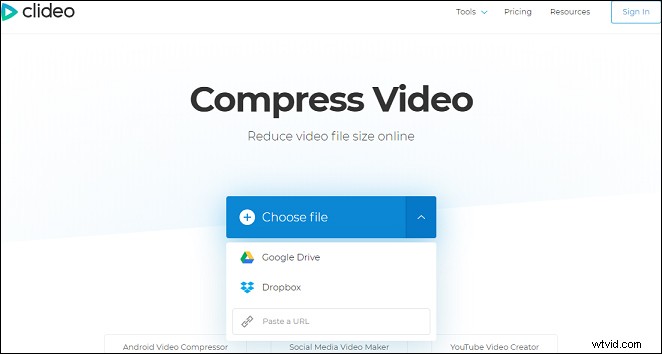
How to compress a video for email using Clideo? Here’s the simple guide.
1. Go to the Clideo website, click the Compress, or select the All Tools > Compress Video.
2. Tap the + button to browse through your computer to upload a video or click the dropdown to upload a video from Dropbox, Google Drive, or pasting a video URL.
Note: Clideo supports the most popular video formats and allows you to import video file that’s less than 500 MB for free.3. When you upload the video to Clideo, it will automatically compress it.
4. After the video is compressed, you can click the Download to save this video, or select the Edit result to customize the video, or choose the Remove watermark to upgrade to remove the Clideo’s watermark.
Compress Video for Email – Create a Zip File
Except for the online solution, how to compress a video for email quickly and easily? Another common method is to create a zip file to reduce video size. This file will be compressed without data lossless and the video quality won’t be affected.
How do you compress a video for email by creating a zip file? It’s very easy.
For Windows users, right-click the video, tap on the Send to, and then select the Compressed (zipped) folder.
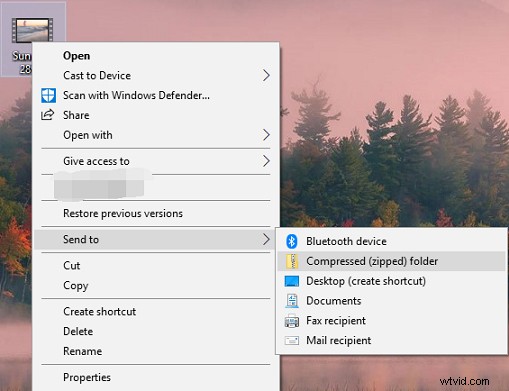
For Mac users, right-click the file, and then choose the Compress “File Name”.
Compress Video for Email with Google Drive
How to compress a video for email with Google Drive? Here’s the tutorial.
- Open the Google Drive app or enter the drive.google.com in a web browser.
- Click the New button and then select the File upload to upload your video.
- Select and right-click the uploaded file, select the Share to open a new window.
- Enter an email address and then click the Done to send this video. Or click the Copy link get the sharable link.
Conclusion
Now, you’ve learned 3 ways to compress video for email. They are effective and simple. If you want to share other methods to compress a video for email, you can leave them in the below comments area.